
10 Best AI Email Assistants to Triage and Draft (2026)
The best AI email assistants for Gmail and Outlook to triage, summarize, and draft faster: 10 picks with pricing, user reviews, and honest pros and cons.


You open your inbox on Monday, and there are 64 unread. Before you reply to a single one, you've already spent twenty minutes just deciding what deserves a reply.
Sorting that pile is the first job of an AI email assistant. The best ones also summarize long threads and pull out the two tasks hiding in a forwarded chain before you start typing.
I compared each tool's features, pricing, and recent user reviews, and ranked the 10 that actually earn a place in your inbox. For each one, you'll see what it costs and where it falls short.
10 best AI email assistants: TL;DR
- Shortwave: Best for asking your inbox questions in plain English.
- Superhuman Mail: Best for clearing a heavy inbox fast with keyboard-driven AI.
- Fyxer: Best for having your inbox triaged and your replies pre-drafted for you.
- Microsoft Copilot in Outlook: Best for people who live in Outlook and Microsoft 365.
- Gemini in Gmail: Best for Google Workspace users who want AI in the side panel.
- SaneBox: Best for cutting newsletter and CC noise on almost any inbox.
- Canary Mail: Best for juggling several accounts with privacy built in.
- Missive: Best for teams replying from one shared mailbox.
- MailMaestro: Best for Outlook drafting with enterprise security.
- alfred_: Best for solo client-facing pros across Gmail and Outlook.
What is an AI email assistant? (and the 3 types)
An AI email assistant is software that helps you run your inbox. It sorts incoming mail, summarizes long threads, drafts replies, and pulls out tasks or dates so you act on the urgent ones first.
In practice, that means collapsing a 15-reply thread into a paragraph and catching the "can we move this to Thursday?" buried in paragraph four.
Gallup found that as of May 2026, 52% of U.S. employees used AI in their role a few times a year or more, and 15% used it daily.
The 3 types (and which you need)
The tools come in three shapes, and knowing which one you're looking at saves a lot of trial sign-ups.
- Full AI email clients: replace your inbox entirely. Superhuman Mail, Shortwave, and Spark fall here. You get speed and a cleaner interface, but you learn a new app.
- Add-ons that sit on your current inbox: SaneBox and Fyxer work on top of the Gmail or Outlook you already use. Lower friction, no migration.
- Assistants built into Gmail and Outlook: Gemini and Microsoft Copilot are already in the inbox you have. Gemini gives free Gmail accounts a few basics, while Copilot comes only with paid Microsoft 365 plans.
One honest caveat: a few popular "email AI" tools only draft. That's a different job, so this list skips them, and I cover how to pair one with your inbox tool near the end.
How I chose these tools
I started with the AI email tools that come up most in 2026 roundups and user forums, then read each vendor's own docs and pricing pages and recent user reviews on Trustpilot, Capterra, and similar sites.
I judged each on how well it sorts, summarizes, and drafts, which inboxes it supports, what the free tier covers, and how it handles privacy. Every price was checked on the vendor's own pricing page in November 2026.
A few tools didn't make the cut. I left off helpdesk platforms built mainly for support queues (Hiver, Front). Missive is the one shared-inbox pick, because it doubles as an everyday team mailbox with chat and tasks.
The 10 best AI email assistants: Quick comparison
Here's the shortlist at a glance. Pricing is the starting paid tier. "Free plan" marks whether there's an ongoing free option; a trial alone gets ❌. Each price notes its billing term.
1. Shortwave: Best for AI-powered inbox search
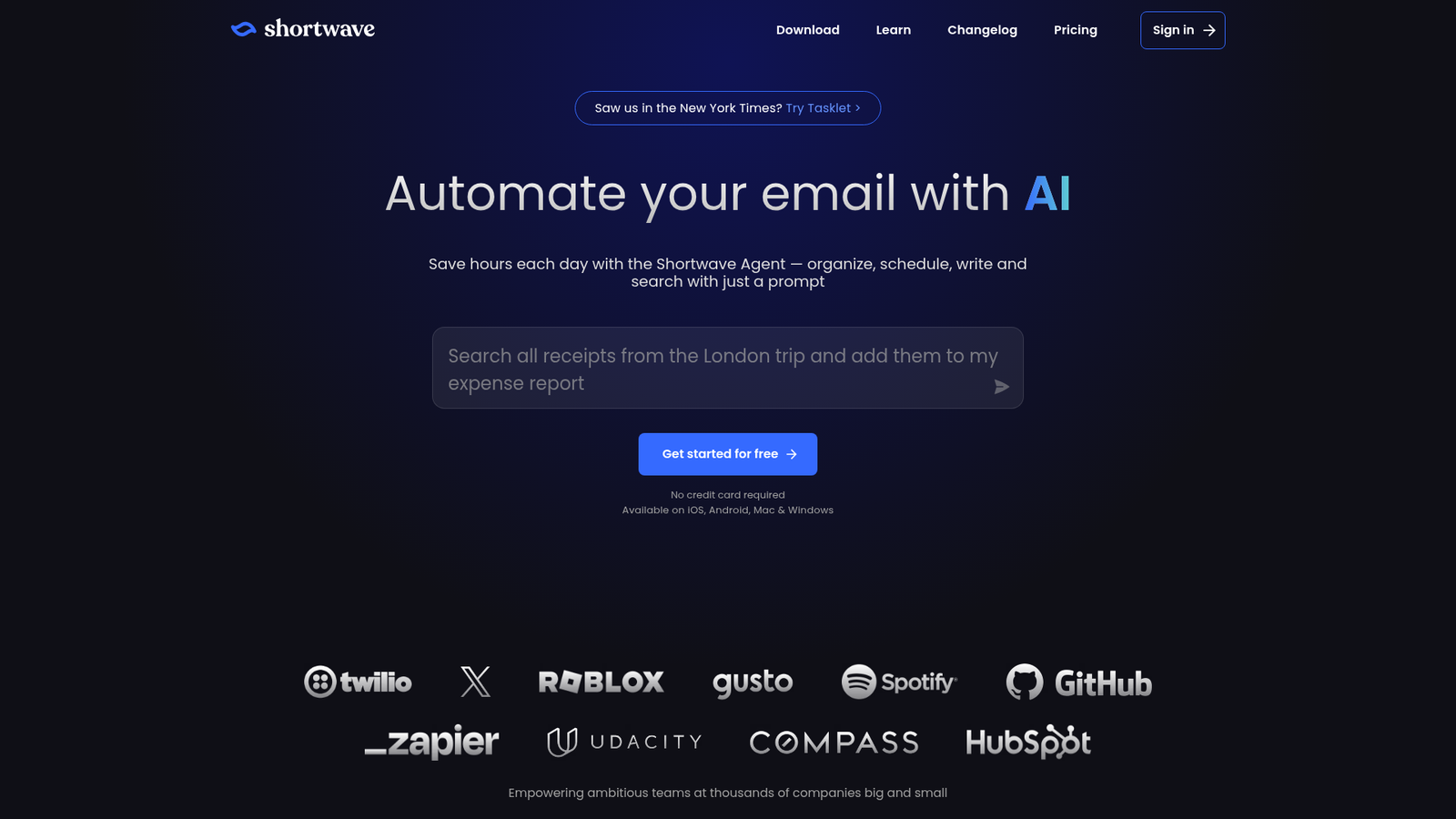
What it does: Shortwave rebuilds Gmail into a faster, chat-style client with an AI assistant that can search, summarize, and schedule.
Best for: Gmail power users who'd rather ask their inbox a question than dig through filters.
Its best trick is search you can talk to. Ask it to "find the thread where we agreed on the launch date," and it can pull up the conversation without the exact keywords. It'll also book a meeting from a plain-English prompt.
Key features
- Personalized AI writing (Pro and up): learns from your sent mail so replies read closer to how you actually write.
- AI search and summaries: answers questions about your inbox and condenses long threads on demand.
- Bundles: groups promotions, newsletters, and other automated senders into single rows (basic Bundles on the free plan).
Pros and cons
Pros:
- ✅ Reviewers rank its AI among the strongest of any Gmail client.
- ✅ Natural-language search that genuinely finds buried threads.
- ✅ Deep calendar scheduling from the same chat window.
Cons:
- ❌ Gmail and Google Workspace only, with no timeline for Microsoft 365 support.
- ❌ The free plan adds a "Sent with Shortwave" tagline to every email you send.
What users say
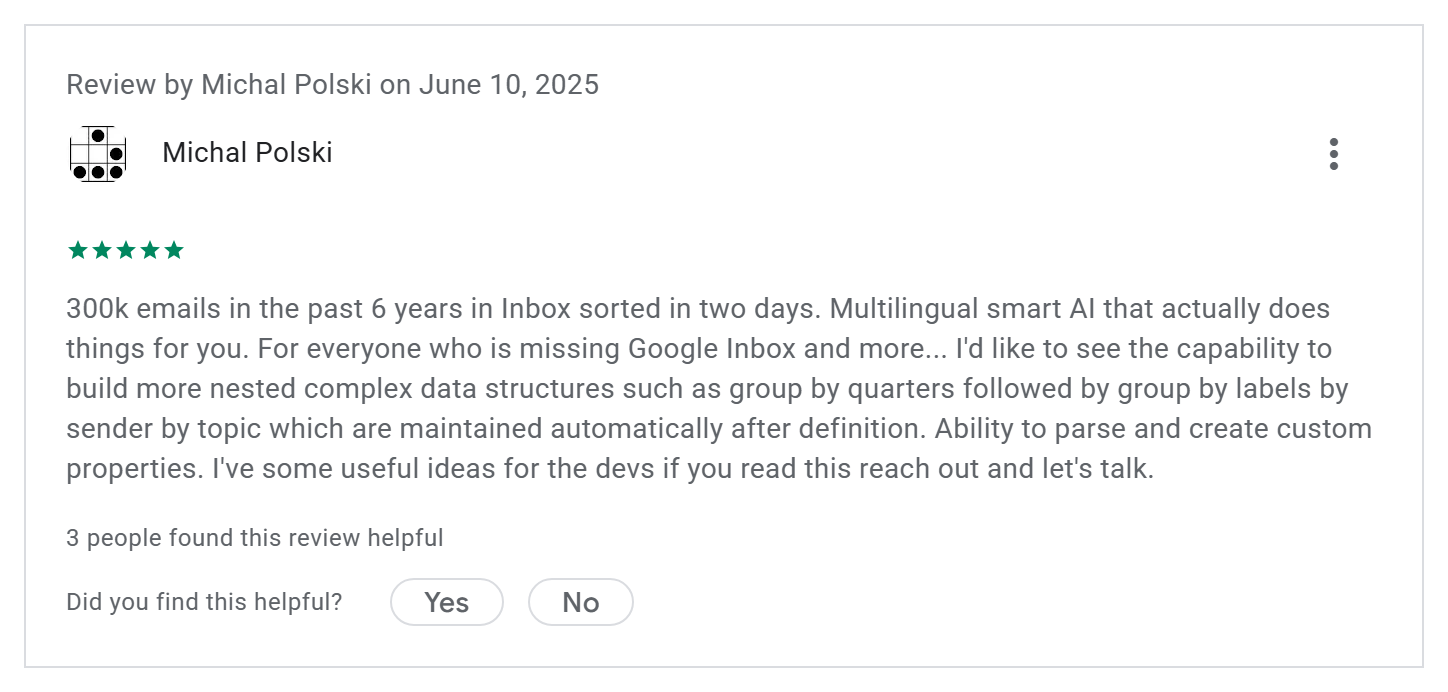
Pro: "Multilingual smart AI that actually does things for you." (Michal Polski, Google Play, June 2025)
Con: "Great app, insane price!" (Leonardo Gandini, Google Play, August 2026)
Pricing
Free plan available; paid plans start at $18 per seat per month on Pro, billed monthly, and the Business tier is $30 per seat per month. Every paid plan starts with 14 days free.
Bottom line
If your whole work life runs through Gmail, Shortwave gives you some of the most capable AI in the category. Outlook users should keep scrolling.
2. Superhuman Mail: Best for speed at high volume
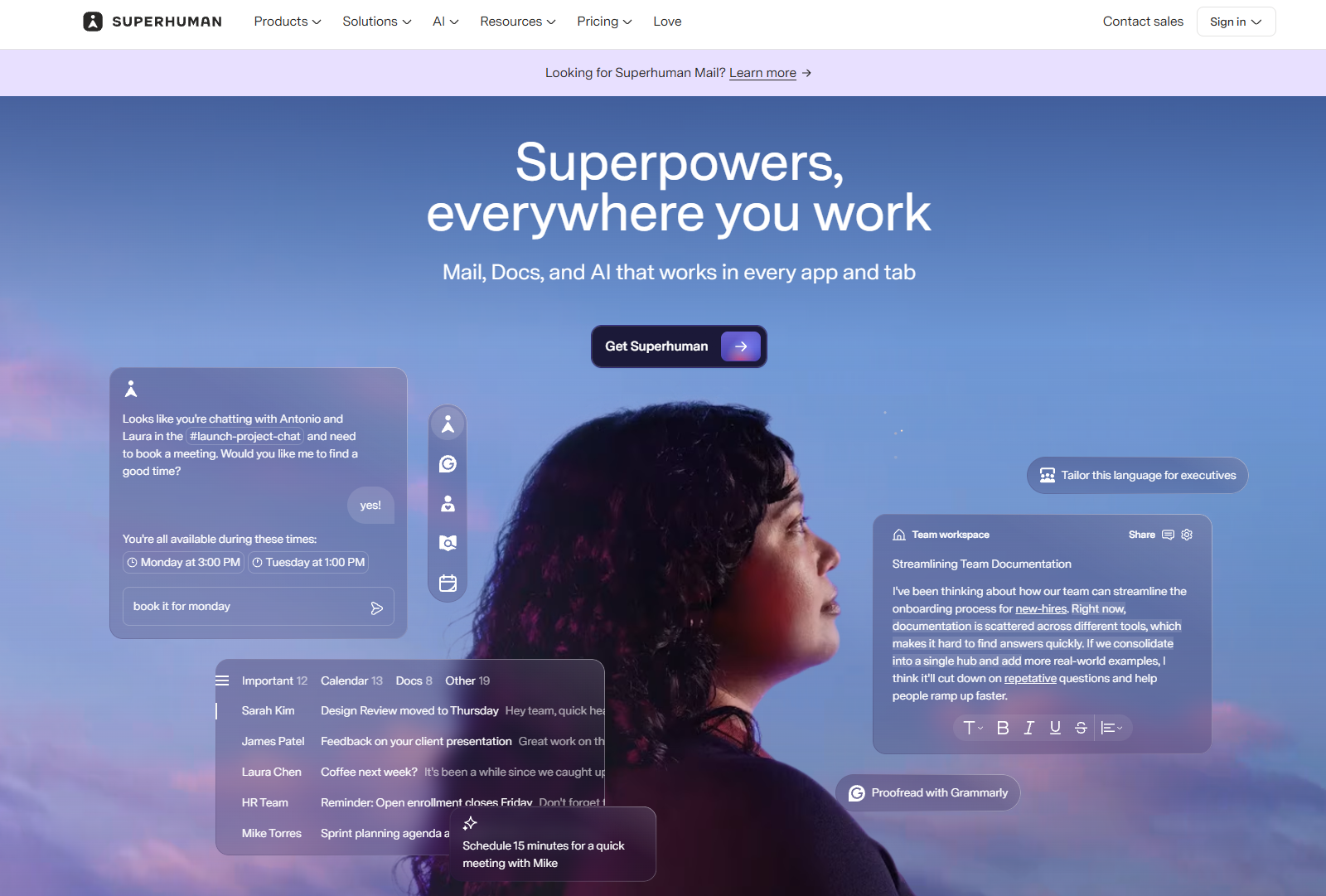
What it does: Superhuman Mail is a keyboard-first email client that pairs fast triage with AI drafting and instant replies.
Best for: founders and operators pushing through a high daily volume who care about raw speed.
The whole app is built around keeping your hands off the mouse. You learn a handful of shortcuts, and clearing an inbox starts to feel like a game you're winning. You can also generate a full reply from a short prompt.
Key features
- Instant Reply: suggests three draft replies to an incoming email so you can pick one, edit, and send.
- Split Inbox: auto-separates important mail from the noise.
- Keyboard shortcuts: nearly every action has one, which is where the speed comes from.
Pros and cons
Pros:
- ✅ Speed is what users praise most, especially once the shortcuts become habit.
- ✅ Works across Gmail and Outlook.
- ✅ Users praise Snippets, its reusable reply templates.
Cons:
- ❌ A real learning curve before the shortcuts pay off.
- ❌ One of the pricier picks at $30 per member a month ($25 billed annually), with no free plan.
What users say
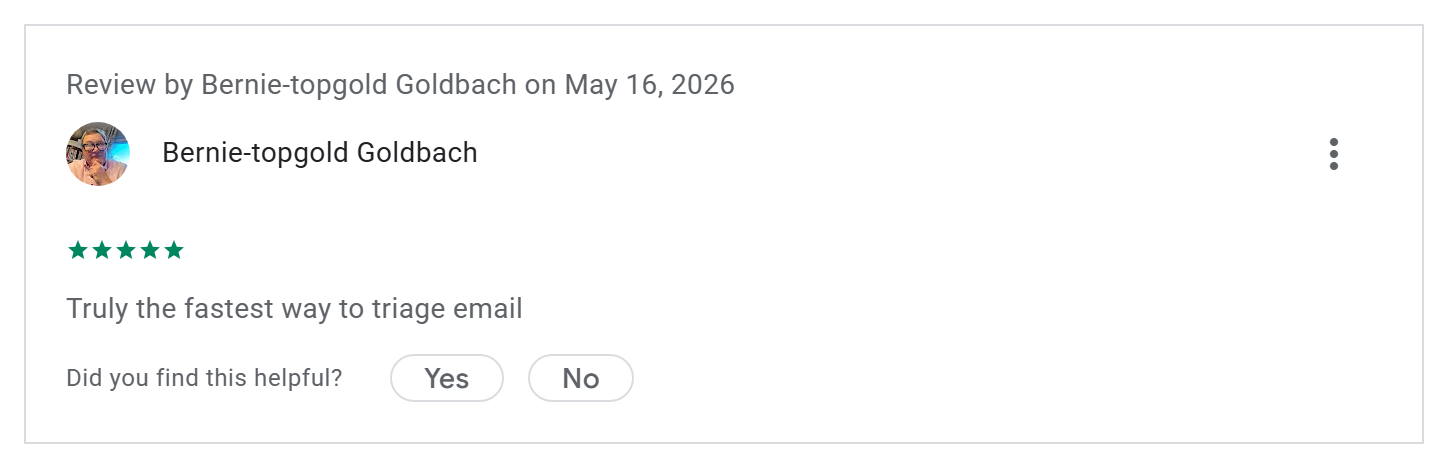
Pro: "Truly the fastest way to triage email" (Bernie-topgold Goldbach, Google Play, May 2026)
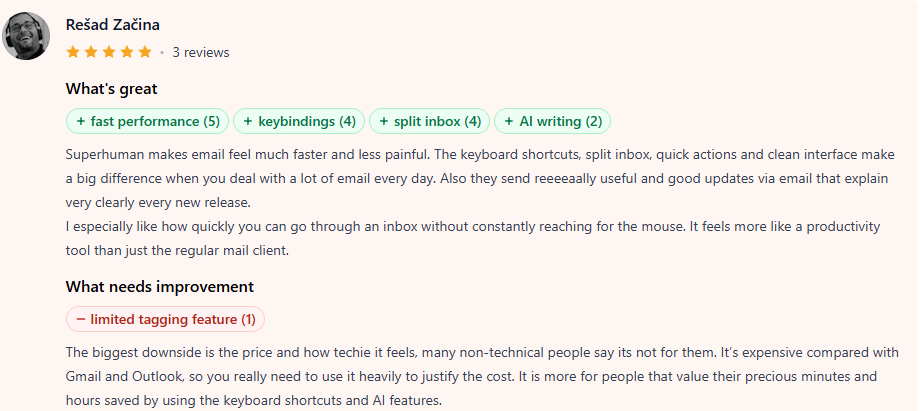
Con: "It's expensive compared with Gmail and Outlook, so you really need to use it heavily to justify the cost." (Rešad Začina, Product Hunt, August 2026)
Pricing
Starts at $25 per user per month (billed annually; $30 month-to-month) on the Starter plan; no permanent free plan.
Bottom line
Worth the money if email is a big part of your day and speed is the thing you're buying. Skip it if you want AI features more than you want velocity.
3. Fyxer: Best for hands-off triage
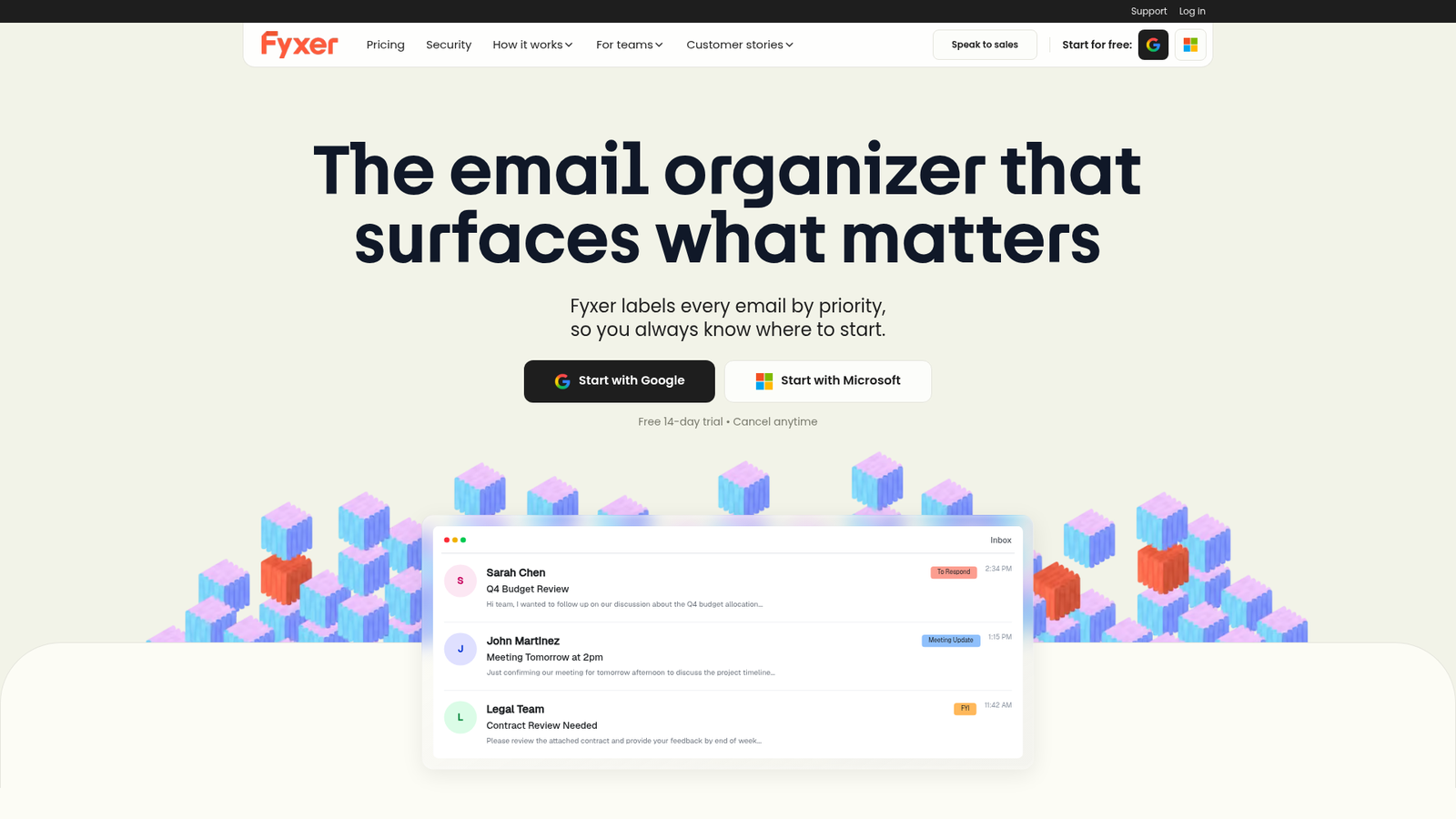
What it does: Fyxer acts like a digital executive assistant, sorting your inbox and drafting replies in your tone before you sit down.
Best for: busy founders and executives who want their inbox handled for them.
It leans toward "set it and let it run." As mail arrives, it labels your inbox and drafts replies for the emails that need one, so your morning starts with drafts to approve.
Key features
- Auto-categorization: sorts incoming mail so the important stuff surfaces first.
- Drafted replies in your tone: writes responses you can approve and send.
- Meeting notes: records and summarizes your calls alongside your email.
Pros and cons
Pros:
- ✅ Drafts wait in your inbox for approval, so nothing sends without you.
- ✅ Covers both Gmail and Outlook.
- ✅ Draft quality improves the more you correct it.
Cons:
- ❌ The paid tiers get pricey per seat.
- ❌ Drafts take patience at first while it learns your style.
What users say
Fyxer says 100,000+ people use it to get ahead of their workday.
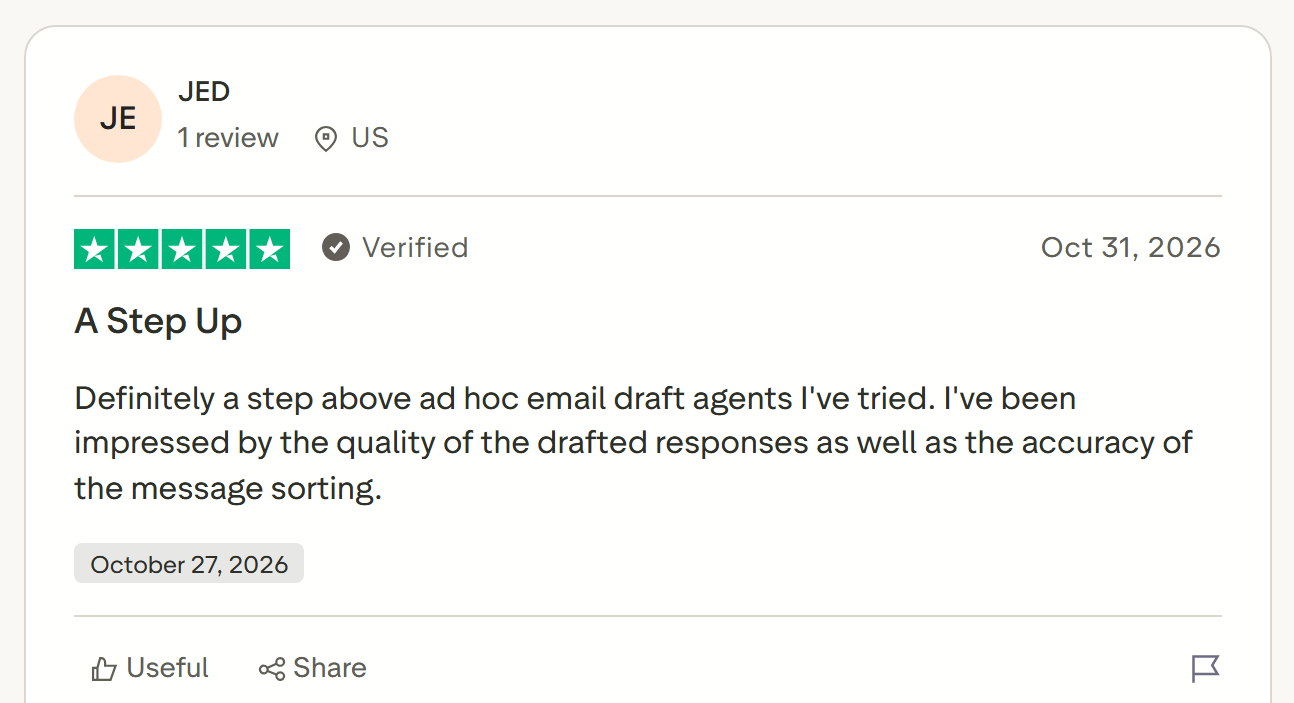
Pro: "I've been impressed by the quality of the drafted responses as well as the accuracy of the message sorting." (JED, Trustpilot, October 2026)
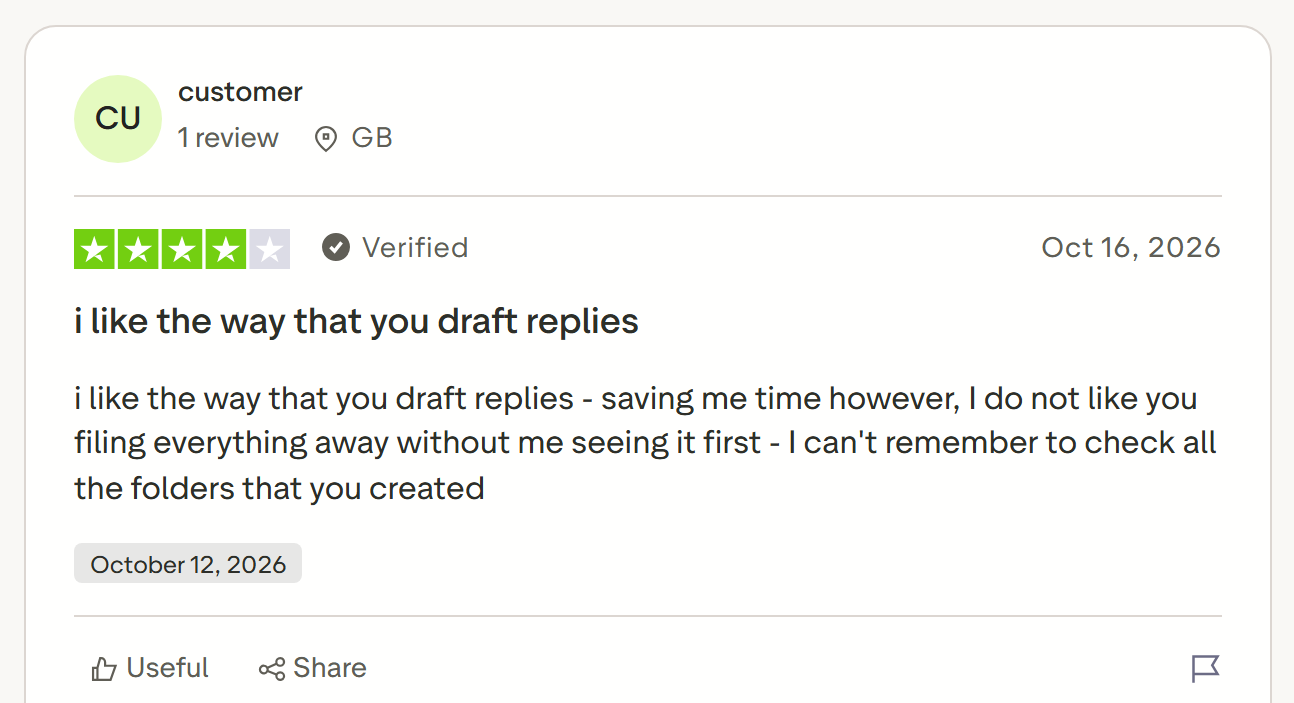
Con: "I do not like you filing everything away without me seeing it first" (a verified reviewer on Trustpilot, October 2026)
Pricing
A free plan is available, but it doesn't sort your inbox or draft replies; the Pro plan starts at $37 per person per month (billed annually, or $49 monthly) per Fyxer's pricing. Pro includes unlimited credits for the first 3 months, then 3,000 credits per member a month, and inbox sorting pauses first if you run out.
Bottom line
A strong pick if you'd rather pay to have your inbox handled than learn one more tool. Give it time to learn before you judge the drafts.
4. Microsoft Copilot in Outlook: Best for Microsoft 365 users
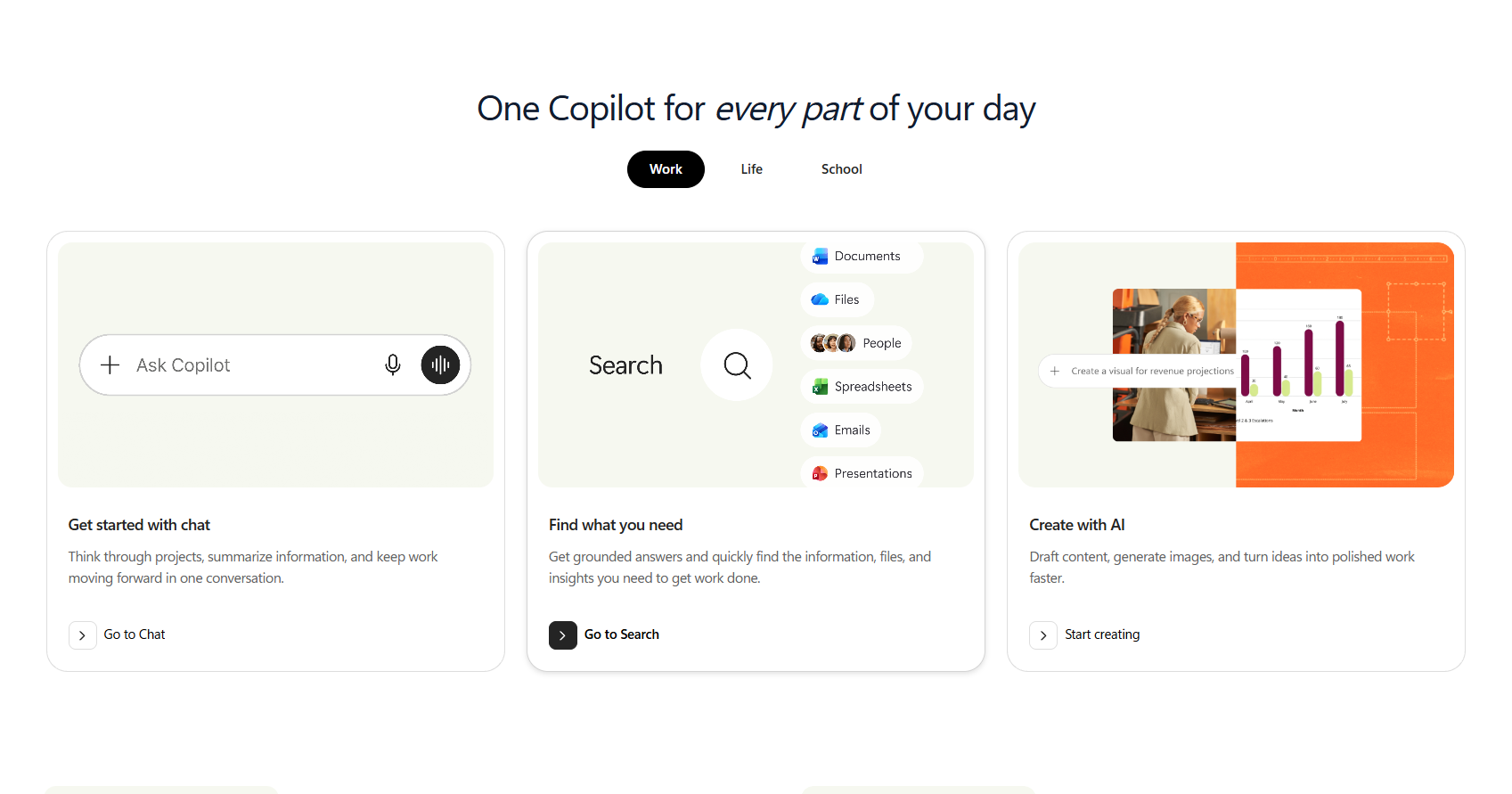
What it does: Copilot brings drafting, summarizing, and coaching into Outlook, plus AI across the rest of Microsoft 365.
Best for: anyone already standardized on Outlook and the Microsoft suite.
You need a paid Microsoft 365 plan with AI (not Basic) or a work Copilot license. Once you're signed in, it also works on Gmail accounts you've added to new Outlook.
Key features
- Draft with Copilot: generates replies with adjustable tone and length.
- Thread summaries with jump-links: recaps a conversation and links to where each point was made.
- Coaching by Copilot: flags tone and clarity issues before you send.
Pros and cons
Pros:
- ✅ Tight integration across Outlook, Word, Excel, and PowerPoint.
- ✅ Copilot Chat in Outlook comes at no extra cost with Microsoft 365 business plans.
- ✅ Works in Outlook on Windows, Mac, iOS, Android, and the web.
Cons:
- ❌ Copilot doesn't work on Gmail accounts in classic Outlook for Windows.
- ❌ Work accounts need a separate Microsoft 365 Copilot license for the full features.
What users say
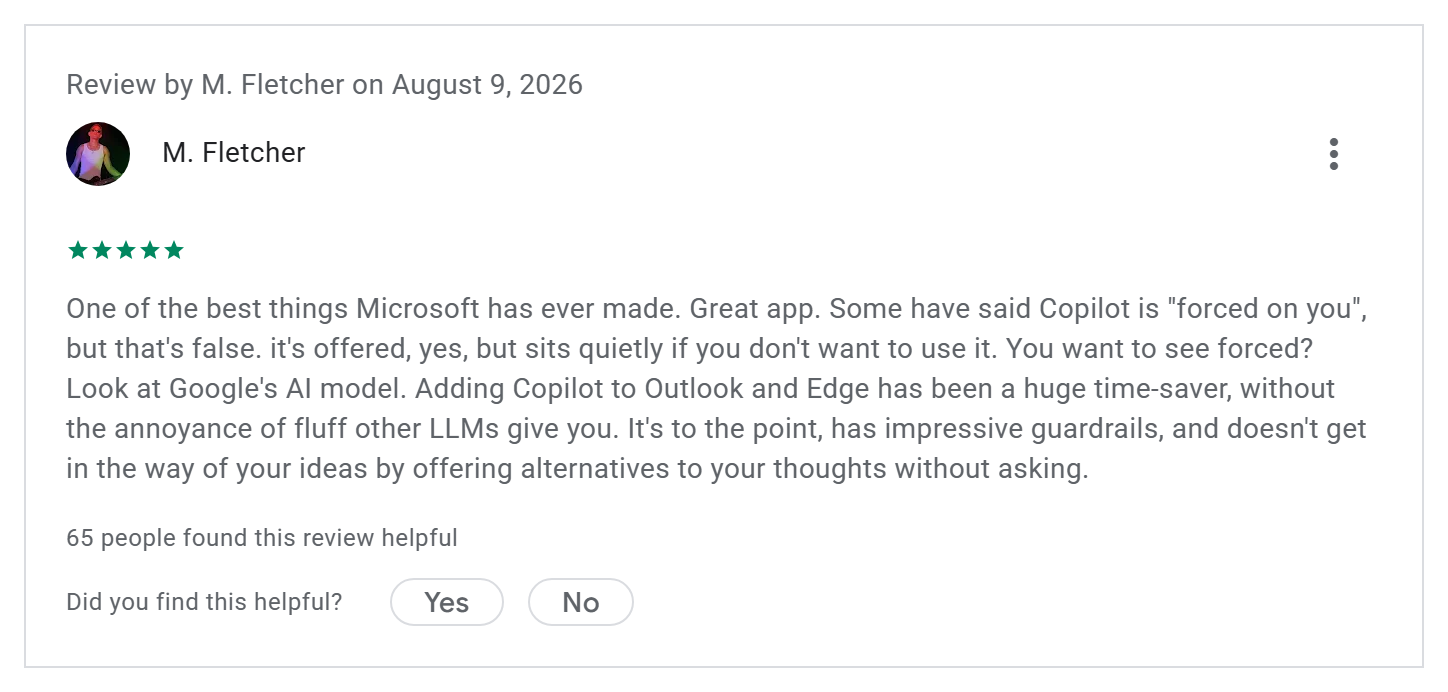
Pro: "Adding Copilot to Outlook and Edge has been a huge time-saver, without the annoyance of fluff other LLMs give you." (M. Fletcher, Google Play review of Outlook, August 2026)
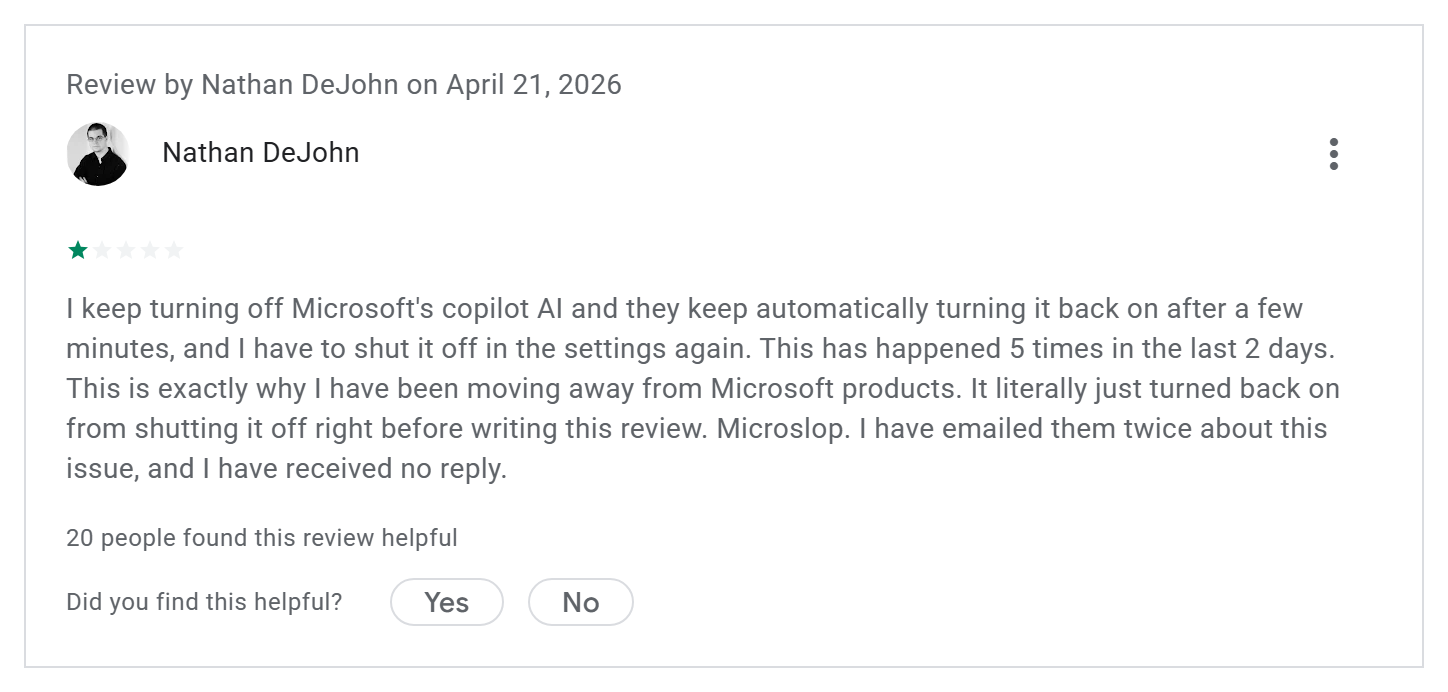
Con: "I keep turning off Microsoft's copilot AI and they keep automatically turning it back on after a few minutes" (Nathan DeJohn, Google Play review of Outlook, April 2026)
Pricing
Copilot comes with Microsoft 365 Personal, Family, Premium, and Pro plans (on Family, Premium, and Pro, only the subscription owner gets it). Business plans include Copilot Chat at no extra cost.
Full Copilot in Outlook needs the Microsoft 365 Copilot Business add-on, at $21 per user per month paid yearly. A promo cuts the first year to $18 for purchases through December 31, 2026.
Bottom line
The obvious choice if your company already runs on Microsoft 365. If your mail lives in Gmail and you don't use Outlook, Gemini is the simpler fit.
5. Gemini in Gmail: Best for Google Workspace users
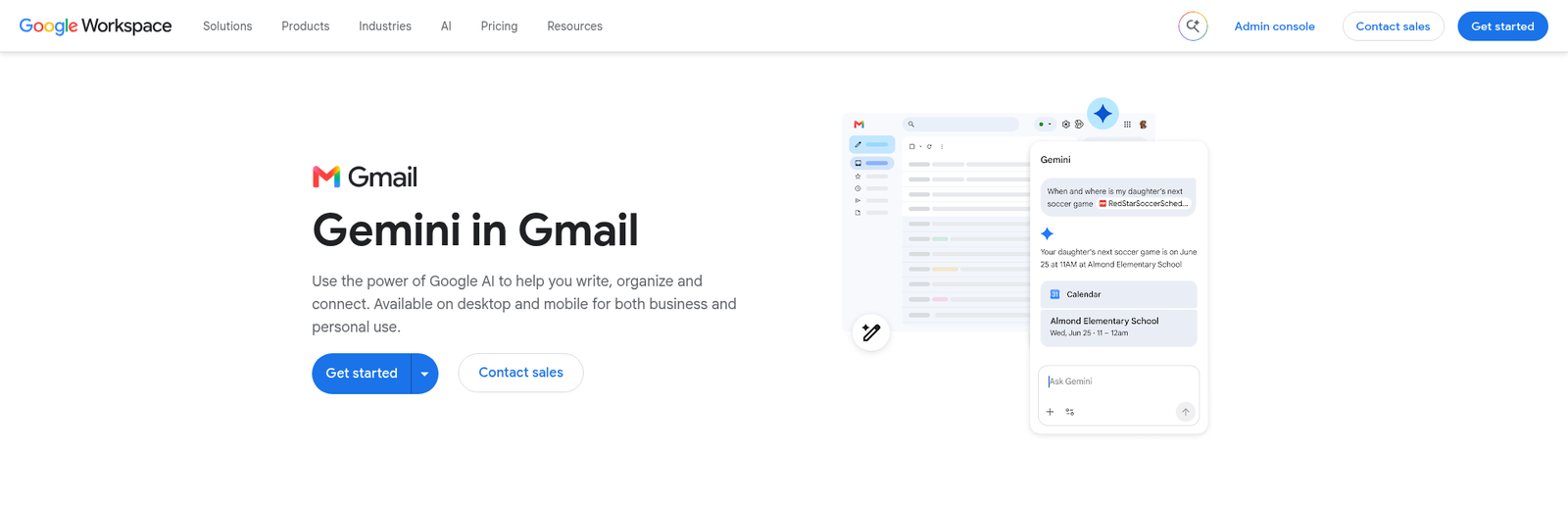
What it does: Gemini adds a side panel to Gmail that summarizes unread mail, drafts replies, and answers questions about your inbox.
Best for: Google Workspace users who want AI without leaving the inbox they already use.
Click Ask Gemini at the top right to open the panel. Ask it to show your unread mail or summarize a long thread.
Key features
- Thread summaries: recaps a long conversation at the top of the email.
- Help me write: drafts a reply in the compose window that you can tweak before sending.
- Google Search grounding: pulls live web results into an answer when you ask it to search.
Pros and cons
Pros:
- ✅ Already inside Gmail, so there's nothing new to learn.
- ✅ Plenty of starter and follow-up prompts.
- ✅ On Business Standard or Google AI Pro, Gemini also works in Docs and Drive and takes meeting notes in Meet.
Cons:
- ❌ Summaries are occasionally unreliable.
- ❌ The side panel and asking questions about your inbox need a paid plan.
What users say
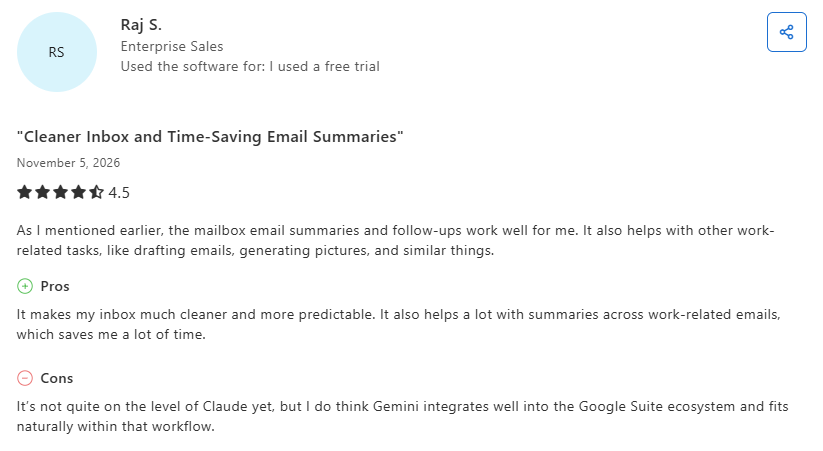
Pro: "It makes my inbox much cleaner and more predictable." (Raj S., Capterra, November 2026)
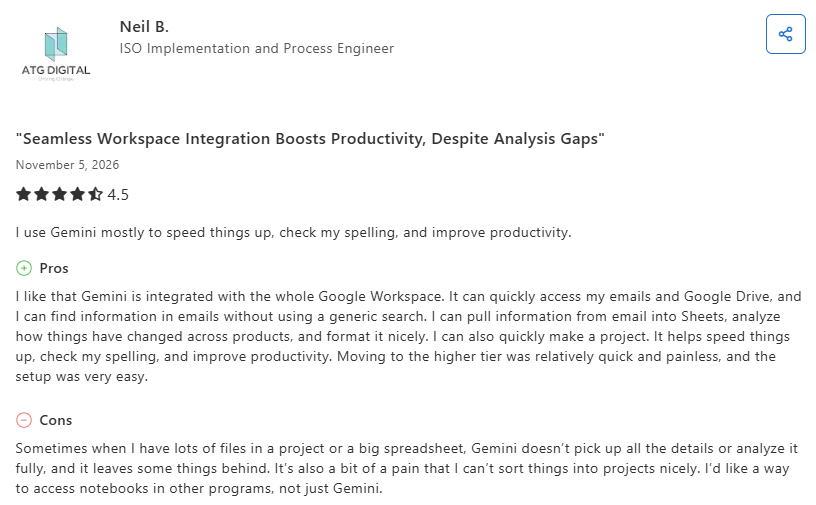
Con: On big projects and spreadsheets, "Gemini doesn't pick up all the details or analyze it fully, and it leaves some things behind." (Neil B., Capterra, November 2026)
Pricing
Gemini features come bundled with Google Workspace business plans, from $7 per user a month on an annual plan, and with paid Google AI plans. Free personal Gmail accounts get a few features, such as thread summaries and, in the US, Help me write.
Bottom line
If your team runs on Google Workspace, Gemini is the lowest-friction way to get AI in the inbox. Double-check its summaries before you act on them.
6. SaneBox: Best for taming newsletter overload
What it does: SaneBox studies your email habits and quietly moves unimportant mail out of your way, in any email client.
Best for: people drowning in newsletters, CCs, and cold outreach who just want the noise gone.
SaneBox learns which senders you actually read and routes the rest to a SaneLater folder you check on your own schedule. Its new AI Bundle adds reply drafts and summaries on the Dinner plan.
Key features
- SaneLater: filters low-priority mail into a separate folder automatically.
- SaneBlackHole: drag a sender's email into it once, and their future mail lands there and moves to your Trash after seven days.
- Works with most inboxes: any IMAP, Exchange, or ActiveSync account (not Proton Mail), in any email client.
Pros and cons
Pros:
- ✅ The best pure-triage tool here for newsletter overload.
- ✅ A two-year plan brings Snack down to $4.54 a month.
- ✅ Nearly invisible once it's trained.
Cons:
- ❌ AI drafts and summaries (SaneDrafts, SaneSummary) come only with the top Dinner plan.
- ❌ Expect two to three weeks of corrections before you trust what lands in SaneLater.
What users say
SaneBox points to 5,000-plus 5-star reviews across G2, Trustpilot, Capterra, and other sites.
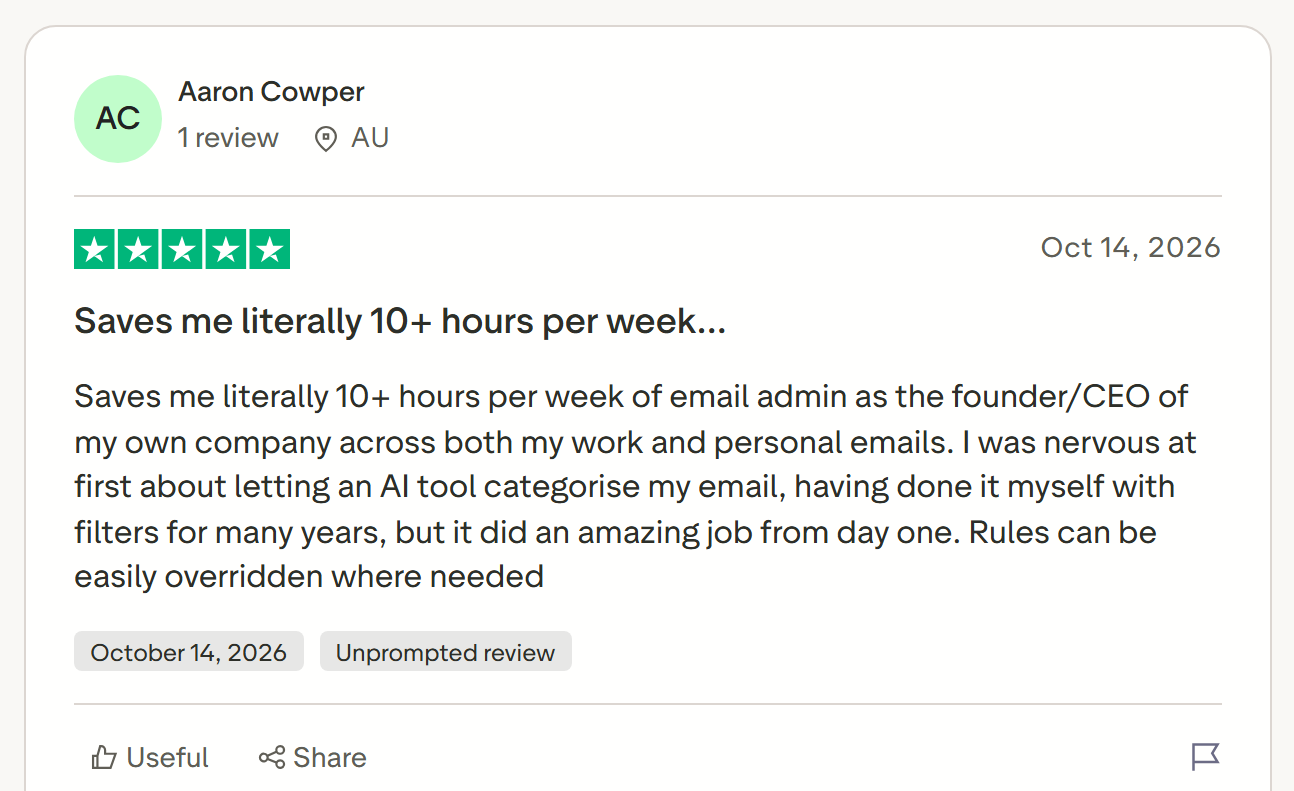
Pro: "Saves me literally 10+ hours per week of email admin" (Aaron Cowper, Trustpilot, October 2026)
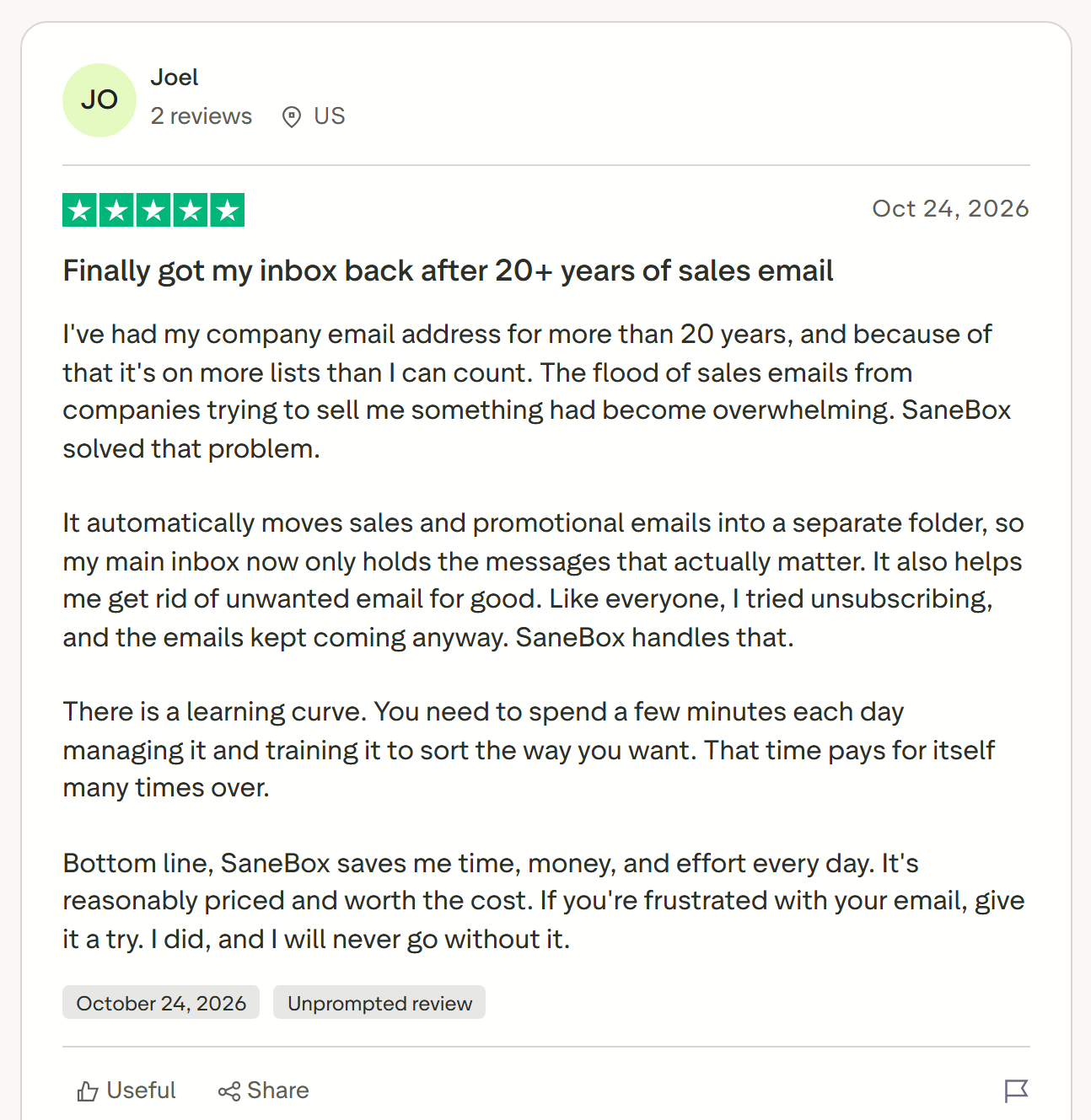
Con: "There is a learning curve. You need to spend a few minutes each day managing it and training it to sort the way you want." (Joel, Trustpilot, October 2026)
Pricing
A 7-day free trial, then paid plans from $4.54 per month on the Snack tier (billed every two years), scaling up with more accounts and features.
Bottom line
Add SaneBox when the problem is volume. Pair it with a drafting tool if you also hate composing replies.
7. Canary Mail: Best for multiple accounts and privacy
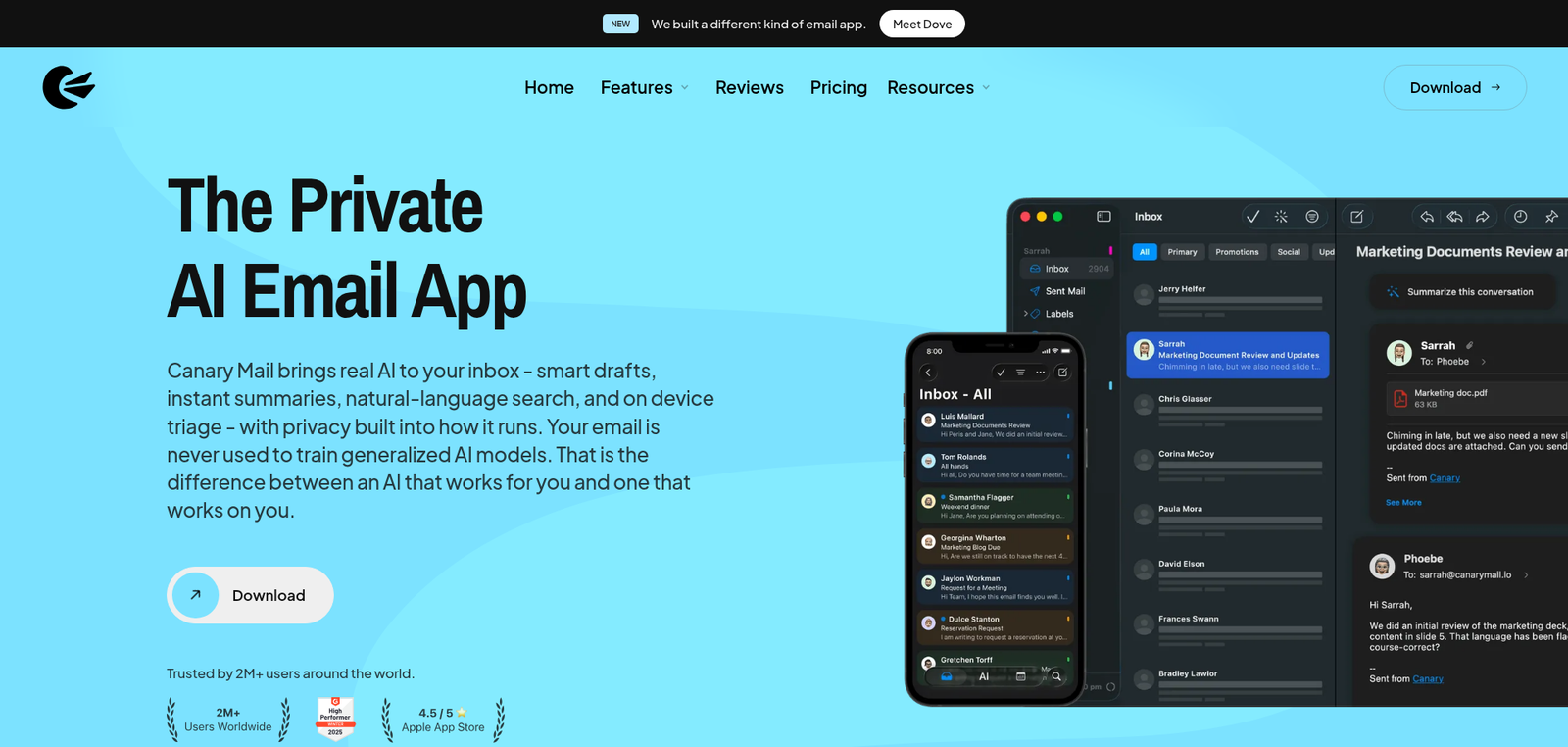
What it does: Canary Mail is a cross-platform client that unifies many accounts and adds AI drafting, summaries, and strong encryption.
Best for: anyone running several inboxes who also cares about privacy.
Connect Gmail, Outlook, Yahoo, iCloud, Exchange, or any IMAP account, and Canary shows them in one unified view. On Growth, a bulk cleaner picks out low-value mail you can archive in one pass.
Key features
- Unified inbox: every account in one view across desktop and mobile.
- Copilot AI: drafts replies and summarizes threads, highlighting key decisions and next steps.
- PGP and SecureSend (on Pro+): encryption for private communication.
Pros and cons
Pros:
- ✅ The free-forever plan connects unlimited mail accounts.
- ✅ Privacy features most clients don't offer.
- ✅ A one-time lifetime payment option exists alongside subscriptions.
Cons:
- ❌ Occasional sync hiccups, especially with several accounts connected.
- ❌ The AI feature set is lighter than the client-replacers above.
What users say
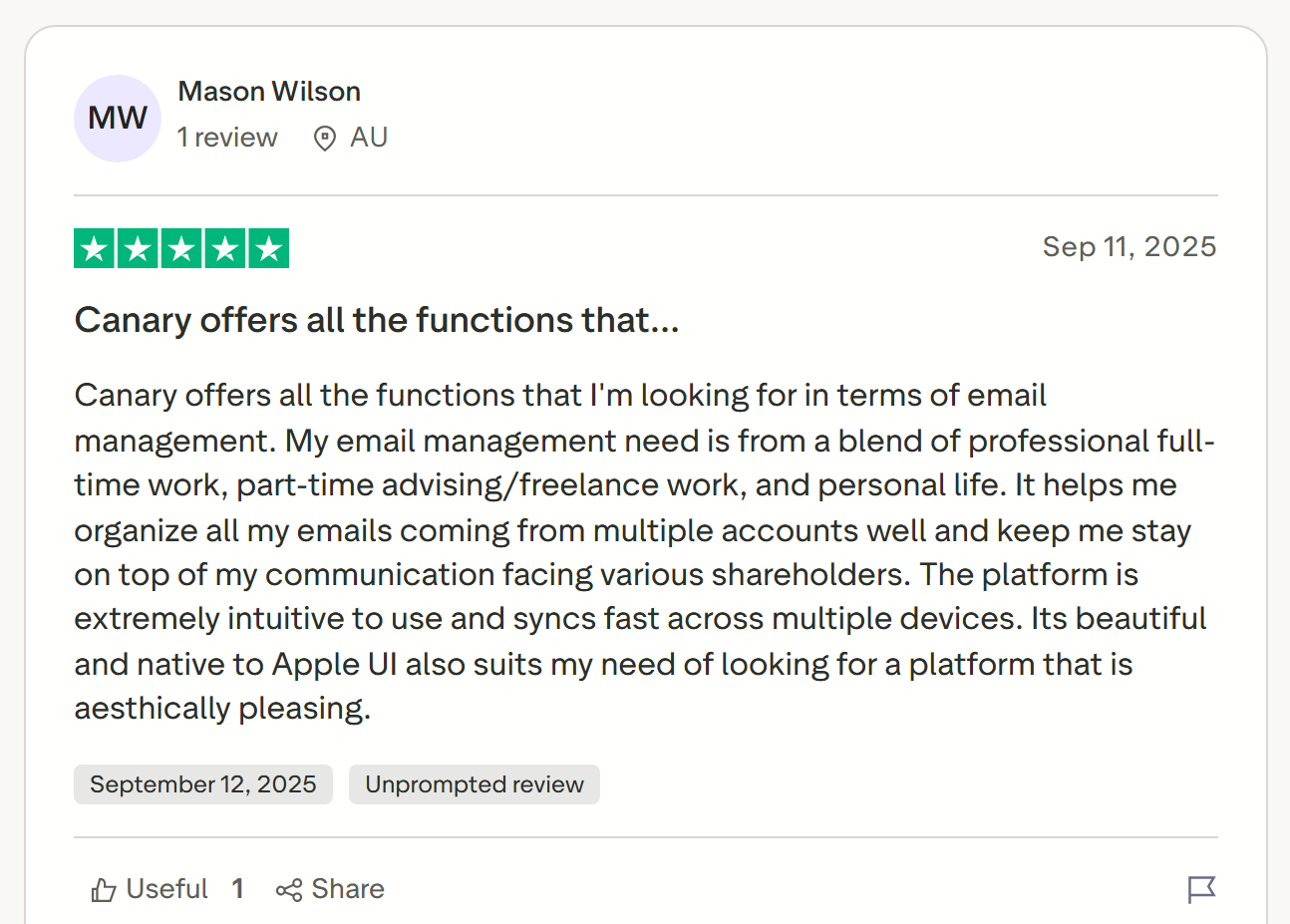
Pro: "It helps me organize all my emails coming from multiple accounts well" (Mason Wilson, Trustpilot, September 2025)
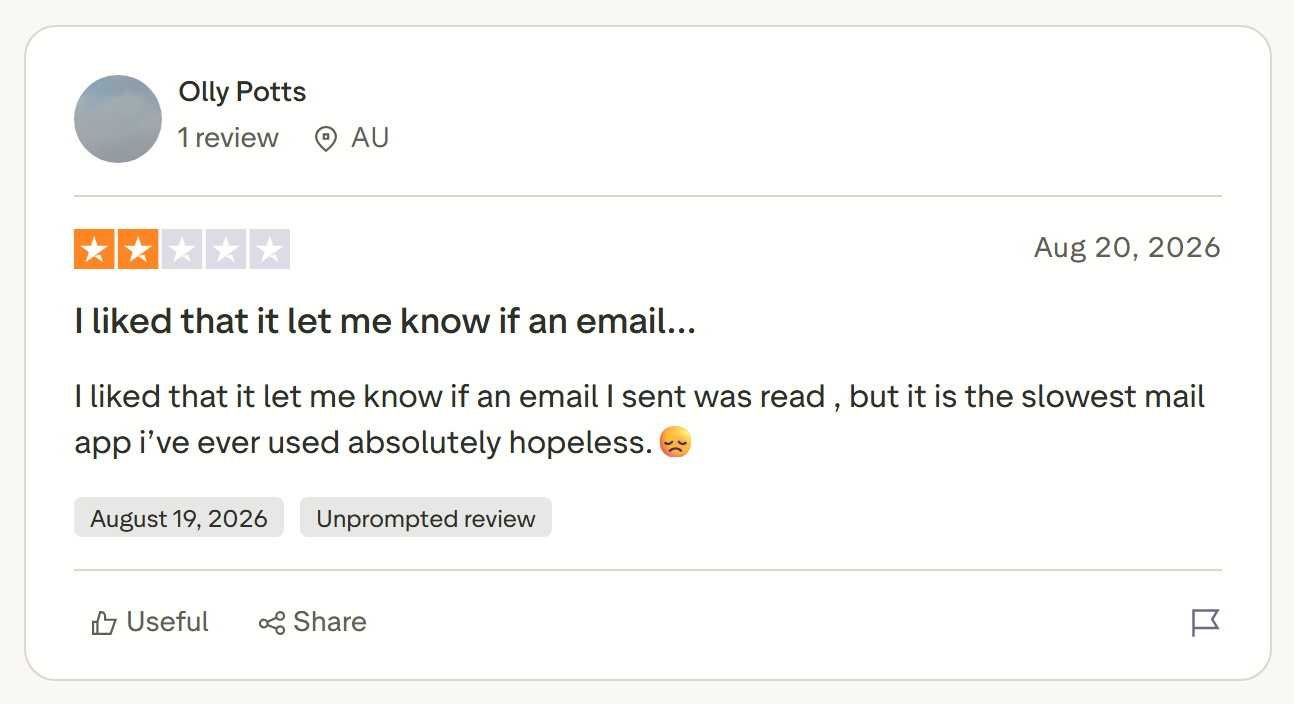
Con: "It is the slowest mail app i've ever used absolutely hopeless." (Olly Potts, Trustpilot, August 2026)
Pricing
A free-forever plan covers the basics; the Growth tier with AI Copilot runs $3 per month (billed yearly at $36), with lifetime options available.
Bottom line
A smart pick if you live across several accounts and want privacy baked in. Look elsewhere if you want the deepest AI on a single Gmail account.
8. Missive: Best for teams on a shared inbox
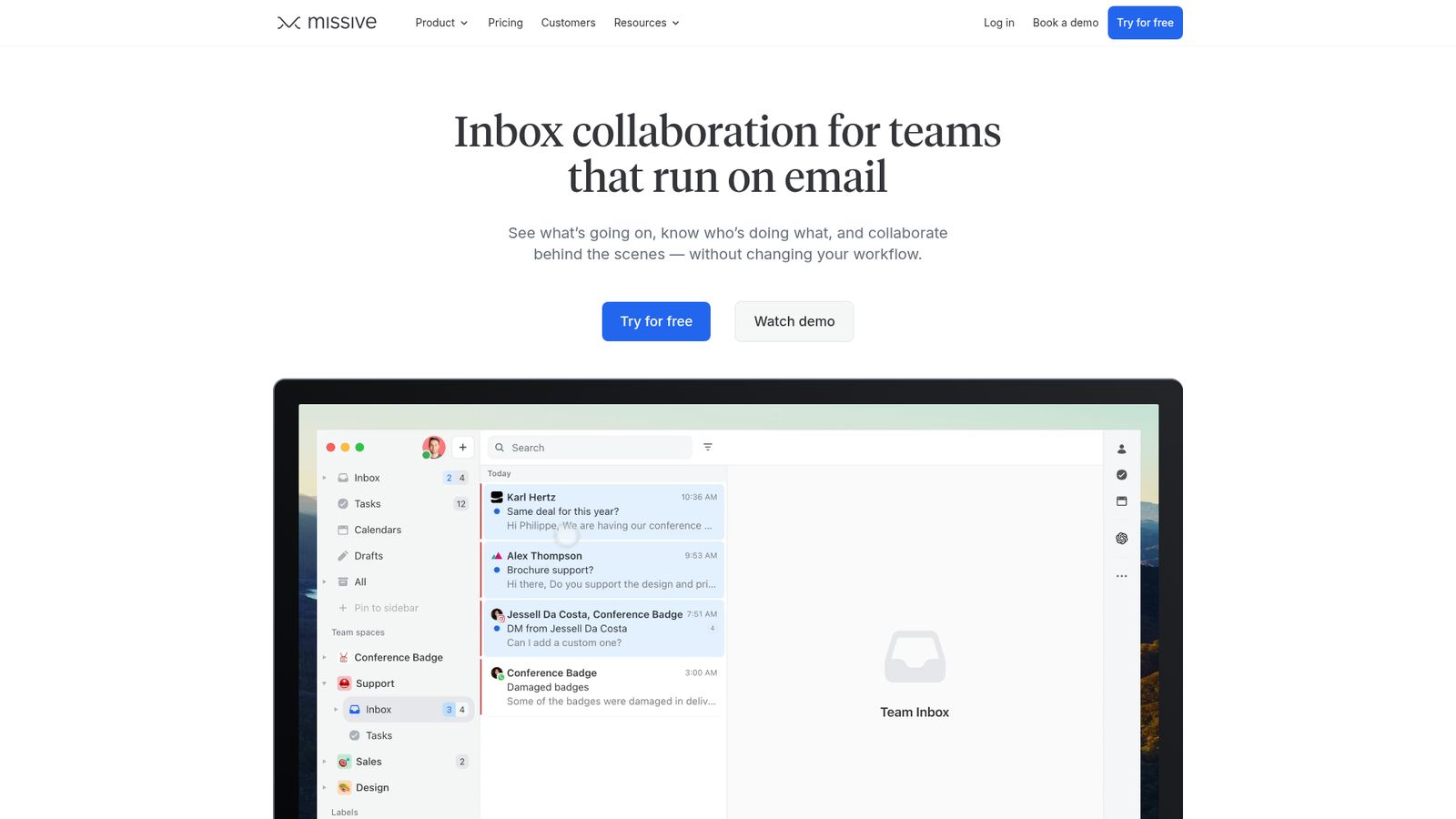
What it does: Missive blends email, team chat, and tasks so a group can handle one mailbox together, with AI drafting on top.
Best for: operations and support teams replying from a shared address like support@ or sales@.
Its standout feature is chatting with a teammate inside an email thread before anyone replies to the customer. Live status shows when a teammate is already viewing or replying, so two people don't answer the same message. Its AI runs on your own API key or Missive's AI credits. It's built for teams first, so a solo user will feel the extra machinery.
Key features
- Internal thread chat: discuss a reply privately within the email itself.
- Shared drafts and assignments: write a reply together, and give each email one owner.
- AI assistant and automations (Productive plan and up): draft, summarize, and run rules on your workflows.
Pros and cons
Pros:
- ✅ Real collaboration on a single mailbox.
- ✅ Email, chat, and tasks in one place.
- ✅ SOC 2 Type II on every tier.
Cons:
- ❌ Overkill for an individual inbox.
- ❌ Advanced analytics and SSO sit on the top tier.
What users say
Missive carries a 4.8 rating across 1,000-plus reviews.
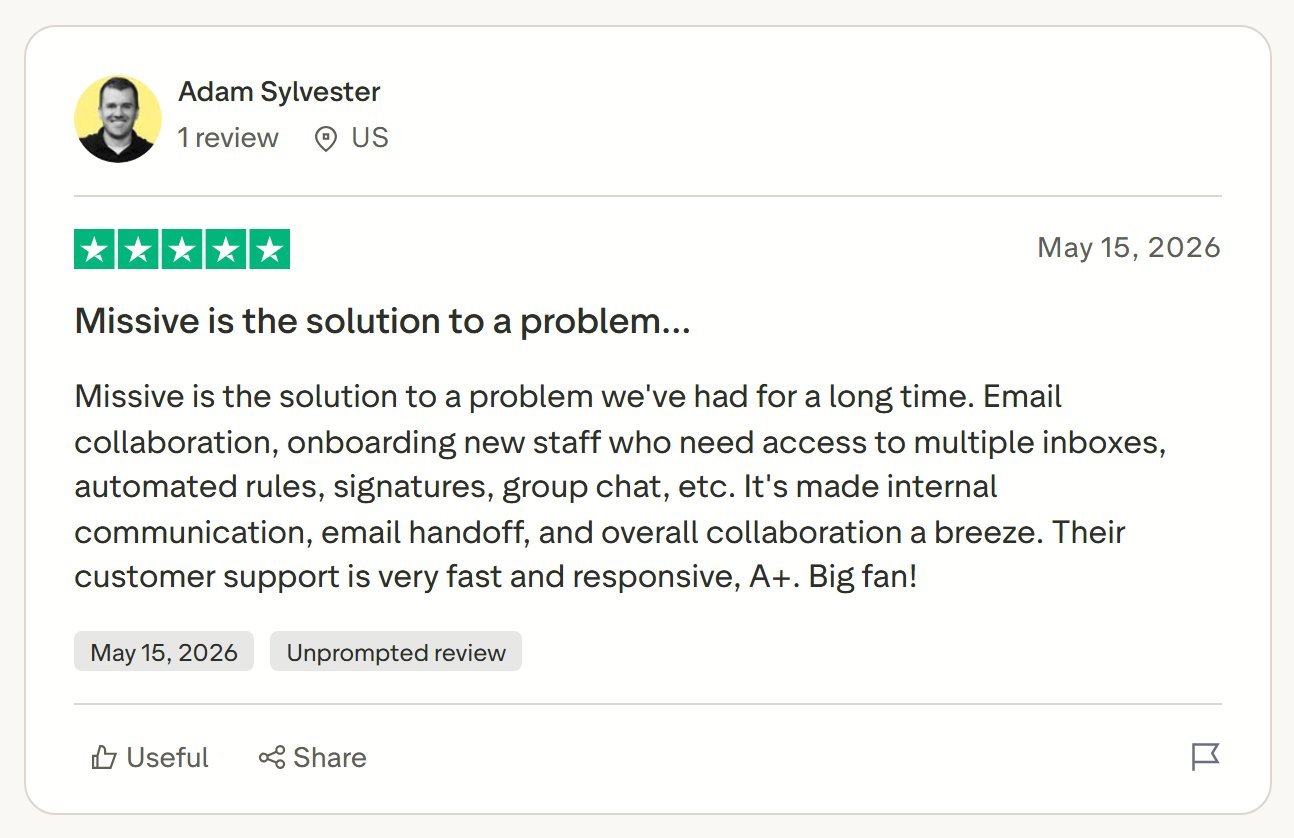
Pro: "It's made internal communication, email handoff, and overall collaboration a breeze." (Adam Sylvester, Trustpilot, May 2026)
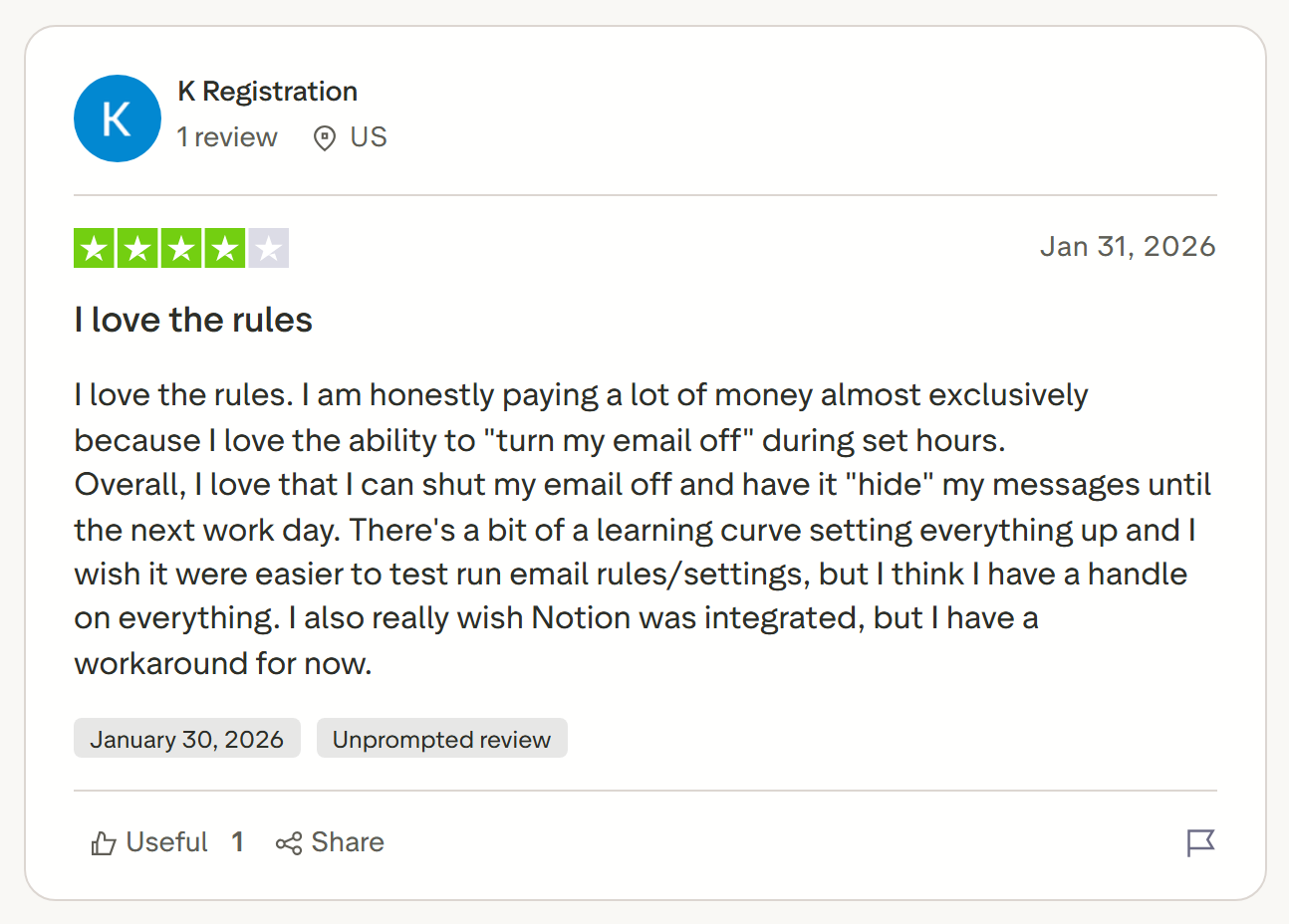
Con: "There's a bit of a learning curve setting everything up and I wish it were easier to test run email rules/settings" (a reviewer on Trustpilot, January 2026)
Pricing
A 30-day free trial of the Productive plan, then Starter at $14 per user per month (billed yearly). The AI assistant and rules start on the Productive plan, at $24 per user per month on yearly billing ($30 month-to-month), per Missive's pricing. AI usage is paid separately, through prepaid Missive AI credits or your own API key.
Bottom line
The right call when a team shares one inbox and needs to coordinate replies. Solo users get more from the clients higher on this list.
9. MailMaestro: Best for Outlook drafting with security
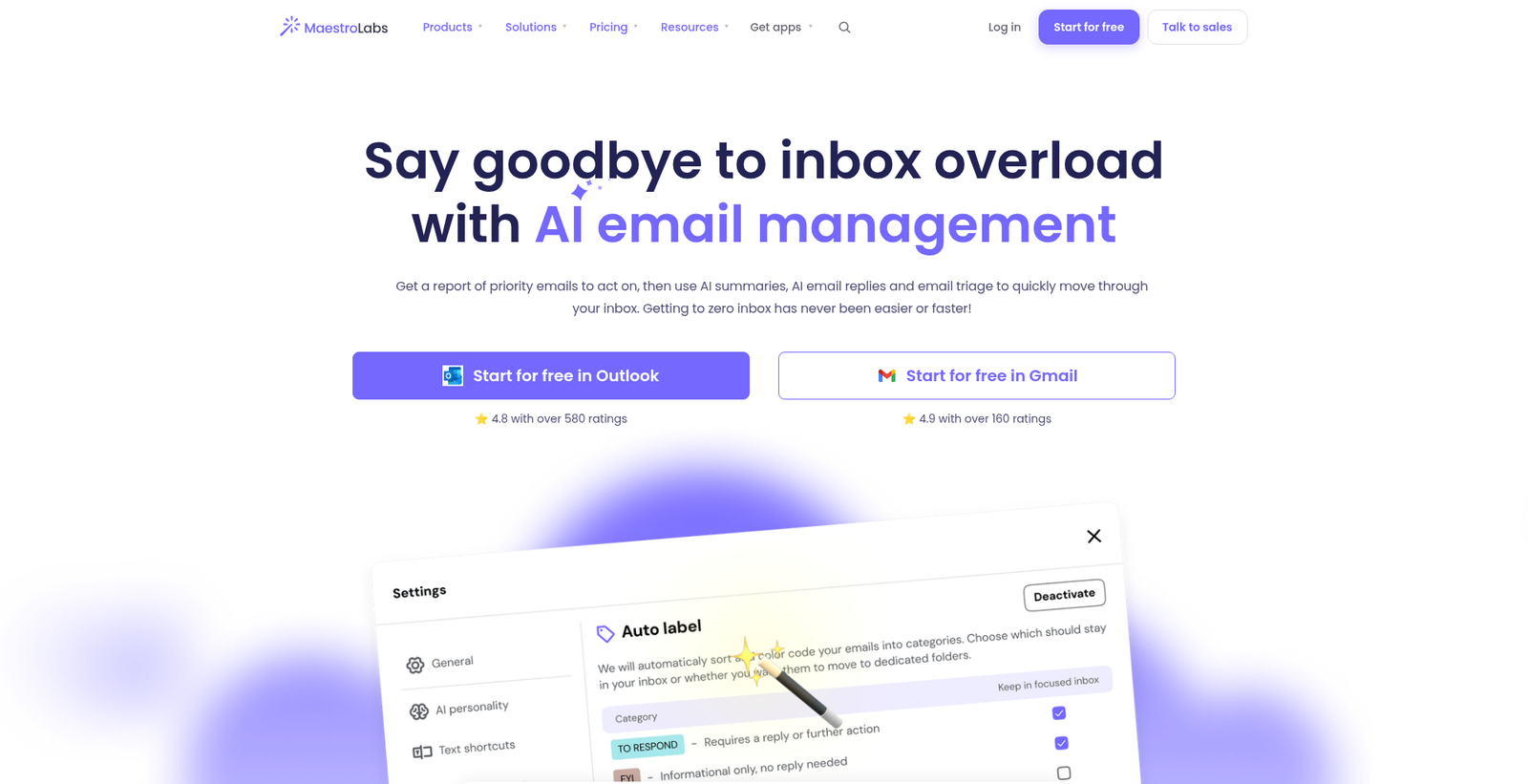
What it does: MailMaestro drafts and improves email inside Outlook (and Gmail) with enterprise-grade security promises.
Best for: corporate teams tied to Microsoft 365 that need AI drafting under strict data controls.
MailMaestro treats Outlook as a first-class citizen. It leans hard on security: SOC 2 Type II, GDPR, HIPAA (on the Enterprise plan, BAA on request), and a promise to keep your data out of AI training. Drafting comes first, but Pro also auto-labels and prioritizes your inbox.
Key features
- Outlook-native drafting: writes and rewrites inside the Outlook pane.
- Tone and length control: dial a message from terse to detailed.
- Enterprise security: SOC 2 Type II and GDPR, with no training on your data.
Pros and cons
Pros:
- ✅ One of the strongest Outlook-first options.
- ✅ Rated 4.8 on the Microsoft Marketplace.
- ✅ Also works with Gmail.
Cons:
- ❌ Ask AI, attachment summaries, and reminders are Outlook-only, so Gmail users miss them.
- ❌ AI meeting notes need a separate app, TeamsMaestro (free for 5 meetings a month).
What users say
Maestro Labs says MailMaestro is trusted by 300,000-plus teams, with logos like MIT, HP, and Marriott on the page.
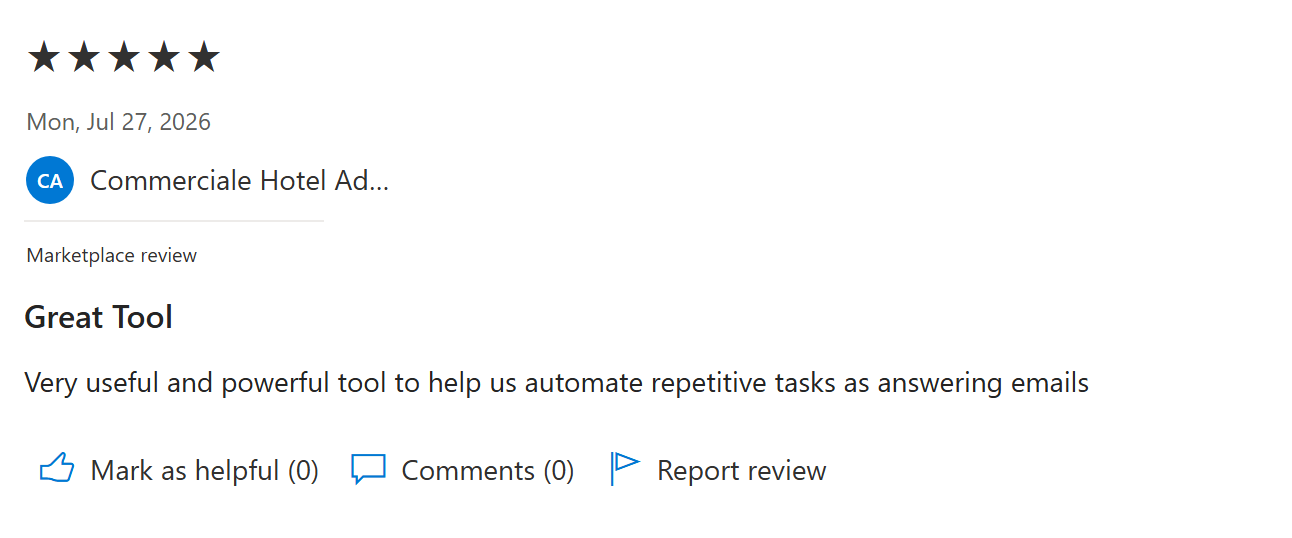
Pro: "Very useful and powerful tool to help us automate repetitive tasks as answering emails" (Commerciale Hotel Admiral, Microsoft Marketplace, July 2026)
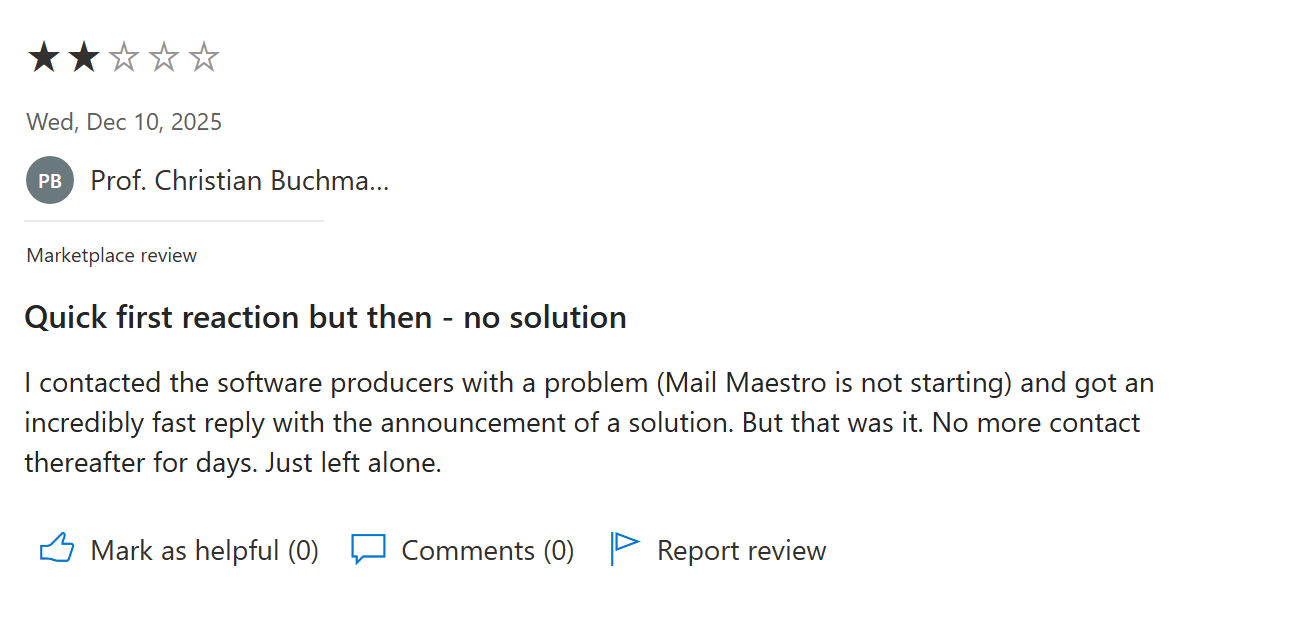
Con: "I contacted the software producers with a problem (Mail Maestro is not starting) and got an incredibly fast reply with the announcement of a solution. But that was it." (Prof. Christian Buchmann, Microsoft Marketplace, December 2025)
Pricing
A free plan covers 3 AI requests a week. MailMaestro Pro is $12 per seat per month billed annually ($144), or $15 month-to-month, on Maestro Labs' pricing. Pro comes with a 14-day free trial.
Bottom line
The pick for Outlook-bound teams with tight security requirements. Gmail-first users get more from Shortwave or Gemini.
10. alfred_: Best for solo client-facing pros

What it does: alfred_ is an AI email, calendar, and task assistant that triages your inbox as mail arrives and drafts replies, across Gmail and Outlook.
Best for: founders, consultants, and solo client-facing pros who bill for their time and lose hours to inbox admin.
It runs in the background: triaging mail, drafting and archiving, texting you when a meeting moves, and pulling tasks onto a to-do list. It covers Gmail, Outlook (including Microsoft 365), iCloud, and any IMAP inbox. The honest limit is that it's built for individuals and small teams, with no shared inbox or ticket routing.
Key features
- Background triage: sorts, drafts, and archives as mail arrives.
- Task extraction: turns the asks in your inbox into to-dos you can drag onto your calendar.
- One calendar view: pulls your Google, Outlook, and iCloud calendars together and texts you before each meeting.
Pros and cons
Pros:
- ✅ Works across Gmail, Outlook, and Microsoft 365.
- ✅ Combines email, calendar, and tasks in one assistant.
- ✅ Annual billing saves 17% on every plan.
Cons:
- ❌ No shared inbox or ticket routing for support teams.
- ❌ Newer product, so the track record is short.
What users say
Pro: "My favorite feature is its ability to track follow-ups and summarize to-do's across emails, meetings, and calendar events." (jeffreycol6, App Store, August 2026)
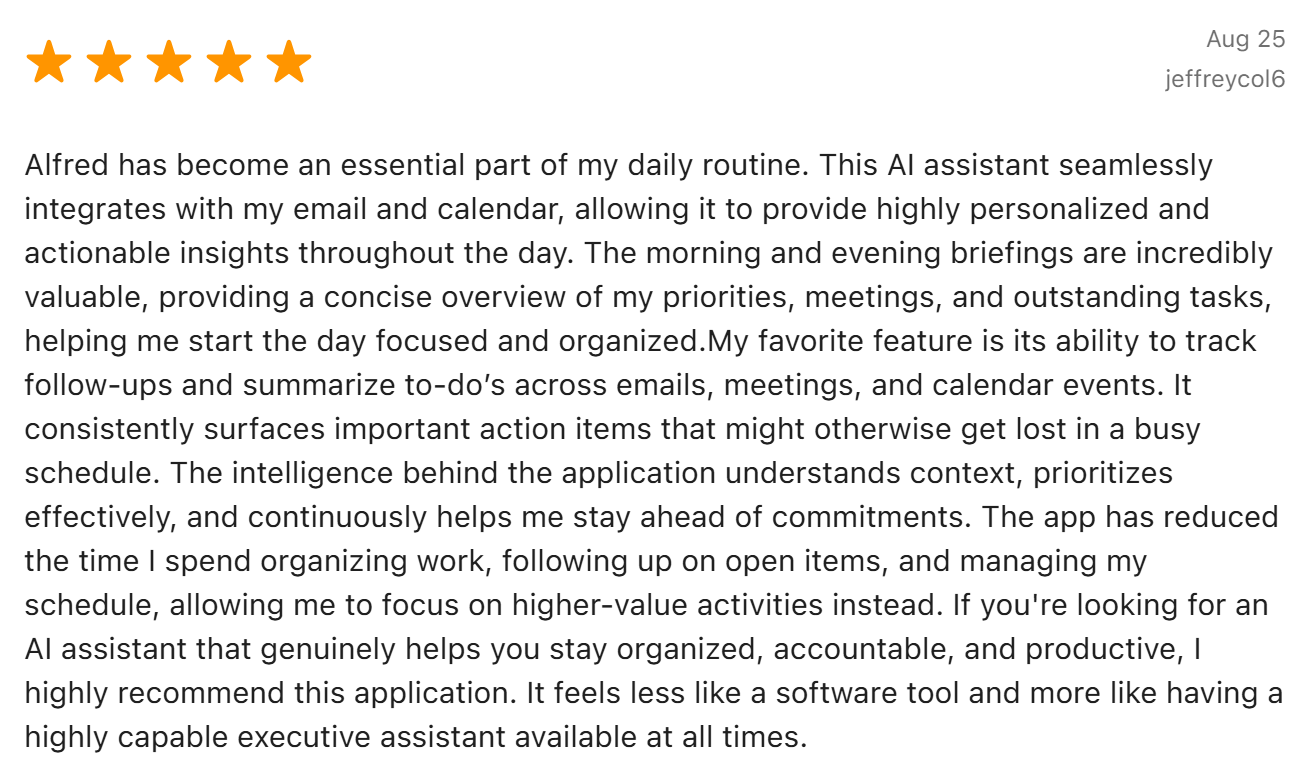
Con: none yet. All four written App Store reviews are five stars, and alfred_ has no Trustpilot or Capterra reviews, so treat it as promising but unproven and lean on the 7-day trial before you commit.
Pricing
Starter is $25 per month billed annually ($29.99 monthly), with 7 days free on every plan (card required), per alfred_'s pricing.
Bottom line
A strong fit for a solo pro who wants the inbox handled across both Gmail and Outlook. Teams that need a shared mailbox should look at Missive instead.
Which AI email assistant should you choose?
The right tool depends on where your inbox actually hurts.
Choose Shortwave or Gemini if you live in Gmail and want AI on the Gmail account you already have. Choose Microsoft Copilot or MailMaestro if you're an Outlook and Microsoft 365 shop.
Choose SaneBox if the problem is pure volume: newsletters, CCs, and cold outreach you never asked for. Choose Canary Mail if you juggle several accounts and want privacy built in, and Missive if a team shares one mailbox.
Choose Superhuman Mail if you want to clear a heavy inbox as fast as humanly possible, or Fyxer or alfred_ if you'd rather have it handled while you sleep.
How to pair your inbox tool with HyperWrite
Sorting and writing are different jobs, and the best setup usually pairs one triage tool with one writer. HyperWrite is the writer: a writing co-pilot for people whose replies carry weight, like founders answering investors, executives updating their board, and recruiters following up with candidates. Professionals at Google, Netflix, LinkedIn, and Spotify use it.
- Draft from a one-line summary: describe the email in a sentence in the Email Generator, and it writes the full message.
- Keep replies in your voice: set up a Persona once, and HyperWrite's drafts and completions stay in your voice (3 Personas on Premium, 10 on Ultra). Support teams can use the same setup to automate support email replies.
- Finish sentences in Gmail: HyperWrite for Chrome adds autocomplete to Gmail that pulls context from your other open tabs.
HyperWrite has a free plan with 10 uses. Premium is $19.99 per month, or $16 a month billed annually. Ultra is $44.99 per month, or $29 a month billed annually, per HyperWrite's pricing. For a side-by-side look at drafting tools, see this guide to AI email writing tools. If you're still weighing whether a writing tool is worth it, start with the benefits of AI writing tools.
Is it safe to connect an AI assistant to your inbox?
Yes, as long as the vendor passes three data checks. An assistant with inbox access can read your messages, so the vendor's privacy terms matter as much as its features.
Before you grant access, read the vendor's data policy for three things: whether the vendor trains public models on your mail, how long they retain your data, and whether they hold SOC 2 or GDPR compliance.
Apple Intelligence keeps more processing on your device, and Canary runs its inbox sorting on-device. MailMaestro says your data is never used to train AI models. Fyxer says it doesn't train its AI models on your email or meeting transcripts and never lets third-party AI providers train on your data.
For legal, medical, financial, HR, and confidential threads, read every AI draft closely before you send it, and only connect tools that pass the three checks above.
Final verdict
For most people, the best AI email assistant is the one built for the inbox you already use: Shortwave if you're on Gmail, Microsoft Copilot if you're on Outlook. SaneBox wins for pure newsletter overload, Missive for teams, and Superhuman Mail for raw speed.
Those tools are built around the inbox first. Pick one for the inbox, then draft your next email free with HyperWrite's Email Generator, and you've covered both halves of the problem.
Frequently asked questions
Is there a free AI email assistant for Outlook?
MailMaestro's free tier (3 AI requests a week) is the main free drafting add-in for Outlook, and Canary Mail's free plan sorts Outlook mail, with AI drafting on paid tiers. Copilot isn't free: it needs Microsoft 365 Personal, Family, Premium, or Pro, and Microsoft 365 business plans bundle Copilot Chat.
Is there a free AI email assistant for Gmail?
Gmail has several free options: Gemini's free features (thread summaries, plus Help me write in the US), Shortwave's free plan, and Canary Mail's free-forever plan. Shortwave limits free search to 90 days and signs your sent mail, and Canary sorts your inbox for free but saves drafting and summaries for paid tiers.
How do you use AI to help with email?
Start with one job, such as triage, summaries, or drafting, and let the tool prove itself there before you lean on it for everything. If drafting is your weak spot, pairing an inbox tool with a co-pilot that helps you write clearer, more professional emails works well.
Are AI email assistants safe and private?
AI email assistants are safe when the vendor checks three boxes: no training on your data, a clear retention window, and SOC 2 or GDPR compliance. Review any AI draft on a sensitive thread line by line before it goes out.
What's the difference between an AI email assistant and an AI email writer?
An AI email writer drafts the text, while an AI email assistant also manages the inbox: triaging mail, summarizing threads, and pulling out tasks. Many people run both: one for sorting, and one of the best AI writing tools for drafting.
Which AI email assistant is best for teams?
Missive is the best pick for teams sharing one mailbox, with internal thread chat, plus live status and assignments that stop two people from replying to the same email.
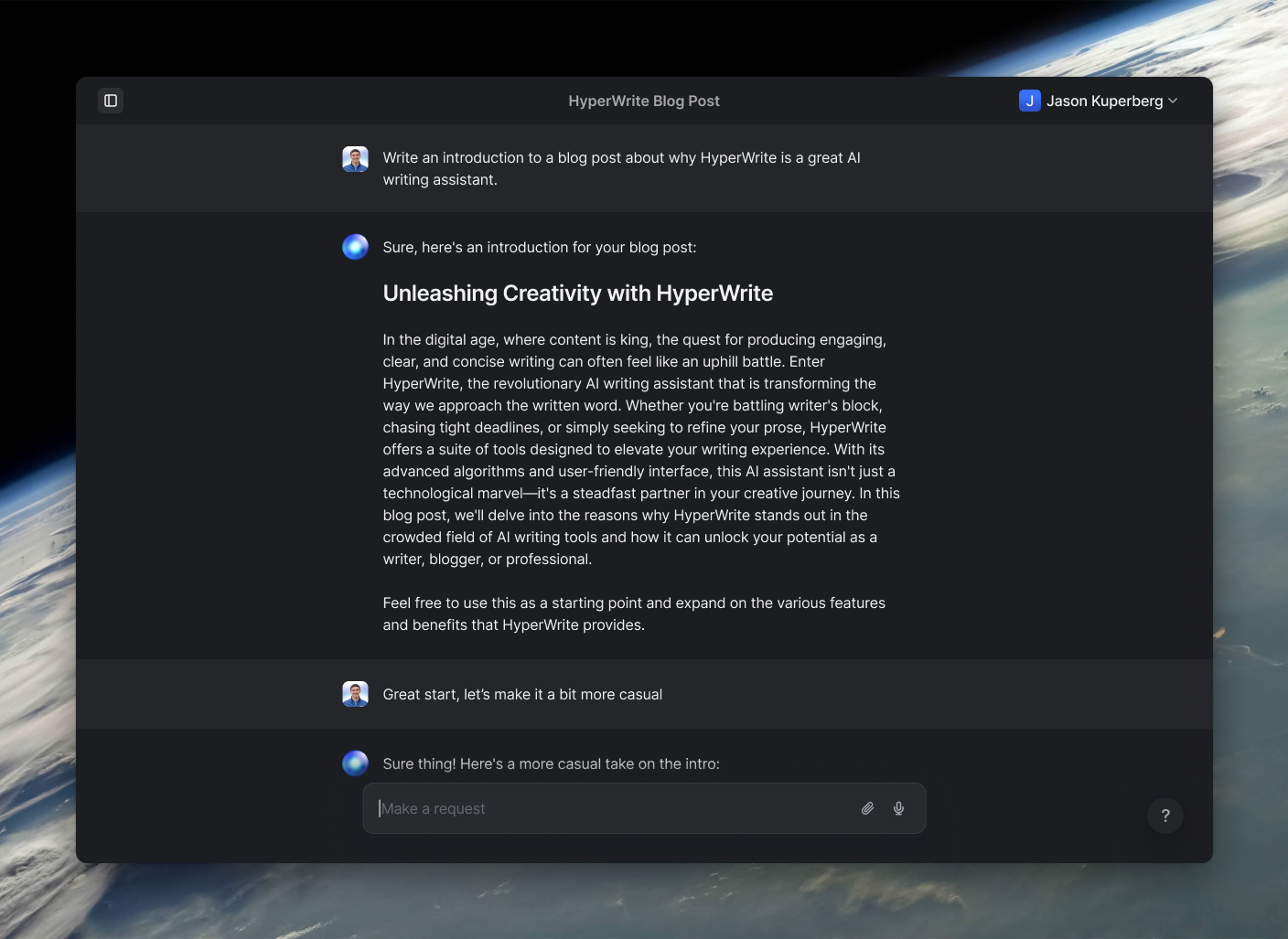
Powerful writing in seconds
Improve your existing writing or create high-quality content in seconds. From catchy headlines to persuasive emails, our tools are tailored to your unique needs.