
7 Best AI Email Writing Tools for Faster Replies


Most AI-drafted emails are perfectly correct and still land wrong. The recipient clocks a sign-off you'd never use, and the message reads as automated, which costs you more than the minutes it saved.
The AI email writing tools worth using work from your own past messages, inside the inbox you already use. The seven below are compared on those two things, along with what each one costs.
7 best AI email writing tools: TL;DR
- HyperWrite: Best for replies that sound like you wrote them.
- Superhuman: Best for processing a heavy inbox fast.
- Gemini: Best if you already pay for Google Workspace.
- Microsoft Copilot in Outlook: Best if your team runs on Microsoft 365.
- ChatGPT: Best for difficult or unusual emails.
- Grammarly: Best for catching tone problems before you send.
- QuillBot: Best for rewriting an email you already drafted.
How these AI email writing tools were compared
This list covers AI tools for email writing built for individual messages. Cold-outreach platforms that generate sequences at volume solve a different problem, so they're left out.
Each tool was assessed on four things:
- Voice matching. Whether it learns from your past emails or produces the same generic output for everyone.
- Where it works. Inside your inbox, or in a separate window you copy and paste from.
- What it handles. Quick replies, long explanations, difficult messages, or tone checking.
- Price against use. What a free tier covers, and what the paid tier adds.
7 best AI email writing tools: Quick comparison
Pricing based on annual plans; accurate as of September 2026.
1. HyperWrite: Best for writing in your own voice
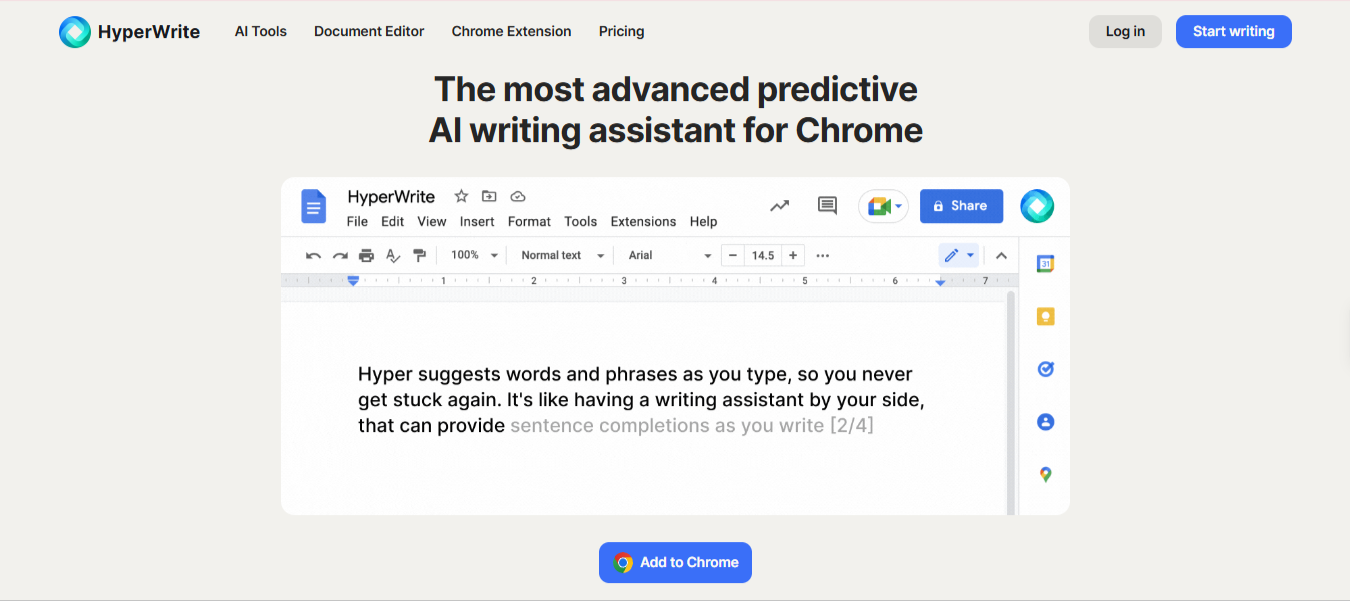
What it does: A full writing platform whose TypeAhead extension drafts inside every tab you write in, with Personas that match your voice through reusable profiles you set up.
Best for: Professionals whose replies need to sound like them, across every inbox and tool they write in.
HyperWrite lives inside whatever tab you're already writing in, so the drafting help arrives without pulling you out of the message. That's the difference between the tools that break your flow and the ones that don't touch it.
Key features
- TypeAhead. Real-time sentence completion in your inbox, using context from your open tabs.
- Personas. Reusable voice profiles you set up once, so every draft opens in the register that fits the audience.
- AI Writing Assistant. A chat interface for drafting and reworking messages.
- AutoWrite. Generates a full email from a short prompt to shape.
- AI Tools Library. Prebuilt tools for email replies, rewrites, and summaries.
Pros and cons
Pros:
✅ A drafted email reads like you wrote it instead of like a template.
✅ The tone stays yours from the first sentence, even on a reply you're dashing off between meetings.
✅ You never have to rebuild your voice from scratch in a new tool.
Cons:
❌ There's no triage, snoozing, or sorting, so it's not a replacement for your inbox itself.
❌ A native desktop mail client falls outside TypeAhead's reach.
❌ The free tier is enough to try it, not enough to run a busy week on.
What users say

“Helps me get to my daily inbox zero goals much faster.” — Louis D'Angelo, Chrome Web Store
“[It's very] easy to use, super fast, accurate, and extremely helpful.” — Daniel L., business owner, G2
Pricing
- Free plan available
- Premium: $16 a month billed annually or $19.99 monthly
- Ultra: $29 a month billed annually or $44.99 monthly
Bottom line
HyperWrite is the ideal pick for professionals looking for highly customizable AI personas that match their specific writing style across different platforms.
Our walkthroughs of writing partnership emails and business support responses cover the Personas setup.
2. Superhuman: Best for high-volume inboxes
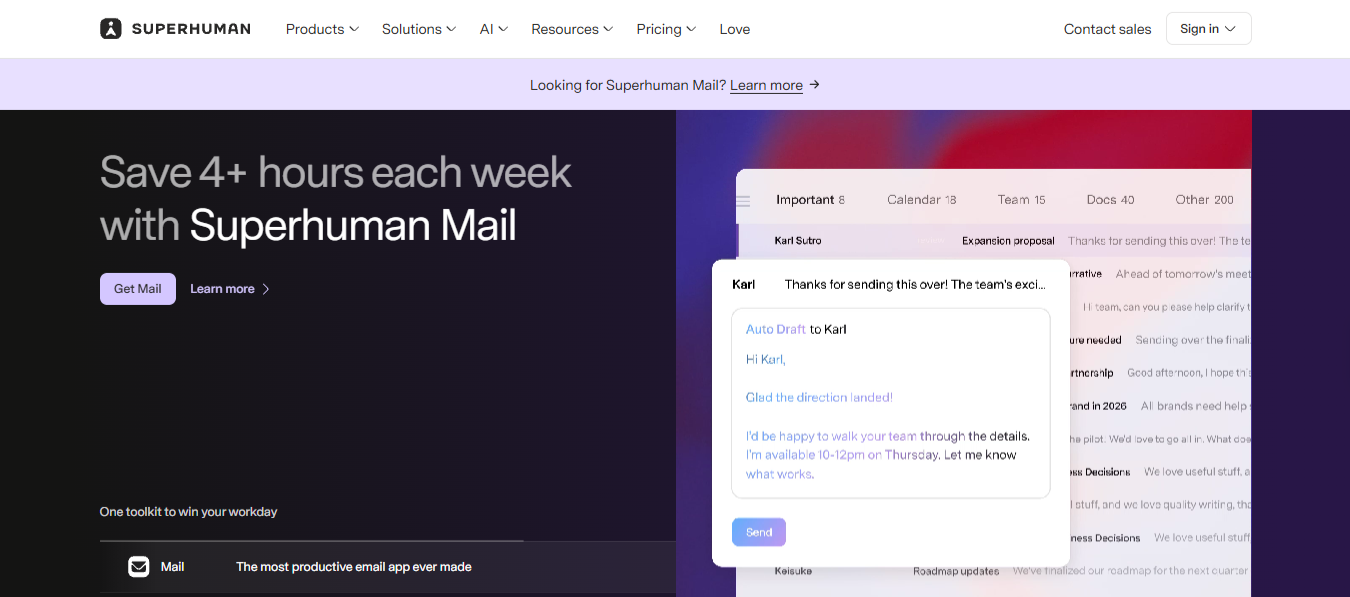
What it does: Replaces your email client with a keyboard-driven one built for speed, now bundled with Grammarly, Docs, and the Go agent.
Best for: Executives, founders, and anyone processing a hundred-plus emails a day.
Superhuman replaces your email client entirely, and that's a switching cost the other tools on this list don't ask for. The trade only makes sense once your inbox has grown large enough that speed itself is the bottleneck.
Key features
- Auto Drafts. Pre-writes replies overnight based on your email patterns, on the Business tier.
- Ask AI. Queries your whole inbox in natural language.
- Split Inbox. Separates important mail from everything else automatically.
- Keyboard-driven workflow. Full shortcut coverage for processing mail without a mouse.
Pros and cons
Pros:
✅ Processing a hundred emails takes noticeably less time once the shortcuts become second nature.
✅ Replies are often waiting for you before you've opened the message.
✅ The tone gets closer to yours with every week you use it.
Cons:
❌ The features that justify replacing your email client entirely sit on the Business tier.
❌ Gmail or Outlook keeps running underneath it, so that cost doesn't go away.
What users say
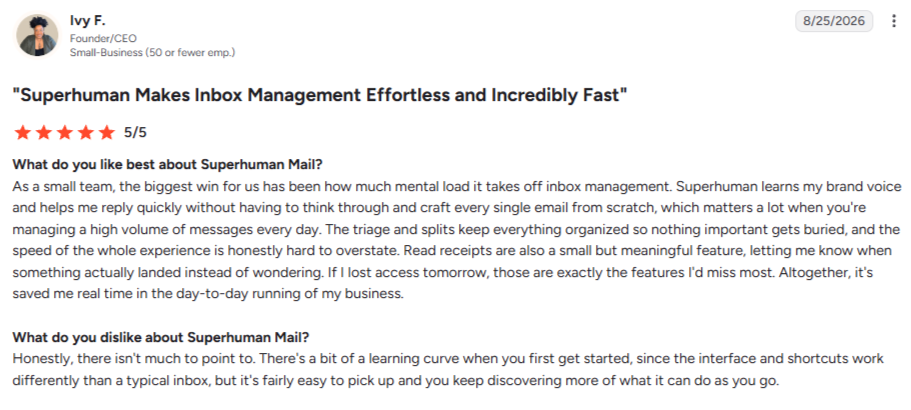
“Helps me reply quickly without having to think through and craft every single email from scratch.” — Ivy F., business founder/CEO, G2
“The price is a bit high.” — Olek P., head of customer service at a mid-market company, G2
Pricing
- Free plan available
- Pro: $12/member/month, billed annually or $15 monthly
- Business: $33/member/month, billed annually or $40 monthly
- Enterprise: Custom pricing
Bottom line
It’s a premium productivity engine for executives and founders who treat email as their primary workspace. For casual users, standard Gmail or Outlook remains the smarter, free choice.
3. Gemini in Gmail: Best if you already use Google Workspace
What it does: Drafts, rewrites, and summarizes email directly inside Gmail, with no extension to install.
Best for: Teams already paying for Google Workspace who want AI without adding a tool.
Gemini's advantage is that it's already there. There's no install, no new login, and no separate window to alt-tab to when a reply comes in.
Key features
- Help me write. Drafts and rewrites directly in the compose window.
- Thread summaries. Condenses long conversations into key points.
- Tone adjustment. Shifts a draft more formal or more casual on request.
- Native integration. No extension or separate login.
Pros and cons
Pros:
✅ There's no adoption curve; the first useful draft happens the first time you open Compose.
✅ Suggestions stay grounded in what the thread says.
✅ It costs nothing beyond the Workspace plan you're already paying for.
Cons:
❌ It reads more like a helpful assistant than like you, since it isn't trained on your writing.
❌ The help disappears entirely once you step out of Gmail.
What users say
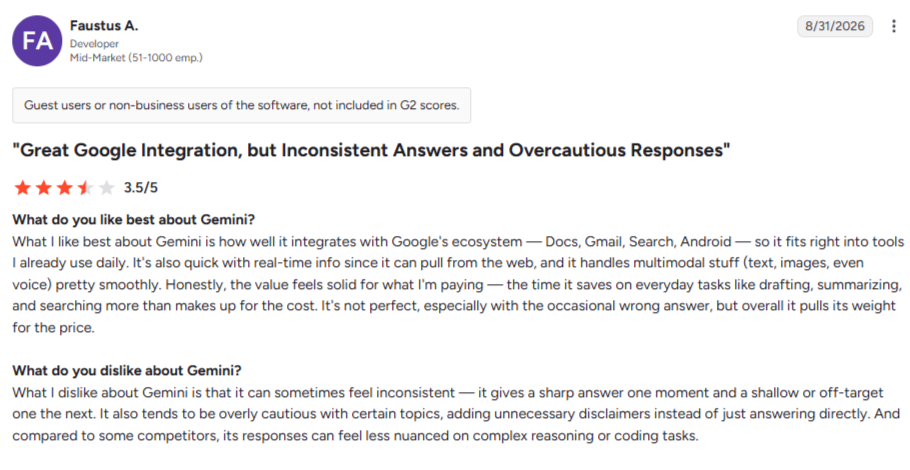
“It fits right into tools I already use daily.” — Faustus A., developer, G2
“Sometimes it also misunderstands the context and requires additional clarification.” — Léo L., designer, Capterra
Pricing
- Free plan available
- Google AI Plus: $4.99/ month
- Google AI Pro: $19.99/ month
- Google AI Ultra: From $99.99/month (5x access) or $199.99/month (20x access)
Bottom line
Gemini is nice if drafting inside Gmail is enough. Pair it with a voice-matching tool when a reply has to sound like you specifically.
4. Microsoft Copilot in Outlook: Best for teams running on Microsoft 365
What it does: Drafts, rewrites, and summarizes email directly inside Outlook, grounded in the Microsoft 365 documents and threads you already work in.
Best for: Teams already paying for Microsoft 365 who want the same "already there" advantage Gmail users get from Gemini.
Copilot's argument is the same one Gemini makes on the Google side. It sits inside the app you already have open, so the friction to use it is roughly zero, and it can pull from files and threads across your Microsoft 365 workspace rather than starting each draft from a blank slate.
Key features
- Draft with Copilot. Generates a reply from a short prompt in the Outlook compose window.
- Summarize. Condenses a long thread into the decisions and open questions.
- Coaching by Copilot. Suggests tone, clarity, and sentiment adjustments before you send.
- Grounded context. Pulls from your Microsoft 365 email, files, and calendar when drafting.
Pros and cons
Pros:
- ✅ There's nothing to install if your organization already pays for the license.
- ✅ Drafts arrive already grounded in the files and threads the reply is actually about.
- ✅ The tone-coaching pass catches the same problems Grammarly does, one workflow earlier.
Cons:
- ❌ It reads as helpful-generic rather than as you, because it isn't matching a voice profile.
- ❌ Outside Outlook, it's a different Copilot product, so the same experience doesn't follow you to other tools.
- ❌ The add-on cost stacks on top of the base Microsoft 365 seat you're already paying for.
What users say
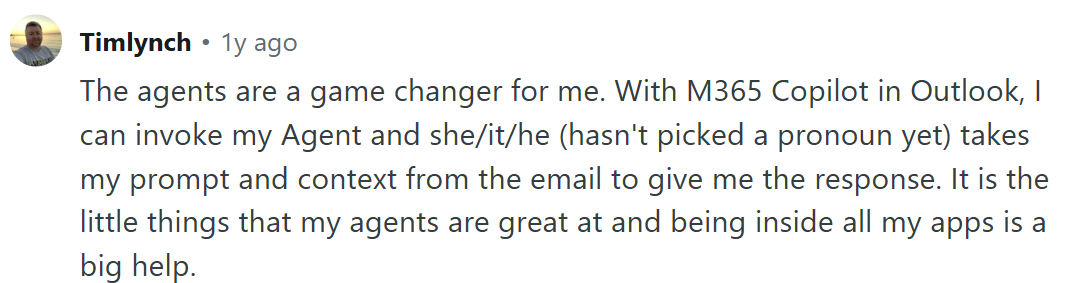
“I can invoke my Agent and [it] takes my prompt and context from the email to give me the response.” — Timlynch, Reddit
“Sometimes it goes off on tangents that feel a bit overkill for certain responses.” — Eric S., marketing and advertising business CEO, G2
Pricing
- Copilot Business: $18/user/month billed annually (promotional through Dec 31, 2026; standard $21) or $25/user/month monthly
- Requires an underlying Microsoft 365 Business plan (Basic $7, Standard $12.50, or Premium $22 per user/month)
- Bundled paths: Business Standard with Copilot $23.50/user/month; Business Premium with Copilot $32/user/month, both billed annually
Bottom line
It’s the natural fit if the team runs on Microsoft 365 anyway. Same logic as Gemini for Google Workspace, on the other side of the platform divide.
5. ChatGPT: Best for difficult or unusual emails
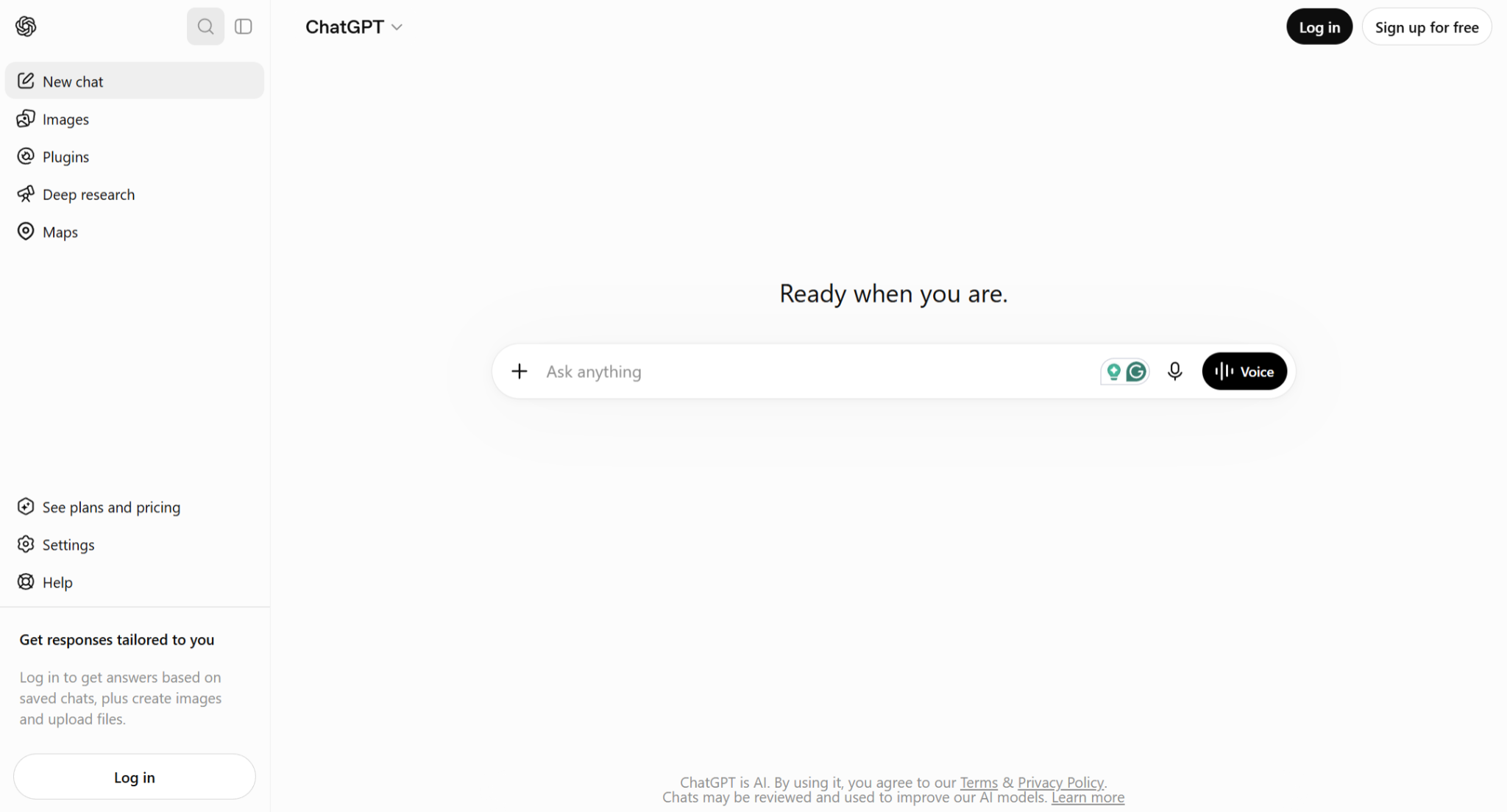
What it does: Drafts any email from a plain-language prompt, with room to iterate until the tone is right.
Best for: The hard messages you've been putting off.
Every inbox has the message nobody wants to write. ChatGPT is built for exactly that kind of email, the one where a template would sound tone-deaf and the situation needs to be explained in detail before any draft can be trusted.
Key features
- Open-ended prompting. Explain the full context in your own words.
- Multiple variants. Generate several versions and pick the best.
- Tone control. Ask for formal, warm, firm, or apologetic directly.
- Custom GPTs. Save a setup that holds your role and typical tone.
Pros and cons
Pros:
✅ A messy, high-stakes situation can be explained fully instead of squeezed into a short prompt.
✅ Three attempts at the wording take less time than most tools need for one.
✅ The free tier is functional, so reaching for it occasionally costs nothing.
Cons:
❌ Every draft has to be copied over manually, since it never sits inside the inbox itself.
❌ Left to its own defaults, the wording sounds like everyone else's AI.
What users say
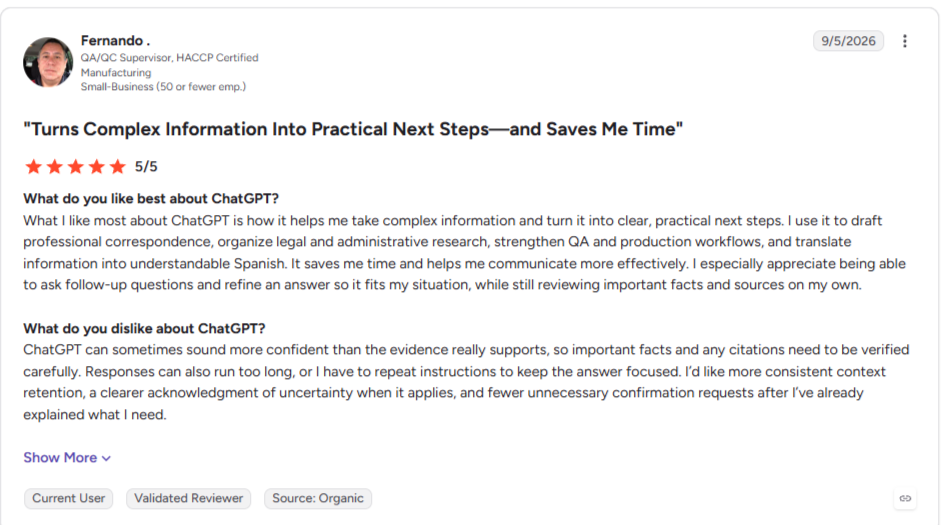
“It helps me take complex information and turn it into clear, practical next steps.” — Fernando, QA/QC supervisor in manufacturing business, G2
“Can generate slightly inaccurate or outdated information.” — Maria D., call center, Capterra
Pricing
- Free tier available
- Go: $8/month
- Plus: $20/month (no annual discount)
- Pro: $100/month (5x usage) or $200/month (20x usage)
- Business: $20/user billed annually or $25/user monthly (2-user minimum)
Bottom line
Save it for deep-thinking email tasks. Overusing it for quick, routine replies creates unnecessary copy-paste friction.
6. Grammarly: Best for a tone check before you send

What it does: Checks grammar, clarity, and tone in real time wherever you write, including every major email client.
Best for: Anyone who has sent a message that landed sharper than they meant.
Grammarly's tone detection is the feature that matters most for email. A reply written quickly while annoyed reads differently to the recipient than it did to you, and catching that before you hit send prevents a problem no drafting tool solves.
Key features
- Tone detection. Flags how a message is likely to land.
- Real-time correction. Grammar and clarity checked as you type.
- Cross-platform coverage. Works in Gmail, Outlook, and most web clients.
- Rewrite suggestions. Offers full-sentence alternatives on paid plans.
Pros and cons
Pros:
✅ The tone flag fires in the compose window before you hit send.
✅ The same extension catches errors across Gmail, Slack, Docs, and every web form in between.
✅ Even a light user gets meaningful coverage without paying.
Cons:
❌ Accepting every suggestion produces uniform, safe email.
❌ It refines what you wrote more than it produces new text.
What users say
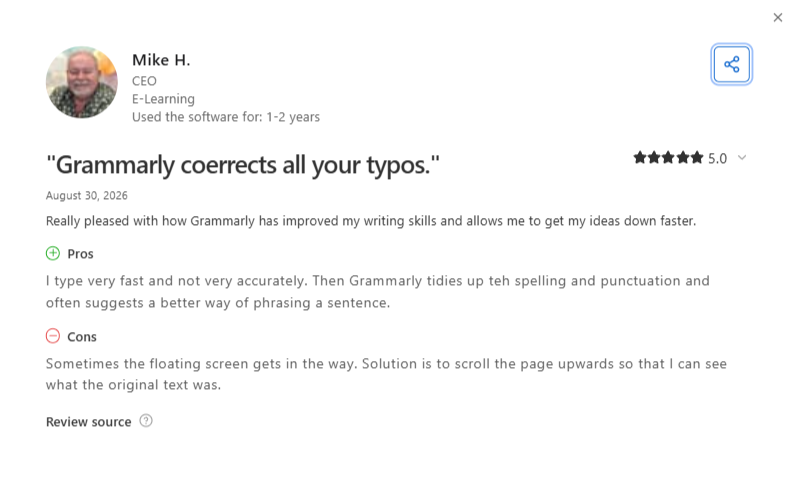
“Grammarly tidies up [the] spelling and punctuation and often suggests a better way of phrasing a sentence.” — Mike H., e-learning business CEO, Capterra
“Grammarly also flags technical terms, code snippets, or product names that don't actually need correction.” — Jayesh W., software engineer II, G2
Pricing
- Free plan available (100 AI prompts a month)
- Pro: $12/month billed annually or $30/monthly, $20/month quarterly
- Enterprise: Custom pricing
Bottom line
Pair Grammarly with your preferred drafting tool to ensure a reliable, AI-driven safety net for final review.
7. QuillBot: Best for rewriting an email you already drafted

What it does: Rewrites and reworks text you've already written, with modes controlling how far the rewrite strays.
Best for: Writers who draft their own emails and want a second pass before sending.
QuillBot starts from your words instead of a prompt, which suits anyone who writes their own email and wants it tightened. The Formal mode is the practical one for work email, turning a rushed draft into something more measured without rewriting your meaning.
Key features
- Paraphraser with modes. Standard, Fluency, Formal, and Academic, with a synonym slider.
- Summarizer. Condenses a long thread into key points.
- Grammar checker. Catches surface errors alongside the rewriting.
- Browser extension. Works in Gmail and other web clients.
Pros and cons
Pros:
✅ Your original point stays intact, since it's reworking your words instead of replacing them.
✅ A rushed reply comes out measured, without needing a full rewrite.
✅ The annual price is low enough to justify keeping around for the rewriting alone.
Cons:
❌ With nothing typed yet, there's nothing for it to improve.
❌ The sentence loses its original meaning if you push the rewrite too far.
What users say
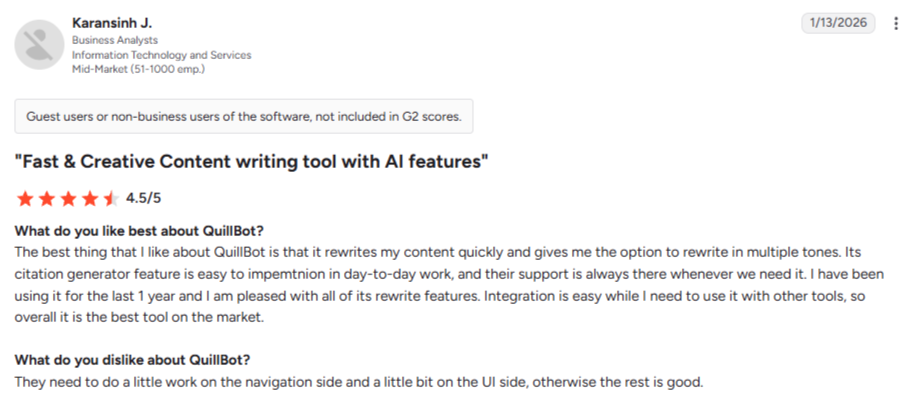
“It rewrites my content quickly and gives me the option to rewrite in multiple tones.” — Karansinh J., business analyst, G2
“Writing format [is] always on standard, even after changing to informal.” — Ufeli O., writer, Capterra
Pricing
- Free plan (caps paraphrasing at 125 words per run)
- Premium: $10/month billed annually or $19.95/monthly
- Team pricing available on request
Bottom line
QuillBot is best used as a second pass over your own draft, since it improves email without producing any.
Which AI email writing tool should you choose?
Choose HyperWrite if you:
- Send email where sounding like yourself matters, to clients, partners, or your team.
- Write across several inboxes and tools and want one consistent voice everywhere.
- Send high-stakes messages often enough that one reading as AI-drafted costs you real credibility.
Choose Superhuman if you:
- Process a hundred or more emails a day and speed is the bottleneck.
- Are willing to change email clients for it.
- Have the volume and workflow discipline to justify a paid-only tool with no free tier to test on.
Choose Gemini in Gmail if you:
- Already pay for Google Workspace and want AI without another subscription.
- Live inside Gmail all day and want the assistant already there when you open compose.
- Don't need every reply to sound distinctly like you, just clearer and faster.
Choose Microsoft Copilot in Outlook if you:
- Already pay for Microsoft 365 and want AI without adding a tool.
- Write mostly inside Outlook and want drafts grounded in your email, files, and calendar.
- Don't need voice matching, only quicker first drafts on the platform you already use.
Choose ChatGPT if you:
- Mainly need help with difficult or unusual messages.
- Want room to explain a situation in full before asking for a draft.
- Don't mind drafting in a separate window and copy-pasting back to your email.
Choose Grammarly if you:
- Write your own email and want tone checked before sending.
- Want the same catch-and-flag standard across every app you write in.
- Send email in stakes contexts where a mistone costs more than a slower reply.
Choose QuillBot if you:
- Draft your own emails and want a cheap second pass.
- Also use paraphrasing outside email, for reports, notes, or marketing copy.
- Prefer a rewrite tool over a drafting one.
Skip AI email tools entirely if you:
- Send few enough emails that editing AI output takes longer than writing them.
How to keep AI email from sounding like AI
The tools help most when the reader can't tell you used one. A few habits keep it that way:
- Feed it your own writing. Voice matching works from samples, so a tool trained on your sent emails beats one working from a blank slate.
- Keep your greeting and sign-off. These are the tells. Whatever the AI drafts in between, open and close the way you always do.
- Cut one line before sending. AI drafts run long and over-explain. Removing the weakest sentence usually improves the message.
- Write the difficult ones yourself. An apology carries more weight when the phrasing is visibly yours. Our professional email writing tips cover the structure for those.
- Use templates for the repetitive ones. Recurring messages like hiring emails benefit more from a good template than from generating fresh copy each time.
Final verdict
Most people need one drafter and one checker, and the free tiers stack further than expected. Gemini or Copilot ships with the platform you're already paying for; Grammarly's free plan catches the tone problems that matter.
Pay for a specialist only once a specific problem justifies it: Superhuman for volume, ChatGPT for the messages you've been putting off, QuillBot for a second pass on your own draft. HyperWrite is the specialist to pay for first if what you actually need is drafts that sound like you.
Send email that sounds like you
Every AI-drafted email that arrives perfectly correct and still lands nothing like you costs more time than it saved. Set up one Persona for client-facing replies and one for the team-facing notes you dash off between meetings, and every suggestion arrives in the voice the moment calls for.
Tired of sending emails that sound nothing like you? Try TypeAhead free with the HyperWrite Chrome extension. Every reply lands in your voice from the first word.
Frequently asked questions
What is the best AI tool for email writing?
The best AI tool for email writing depends on your bottleneck. HyperWrite is the strongest for replies that sound like you, Superhuman suits high-volume inboxes, Gemini is the easiest option for Gmail users, and Grammarly catches tone problems before you send. Copilot is the equivalent AI tool for writing email inside Outlook if your team runs on Microsoft 365.
Are there free AI email writing tools?
Most AI email writing tools run permanent free plans, including ChatGPT, Grammarly, QuillBot, HyperWrite, and Superhuman. Each caps usage by messages, prompts, or words, so heavy daily use eventually needs a paid tier.
Can AI write emails that sound like me?
Yes, AI can write emails that sound like you when the tool has your voice on file. HyperWrite's Personas are reusable voice profiles you set up once and apply to any draft; Superhuman's Auto Drafts train on the messages you've already sent. Tools without either produce the same default register for everyone.
Will people know my email was written by AI?
They can, when the phrasing goes generic or the sign-off feels off, but not from anything technical. Keep your usual greeting and closing, cut one line before sending, and use a tool with your voice on file. Those three habits handle most of the tell.
What is the best AI email writing tool for Gmail?
Gemini is the best built-in option for Gmail since it's included with Workspace and reads the thread directly. For replies that carry your voice, HyperWrite's browser extension works inside Gmail and applies the Persona profile you've set up.
Is there a good email writing AI app for phones?
Yes, there is a good email writing app for phones. Superhuman ships full mobile apps for iOS and Android that carry the same speed and AI features. Gemini works inside the Gmail mobile app on plans that include it, and Grammarly's mobile keyboard runs inside any email writing app on your phone.
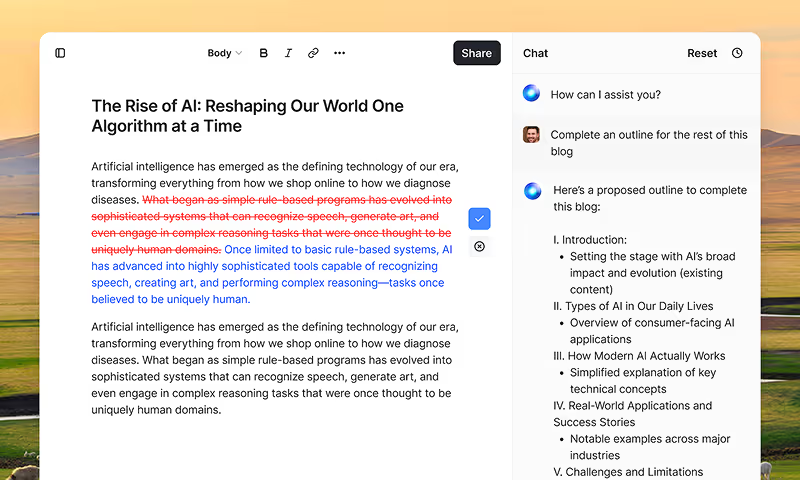
HyperWrite is the AI writing assistant that learns your style. It handles drafting, editing, and researching so you can focus on ideas.
- Autocompletes sentences as you type
- Works inside Google Docs & Gmail
- Adapts to your personal writing style
- 500+ AI tools for any writing task
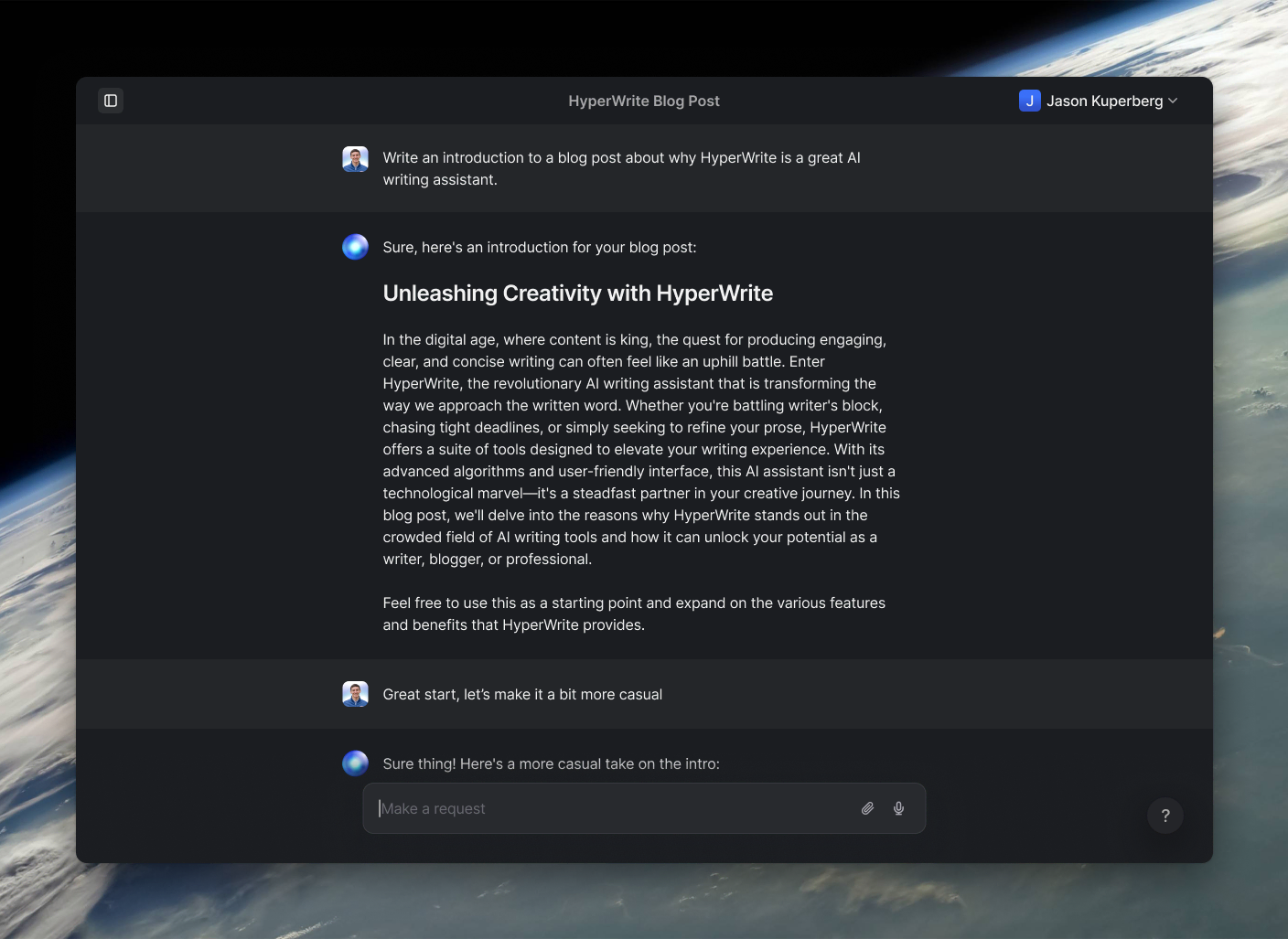
Powerful writing in seconds
Improve your existing writing or create high-quality content in seconds. From catchy headlines to persuasive emails, our tools are tailored to your unique needs.