
7 Best Writing Apps for Every Writer in 2026

Most writers don't need a better app. They need the right one for the part of writing that's slowing them down, which is rarely the typing. A novelist drowning in scene order has a different problem from a copywriter who rewrites every sentence four times, and no single tool solves both well.
The seven writing apps here each own a specific stage, from organizing a manuscript to getting a clean first draft down to catching what you missed.
7 best writing apps: TL;DR
- Google Docs: Best free writing app for everyday drafts and collaboration.
- Scrivener: Best for books and long manuscripts.
- Grammarly: Best for editing and final polish.
- HyperWrite: Best for drafting in your own voice across the browser.
- Ulysses: Best for distraction-free writing on Apple devices.
- Dabble: Best for plotting a novel without a learning curve.
- Notion: Best for research-heavy writing projects.
How these writing apps were compared
Every app here was assessed against its own documentation and pricing pages, plus the way writers use it day to day. Five factors decided the order:
- The writing experience. Whether the editor gets out of your way or asks you to manage it.
- Organization. How well it handles a project bigger than one document, which is where most apps break.
- Drafting and editing help. What the app contributes beyond a blank page, from suggestions to error catching.
- Where it runs. Desktop, browser, mobile, and whether your work syncs without thought.
- Price and model. One-time purchase, subscription, or free, and what each buys.
7 best writing apps: Quick comparison
Pricing based on annual plans; accurate as of September 2026.
Pricing based on annual plans; accurate as of September 2026.
1. Google Docs: Best free writing app
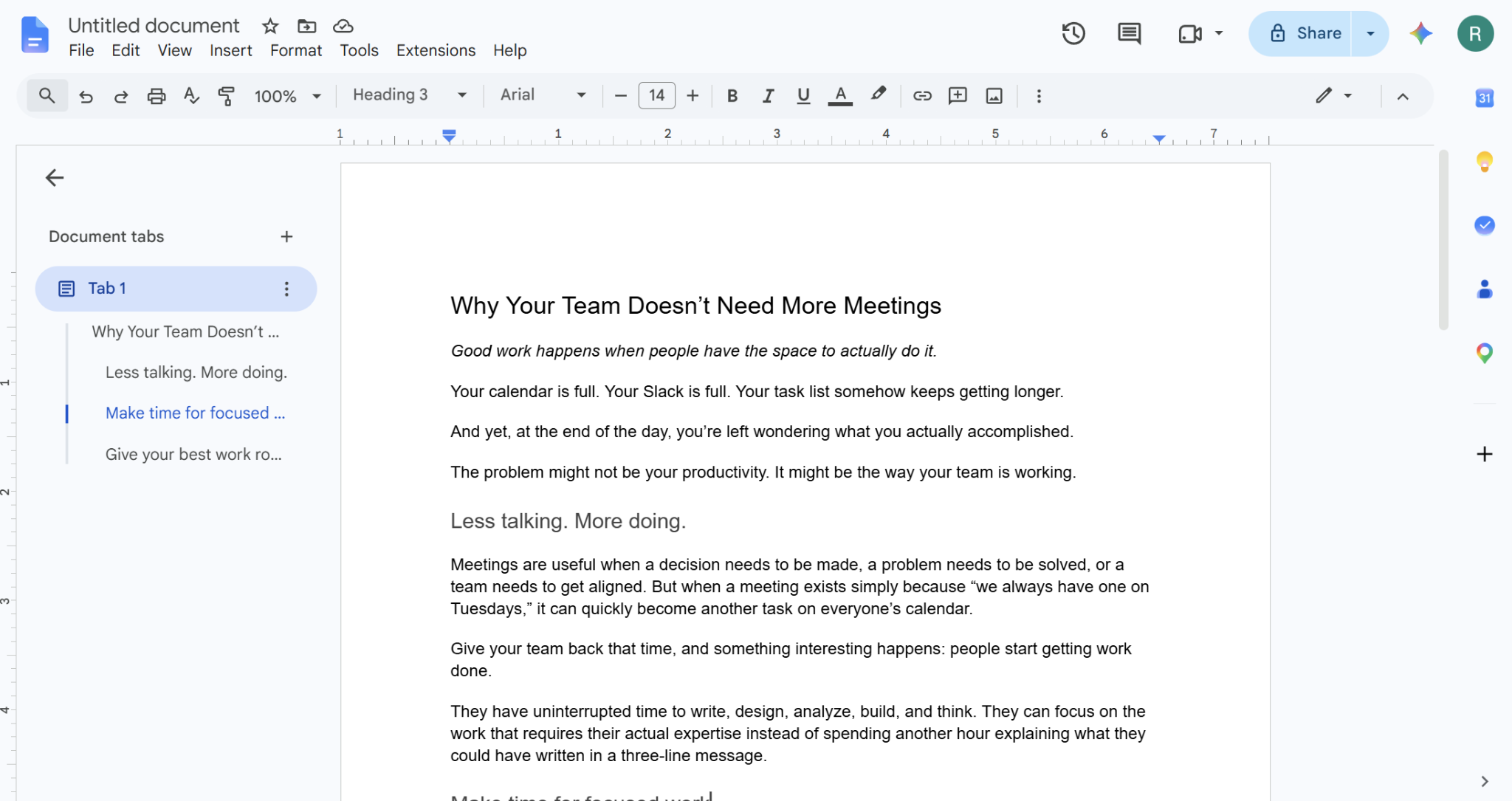
What it does: Runs a full word processor in the browser, with real-time collaboration and automatic saving.
Best for: Writers who need something free, shareable, and available on any device.
Google Docs is a free cloud workspace for writers. It works everywhere, and handles the collaboration that most dedicated writing apps treat as an afterthought. For articles, essays, scripts, and anything a second person needs to read, it's usually the answer.
Key features
- Real-time collaboration. Multiple people edit the same file with comments and suggestions.
- Version history. Every change is recoverable, going back months.
- Offline mode. Drafts stay editable without a connection and sync when you reconnect.
- Add-on support. Extends into grammar, citation, and AI tools through the Google Workspace Marketplace.
Pros and cons
Pros:
✅ A Google account is the entire setup, so there's nothing to buy or install.
✅ Collaborators almost always have an account already, so no one needs convincing to join.
✅ A dead laptop costs you nothing, since the draft opens on the next device you pick up.
Cons:
❌ A full manuscript in one file slows the editor noticeably.
❌ Reordering chapters means scrolling and cutting, with no board or binder to work from.
What users say
"Being able to access files from almost any device makes it practical for everyday tasks." — Brandon G., consultant, Capterra
"Formatting can break unexpectedly, especially in large documents." — Andre Reindeer, Trustpilot
Pricing
- Free with a Google account.
- Google Workspace business plans start at $7/user/month for teams that need more storage or admin controls.
Bottom line
Google Docs is the right starting point for most writing, and the right permanent home for anything short of a book. It's the document-writing app most people already have open.
2. Scrivener: Best for books and long manuscripts
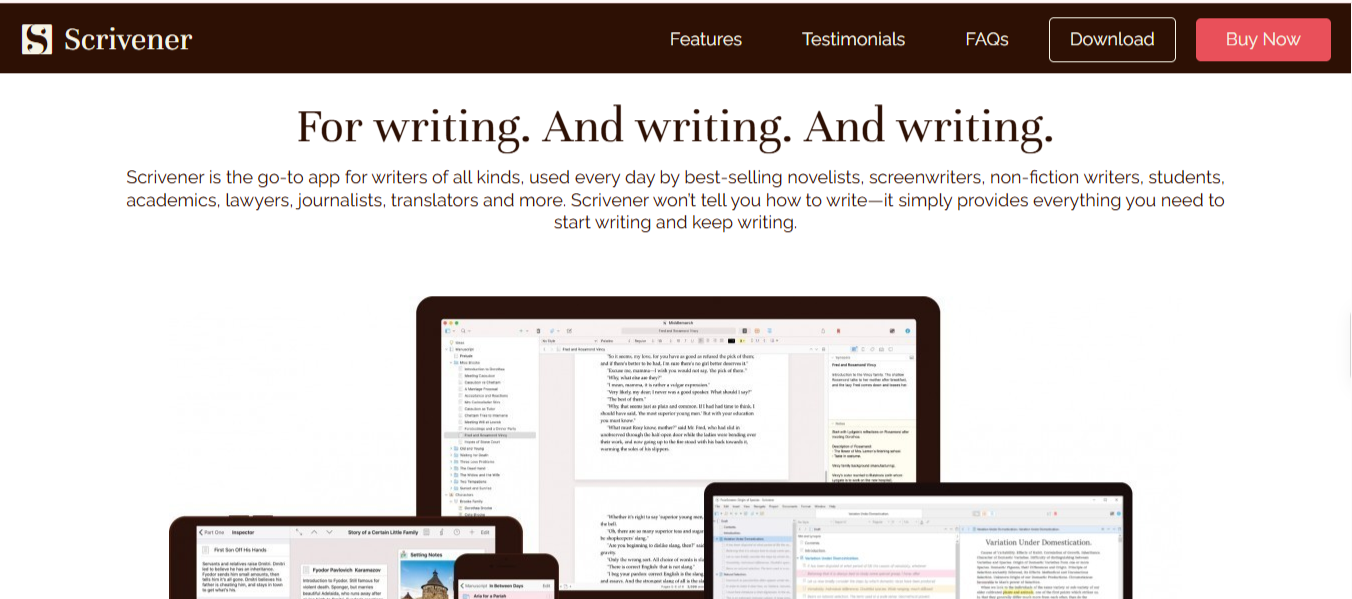
What it does: Breaks a long manuscript into individual scenes and documents you can reorder, tag, and view as a whole.
Best for: Novelists, non-fiction authors, and anyone whose project is too big for one file.
Among dedicated creative writing apps, Scrivener stands out for breaking long manuscripts into individual, reorderable scenes, so you do not have to scroll through a single long document. It also keeps research, outlines, and character notes inside the same workspace as your draft.
Key features
- The binder. A sidebar hierarchy of chapters, scenes, and folders you rearrange by dragging.
- Corkboard and outliner. Two structural views of the same manuscript.
- Split-screen editing. Notes or an earlier scene open beside the one you're writing.
- Compile. Exports the finished manuscript into submission or ebook formats.
Pros and cons
Pros:
✅ You see the shape of 90,000 words at once, instead of scrolling through them.
✅ Interviews, photos, and notes travel with the manuscript, so nothing lives in a folder you'll lose track of.
✅ A single payment covers it, no recurring fee, which pays off across a project measured in years.
Cons:
❌ The feature set is deep enough that most writers need the built-in tutorial to get going.
❌ Moving between devices needs configuration that cloud-native apps handle automatically.
What users say
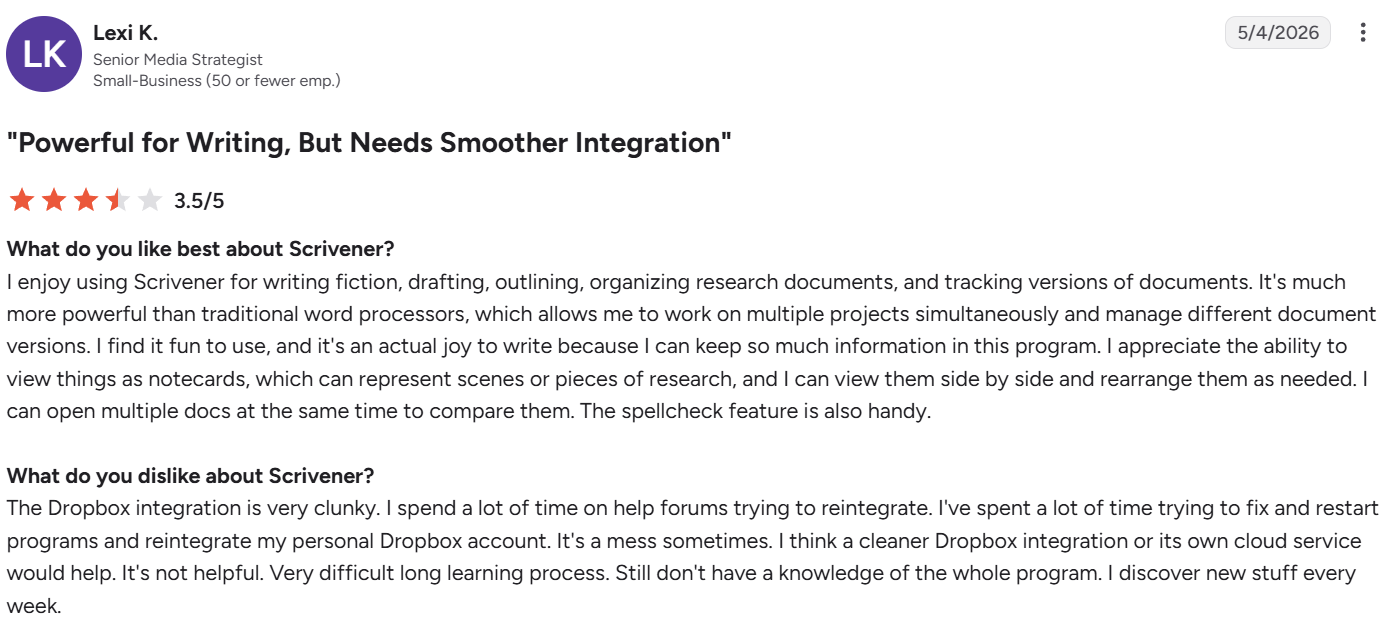
"Allows me to work on multiple projects simultaneously and manage different document versions." — Lexi K., senior media strategist, G2
"Loads of well thought out solutions that make sense. But you need to learn it." — Malcolm, Trustpilot
Pricing
- A one-time purchase for a full license
- Scrivener 3 for Windows: $59.99
- Scrivener for macOS: $59.99
- Scrivener for iOS & iPadOS: $24.99
- Scrivener for both macOS and Windows at a discounted bundle price: $95.98
Bottom line
For a book, it’s worth the learning curve. Overkill for blog posts and essays.
3. Grammarly: Best for editing and polish
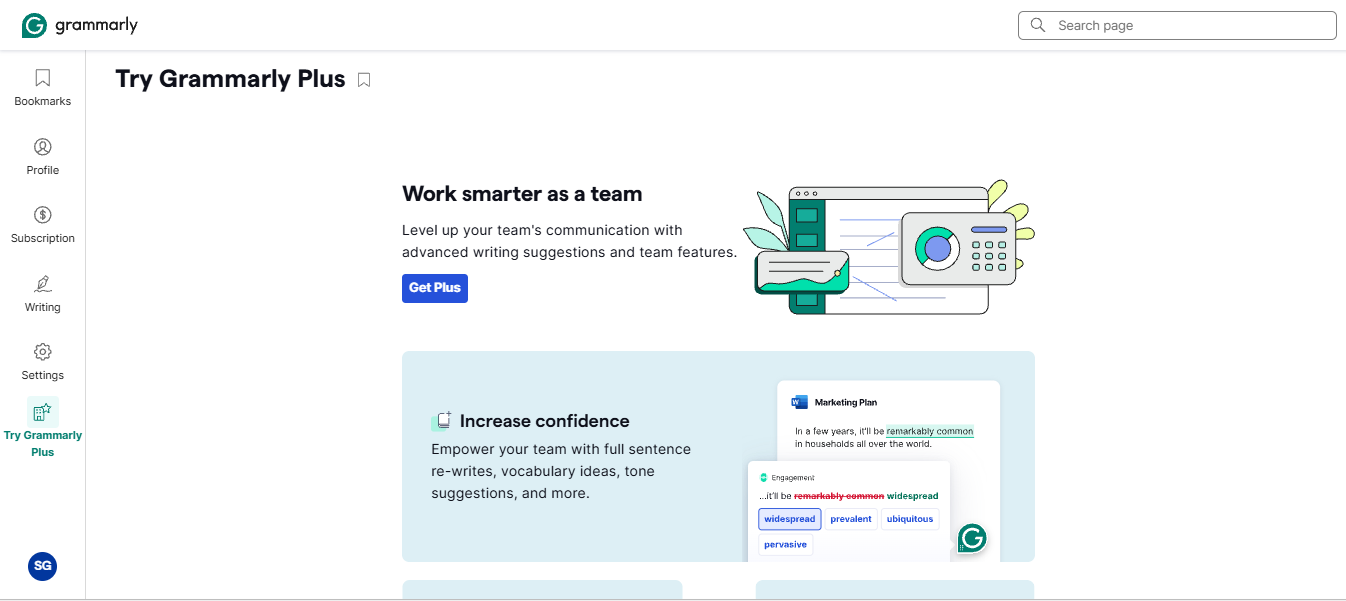
What it does: Checks grammar, clarity, and tone in real time wherever you write, from the browser to your desktop apps.
Best for: Writers who want a reliable final pass across everything they produce.
Grammarly is a digital writing assistant that automatically checks text for spelling, grammar, punctuation, and clarity. It uses AI to suggest tone adjustments, rewrite complex sentences, and detect plagiarism across various browsers, desktops, and mobile apps.
Key features
- Inline correction. Grammar, spelling, and clarity flagged as you type.
- Tone detection. Shows how a passage is likely to land with a reader.
- Cross-platform coverage. Runs in the browser, CMS, email, and desktop apps.
- Plagiarism and citation tools. Available on paid plans for academic and published work.
Pros and cons
Pros:
✅ A second reader runs constantly, catching what your own eye would skip by the fourth read.
✅ Corrections arrive with the reasoning, so you fix the habit while you fix the sentence.
✅ Basic grammar and spelling are covered without paying.
Cons:
❌ Accepting every suggestion produces safe, standard prose that reads like everyone else's.
❌ It refines what exists without helping you produce it, which is why writers pair it with a drafting tool or one of the Wordtune alternatives.
What users say
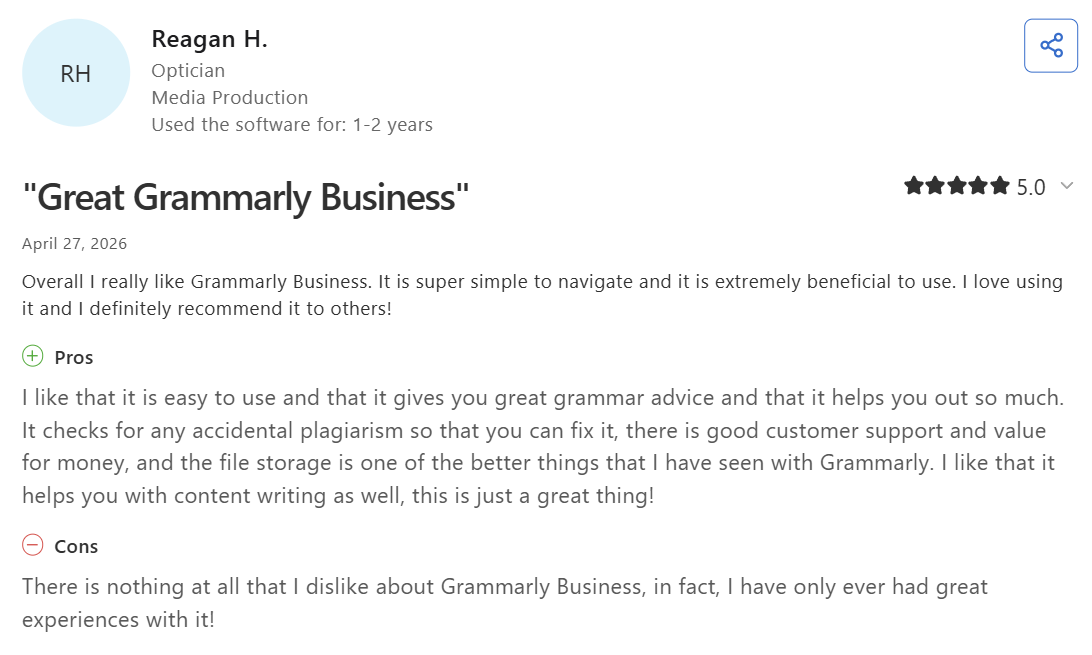
"It is super simple to navigate." — Reagan H., optician, Capterra
"Grammarly’s suggestions can sometimes feel repetitive or a bit too strict." — Furkan A., data scientist, G2
Pricing
- Free plan available (100 AI prompts a month)
- Pro: $30/month, or $12/month billed annually
- Enterprise: Custom pricing
Bottom line
Grammarly is the strongest safety net on this list. Pair it with something that helps you draft, since polish can't fix a page you haven't written.
4. HyperWrite: Best for drafting in your own voice
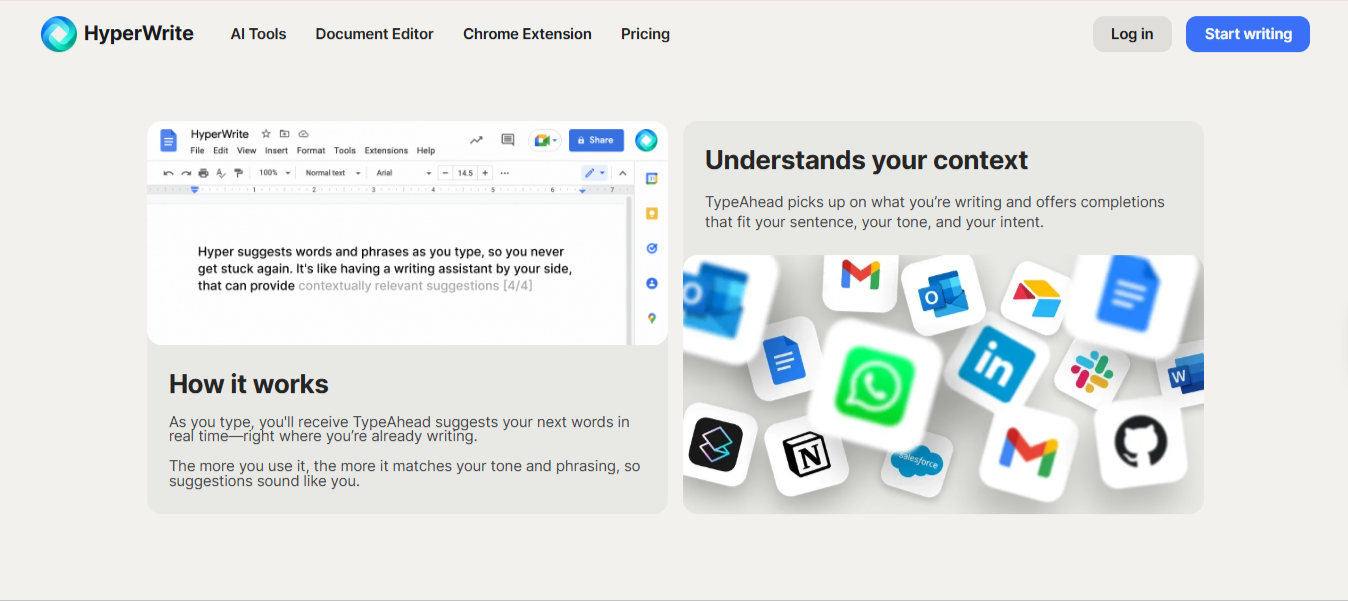
What it does: Drafts and rewrites text with you in real time inside any browser tab, from sentence-level predictions to full first drafts on demand.
Best for: Writers who lose time to the blank page.
HyperWrite works as an AI copilot inside your browser, functioning as an AI typer for Google Docs, Substack, and any tab you write in, with real-time sentence completion (TypeAhead) as you type. It helps writers defeat blank-page syndrome, draft faster, and research factual background context without leaving their document editor.
Key features
- TypeAhead. Real-time sentence completion in any browser tab, with context from your other tabs.
- Personas. Reusable voice profiles you set up once, then TypeAhead and the rest of the tools match your voice across the platform.
- AI Tools Library. Prebuilt tools for outlines, rewrites, and summaries.
- AutoWrite. Turns a short prompt into a full first draft to shape.
Pros and cons
Pros:
✅ When you pause mid-sentence, TypeAhead offers a next line you can accept, tweak, or ignore, so writer's block rarely costs you more than a few seconds.
✅ Drafts land closer to your register, so there's less stripping out of generic phrasing afterward.
✅ A browser extension and a free tier mean no new platform to move into.
Cons:
❌ No manuscript organization, so a novelist writing a full book still needs a separate app to hold chapters, scenes, and notes.
❌ Personas takes deliberate setup; the voice-match is only as sharp as the samples and instructions you give it up front.
❌ A native desktop app sits outside TypeAhead's reach.
What users say
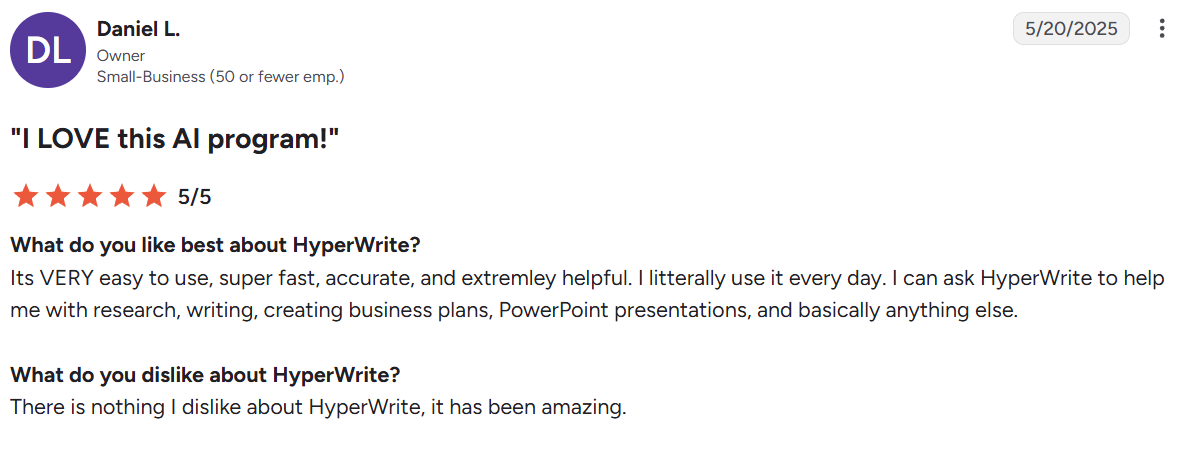
"I can ask HyperWrite to help me with research, writing, creating business plans, PowerPoint presentations." — Daniel L., small business owner, G2
"I want it to keep [disabled] on some website…but there is no keyboard shortcut." — MD Sakibul Hasan, Chrome Web Store
Pricing
- Free plan available
- Premium: $16 a month billed annually or $19.99 month-to-month
- Ultra: $29 a month annually or $44.99 month-to-month
Bottom line
It’s the pick when the first-draft stage is where you stall. Pair it with Docs or Scrivener to hold the finished manuscript, since HyperWrite drafts alongside you but doesn't organize the book.
If most of your writing lives in native desktop apps rather than the browser, one of these Cotypist alternatives will suit you better.
5. Ulysses: Best for distraction-free writing on Apple
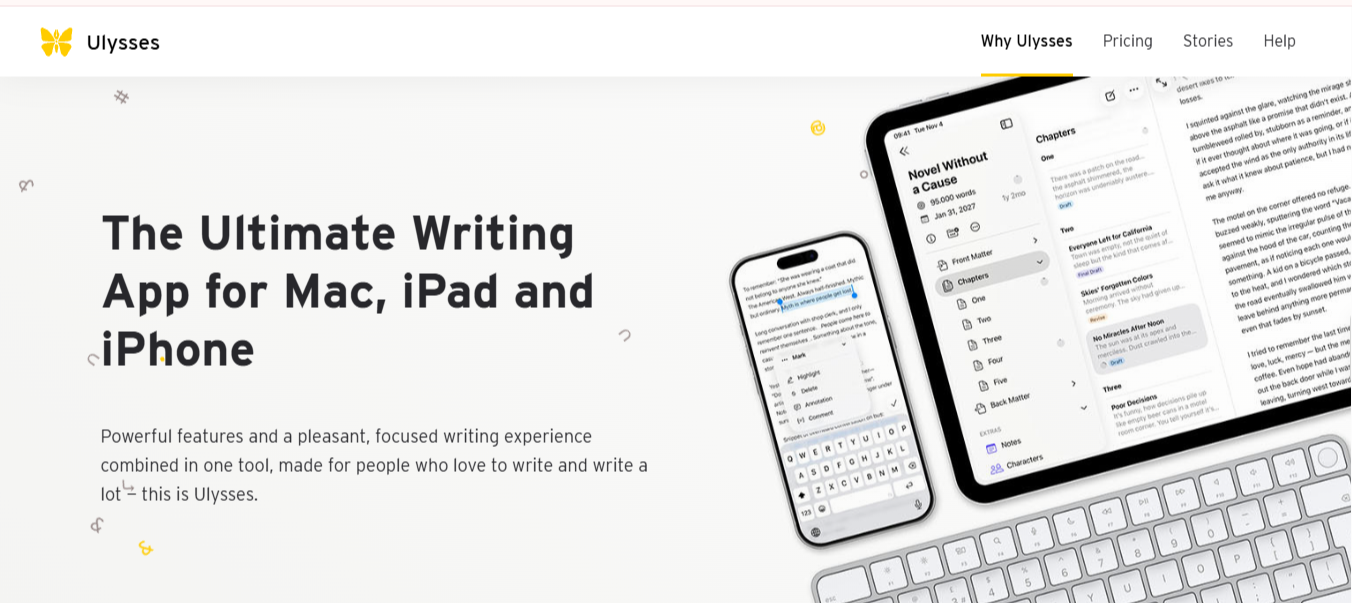
What it does: Provides a clean markdown editor with a library that organizes every piece of writing you own.
Best for: Mac, iPad, and iPhone writers who want the interface to disappear.
Ulysses is a writing app for Apple users creating long-form content, blogs, and articles. It has a distraction-free Markdown editor, a central library for organizing files, and built-in proofreading and editing assistants. The app syncs across Mac, iPad, and iPhone through iCloud, and lets you publish directly to platforms.
Key features
- Markdown editor. Formatting happens through plain text, not toolbars.
- Unified library. Every sheet lives in one place with tags and filters.
- Goals and progress. Word count targets per document or project.
- Direct publishing. Sends finished posts to WordPress, Ghost, and Medium.
Pros and cons
Pros:
✅ Full-screen mode hides the sidebar and the file browser, so your document is the only thing on screen while you write.
✅ A sentence started on the iPhone continues on the Mac without a thought.
✅ A paragraph from three years ago surfaces in seconds, with no folder hunt.
Cons:
❌ No Windows or Android version rules it out for mixed setups.
❌ The subscription model means access ends the moment payment stops.
What users say
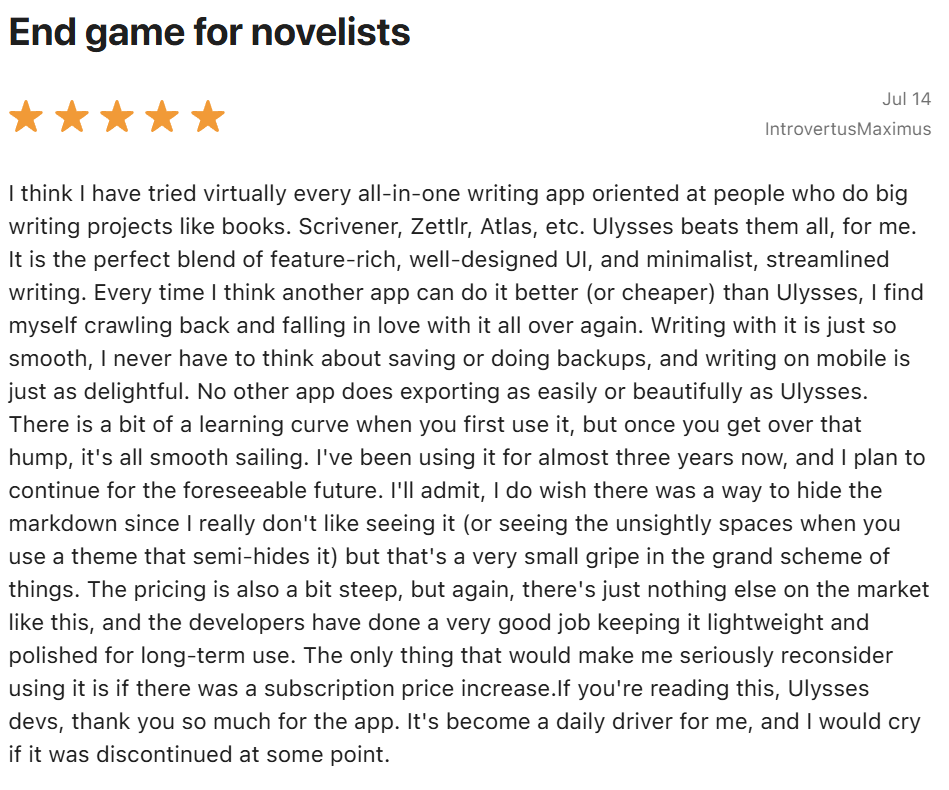
"I never have to think about saving or doing backups, and writing on mobile is just as delightful." — IntrovertusMaximus, Apple App Store
"The app on iPad has now and has had for well over a year [an] issue with the Apple Magic Keyboard." — Truehugs, Apple App Store
Pricing
- Subscription billed through the App Store: $5.99 a month or $39.99 a year, with a student rate and a free trial
- Local pricing varies by region, so check the App Store listing for your country.
Bottom line
It’s the best writing experience on this list if you're all-Apple. Irrelevant if you aren't.
6. Dabble: Best for plotting a novel
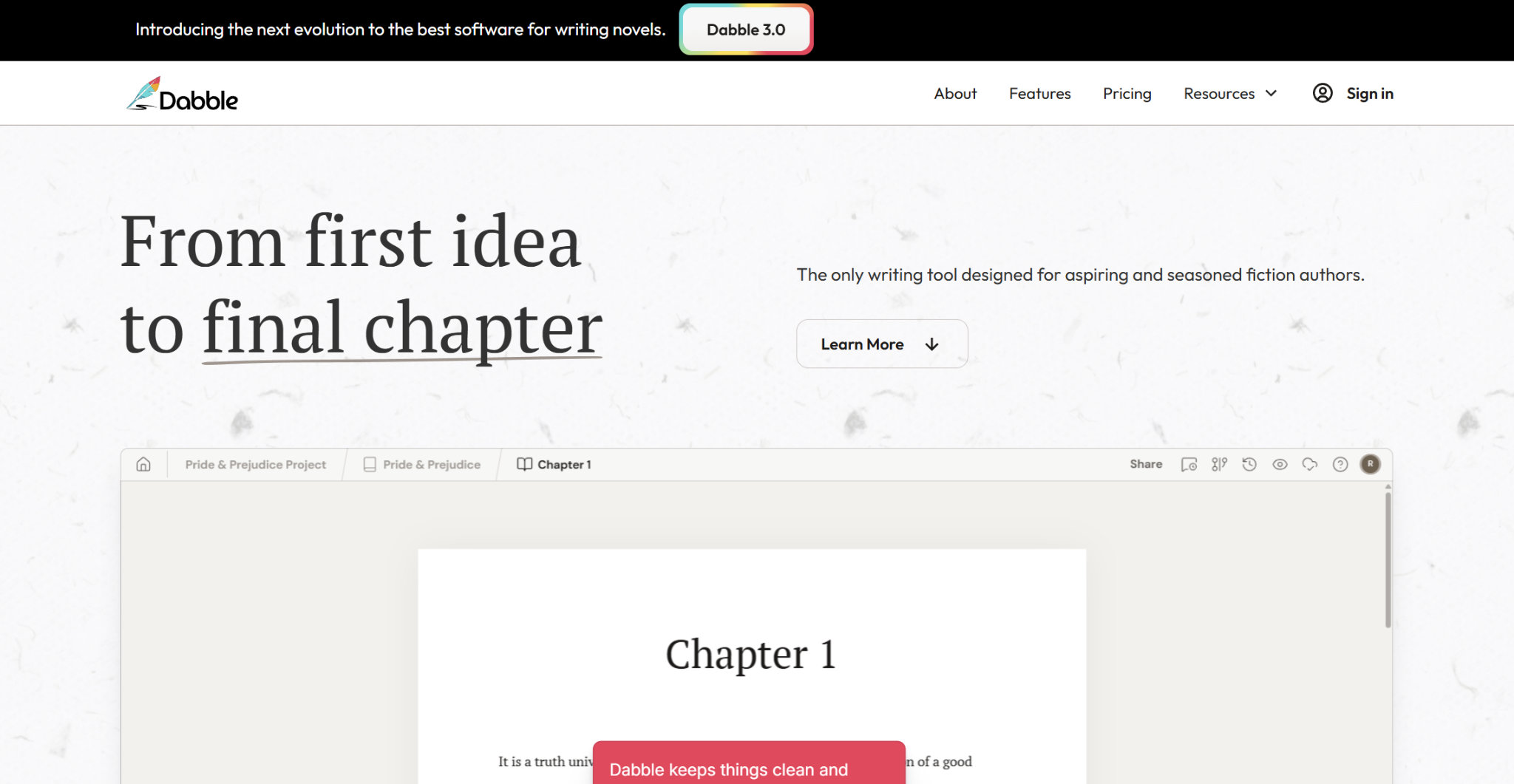
What it does: Pairs a clean manuscript editor with a visual plot grid, keeping the outline right beside the draft while everything syncs across your devices.
Best for: Fiction writers who plot before drafting and found Scrivener overwhelming.
Dabble sits between Google Docs and Scrivener as an app for book writing. It maps storylines and beats on color-coded cards beside your chapters, and everything syncs across devices without configuration.
Key features
- Plot Grid. Visual story planning that links directly to manuscript chapters.
- Automatic sync. Browser, desktop, and mobile stay current without setup.
- Goal tracking. Daily word targets that recalculate against your deadline.
- Focus mode. Strips the screen back while you draft.
Pros and cons
Pros:
✅ Update a beat in your plan, and it shows up right next to the chapter it belongs to.
✅ Open it and start drafting the same day, no manual required.
✅ A missed target flags itself while there's still time to adjust before the deadline.
Cons:
❌ A subscription outruns a one-time purchase across a project measured in years.
❌ Print interior layout still needs a dedicated formatting tool.
What users say
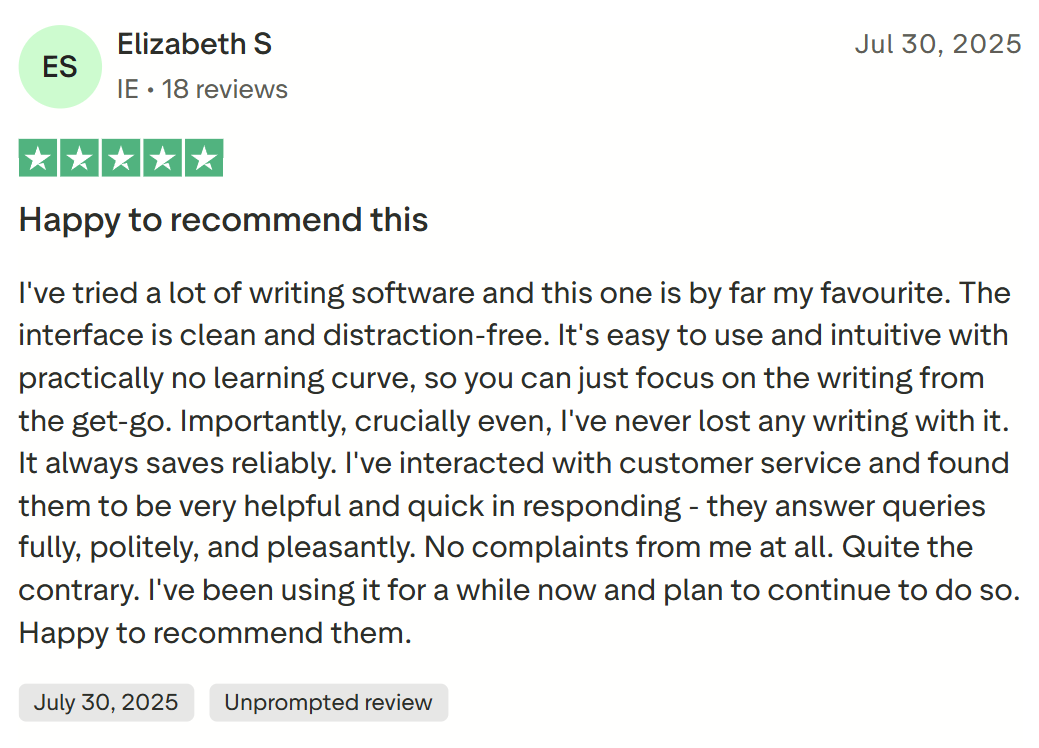
"The interface is clean and distraction-free." — Elizabeth S., Trustpilot
"Pricing is [a bit] on high end." — Mugdha S., G2
Pricing
- Writer: $19/month
- Author: $29/month
- Bestseller: $49/month
- 20% savings on annual subscription
- Lifetime Author Access: $699
Bottom line
The gentlest entry point into apps for writing stories, and a real ramp for anyone structuring a first novel. Weigh the subscription against Scrivener's one-time fee over the life of your book.
7. Notion: Best for research-heavy writing
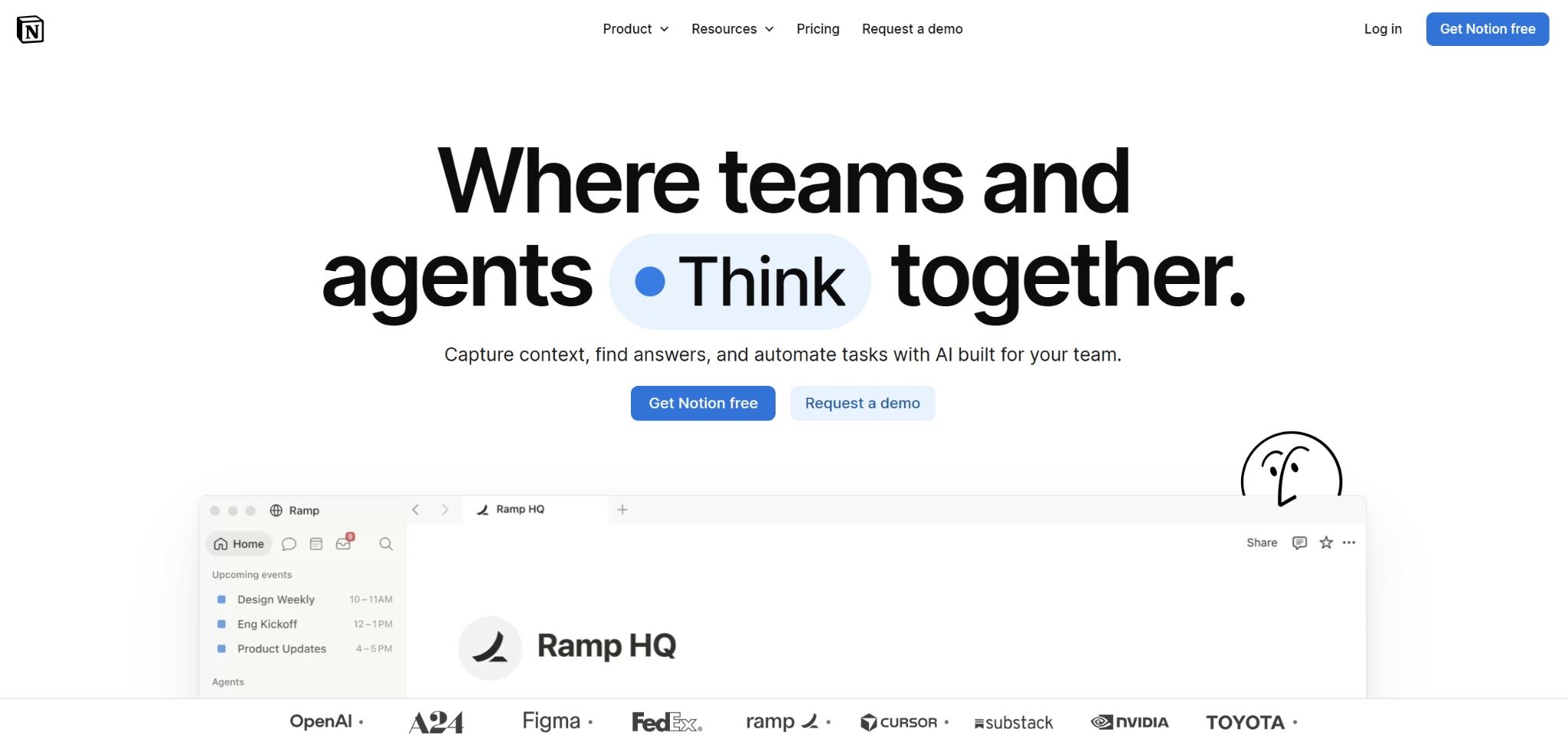
What it does: Combines documents, databases, and notes in one workspace you build to fit your project.
Best for: Writers whose projects involve more research and reference material than prose.
Notion is a flexible workspace where documents, databases, and notes all live in the same place. Writers use it to keep research beside the draft, build a content calendar, track pitches, and write inside the same page they're sourcing from.
Key features
- Databases. Sources, interviewees, and reference articles stored as filterable records.
- Linked pages. Notes and research directly connect to the drafts that use them.
- Templates. Reusable document structures for recurring formats and workflows.
- Collaboration. Shared workspaces with real-time editing, comments, and permissions.
Pros and cons
Pros:
✅ Material stays searchable months later, never buried in a badly named folder.
✅ You shape the structure around your own work, not someone else's template.
✅ Personal use costs nothing, which suits solo writers.
Cons:
❌ Every paragraph is its own block, so a long draft never types as smoothly as it does in a dedicated word processor.
❌ No built-in word count target, so tracking daily progress means bolting on your own workaround.
❌ Setup can eat hours before you write a word; building databases, templates, and the right workspace views is real work.
What users say
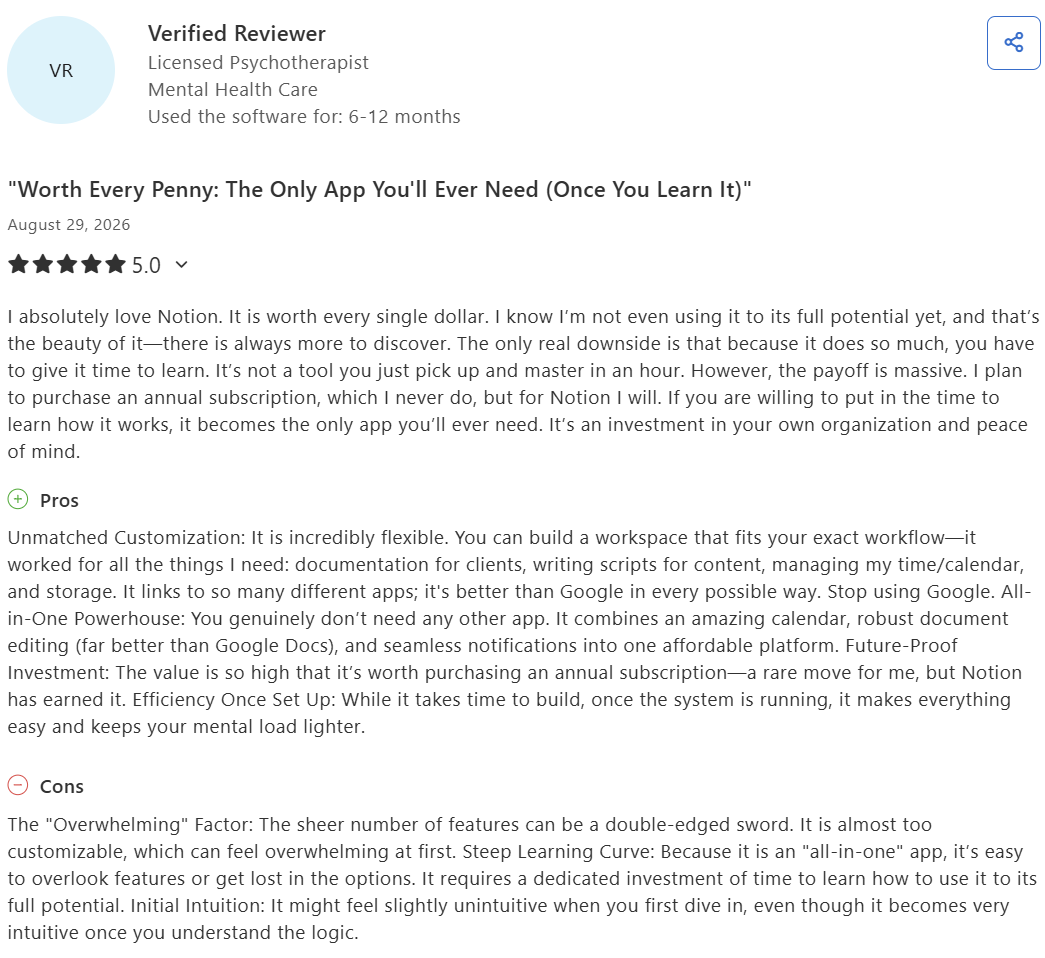
"It worked for all the things I need: documentation for clients, writing scripts for content, managing my time/calendar, and storage." — Verified reviewer, Capterra
"Desktop runs fine…but on my phone the bigger pages can take a few seconds to load." — Jean, marketing assistant, Capterra
Pricing
- Free plan available
- Plus: $10 per member/month billed annually or $12 per member month-to-month
- Business: $20 per member/month billed annually or $24 per member month-to-month
- Enterprise: Custom pricing
Bottom line
It’s the best home for managing a research-heavy project, with notes, sources, and outlines in one workspace. Use it to organize your material, but consider moving to a dedicated editor when drafting full chapters.
Which writing app should you choose?
Choose Google Docs if you:
- Want something free that works on every device.
- Write with editors or clients who need to comment.
Choose Scrivener if you:
- Are writing a book and need to see its structure.
- Prefer paying once over renting software.
Choose Grammarly if you:
- Want one editing standard across everything you write.
- Catch fewer of your own errors than you'd like.
Choose HyperWrite if you:
- Stall on first drafts more than on structure or editing.
- Want AI help that sounds like you, inside the tools you already use.
Choose Ulysses if you:
- Work entirely on Apple devices.
- Want the quietest writing screen available.
Choose Dabble if you:
- Plot your fiction and want the outline beside the draft.
- Bounced off Scrivener's learning curve.
Choose Notion if you:
- Manage more research than prose.
- Want notes, sources, and drafts in one workspace.
Skip all of them if you:
- Write occasionally, and the app is rarely what's holding you back.
The final verdict
No one app covers everything, which is why most writers end up running two side by side. Google Docs and Grammarly are the cheap, everyday pair, one for writing, one for polish. A long manuscript pushes you toward apps for writing stories like Scrivener or Dabble, since that's the job they're built for.
Ulysses, Dabble, Notion, and HyperWrite each solve a narrower problem: distraction-free writing, plotting a novel, research-heavy projects, and drafting in your own voice. Find the part of the process that actually slows you down, then pick the one tool built for it. Two tools working together usually beats one app trying to do everything.
Draft in your own voice
If getting words down is where you stall, HyperWrite's TypeAhead runs beside the apps above, stepping in whenever you need real-time suggestions without forcing you to switch writing environments.
Its Personas keep suggestions in your voice, and its built-in rewriting tools handle paraphrasing and tone shifts without switching tools.
Tired of stalling on first drafts? Try TypeAhead free with the HyperWrite Chrome extension and keep the words moving in whatever tab you're writing in.
Frequently asked questions
What is the best app for writing?
The best app for writing depends on your bottleneck. Google Docs suits everyday drafts and collaboration, Scrivener handles books and long manuscripts, Grammarly covers editing, and HyperWrite helps when first drafts are the slow part.
What is the best free writing app?
Google Docs is the best free writing app for most people, with full word processing, collaboration, and access from any device at no cost. Notion's free personal tier suits research-heavy projects, and Grammarly and HyperWrite both offer limited free plans.
What is the best app for book writing?
Scrivener is the best app for book writing if you want maximum control over structure, with a binder that turns a manuscript into rearrangeable scenes. Dabble is the better pick for novelists who want plotting tools without the learning curve.
What's the best app for creative writing?
The best creative writing app depends on how you work. Dabble suits fiction writers who plot before drafting; its Plot Grid keeps beats beside the manuscript. Scrivener suits writers who want deeper structural control across scenes and research. Ulysses suits writers who want a distraction-free interface across Apple devices.
What's the best app for rewriting or paraphrasing?
The best app for rewriting or paraphrasing depends on how much of it you do. Grammarly rewrites full sentences with a click and works across every app you write in. HyperWrite's rewriting tools handle paraphrasing plus voice-matched drafting inside the same extension, so it's worth a look if you're comparing QuillBot alternatives for paraphrasing work.
Are there writing apps for authors that help with plotting?
Yes. Dabble's Plot Grid maps storylines and beats on color-coded cards linked to your chapters, and Scrivener's corkboard and outliner offer two structural views of the same manuscript. Both keep the outline beside the draft.
How many writing apps do you need?
Most writers need two at most, usually one for drafting and one for editing. Adding more creates overlap and switching costs without improving the writing, so pick one for the stage that slows you down.
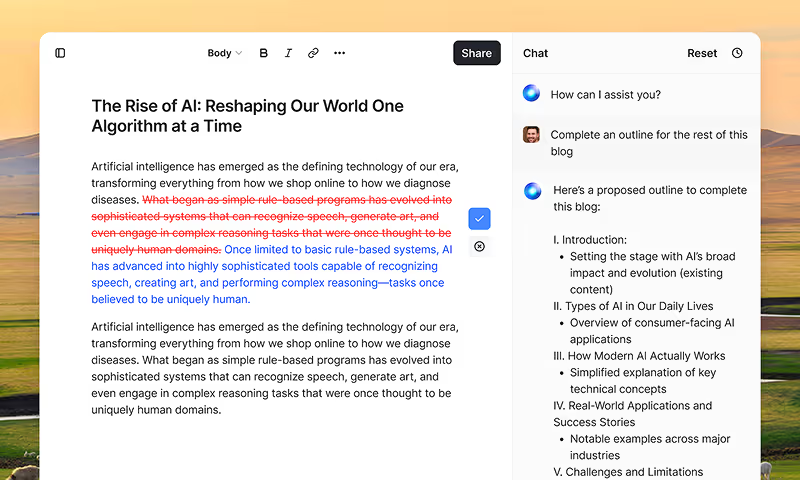
HyperWrite is the AI writing assistant that learns your style. It handles drafting, editing, and researching so you can focus on ideas.
- Autocompletes sentences as you type
- Works inside Google Docs & Gmail
- Adapts to your personal writing style
- 500+ AI tools for any writing task
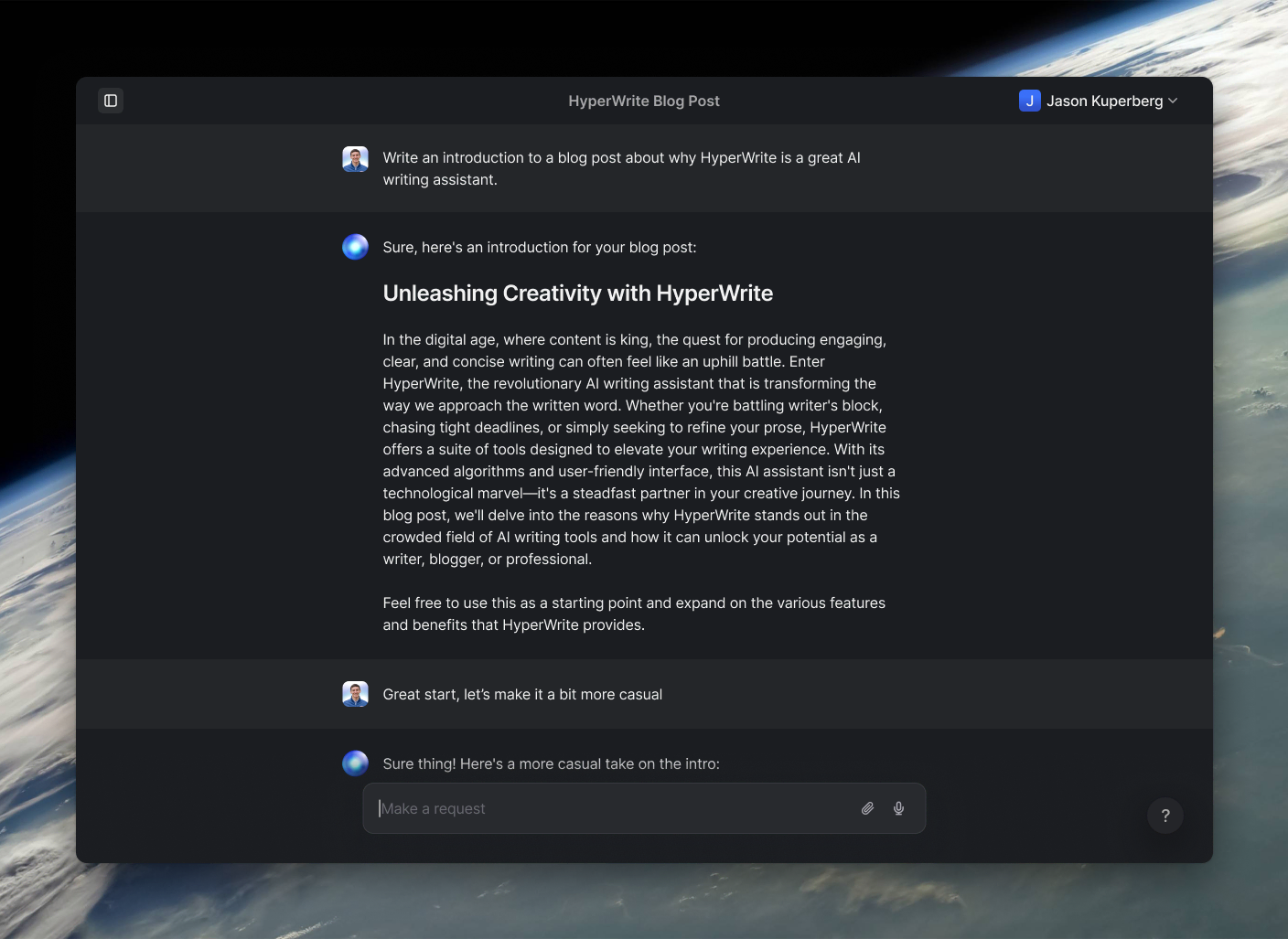
Powerful writing in seconds
Improve your existing writing or create high-quality content in seconds. From catchy headlines to persuasive emails, our tools are tailored to your unique needs.