
5 Best Writing Apps for Android in 2026

Your phone is already where half your writing happens: a line saved in a checkout queue, a paragraph fixed from bed because you can't stop thinking about it.
A download count or a star rating only tells you what's popular. We built this list from what users report after months of daily use instead.
The five writing apps for Android below each cover a different job: drafting without distractions, sharing with someone else, catching your own typos, formatting something that has to look right, or drafting inside a workspace where your research and notes already live. By the end, you'll know which one to install tonight.
5 best writing apps for Android: TL;DR
- JotterPad: Best for distraction-free drafting on a phone.
- Google Docs: Best free and collaborative option.
- Grammarly: Best for grammar and polish on the go.
- Microsoft Word: Best full-featured word processor for Android.
- Notion: Best for drafting inside the workspace where your research and notes already live.
How these Android writing apps were compared
Writing on a phone breaks down for different reasons depending on what you're doing, so each app here was judged on four things.
- The job it does. Drafting, collaborating, editing, and formatting are different problems, and a good drafting app is rarely a good word processor.
- How it feels on a small screen. Some apps were built for a phone from the ground up. Others are a desktop tool that happens to run on one.
- What the free tier covers. A few of these stay free in daily use, beyond the app store listing.
- Offline reliability. Whether the app keeps working, and keeps your draft safe, without a signal.
5 best writing apps for Android: Quick comparison
Pricing verified as of September 2026, based on annual plans.
1. JotterPad: Best for distraction-free drafting
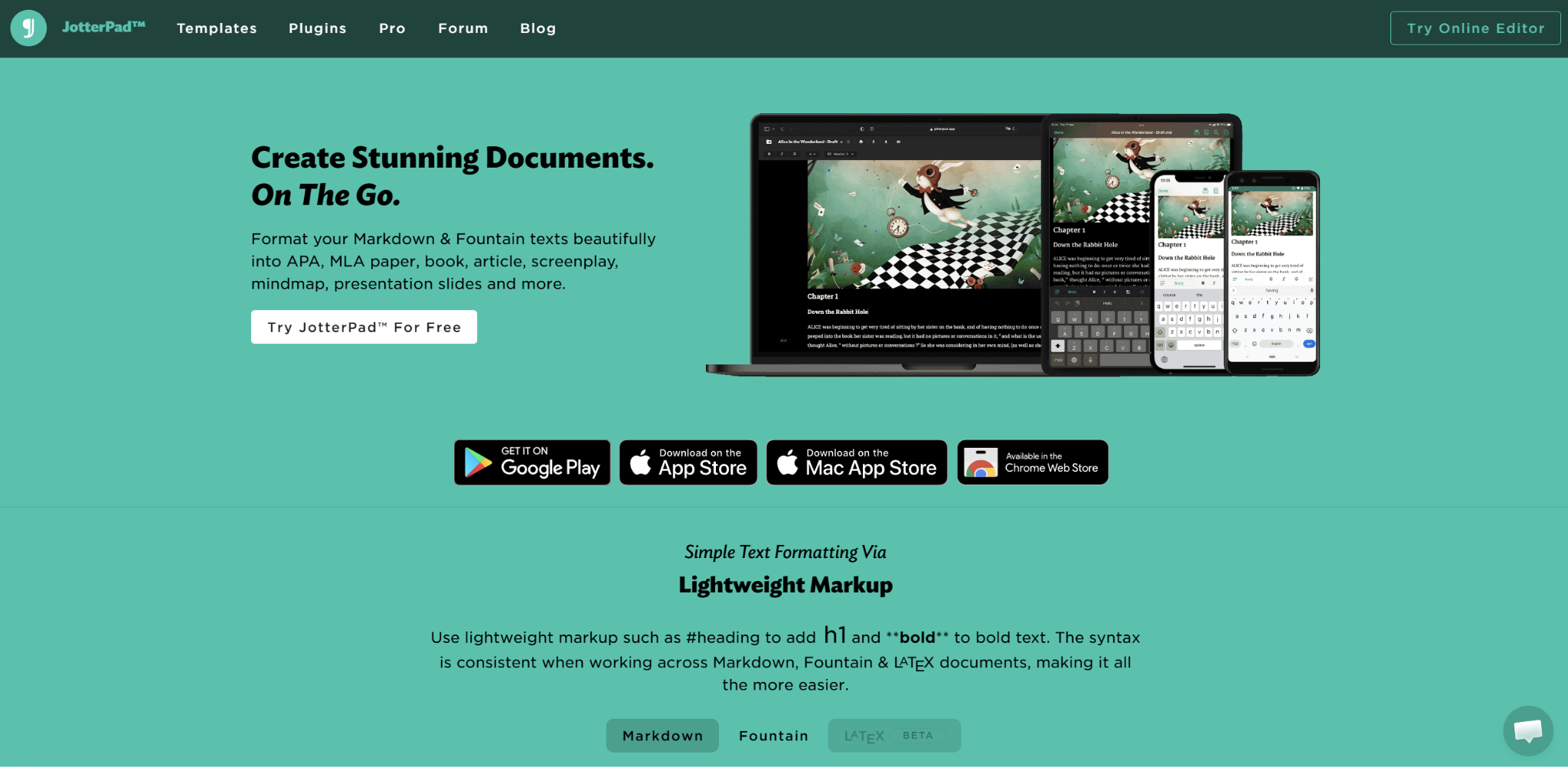
What it does: A distraction-free text editor built for phones, supporting Markdown and Fountain screenplay syntax, with export to Word, PDF, and more.
Best for: Writers who want an app that feels built for a phone screen instead of shrunk down to fit one.
Most word processors carry a desktop's worth of toolbar onto a screen that can't fit it. JotterPad strips that away and keeps a clean, single-purpose typing interface, which is why it's the app writers on Reddit and app store reviews keep naming first for drafting on Android.
Key features
- Markdown and Fountain support. Write prose or a screenplay without ever touching a bulky toolbar.
- Cloud sync. Never lose a draft or dig for the right file across three different services.
- Built-in dictionary and thesaurus. Check a word mid-sentence without breaking your writing flow.
- Multiple export formats. Hand a finished piece to anyone, in whatever format they need, with one tap.
Pros and cons
Pros:
✅ The interface stays out of the way, so the phone screen feels like a page instead of a shrunken desktop app.
✅ Prose and screenplays live in one app, so a scriptwriter never switches tools mid-project just to format a scene.
✅ Exporting to Word or PDF means a phone draft moves to a laptop without reformatting.
Cons:
❌ Cloud sync across multiple accounts sits behind the paid subscription.
❌ The interface rewards writers who don't mind Markdown syntax over a visual toolbar.
What users say
“The markdown features and UI were the best.” — ZoeV, Google Play
“Your work is not saved unless you upload it to the cloud (paid function).”— Novelle, Google Play Store
Pricing
- Free to download, with about half the features available at no cost.
- Pro Cloud (12 months): $3.33/mo billed annually, cancel anytime
- Pro Cloud (Lifetime): $159.99, pay once for lifetime access
Bottom line
JotterPad is the strongest pick when the phone itself is where real drafting happens, beyond quick notes.
2. Google Docs: Best free and collaborative option
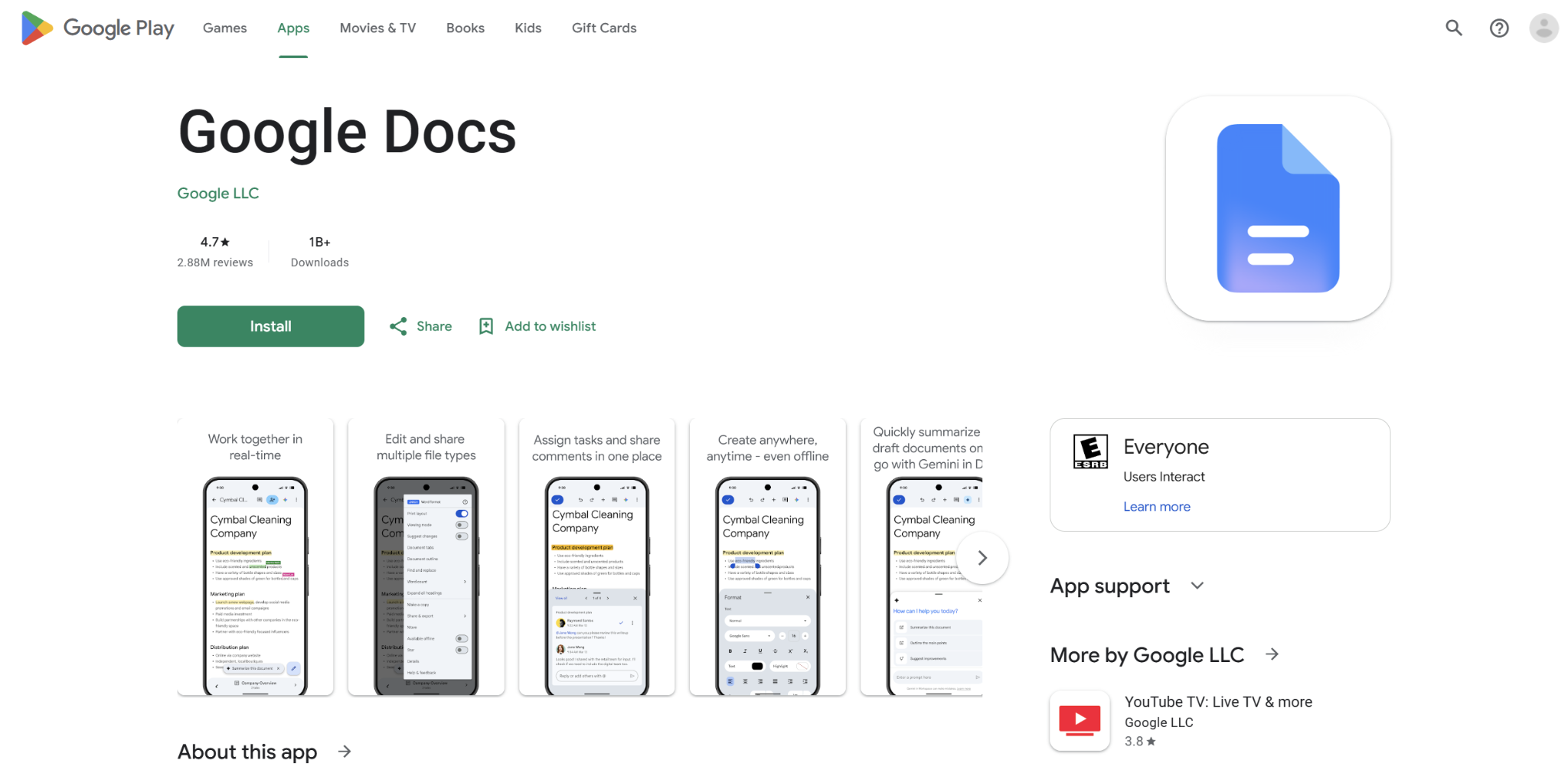
What it does: A free word processor with real-time collaboration, automatic saving, and a full Android app.
Best for: Writing that needs to be shared, commented on, or picked up on a different device without friction.
A phone draft is only useful if it survives the trip to wherever you finish it. Google Docs solves that by making the phone and the laptop the same document, with nothing to export or convert in between.
Key features
- Real-time collaboration. Get feedback the moment you write it instead of waiting for a separate round of edits.
- Cross-device sync. Pick up the exact sentence you left off on, whichever device is in front of you.
- Offline mode. Keep writing on a subway with no signal and never lose a word.
- Voice typing. Get a paragraph down while your hands are full, walking, cooking, anywhere typing isn't an option.
Pros and cons
Pros:
✅ A Google account is the entire setup, and it costs nothing.
✅ A document shared with a teacher or editor updates in real time, no separate export.
✅ Automatic saving means a dropped connection or a dead battery never costs you the last line.
Cons:
❌ The interface is a shrunken word processor, not a phone-first writing tool.
❌ There's no distraction-free mode, so notifications and the full toolbar stay visible.
What users say
“I especially love the tab system it has with its document creation.” — Cierra Nelson, Google Play
“At random, specific documents just won't be accessible on specific devices.” — Kimberly Ramin, Google Play
Pricing
- Free with a Google account
- Google Workspace business plan starts at $7/user/month for teams that need more storage or admin controls.
Bottom line
Google Docs is the default for good reason, especially when a draft needs to reach someone else. It won't feel built for the screen the way a dedicated app does.
If most of your writing lives in Docs, the best AI for Google Docs can add the drafting muscle the app itself leaves out.
3. Grammarly: Best for grammar and polish on the go
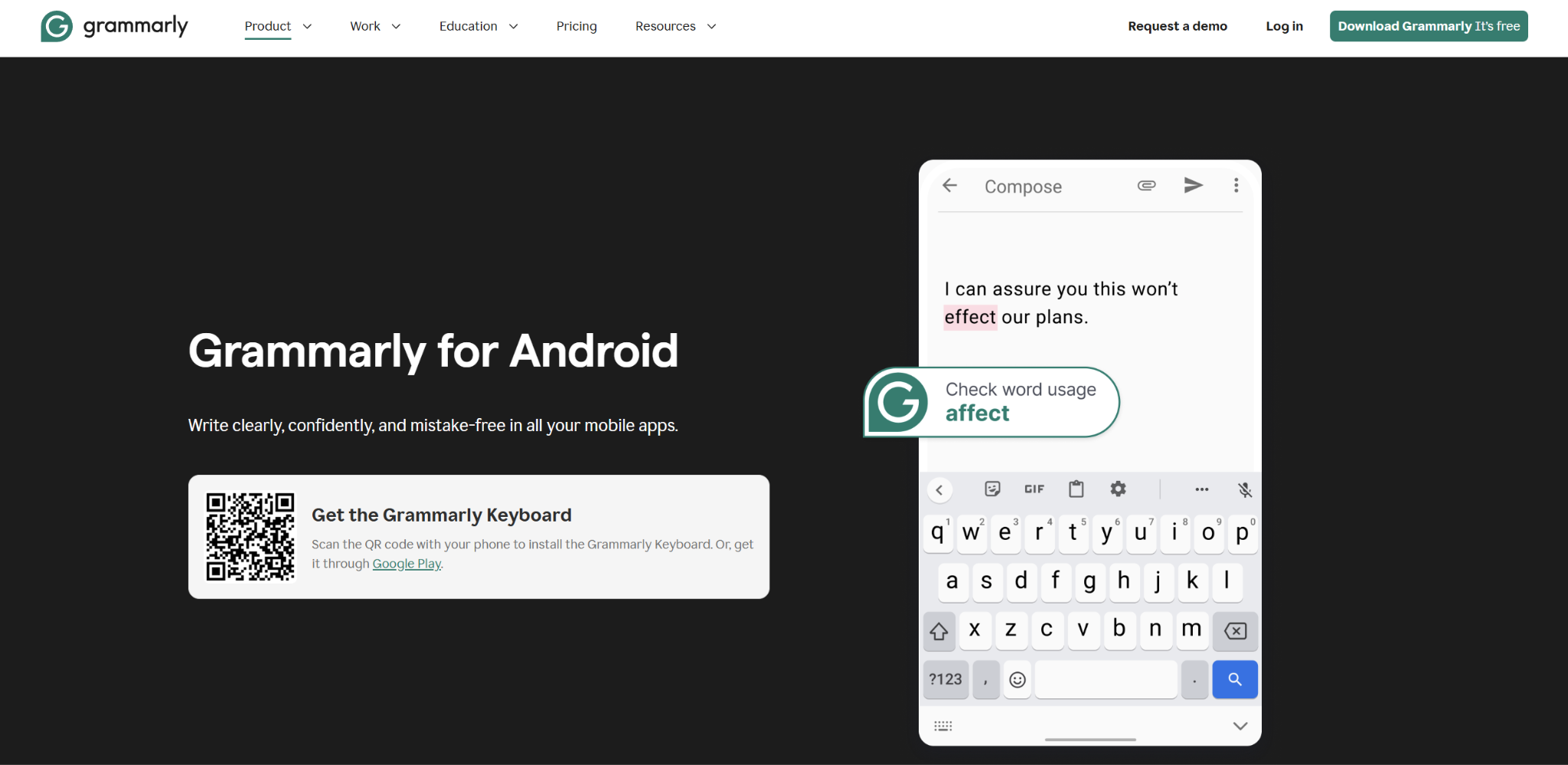
What it does: Checks grammar, spelling, clarity, and tone in real time, through a dedicated keyboard that works across Android apps.
Best for: Catching errors in whatever you're typing, across every app, not one writing app alone.
Most writing apps only check what's typed inside them. Grammarly's keyboard follows you into email, messages, and social apps too, which matters if a chunk of your Android writing happens outside a dedicated editor entirely.
Key features
- Grammarly Keyboard. Catch a typo the moment you make it, in any app on your phone.
- Tone detection. Know a message reads harsher than you meant before you hit send, not after.
- Cross-app coverage. Get the same protection texting a friend as drafting a formal email.
- Plagiarism check. Confirm a passage is your own before you submit it, on paid plans.
Pros and cons
Pros:
✅ There's no "open the writing app first" step, since the keyboard is already there in whatever you're typing.
✅ The tone check matters most in the quick messages you'd otherwise send without rereading.
✅ The free plan covers real grammar and spelling checks across the whole phone.
Cons:
❌ Switching keyboards takes a setup step most other apps don't ask for.
❌ It corrects what's already typed and does nothing to help start a draft.
What users say
“It cleans up voice to text and common mistakes.” — Hans Eckman, Google Play
“You get two clarity corrections for free. Afterwards, you have to subscribe to get those.” — Chyna Houston, Google Play
Pricing
- Free plan available (100 AI prompts a month)
- Pro: $12/month billed annually, $20/month billed quarterly, or $30 month-to-month
- Enterprise: Custom pricing
Bottom line
Grammarly is worth installing as the keyboard layer underneath whichever app does the actual drafting.
4. Microsoft Word: Best full-featured word processor
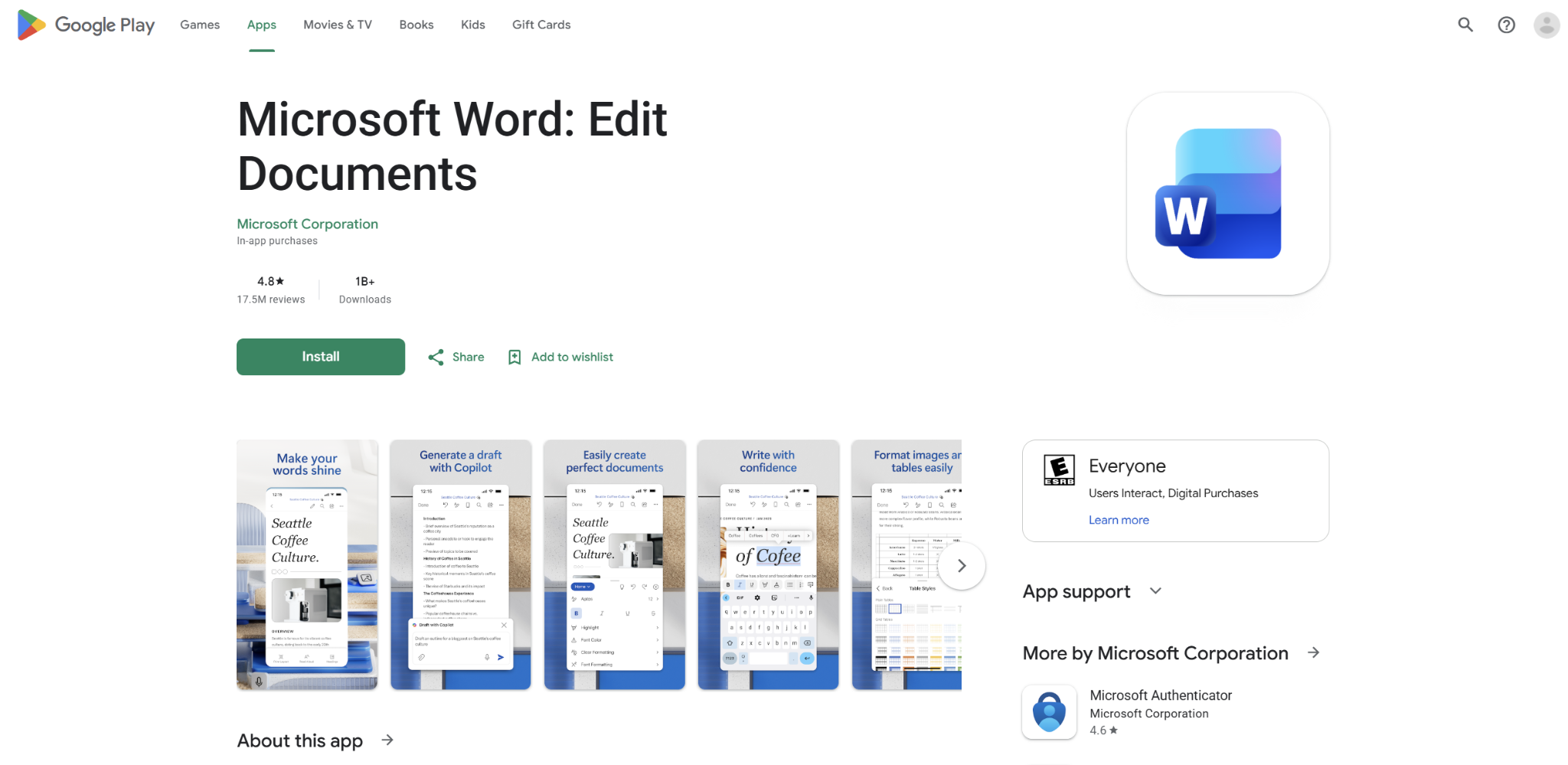
What it does: A full word processor with formatting, styles, and track changes, built for documents that need real structure.
Best for: Documents headed somewhere formal, a report, a submission, a file that has to look a specific way.
Some phone drafts are full documents, and a file with headers, citations, or a required format needs a real word processor eventually. Microsoft Word carries that professional writing structure onto Android without losing formatting in translation.
Key features
- Full formatting toolbar. Format a document on your phone and have it look identical when you open it at a desk.
- Track changes and comments. See exactly what an editor changed, without a second explanation.
- OneDrive integration. Start a document on your phone and finish it on a laptop with nothing to re-upload.
- Template library. Skip building a resume or report from scratch every time you need one.
Pros and cons
Pros:
✅ When a file has to match an exact format, Word holds the layout on a phone the way lighter editors can't.
✅ If your reviewers already work in Word, editing on a phone keeps you in their format instead of making everyone convert files.
✅ The free tier covers real editing, beyond read-only viewing.
Cons:
❌ The full toolbar is a lot of interface for a phone screen.
❌ Editing a long, heavily formatted document on a small screen gets slow.
What users say
“It especially comes in handy for projects on the go.” — Trevor Robinson, Google Play
“It lags quite often and does not save any additional work unless you click the 'save automatically' button.” — Daijah McClendon, Google Play
Pricing
- Free with a Microsoft account for viewing and light editing
- Microsoft 365 Personal: $99.99/year or $9.99/month
- Microsoft 365 Family: $129.99/year or $12.99/month
- Microsoft 365 Premium: $199.99/year or $19.99/month
Bottom line
Word is the right call when the document's formatting matters as much as the words. Overkill for a quick draft.
5. Notion: Best for drafting inside your workspace
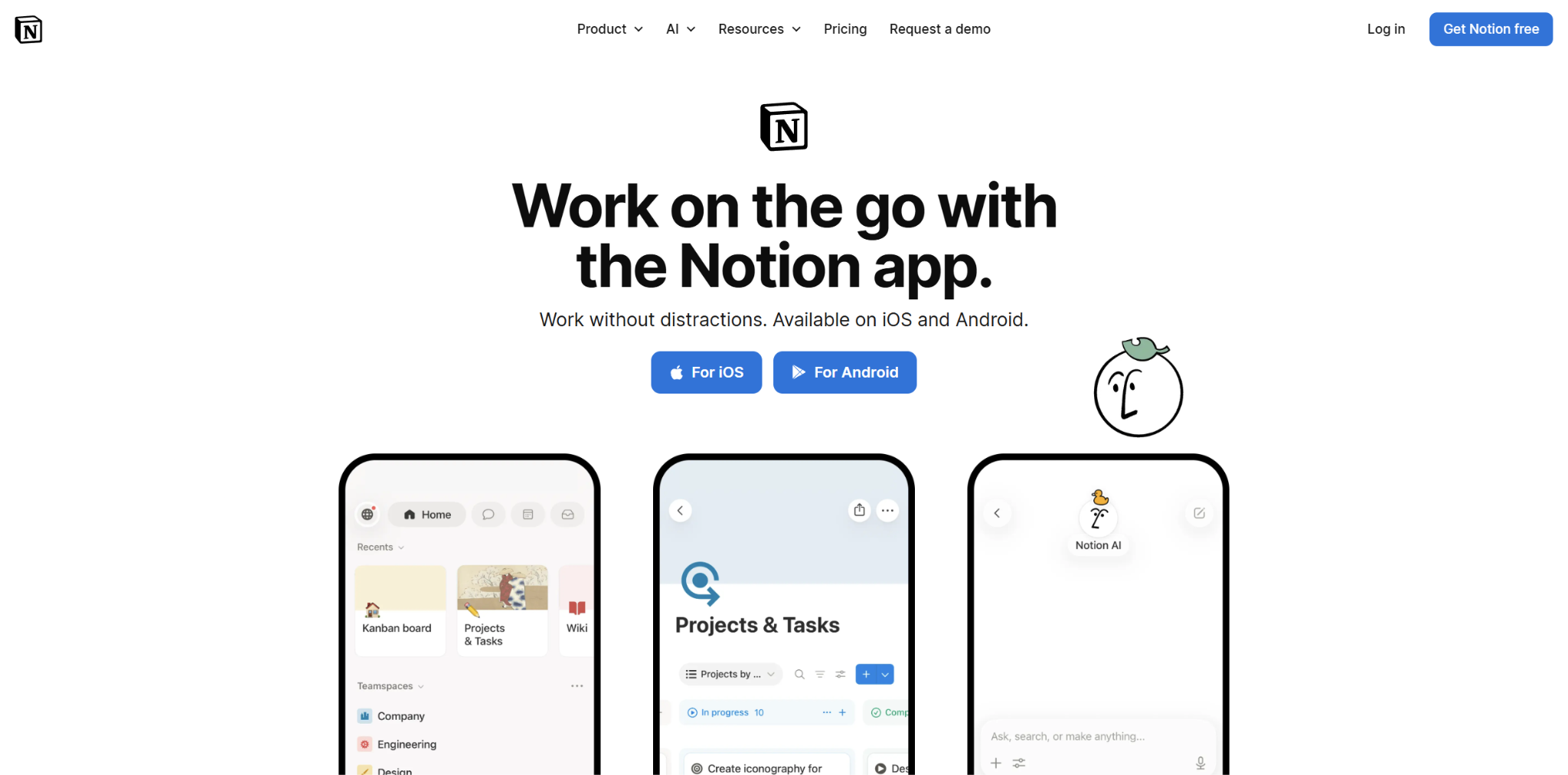
What it does: A workspace app combining notes, databases, and documents, with a native Android app for drafting alongside research that's already organized there.
Best for: Writers who already keep research, outlines, or reference notes in Notion and want to draft in the same place instead of switching apps.
Copying research into a separate writing app loses the connections between a draft and the notes it's built from. Notion keeps both in the same workspace, so a draft can sit right next to the sources, outlines, or database entries that informed it.
Key features
- Linked databases. Pull a research note or reference directly into a draft without leaving the app.
- Nested pages. Keep a whole project, drafts, notes, and references, under one searchable structure.
- Native Android app. Full editing on a phone, beyond a scaled-down mobile view.
Pros and cons
Pros:
✅ A reference or database entry drops straight into the draft, so there's no tabbing between a notes app and a doc.
✅ The free plan covers real drafting and organizing, with unlimited pages and blocks.
✅ One workspace replaces a notes app, a drafting app, and a project tracker at once.
Cons:
❌ Full AI features sit behind the Business tier, the free and Plus plans get only a limited AI trial.
❌ The learning curve is steeper than a plain text editor, since the workspace structure takes setup before it pays off.
What users say
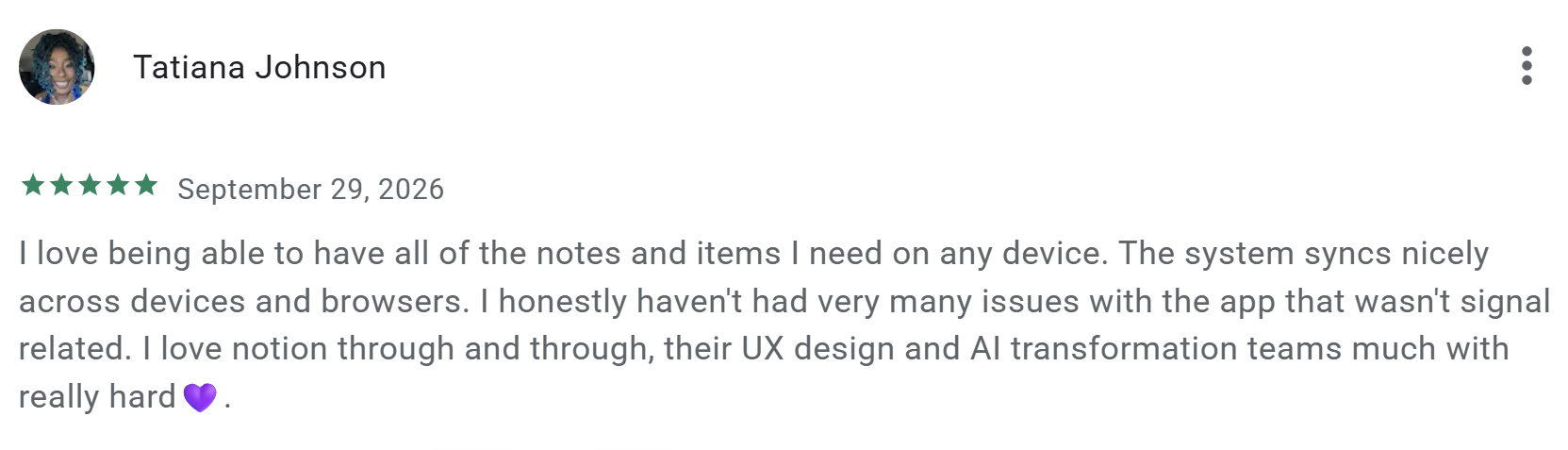
“The system syncs nicely across devices and browsers.” — Tatiana Johnson, Google Play
“It has too many bells and whistles.” — Lawrence R., Google Play
Pricing
- Free plan available, with unlimited pages and blocks
- Plus: $10/member/month billed annually or $12/member monthly
- Business: $20/member/month billed annually or $24/member monthly
- Enterprise: Custom pricing
Bottom line
Notion pays off once a workspace already exists around the draft, notes, an outline, a database to pull from. Starting from nothing, it's another blank page like any other app's.
Which Android writing app should you choose?
Choose JotterPad if you:
- Draft on your phone often and want an interface built for the screen you're holding.
- Write scripts or screenplays and want Fountain formatting alongside your prose.
- Want a phone draft that exports straight to Word or PDF when you move to a laptop.
Choose Google Docs if you:
- Need a document others can see, comment on, or pick up on another device.
- Want a fully free option that works the moment you sign in with a Google account.
Choose Grammarly if you:
- Write across several apps on your phone and want one grammar layer under all of them.
- Send enough emails and messages that a tone check before you hit send would save you.
Choose Microsoft Word if you:
- Are producing a document that needs real formatting or has to match a specific template.
- Work with reviewers who already use Word and its track changes.
- Started a document on a laptop and need to keep editing it on your phone with the formatting intact.
Choose Notion if you:
- Already keep research, outlines, or notes in Notion and want to draft in the same place.
- Want one workspace for the draft and everything feeding it, rather than juggling separate apps.
Skip a dedicated app entirely if you:
- Only jot the occasional note, where your phone's default notes app already does the job.
Final verdict
A phone is a drafting device, so use it as one. Start writing on the app that fits how you draft: JotterPad if the phone is your main writing surface, Google Docs if the draft just needs to travel, then move to a desktop to format and polish. The real mistake is asking a phone to do a laptop's whole job.
Once you're back at the desktop, a few proven ways to write faster keep the momentum going.
Keep the AI help going, even without an app
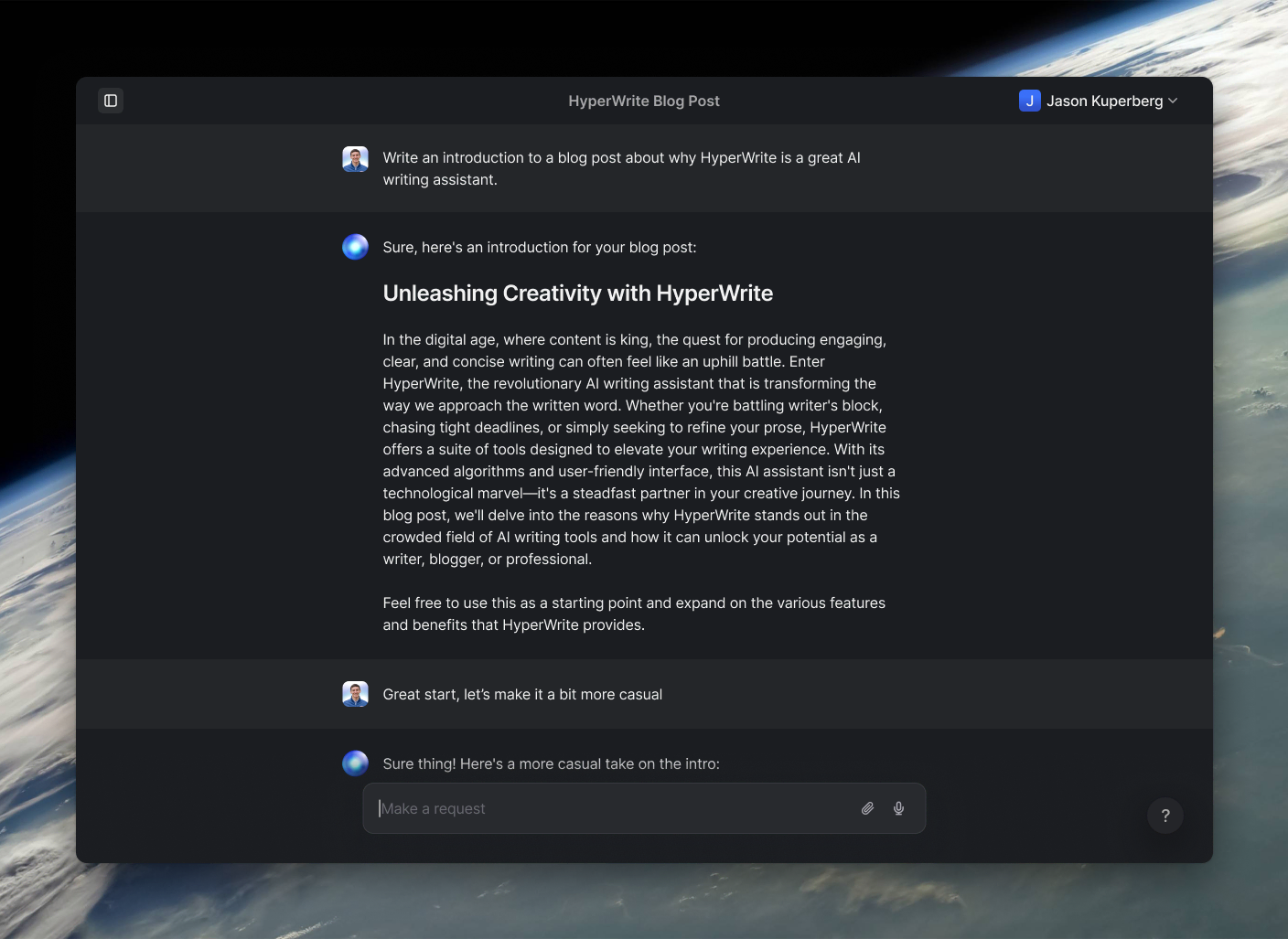
Every app on this list gives you a better place to write or a cleaner way to fix what you've written. HyperWrite does the part they leave out: it helps you produce the words in the first place.
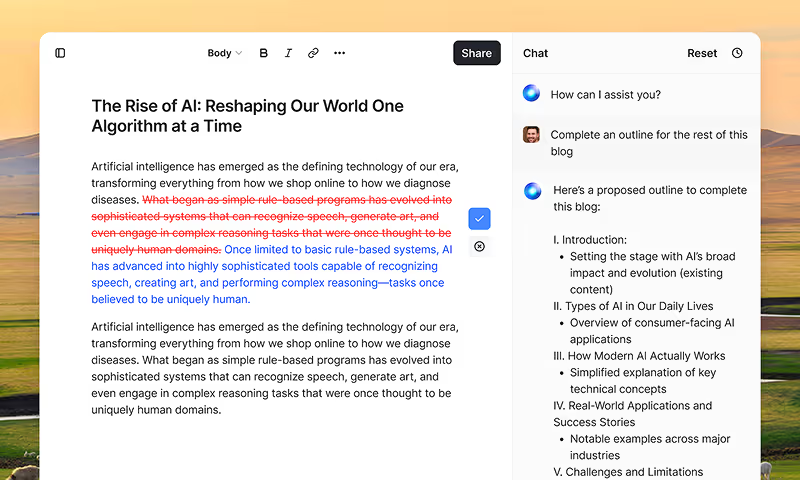
It runs in any Android browser, so there's nothing to install. AutoWrite turns a rough idea into a full first draft, and the AI Document Editor gives you a full editor where the AI reads your draft and can suggest or apply changes as you go.
Its best-known feature, TypeAhead, is a Chrome desktop extension rather than a mobile app, so it waits for you at the laptop.
Back at a desk, TypeAhead completes your sentences in real time and pulls context from the other browser tabs you have open, so what it suggests fits the task in front of you. Set up a Persona and those suggestions match your voice.
The two halves fit together. Draft with HyperWrite's AI first, then move that draft into whichever app here matches the finish you need: JotterPad to keep writing distraction-free, Google Docs to share it, Word to format it, Notion to file it beside your research. Grammarly still runs underneath all of it.
And if Docs is where you finish, an AI typer for Google Docs carries the same drafting help into that tab.
Still hitting a wall when a distraction-free editor hands you a blank page and nothing to put on it? Try TypeAhead free with the HyperWrite Chrome extension and pick up your phone draft with AI help the moment you're back at your desk.
Frequently asked questions
What is the best writing app for Android?
The best writing app for Android depends on what's slowing you down. JotterPad suits distraction-free drafting, Google Docs suits sharing and syncing across devices, Grammarly catches errors across every app, Word handles documents that need real formatting, and Notion suits drafting alongside research you've already organized there.
What is the best free writing app for Android?
Several free writing apps for Android cover the essentials, but Google Docs is the strongest of them, since writing, saving, and sharing all cost nothing. Grammarly and Word both offer usable free plans covering their core features, and Notion's free plan covers real drafting and organizing with unlimited pages and blocks.
Are there good essay writing apps for Android?
Yes. JotterPad and Google Docs both work well for essays, one for distraction-free drafting and one for sharing a draft with a teacher or editor. Pairing either with Grammarly adds a grammar and clarity pass most essay writing needs before submission.
Do I need a different app for screenwriting on Android?
Not necessarily. JotterPad supports Fountain syntax, the standard screenplay format, alongside regular Markdown, so it handles scripts and prose in the same app instead of needing a separate screenwriting tool.
Can I use AI writing tools on Android?
Partly. AI writing tools like HyperWrite work through an Android browser, but Chrome extension tools like TypeAhead don't run on Android at all. The chat-based drafting and editing features still work fine from a mobile browser, without that specific extension layer.
HyperWrite is the AI writing assistant that learns your style. It handles drafting, editing, and researching so you can focus on ideas.
- Autocompletes sentences as you type
- Works inside Google Docs & Gmail
- Adapts to your personal writing style
- 500+ AI tools for any writing task
Powerful writing in seconds
Improve your existing writing or create high-quality content in seconds. From catchy headlines to persuasive emails, our tools are tailored to your unique needs.