
17 Best Writing Apps for Windows (Free and Paid, 2026)


A brand-new Windows PC hands you one writing tool: Notepad, which is fine for a grocery list and not much else. WordPad, its old sidekick, was removed from Windows for good in 2024. Neither one has ever helped anybody finish a chapter.
I tested all 17 of these writing apps for Windows. This roundup sorts them by the job you're hiring an app for, marks every pick free or paid with the real current price, and says plainly whether it installs on your PC, runs in a browser, or comes from the Store.
If your goal is to write faster on a Windows machine, that last detail saves you more time than any feature list.
The Best Writing Apps for Windows: TL;DR
The short version, with the job each app does best:
- Scrivener: best for drafting a full-length book
- yWriter: best free Scrivener alternative
- Manuskript: best open-source novel planner
- Reedsy Studio: best free browser-based book editor
- Atticus: best for writing and formatting a self-published book
- Dabble: best for novelists who want a modern, synced writing space
- FocusWriter: best free distraction-free app
- QuillSpace: best free writing app from the Microsoft Store
- iA Writer: best minimal Markdown editor
- Microsoft Word: best for sharing drafts with editors
- LibreOffice Writer: best free Microsoft Word alternative
- WPS Office: best for a Word-style ribbon layout
- Google Docs: best for writing with other people
- HyperWrite: best for professionals writing emails and docs in Chrome
- Grammarly: best for grammar and tone checks
- Obsidian: best for linked research notes
- Simplenote: best for quick plain-text notes
Keep reading for the current price, platform, and the honest trade-offs on each one.
How I Researched and Tested These Apps
I ran every app on Windows 11, not a Mac with a "Windows version coming soon" asterisk. For each one, I checked four things:
- Does it actually run well on a PC?
- Is the pricing honest?
- Does it work offline?
- Who is it genuinely best for?
I also noted how each app installs, because that turned out to be the thing most roundups skip. Some download straight from the developer, some run entirely in your browser, and a few come from the Microsoft Store with a one-click install.
That difference matters on a Windows laptop: most installed apps keep your files on the PC and work without a signal; a browser app needs a connection unless you turn on its offline mode ahead of time; and the Store app installs and updates through the Microsoft Store.
Prices below are current as of October 2026. Software pricing moves, so I linked each one to the source so you can check it for yourself.
Writing Apps for Windows Compared
Here's every pick in one view: the current price, how it runs on Windows, and whether it works offline.
"Partial" means the app works offline only after some setup: an extension (Google Docs), an installed or desktop app (Atticus, Dabble), or a first sync (Simplenote).
Best Writing Apps for Windows for Long-Form and Novel Writing
If you're drafting something with chapters, these apps give you structure: scene reordering, a place for research, and a word-count goal that doesn't live in your head.
Scrivener
Best for: novelists and nonfiction authors drafting a full-length book who want research, notes, and manuscript in one project.
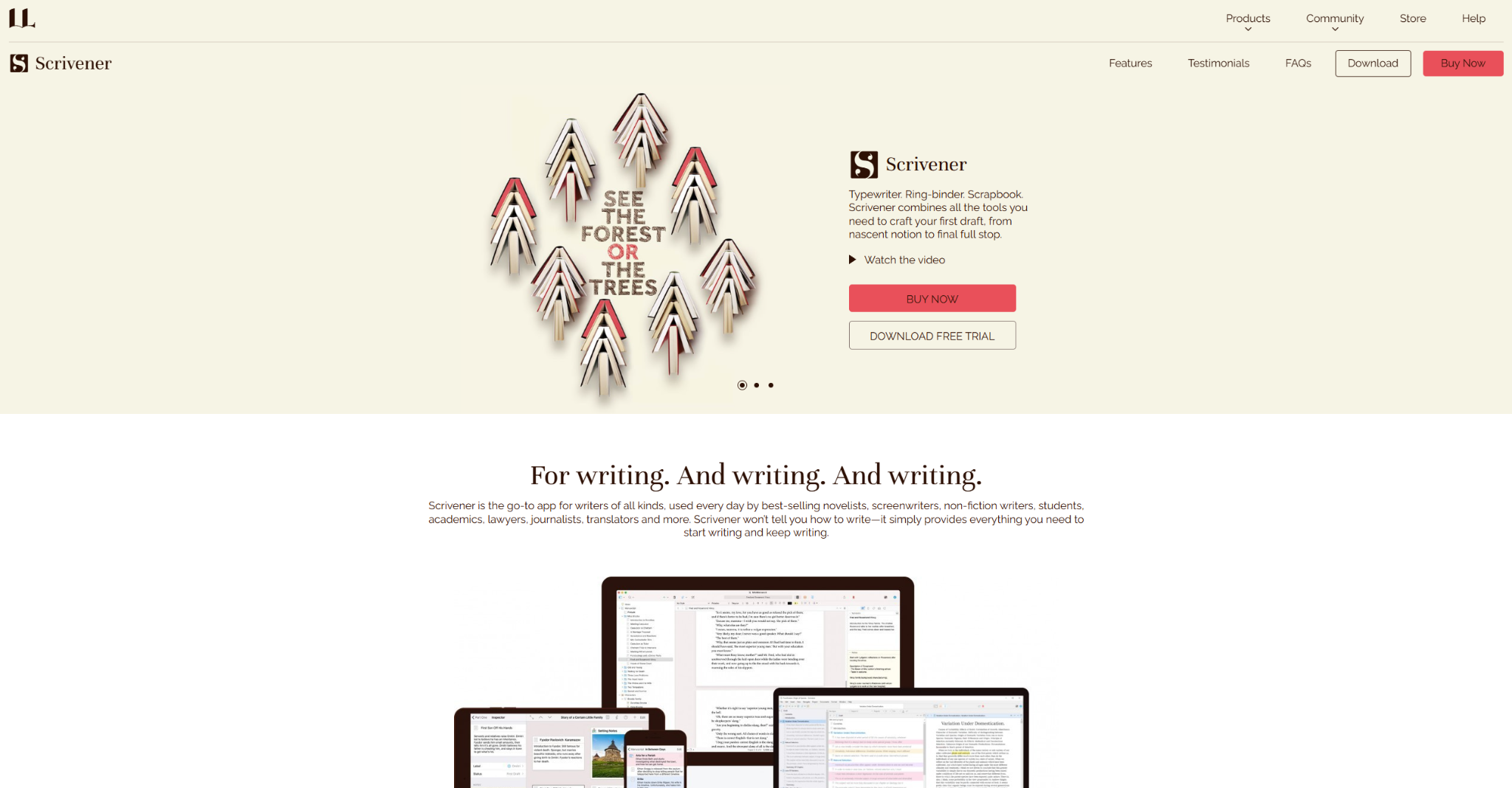
Scrivener splits a manuscript into a binder of scenes and chapters you can rearrange at any point, and it stores your research and notes in the same project. The Windows version installs on 64-bit Windows 10 or later, keeps your text on your own PC, and has no built-in AI.
Key features
- Corkboard: each section becomes an index card with a synopsis, and moving a card reorders the manuscript.
- Outliner: see synopses and word counts for every section in one drag-and-drop view.
- Snapshots: save a section before a rewrite and return to the earlier version if the new one doesn't work.
- Compile: export the finished manuscript to Word, PDF, ePub, or Final Draft.
- Targets and Writing History: set word targets for the manuscript or a session, and see how much you wrote each day.
What users say
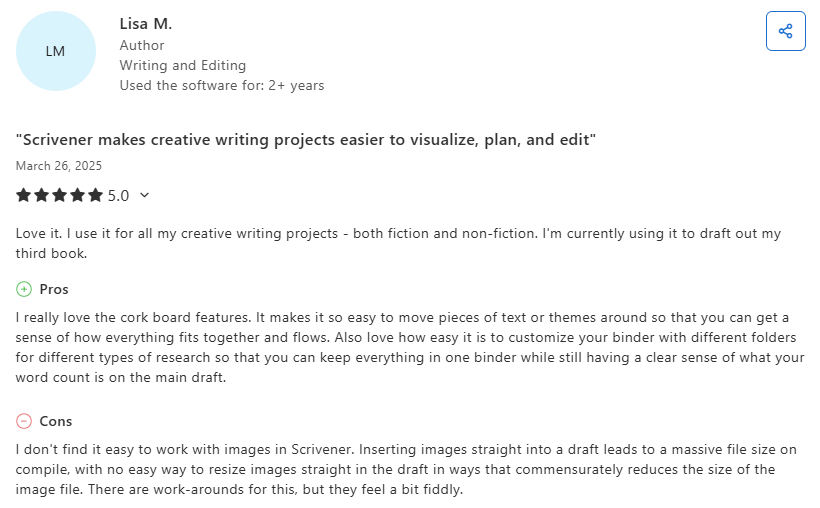
"I really love the cork board features. It makes it so easy to move pieces of text or themes around so that you can get a sense of how everything fits together and flows." (Lisa M., Capterra)
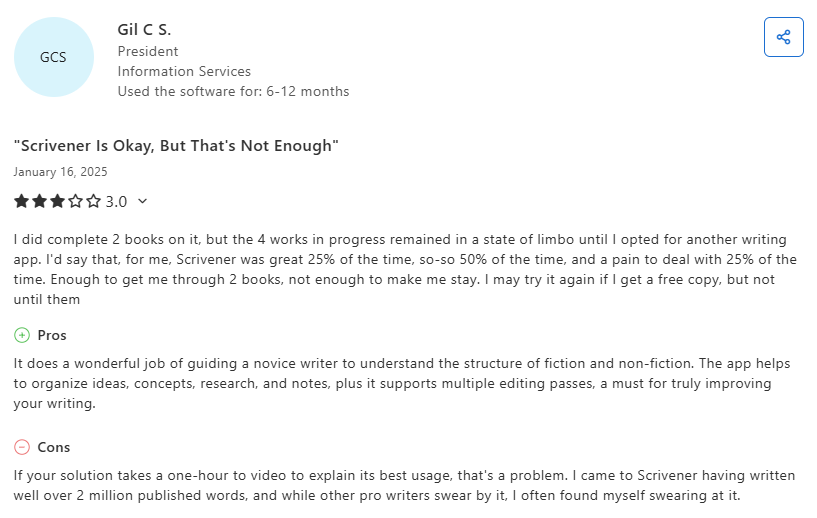
"I came to Scrivener having written well over 2 million published words, and while other pro writers swear by it, I often found myself swearing at it." (Gil C S., Capterra)
Pricing
- $59.99 one-time for the Windows license, with no subscription.
- 30-day free trial; the educational license costs $50.99.
Watch out for: the learning curve. Compile settings in particular take time to figure out, so expect your first sessions to go to setup rather than writing.
Bottom line
Scrivener earns its $59.99 for anyone writing a book who will put in a weekend learning it. If you want to start typing tonight, Dabble will feel friendlier.
yWriter
Best for: budget-conscious novelists who want a free Scrivener alternative with scene-by-scene structure.
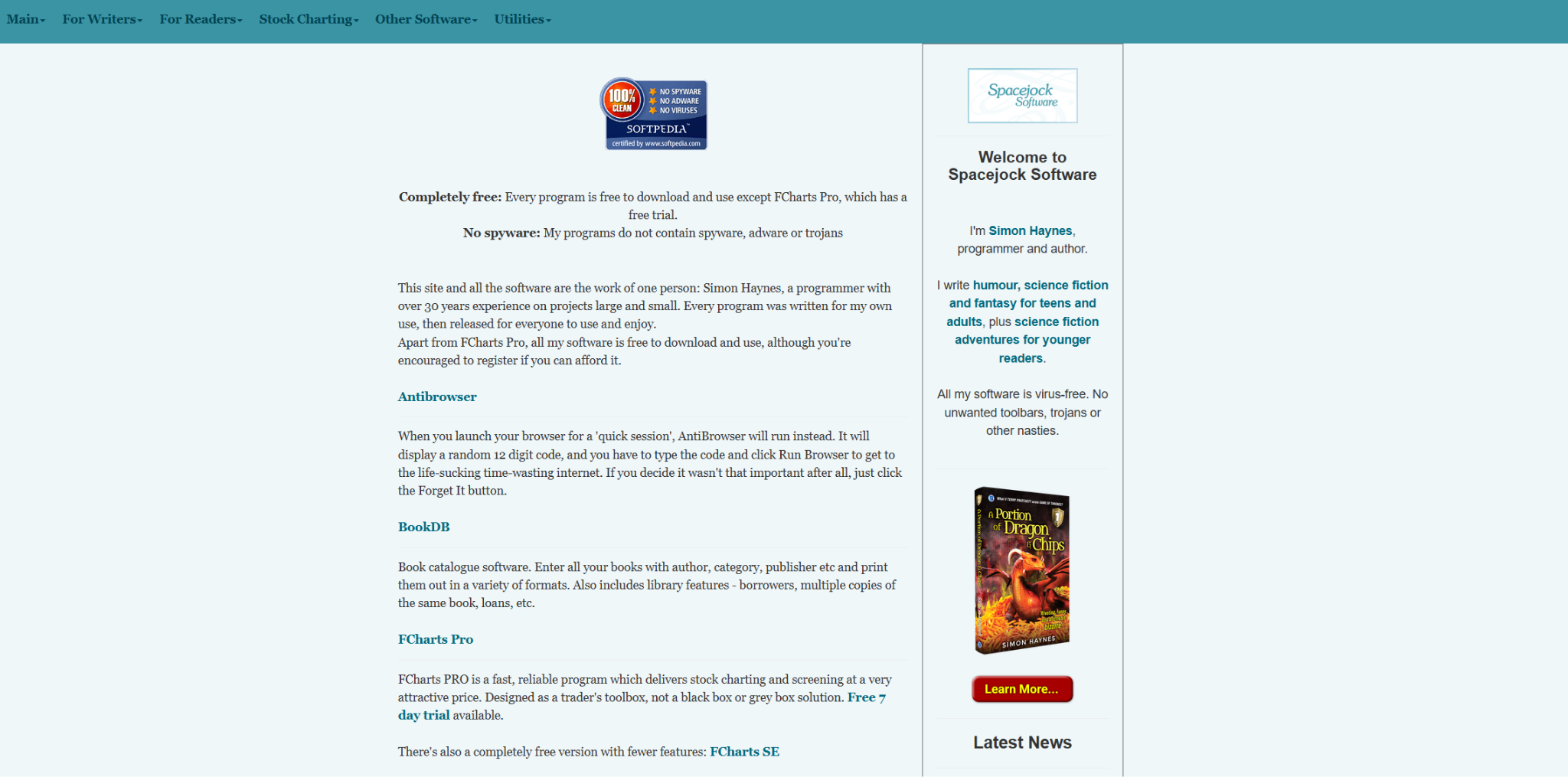
yWriter is a free Windows program from Simon Haynes, a published novelist who is also a programmer. It breaks a novel into chapters and scenes, runs on Windows 7 SP1 and newer, and doesn't need an internet connection. Download yWriter 7; the developer labels yWriter 8 a test version that isn't ready for real work.
Key features
- Chapters and scenes: move scenes between chapters as the plot changes.
- Scene planning fields: record the viewpoint character, goal, conflict, and outcome for every scene.
- Storyboard view: see a visual layout of the whole book.
- Snapshot backups: automatic backups save versions of your work as you go.
- Word log and ebook export: track the words you write each day and export to ePub or Mobi.
What users say
"Fast and uncomplicated." (plants, AlternativeTo)

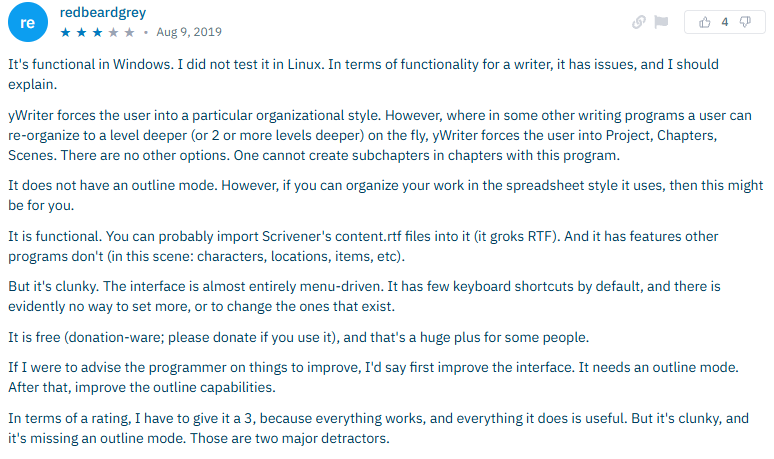
"But it's clunky. The interface is almost entirely menu-driven." (redbeardgrey, AlternativeTo)
Pricing
- Free on Windows.
- Registration is optional and supports development; the Mac and mobile versions cost a small amount.
Watch out for: the dated interface. Scenes open in separate windows and the layout feels closer to a database than a writing app, which recent reviews describe as clunky.
Bottom line
Pick yWriter if structure matters more than looks and your budget is zero. Writers who want a modern interface will be happier paying for Dabble or Scrivener.
Manuskript
Best for: plotters who want a free, open-source novel planner with outlining and character sheets.
Manuskript is a free, open-source writing app built around planning: an outliner, the Snowflake method, and sheets for characters and world details. On Windows, you download a zip file, unzip it, and run the program, with no installer and no account.
Key features
- Outliner: organize ideas and scenes in a hierarchy.
- Snowflake method: grow a one-line idea into a full outline, step by step.
- Character and world sheets: track characters, places, and the rules of your world.
- Distraction-free mode: set a word count or time goal before you can leave the editor.
- Pandoc export: add the free Pandoc tool to export to ePub, LibreOffice, or Word formats.
What users say
"This is by far the best alternative to Scrivener. It’s only a few features short of outright beating Scrivener." (aethyrsix, AlternativeTo)

"Unfortunately, after a while, I can't open projects anymore. I connected the support but never got an answer." (SpaceElf, AlternativeTo)

Pricing
- Free and open source under the GPL.
Watch out for: early-stage software. The developer says Manuskript is still in early development and recommends frequent backups, and updates arrive slowly: the latest version, 0.17.0, came out in June 2025.
Bottom line
Manuskript suits plotters who outline before they draft and don't mind backing up often. If you'd like something free and more mature, yWriter is the steadier choice.
Reedsy Studio
Best for: authors who want a free, browser-based book editor that also typesets the finished book.
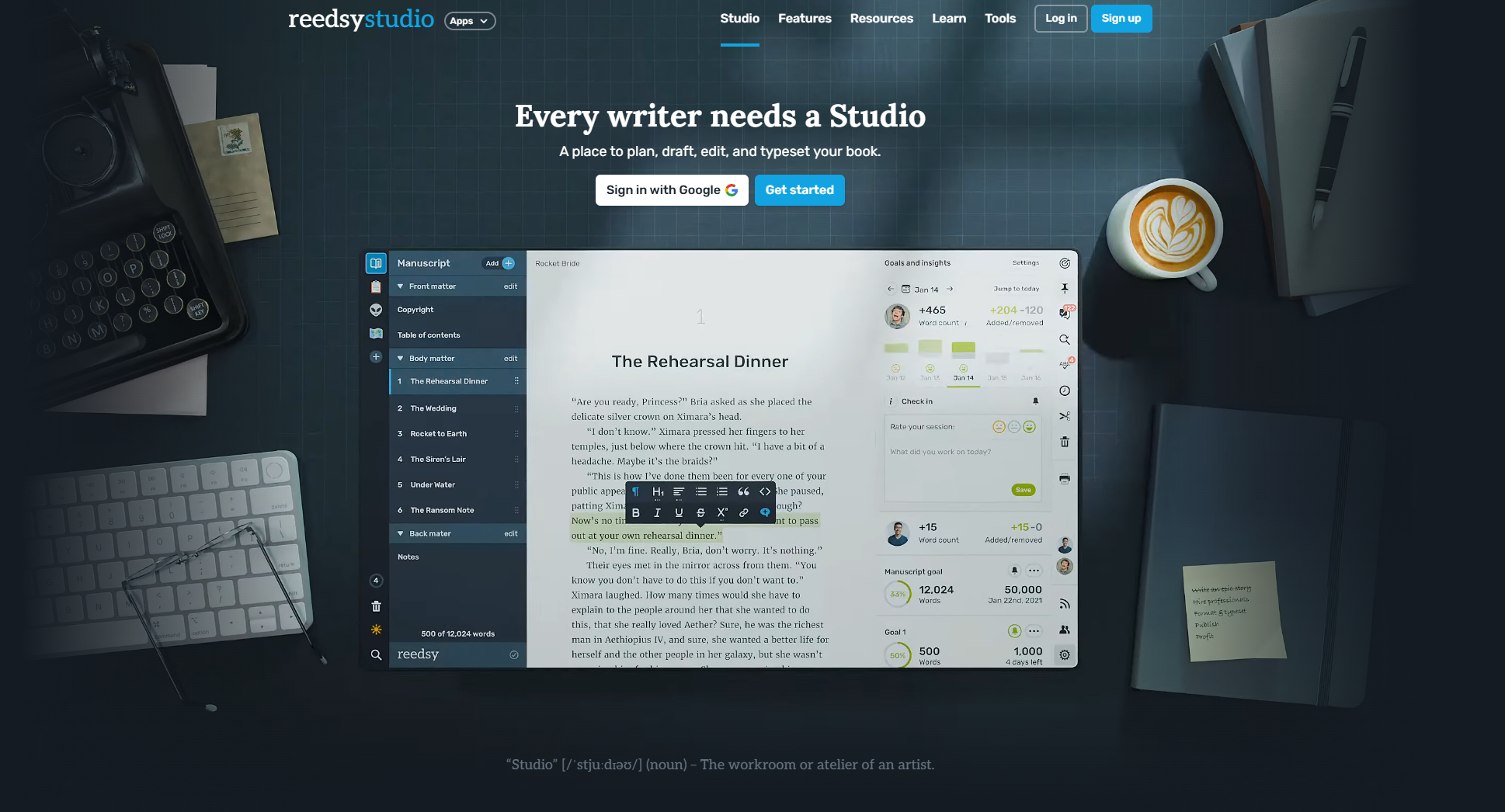
Reedsy Studio is a free book-writing app from Reedsy that runs in any browser, organizes a manuscript by section, chapter, and scene, and formats the finished book for you. There's no Windows program beyond an installable web app.
Key features
- Chapter sidebar: organize the book by section, chapter, and scene.
- Boards: store research, track characters, or build a world, with one Board on the free plan.
- Collaboration: invite a co-author, editor, or proofreader to work on the book.
- Typesetting: turn the manuscript into an EPUB and a print-ready PDF at no cost.
What users say
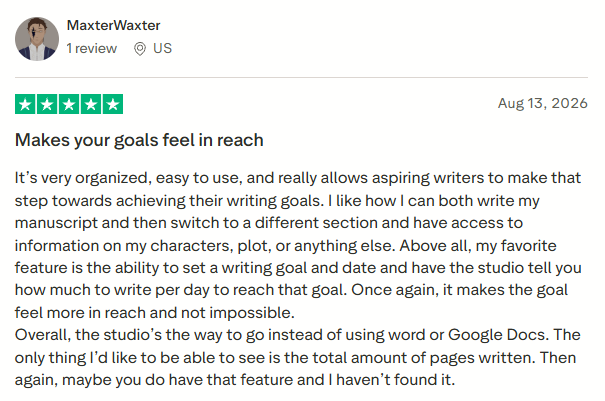
"Above all, my favorite feature is the ability to set a writing goal and date and have the studio tell you how much to write per day to reach that goal." (MaxterWaxter, Trustpilot)
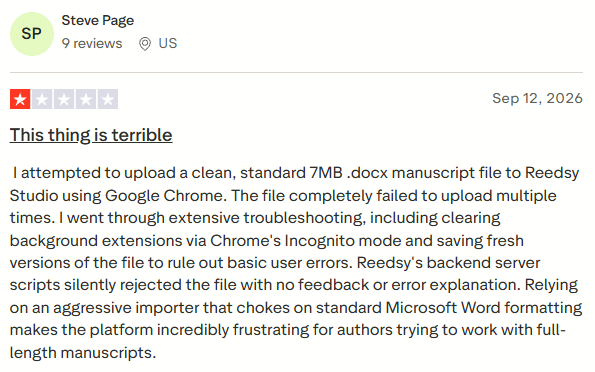
"Relying on an aggressive importer that chokes on standard Microsoft Word formatting makes the platform incredibly frustrating for authors trying to work with full-length manuscripts." (Steve Page, Trustpilot)
Pricing
- Free for the core features, including PDF and EPUB export.
- Optional add-ons cost $4.99/month and $7.99/month for extras like custom goals, unlimited Boards, and writing templates; annual billing saves 10%.
Watch out for: the connection requirement. Reedsy Studio has no offline mode, so a flight or a patchy café connection means no writing.
Bottom line
Reedsy Studio is the simplest free route from draft to a finished EPUB and print PDF. Skip it if you often write without a connection, since yWriter and FocusWriter run fully offline.
Atticus
Best for: self-publishing authors who want to write and format the print and ebook editions in one tool.
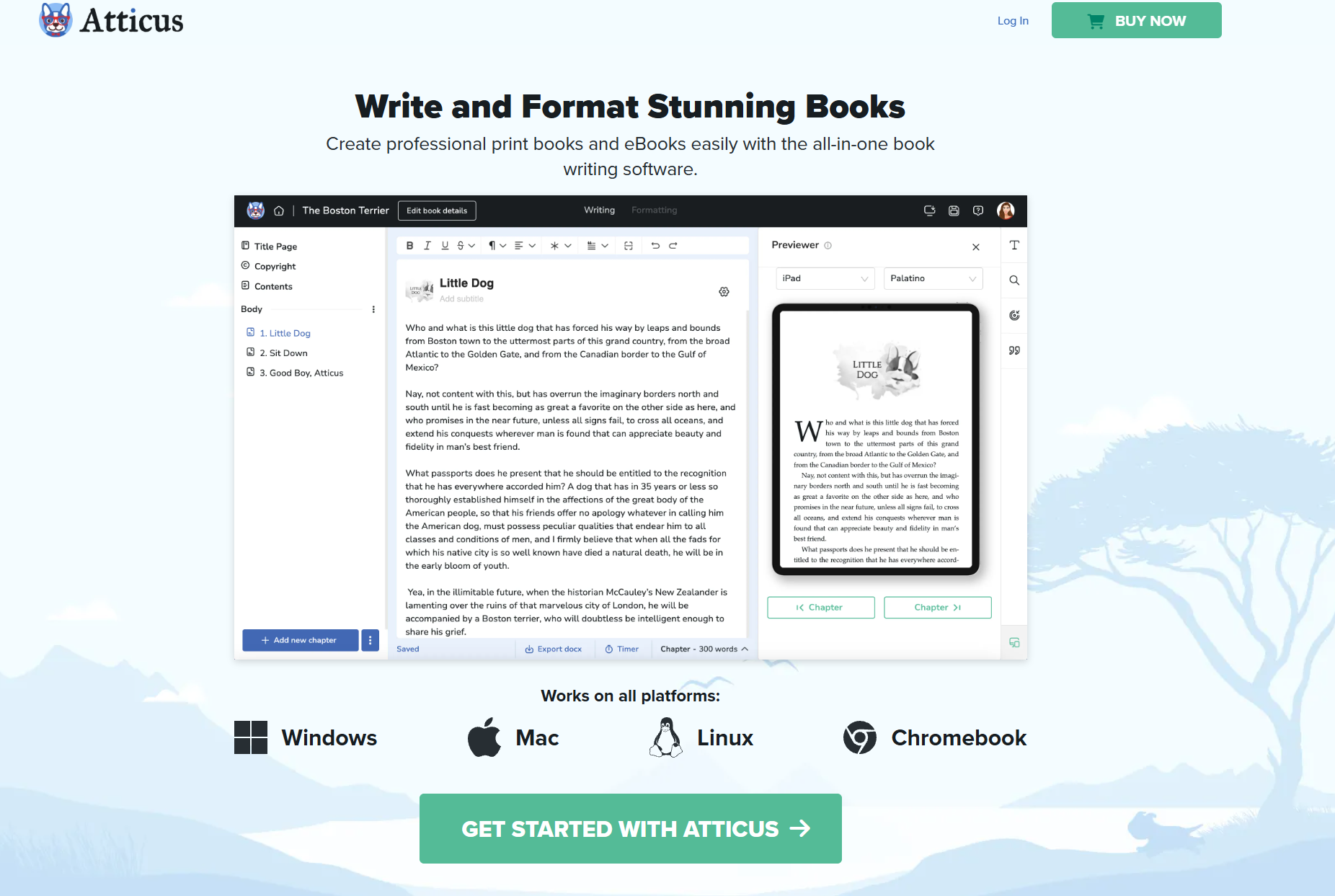
Atticus handles both the drafting and the formatting, then exports a print-ready PDF and an ePub from the same file. It runs as an installable web app on Windows, Mac, Linux, and Chromebook, and has some offline functionality once it's installed.
Key features
- Theme builder: start from a template or design your own chapter theme.
- Device previewer: check how the book looks on different e-readers and tablets before you publish.
- ePub and PDF export: one manuscript produces both the ebook and the print file.
- Goals and sprint timer: set a book deadline to get a daily word target, track your writing habit, and run timed sprints.
What users say
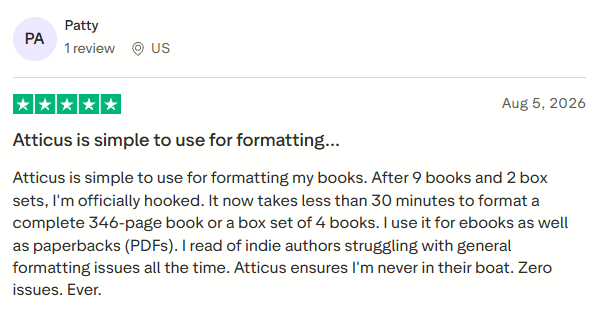
"It now takes less than 30 minutes to format a complete 346-page book or a box set of 4 books." (Patty, Trustpilot)
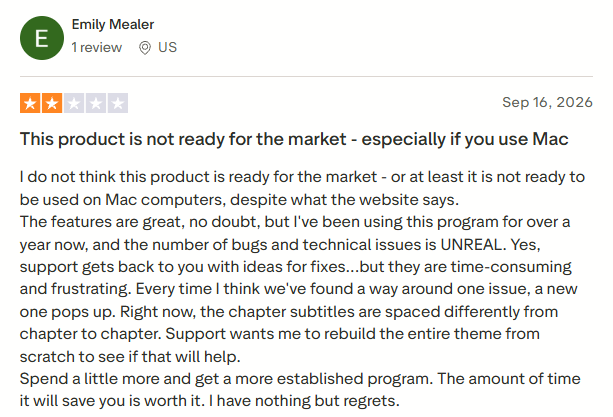
"The features are great, no doubt, but I've been using this program for over a year now, and the number of bugs and technical issues is UNREAL." (Emily Mealer, Trustpilot)
Pricing
- $147 one-time, with all future updates included.
- There's no free trial; a 30-day money-back guarantee covers you instead.
Watch out for: speed on long manuscripts. User reviews, including a 2026 Medium review, report lag and slow loading on big or complex books.
Bottom line
Atticus pays off if you plan to self-publish and would otherwise buy a separate formatting tool. If you only need somewhere to draft, the $147 is hard to justify.
Dabble
Best for: novelists who want a clean, modern writing space and don't mind paying monthly.
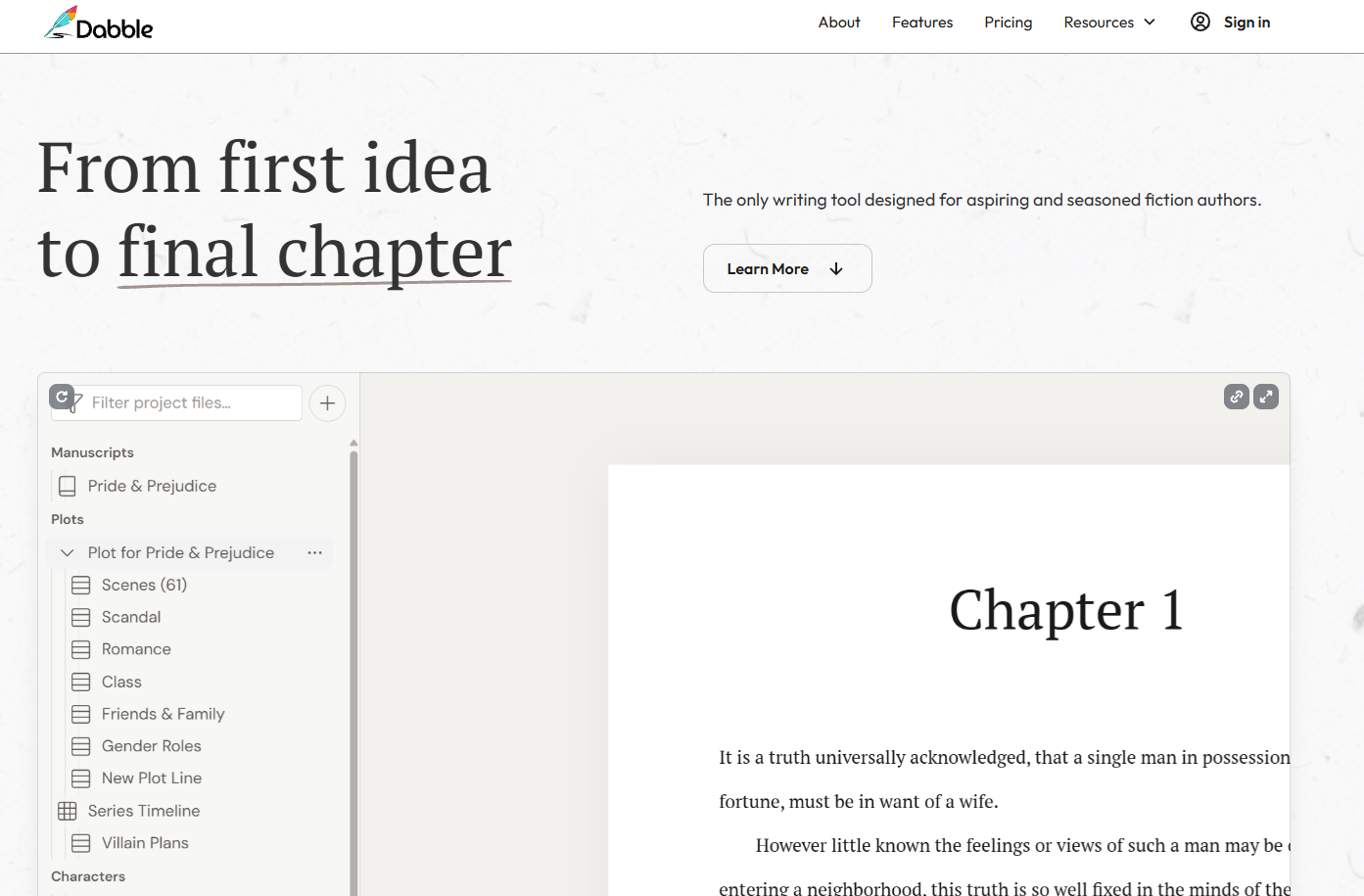
Dabble keeps your manuscript, plot plan, and story notes side by side, and syncs between the browser and its desktop app for Windows, Mac, and Linux. The desktop app keeps a local copy, so you can keep writing without a connection and sync later.
Key features
- Plot Grid: map your story structure and open the editor right beside the plan.
- Story Notes: keep research, character notes, and world details next to the manuscript.
- Daily word goals: set a target and watch your progress build toward a finished draft.
- Co-authoring: invite a co-author to work on the same manuscript in real time.
What users say
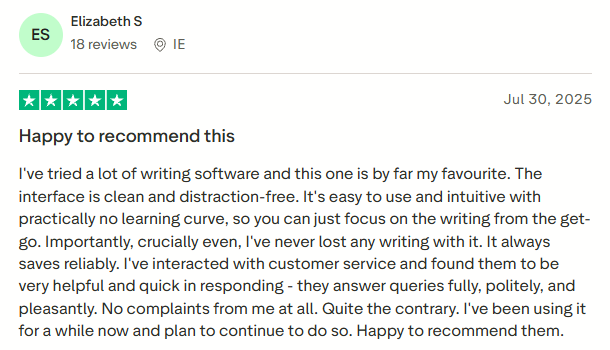
"The interface is clean and distraction-free. It's easy to use and intuitive with practically no learning curve, so you can just focus on the writing from the get-go." (Elizabeth S, Trustpilot)
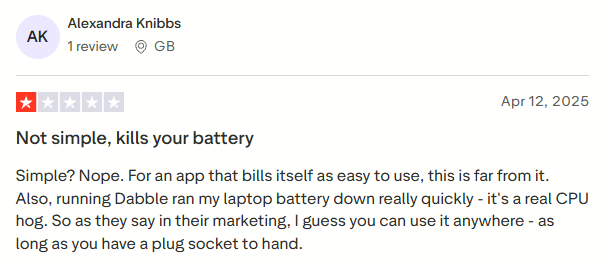
"Also, running Dabble ran my laptop battery down really quickly - it's a real CPU hog." (Alexandra Knibbs, Trustpilot)
Pricing
- From $19/month for the Writer plan, with Author at $29 and Bestseller at $49; annual billing saves 20%.
- Lifetime Author access costs $699 once, and the 14-day free trial needs no credit card.
Watch out for: the long-run cost. Next to Scrivener's one-time $59.99 or Atticus's $147, a monthly subscription adds up if you write for years.
Bottom line
Choose Dabble if a clean, modern interface is what keeps you coming back to the draft, and use the 14-day trial to find out quickly. If you'd rather pay once, Scrivener costs less over a few years.
Best Distraction-Free Writing Apps for Windows
Some days the problem is the other 14 tabs open behind your draft. These three strip the screen down to words.
FocusWriter
Best for: writers who want a free, full-screen drafting space with nothing else on it.
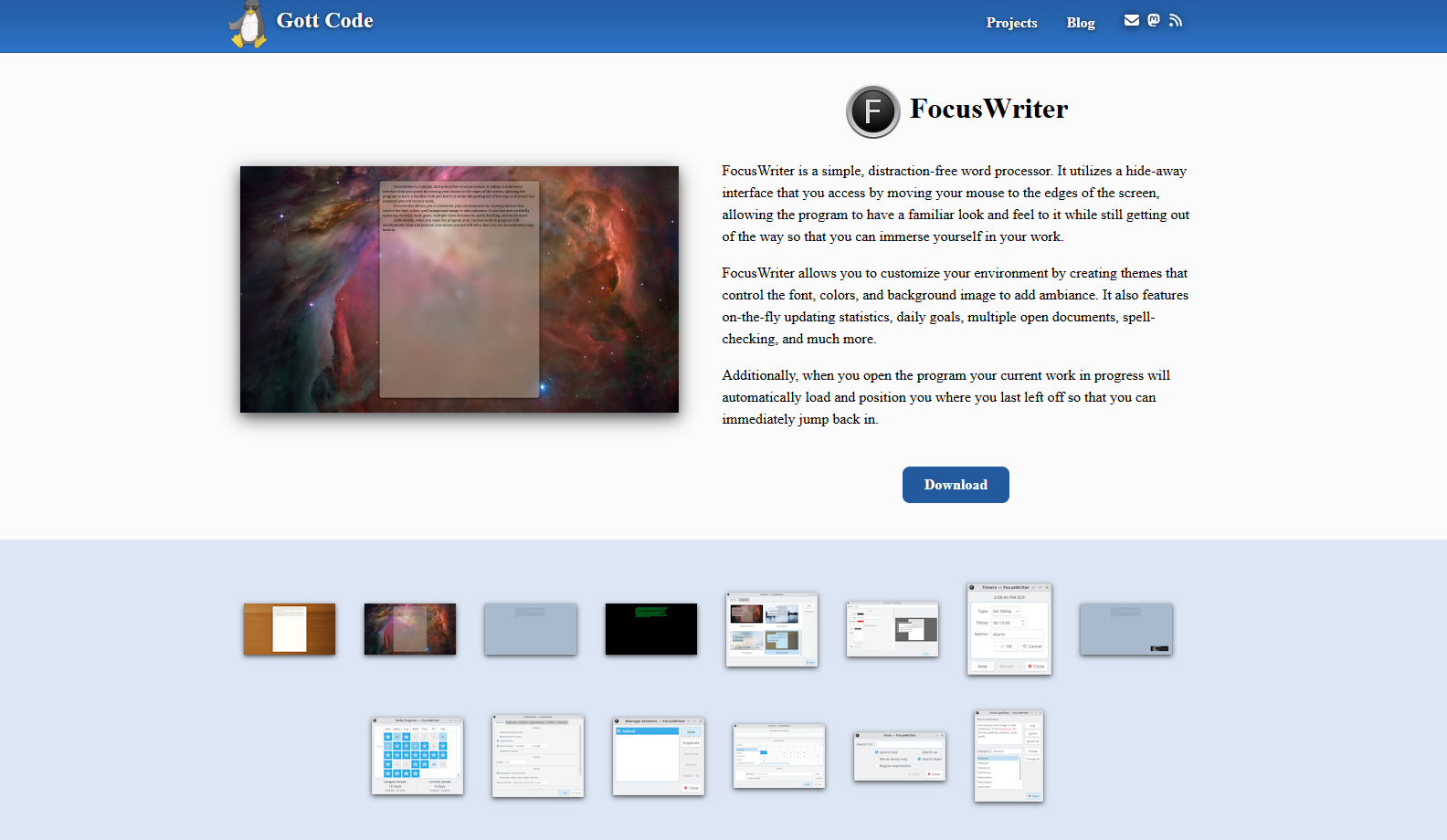
FocusWriter fills the screen with your text and keeps the menus out of sight until you move the mouse to an edge. It's a free, open-source desktop app for 64-bit Windows 10 and later, with a portable version you can run without installing. If a blank page is what's stopping you, it pairs well with these tips to push through writer's block.
Key features
- Hide-away interface: toolbars appear only when your mouse reaches the edge of the screen.
- Themes: set your own font, colors, and background image.
- Daily goals and live stats: track your word count and progress as you type.
- Auto-resume: reopens your file at the spot where you stopped.
What users say
"I would very much rather use this than opening the slow and bloaty LibreOffice Writer. The (easy to configure) skin support is also much appreciated." (kusarebaita, AlternativeTo)

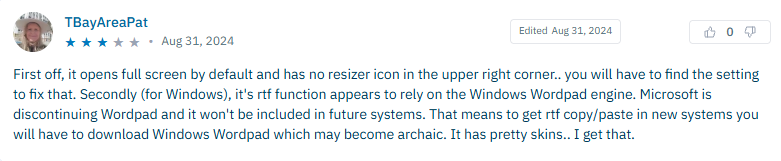
"First off, it opens full screen by default and has no resizer icon in the upper right corner.. you will have to find the setting to fix that." (TBayAreaPat, AlternativeTo)
Pricing
- Free under the GPL, with an optional tip jar.
Watch out for: thin project tools. FocusWriter's organizing stops at a basic scene list, so a full-length book may still need a second app.
Bottom line
FocusWriter is the quickest fix for a distracted drafting session, and trying it costs nothing. Pair it with yWriter or Scrivener once the draft needs structure.
QuillSpace
Best for: writers who want a free, structured writing app installed straight from the Microsoft Store.
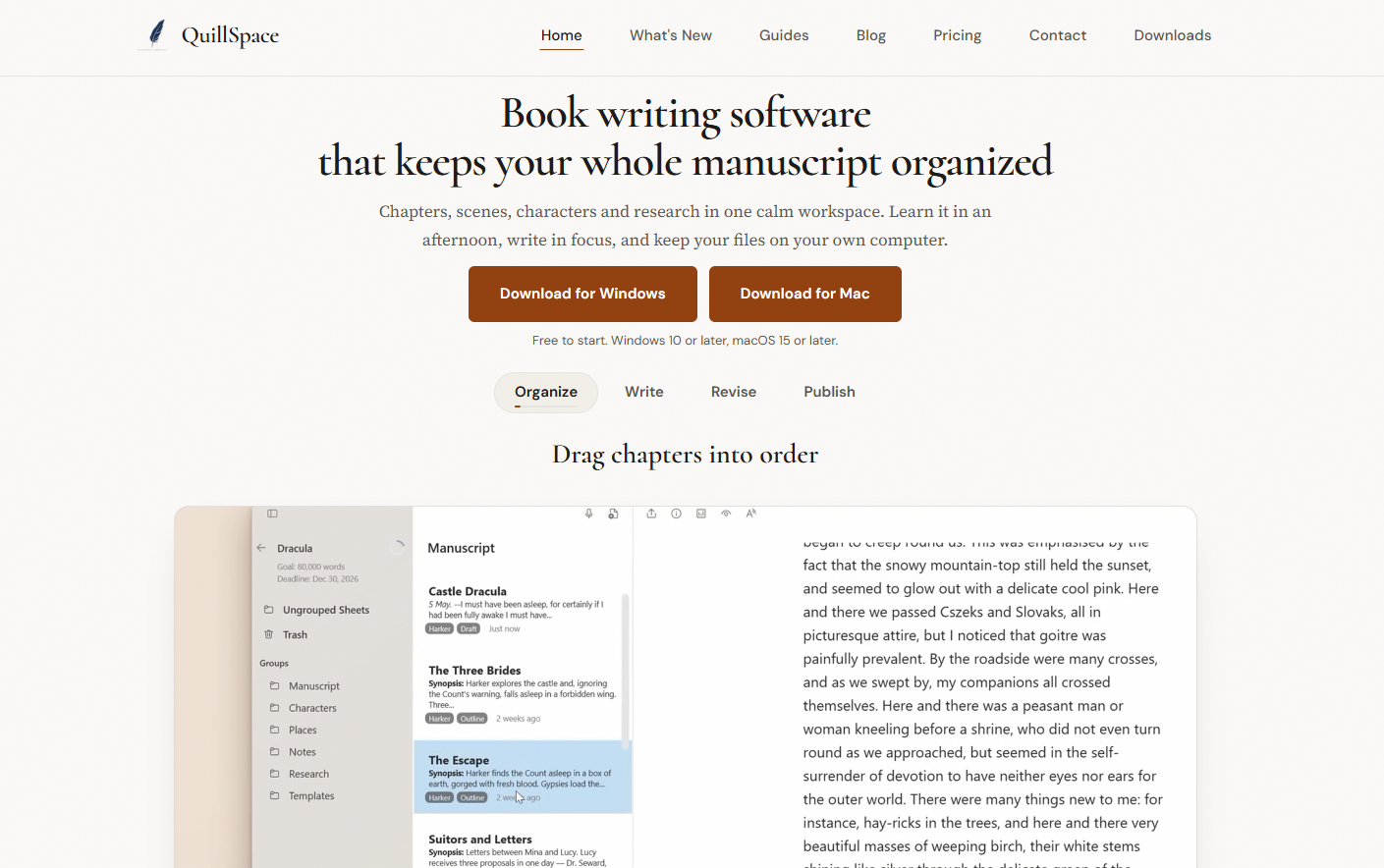
QuillSpace is a rich-text writing app from A17Lab for novels, journals, and blog drafts. It installs from the Microsoft Store on Windows 10 or later and stores your writing locally on your PC.
Key features
- Projects and sheets: build a book from nested groups and sheets, like chapters, and drag them into a new order.
- Word-count goals: set a goal per project and check your daily activity stats.
- Version history: snapshot a sheet, then preview or restore any earlier version.
- Export options: export to PDF, Word, HTML, Markdown, or EPUB, with an ebook preview.
What users say
"It is fairly straight forward to use and you can always go back to the guide if confused. This app has helped me stay focused on my writing!" (Kaitlyn, Microsoft Store)

"However, after I got to about 12,300 words, when I would go down to the bottom of the document to begin writing again, the entire app would crash." (Ashley, Microsoft Store)

Pricing
- Free for up to 3 projects; after that, QuillSpace costs $1.99/month, $14.99/year, or $49.99 for a lifetime license.
- Rated 4.6 stars from 93 Store ratings.
Watch out for: a short track record. QuillSpace launched in March 2025 and has few independent reviews, so there's less outside feedback to go on than with the older apps here.
Bottom line
QuillSpace is a sensible pick if you want a free Store app with more structure than a plain editor. Keep backups of long projects, since one reviewer hit crashes past 12,000 words.
iA Writer
Best for: writers who want a minimal Markdown editor that keeps them on one sentence at a time.
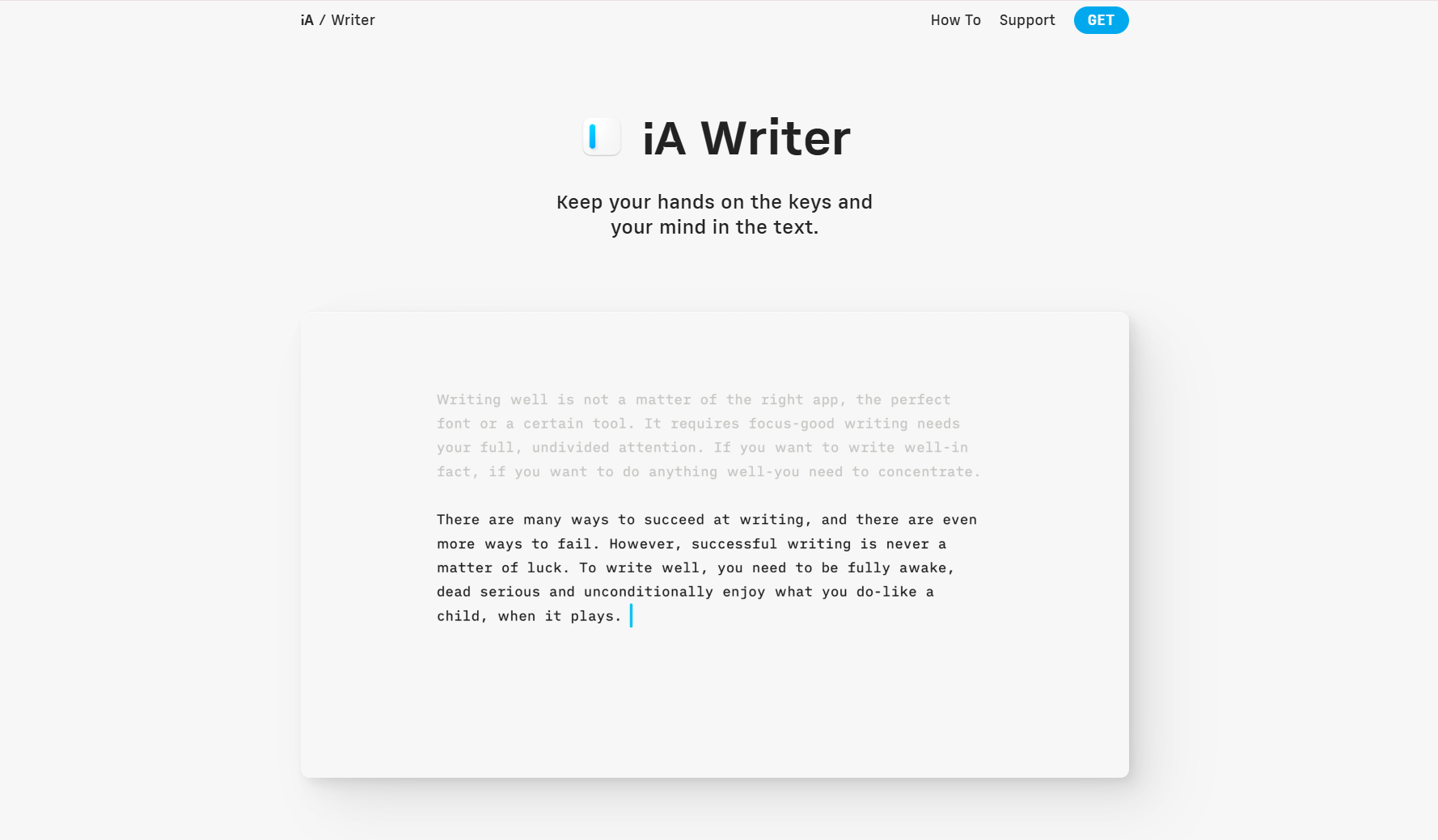
iA Writer is a plain-text Markdown editor built around focus. The Windows version runs on 64-bit Windows 10 or later and saves your files in a folder on your PC, so you aren't tied to a cloud account.
Key features
- Focus Mode: highlights the sentence or paragraph you're working on and fades everything else.
- Syntax Highlight: colors adjectives, nouns, adverbs, verbs, and conjunctions so you can spot overuse (English only on Windows).
- Style Check: flags filler words, clichés, and redundant phrases on your device.
- Authorship labels: tag passages as human-written, AI-generated, or reference material.
- Export: save to Word or PDF, or copy as HTML.
What users say
"I use the dark mode version and its amazingly clean - helps me focus on the creative process 100% of the time." (iulian, Microsoft Store)

"I'm okay with this being trial software, but this really ought to be mentioned someplace before I download it." (Fred, Microsoft Store)

Pricing
- $39.99 one-time for Windows, paid per platform.
- 7-day free trial, no credit card required.
Watch out for: Markdown and minimalism. You format with symbols like # and ** instead of a toolbar, and there's no real-time collaboration.
Bottom line
iA Writer is worth $39.99 to writers who like Markdown and want a deliberately minimal screen. If you depend on a formatting toolbar, FocusWriter gives you a quiet screen for free.
Best Word Processors for Windows: Microsoft Word and Free Alternatives
Microsoft Word is still the standard, and three free alternatives cover most of what it does without a subscription.
Microsoft Word
Best for: writers who share drafts with editors, agents, or coworkers who expect Word files.
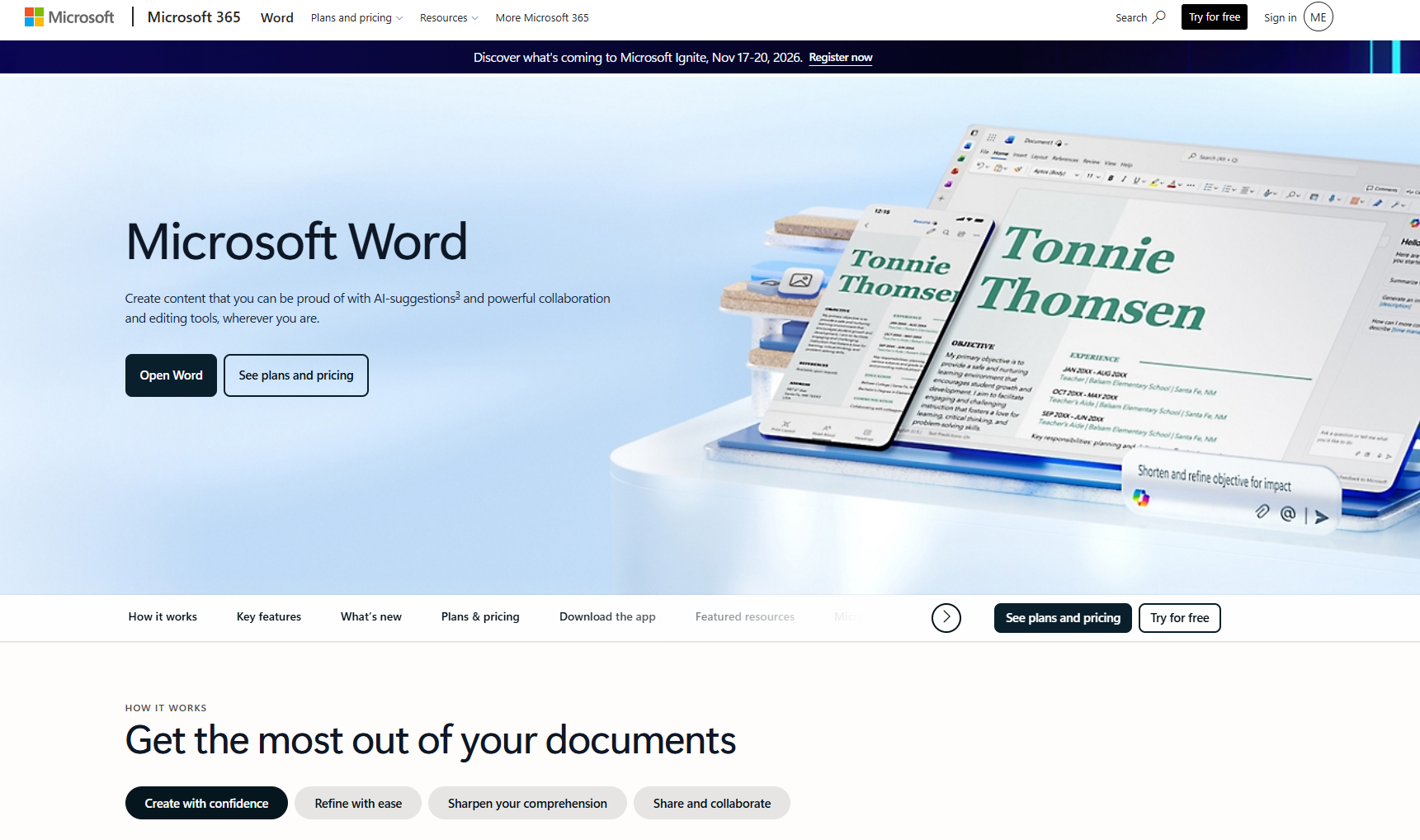
Word is the reference point every other app on this list gets compared to, and .docx is the standard file type in publishing, so it's often the format editors and agents ask for. The desktop app installs fully on your PC and works offline, though Microsoft 365 needs to connect at least once every 31 days to keep every feature running.
Key features
- Track Changes and comments: keep a record of every edit and reply to feedback in the margin.
- Navigation pane: jump between headings and drag them to move whole sections.
- Editor: check grammar, spelling, and writing style as you type.
- Focus mode: hide the ribbon and status bar so only the document shows.
- Copilot in Word: draft, read, and edit with AI on Microsoft 365 Personal, Family (subscription owner only), and Premium.
What users say
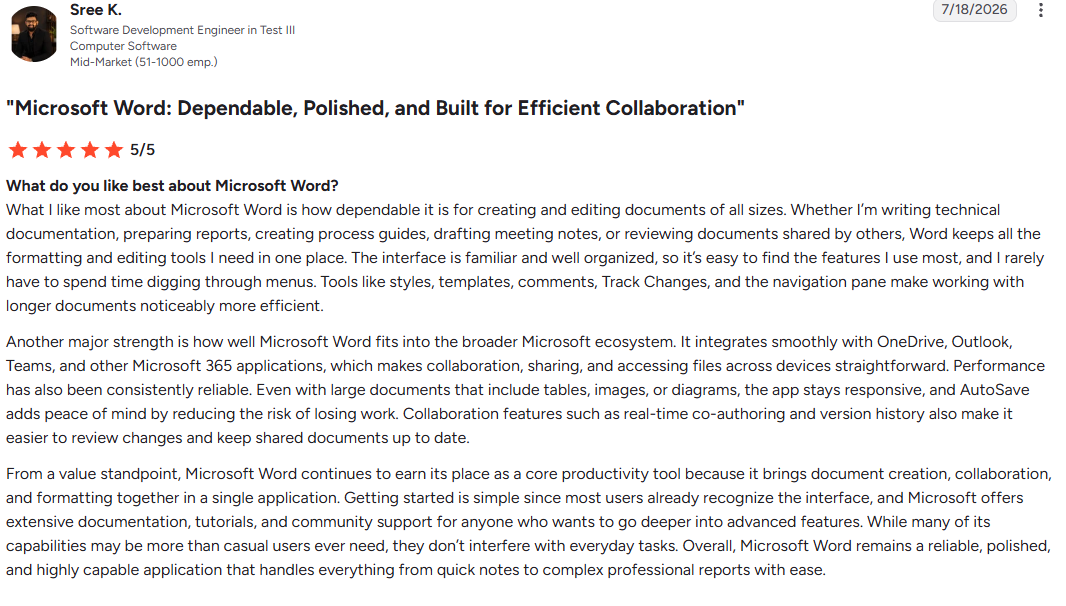
"Tools like styles, templates, comments, Track Changes, and the navigation pane make working with longer documents noticeably more efficient." (Sree K., G2)
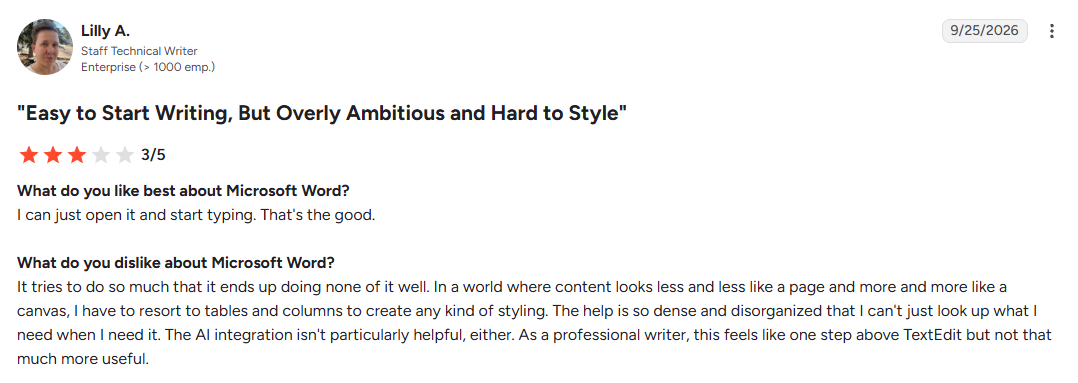
"As a professional writer, this feels like one step above TextEdit but not that much more useful." (Lilly A., G2)
Pricing
- Microsoft 365 Personal at $99.99/year or $9.99/month, with a one-month free trial; Family covers up to six people for $129.99/year.
- Office Home 2024 costs $179.99 once and includes desktop Word, while Microsoft bundles Copilot with its Microsoft 365 subscriptions. Word for the web is free with basic spelling and grammar checks.
Watch out for: long manuscripts. Word treats a book as one long document, with no corkboard-style structure and no built-in ebook export.
Bottom line
Stick with Word if your work goes to an editor or a team that reviews with Track Changes. For drafting a whole book, you can write in Scrivener and save Word for the editing rounds.
LibreOffice Writer
Best for: anyone who wants Word's features without Word's subscription.
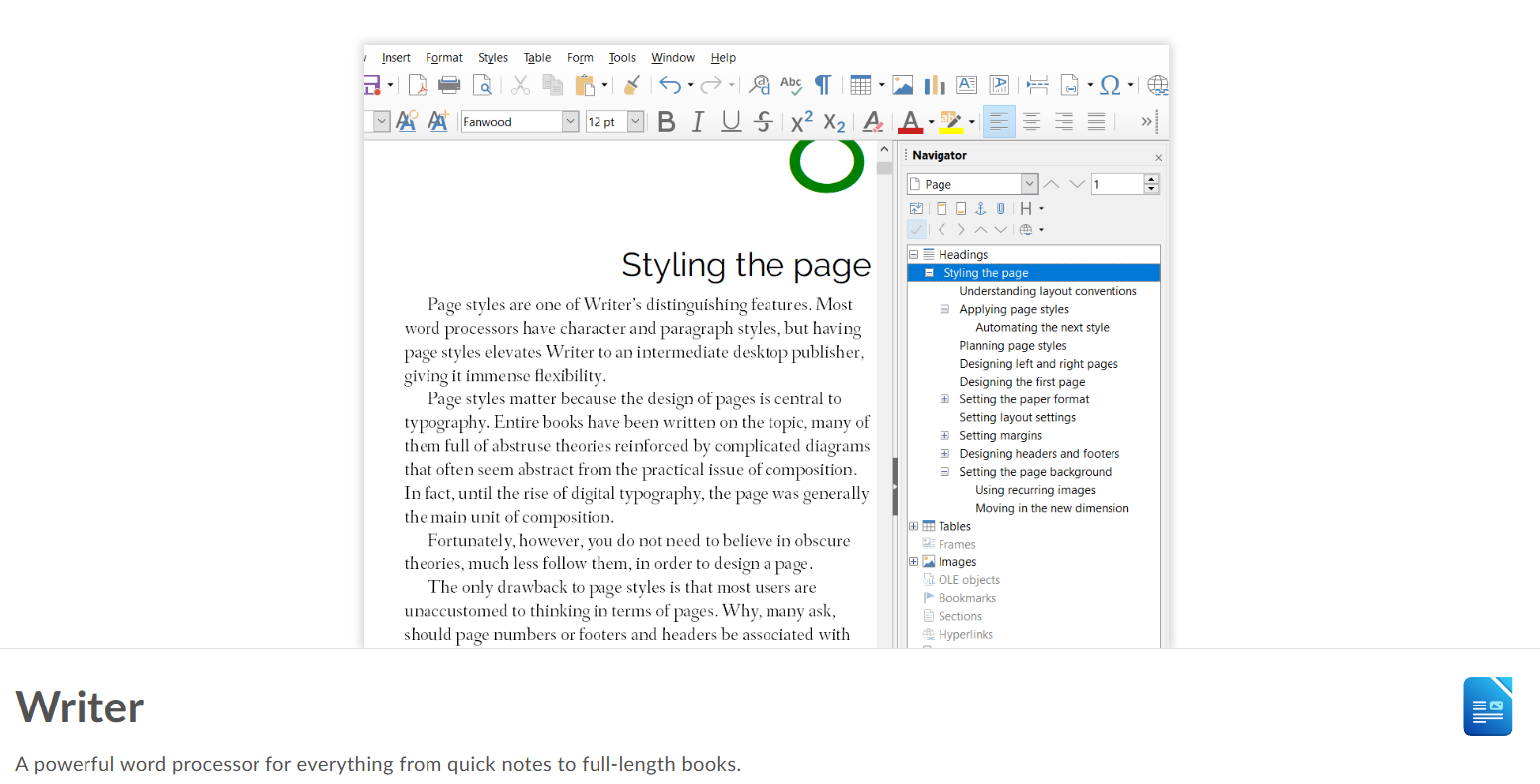
LibreOffice Writer is the word processor in the free, open-source LibreOffice suite. It installs on Windows (including ARM devices), opens and saves .docx files, and ships with no AI in the default installation.
Key features
- Word file support: open and save Microsoft Word documents to share with Word users.
- Navigator: jump to different parts of a long document from one panel.
- Mail merge: print and save form letters from a list of recipients.
- Hybrid PDF export: save a PDF that also contains the editable original file.
What users say
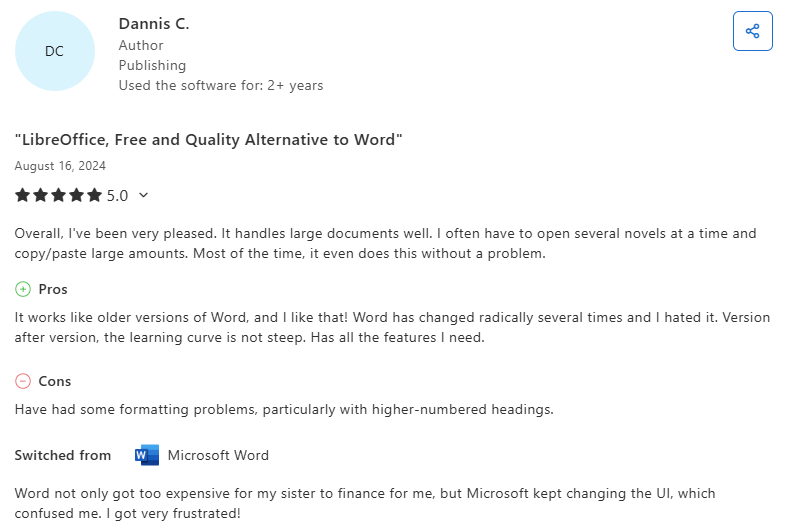
"It handles large documents well. I often have to open several novels at a time and copy/paste large amounts." (Dannis C., Capterra)
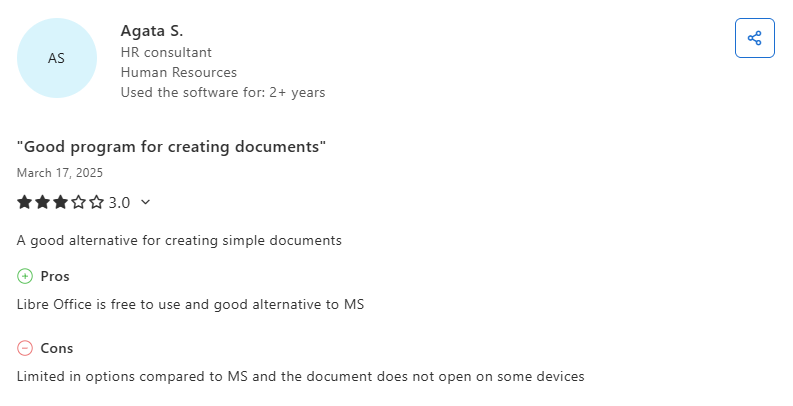
"Limited in options compared to MS and the document does not open on some devices" (Agata S., Capterra)
Pricing
- Free, with no paid tier.
Watch out for: complex Word files. Documents with heavy formatting may need manual fixes after conversion, and the interface looks dated next to Word.
Bottom line
LibreOffice Writer is the strongest free replacement for Word on Windows, especially if you work offline. If you trade formatting-heavy files with Word users, test a few before you switch.
WPS Office
Best for: Word users who want a familiar ribbon layout for free.
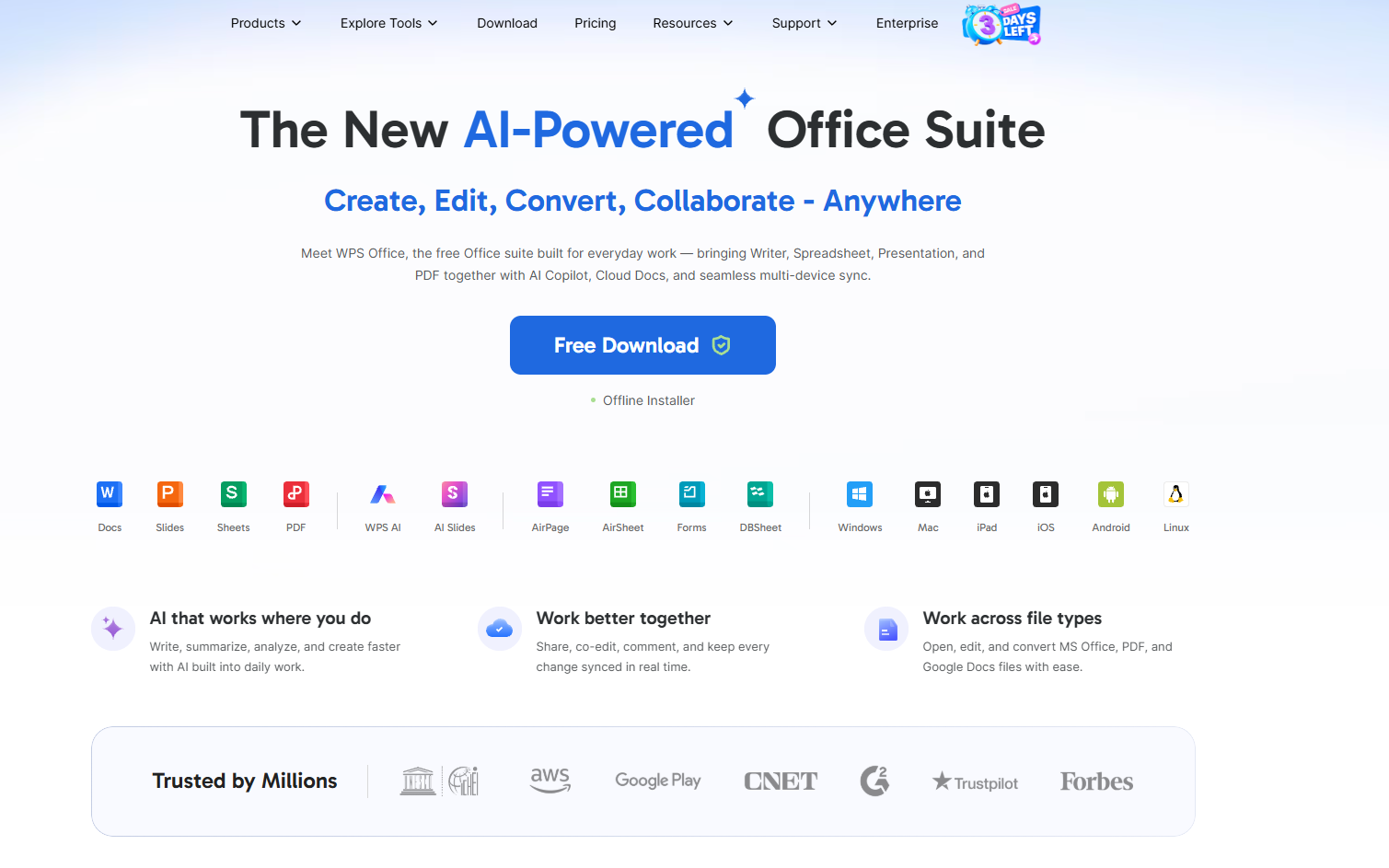
WPS Office is built to look like Microsoft Office, down to the ribbon, so the Writer app feels familiar from the first click. It installs on Windows 11 and 10, with versions for Mac and Linux too.
Key features
- File compatibility: open, edit, and convert Microsoft Office, PDF, and Google Docs files.
- PDF to Word: turn PDFs into editable documents.
- WPS AI: draft from a prompt and summarize long documents.
- Templates: start documents from a built-in template library.
What users say
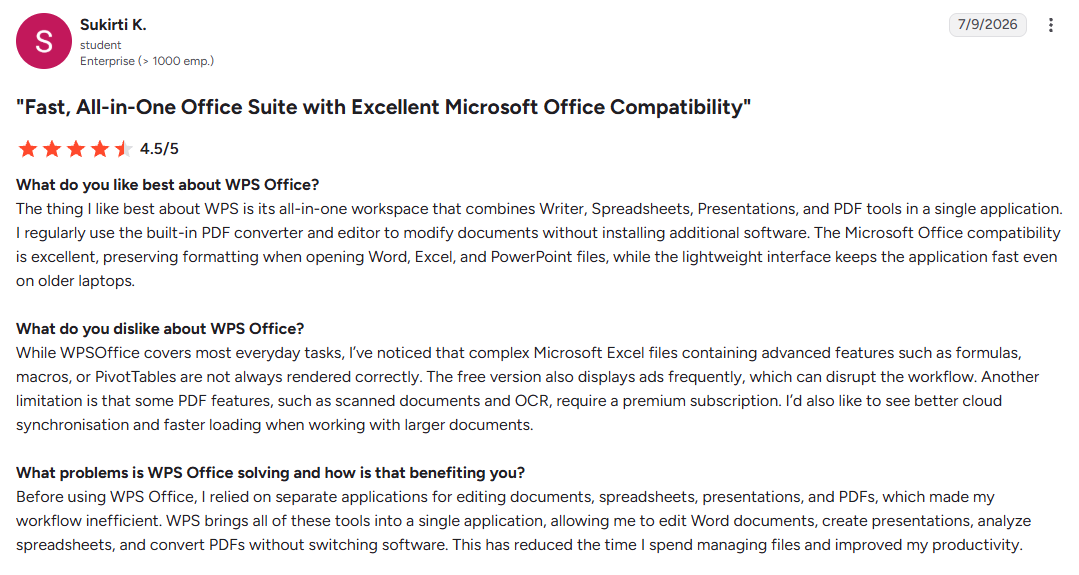
"The Microsoft Office compatibility is excellent, preserving formatting when opening Word, Excel, and PowerPoint files, while the lightweight interface keeps the application fast even on older laptops." (Sukirti K., G2)
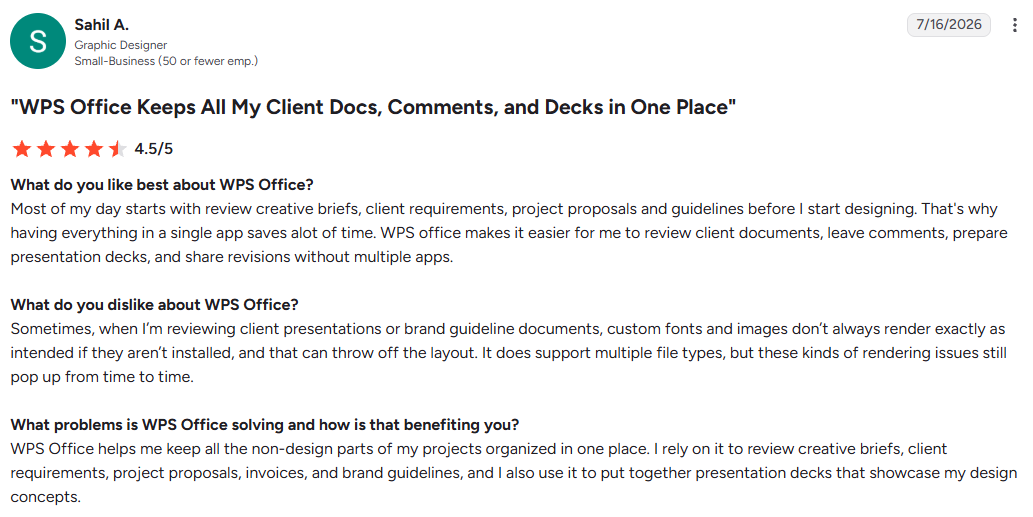
"Sometimes, when I’m reviewing client presentations or brand guideline documents, custom fonts and images don’t always render exactly as intended if they aren’t installed, and that can throw off the layout." (Sahil A., G2)
Pricing
- Free to download, with ads.
- Pro+ at $69.99/year removes ads and adds AI tools with usage limits.
Watch out for: ads and paywalls. The free version shows ads that can interrupt a focused session, and some PDF tools require Pro+.
Bottom line
WPS Office makes sense if the Word ribbon is muscle memory and you can live with ads. If ads would break your concentration, LibreOffice Writer is free without them.
Google Docs
Best for: anyone who writes with other people or moves between several computers.
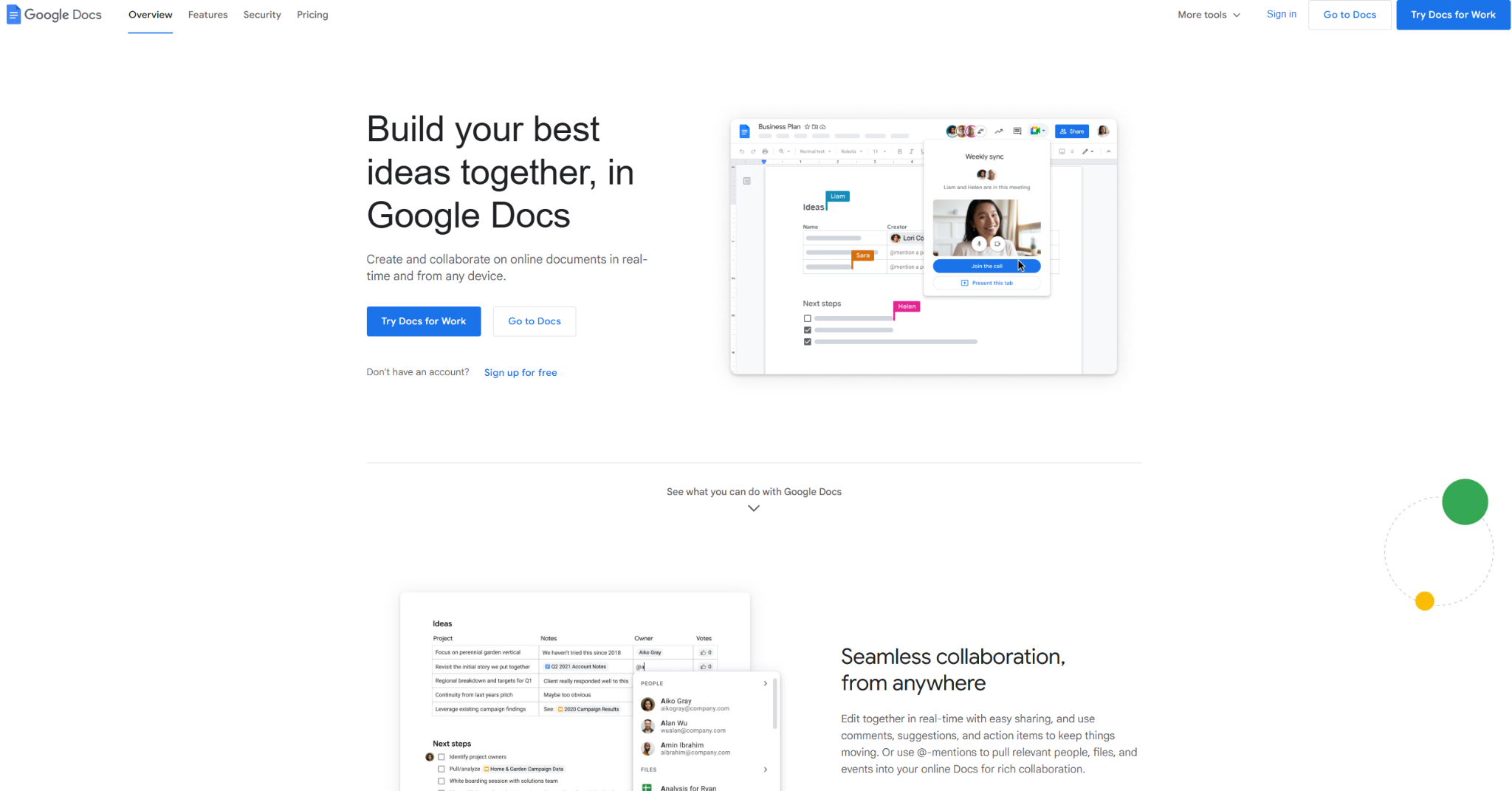
Google Docs runs in the browser, saves every change to the cloud, and is free with any Google account. There's no Windows app, but the Google Docs Offline extension for Chrome or Edge lets you keep editing without a connection. You can also add AI typing help inside Google Docs when you want a faster first draft, or compare the best AI tools for Google Docs.
Key features
- Real-time co-editing: several people can work in the same document at once.
- Suggesting mode: propose edits that the document owner can accept or reject.
- Version history: look back at any earlier version and restore it.
- Document tabs: organize a long document into separate tabs.
What users say
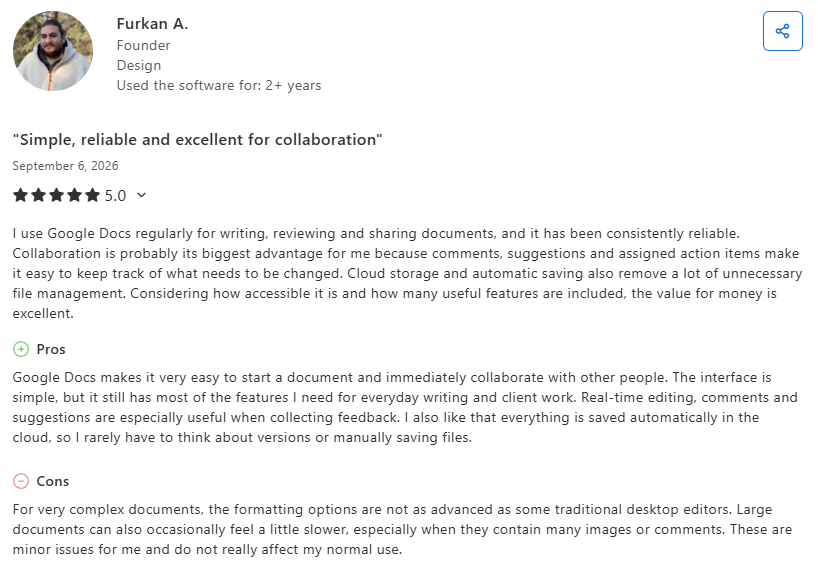
"Collaboration is probably its biggest advantage for me because comments, suggestions and assigned action items make it easy to keep track of what needs to be changed." (Furkan A., Capterra)
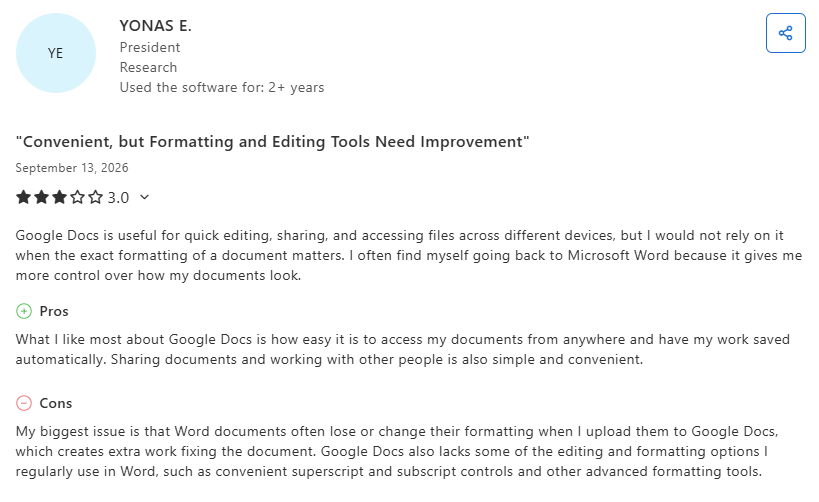
"My biggest issue is that Word documents often lose or change their formatting when I upload them to Google Docs, which creates extra work fixing the document." (YONAS E., Capterra)
Pricing
- Free with a Google account.
- Business Starter at $7/user/month on an annual plan adds admin controls; Gemini in Docs starts with Business Standard at $14/user/month.
Watch out for: layout limits. Advanced formatting is thinner than in desktop word processors, and formatting can shift when you convert to or from Word.
Bottom line
Google Docs is the natural home for shared drafts and team documents. For long, formatting-heavy documents or regular offline work, LibreOffice Writer or Word will serve you better.
Best AI Writing Assistants for Windows
Most writing apps hand you a blank page. HyperWrite helps you fill it, and Grammarly checks what you wrote.
HyperWrite
Best for: professionals who write all day across Gmail, Google Docs, and other browser tabs.
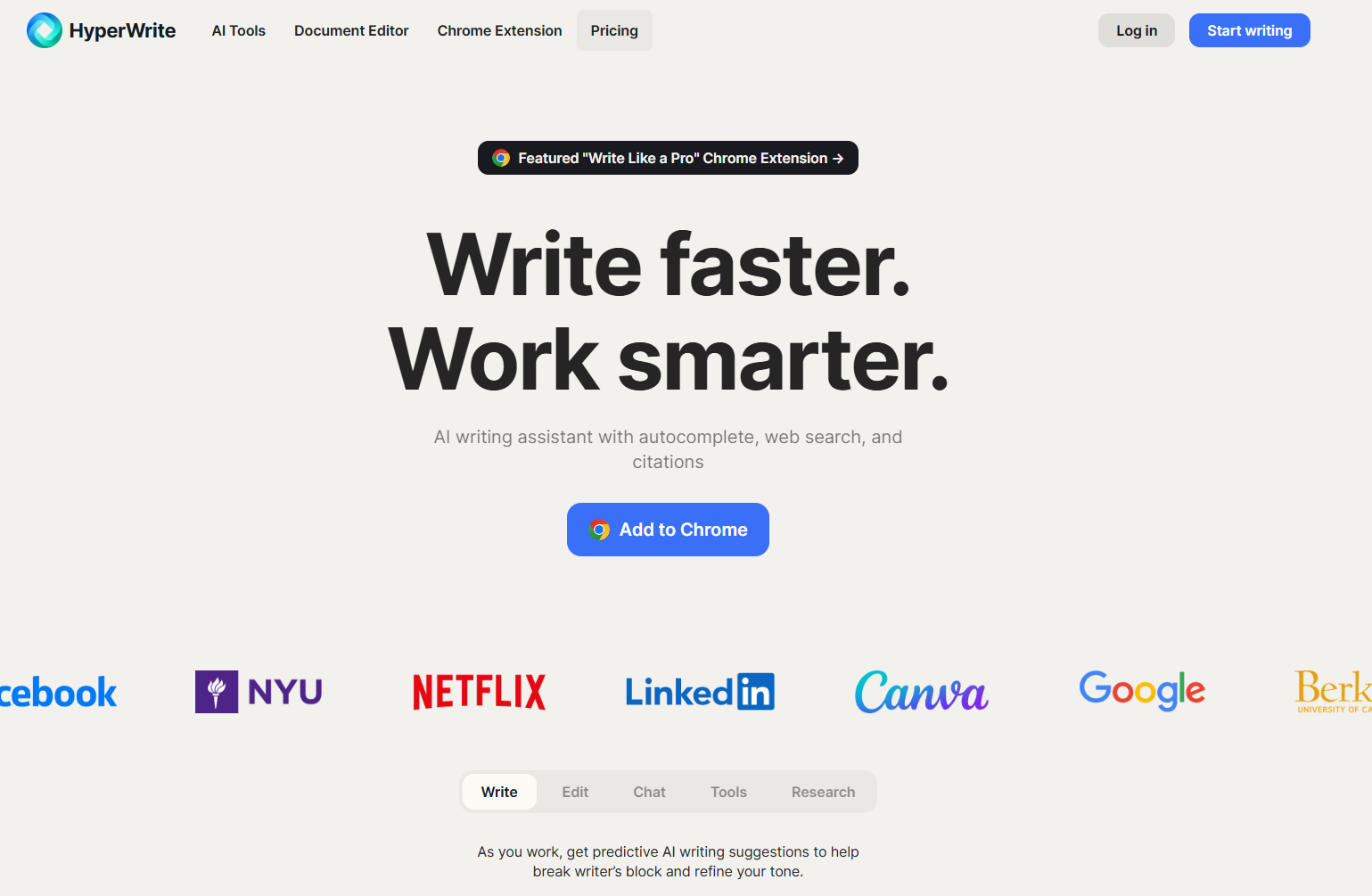
HyperWrite is built for the writing that fills a workday: the 30 emails, the LinkedIn replies, the doc you owe someone by noon. Its flagship, TypeAhead, is a Chrome extension that works in browser text fields on Windows, Mac, and Linux and suggests your next sentence using context from your open tabs.
TypeAhead goes well past phone-keyboard autocomplete: it also draws on your past writing through Personas, so the suggestions sound like you wrote them. HyperWrite's AI Writing Assistant is also quicker than ChatGPT-style thinking models, and professionals at Google, Netflix, LinkedIn, and Spotify use HyperWrite. You can see how TypeAhead works in more detail.
Key features
- TypeAhead: context-aware suggestions in Gmail, Google Docs, ChatGPT, and other browser text fields.
- Personas: custom writing styles that make the AI write like you, with 3 on Premium and 10 on Ultra.
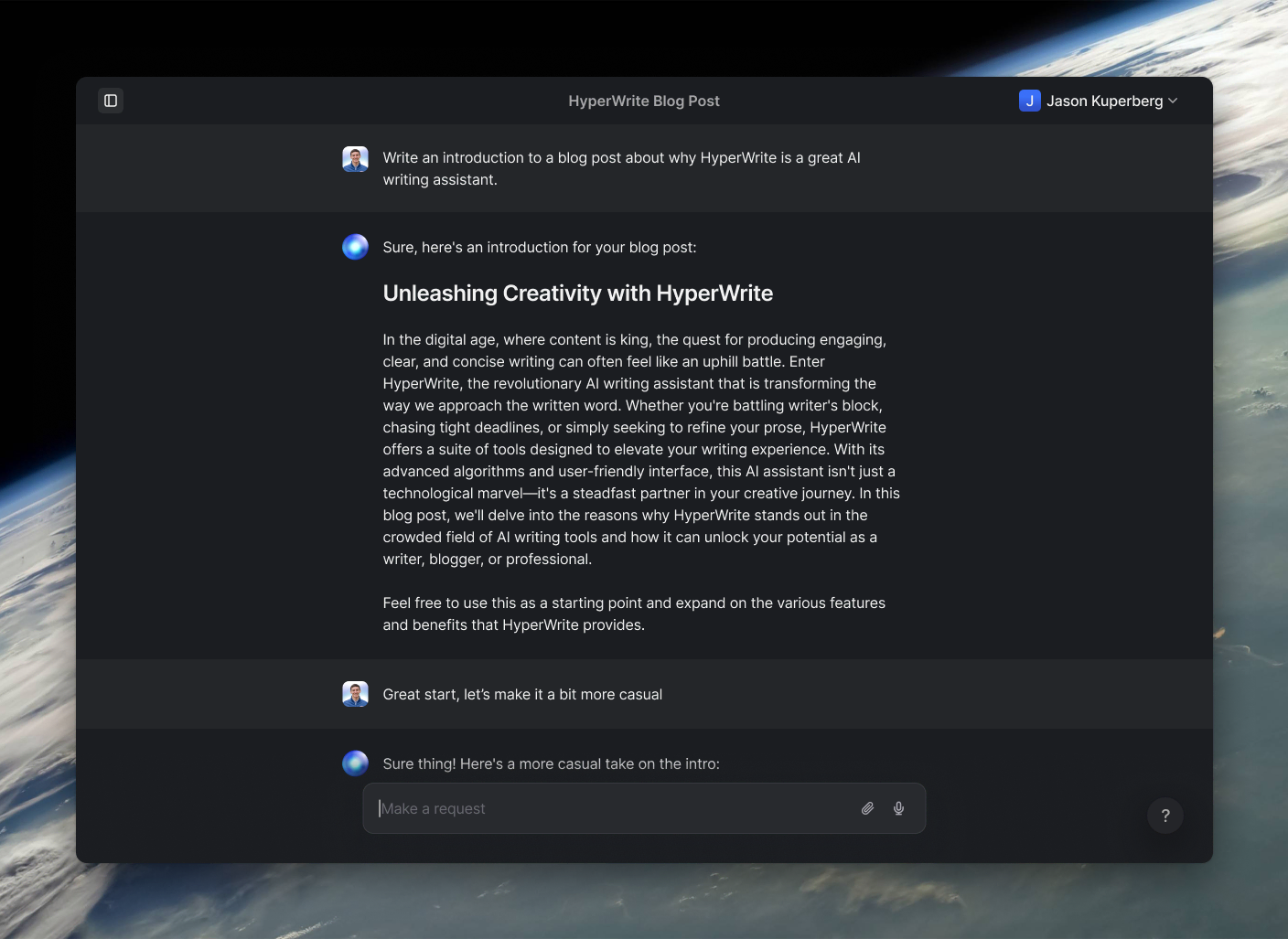
- AutoWrite: drafts a paragraph or a full first version from a short prompt.
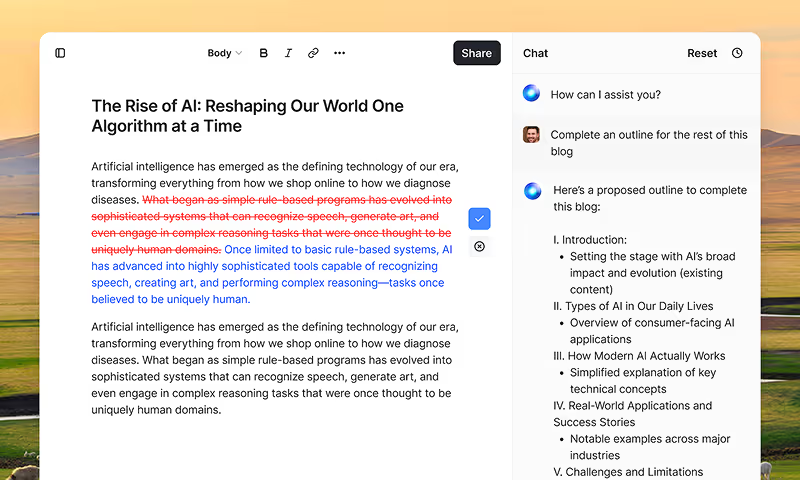
- AI Document Editor: a full editor whose built-in AI sees your current draft and can apply edits for you.
What users say
"Amazingly accurate and genuinely helpful. This extension has saved me so much time." (Scott Mallonee, Chrome Web Store)

"It works but lacks some basic feature. I want it to keep disable on some website (Whatsapp), only enable it when needed. But there is no keyboard shortcut." (Md sAKIBUL hASAN, Chrome Web Store)

Pricing
- Free with limited monthly credits; Premium at $19.99/month or $16/month billed annually, with 250 AI messages a month.
- Ultra costs $44.99/month or $29/month billed annually, with unlimited messages.
Watch out for: long-form work. HyperWrite lives in the browser and is tuned for everyday professional writing; a 90,000-word manuscript might not be the best fit.
Bottom line
Install HyperWrite if most of your writing is email, replies, and docs in Chrome; the free plan is enough to see whether TypeAhead fits how you write. Keep a dedicated app like Scrivener for book-length projects.
Grammarly
Best for: writers who want a second set of eyes on grammar, clarity, and tone.
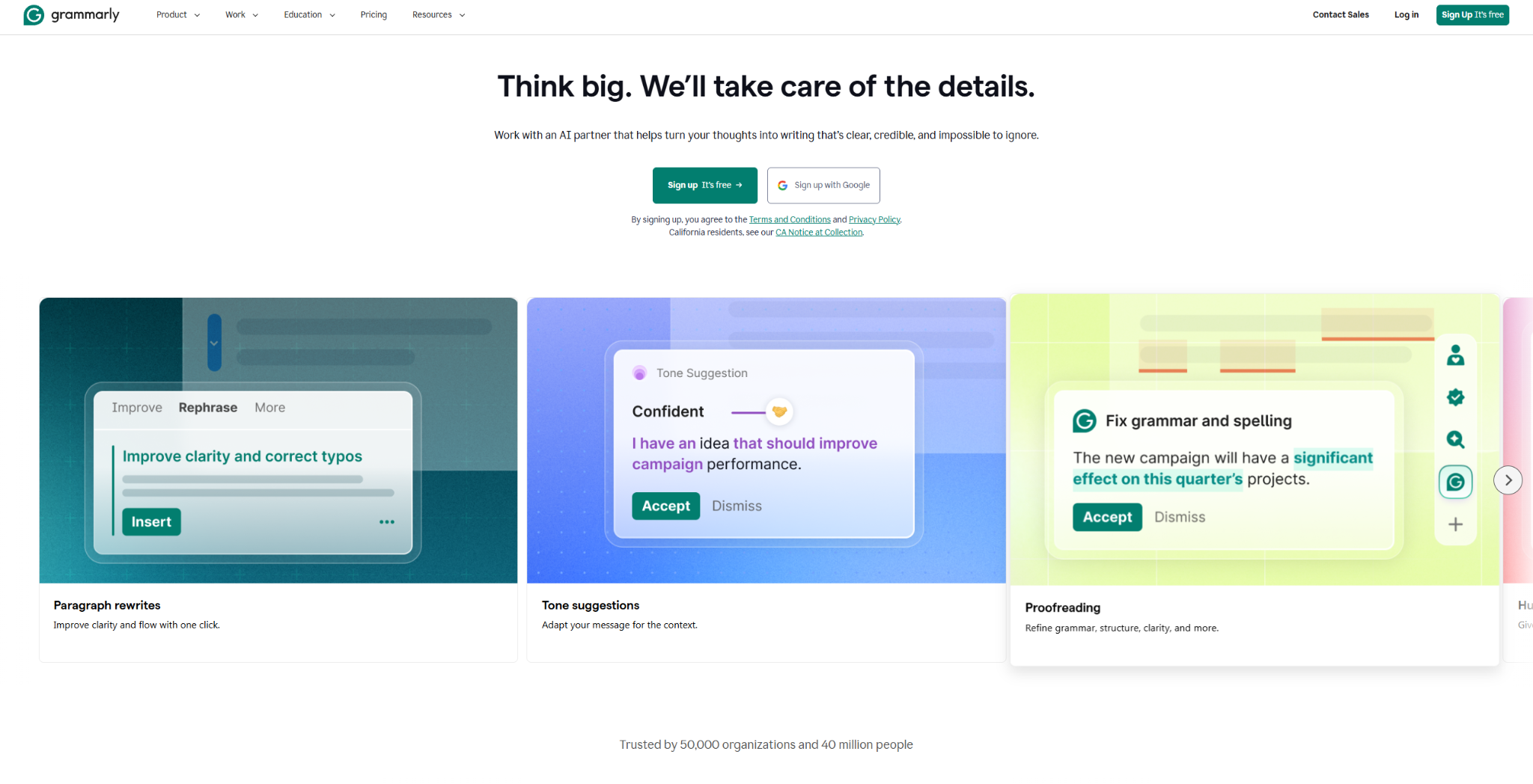
Grammarly checks what you've already written, as you type. The Windows desktop app runs on Windows 10 or newer and works across more than a million apps and programs, and it needs an internet connection to analyze your text.
Key features
- Grammar and spelling checks: catch mistakes as you type, in the browser and on the desktop.
- Tone detector: shows how your writing is likely to come across before you send it.
- Generative AI prompts: draft replies, reports, and ideas, with 2,000 prompts per member each month on Pro.
- Plagiarism and AI-text detection: included with Pro.
What users say
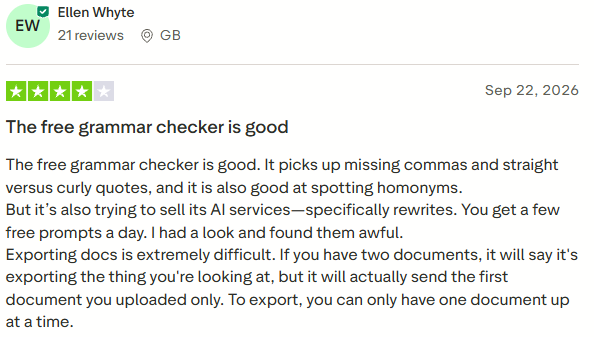
"The free grammar checker is good. It picks up missing commas and straight versus curly quotes, and it is also good at spotting homonyms." (Ellen Whyte, Trustpilot)
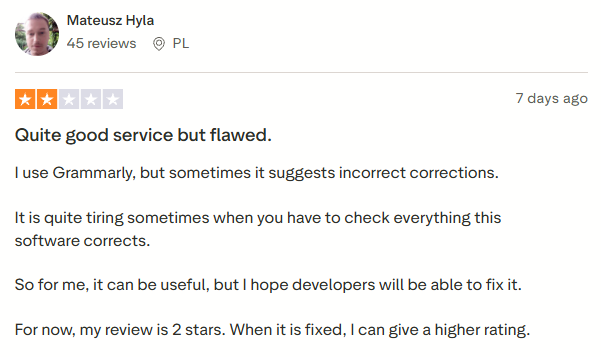
"I use Grammarly, but sometimes it suggests incorrect corrections. It is quite tiring sometimes when you have to check everything this software corrects." (Mateusz Hyla, Trustpilot)
Pricing
- Free for core checks.
- Pro at $12/member/month billed annually, or $30 billed monthly.
Watch out for: overzealous suggestions. Reviewers note it sometimes flags correct commas or passive voice and misses context, and it helps more with polishing a draft than producing one. If it isn't the right fit, these Grammarly alternatives are worth a look.
Bottom line
Add Grammarly if you want a second proofreading pass on everything you write. If you need help producing the draft itself, an assistant like HyperWrite is the closer fit.
Best Writing Apps for Windows for Note-Taking and Research
Before the draft comes the pile of notes, links, and half-ideas. Two apps handle that pile well on Windows.
Obsidian
Best for: researchers and writers who want linked notes stored as files on their own PC.
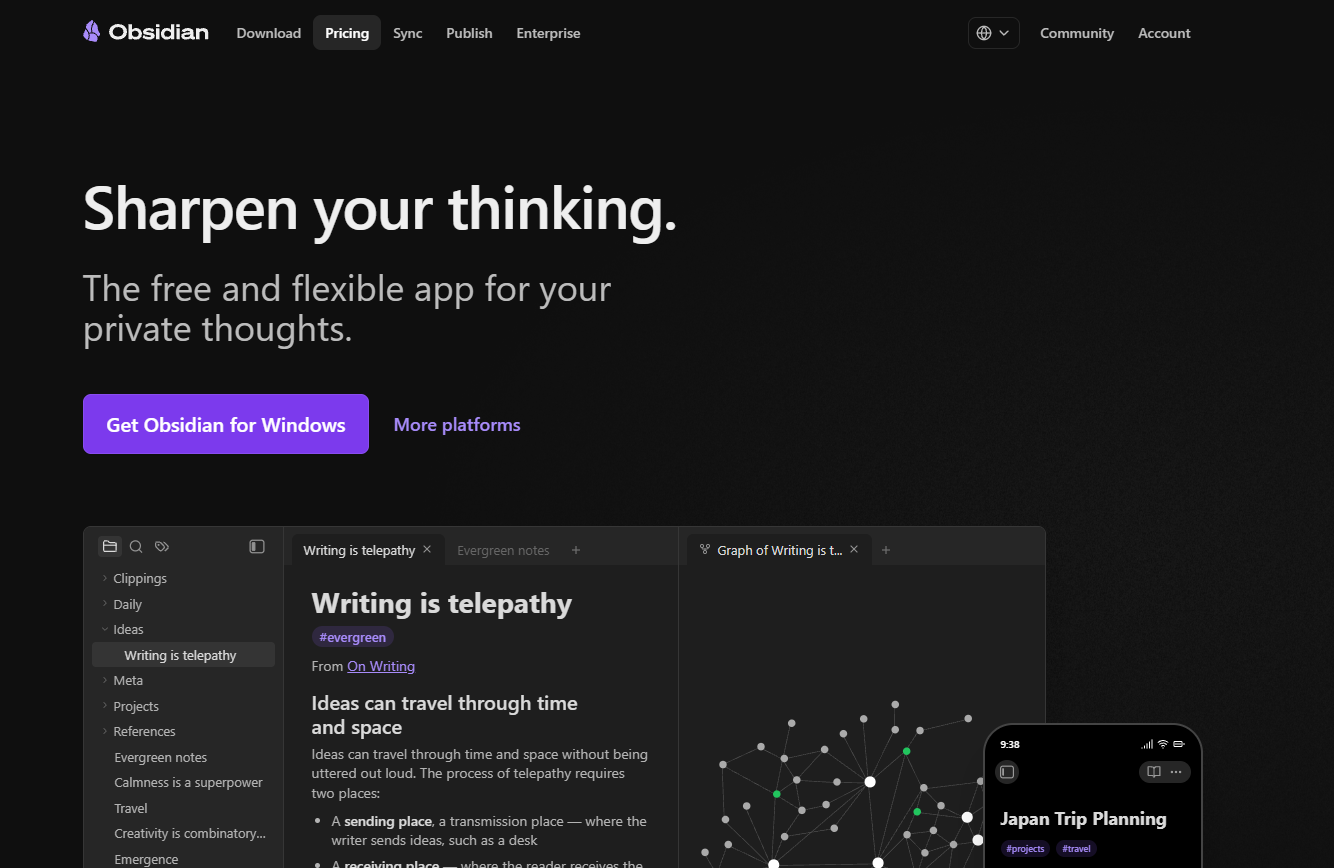
Obsidian stores notes as plain-text Markdown files on your computer and lets you link them into a web of ideas, which suits research-heavy writing and world-building. The Windows app works offline and has no built-in AI. If Notion feels too heavy for your notes, Obsidian is lighter, and so are these Notion alternatives.
Key features
- Backlinks: connect notes and see every note that points back to the one you're reading.
- Graph view: visualize how your notes relate to each other.
- Canvas: an infinite board for research, brainstorming, and laying out ideas.
- Community plugins: thousands of plugins that add features.
What users say
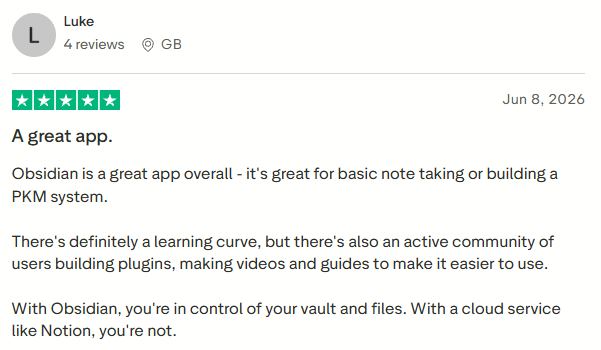
"Obsidian is a great app overall - it's great for basic note taking or building a PKM system." (Luke, Trustpilot)
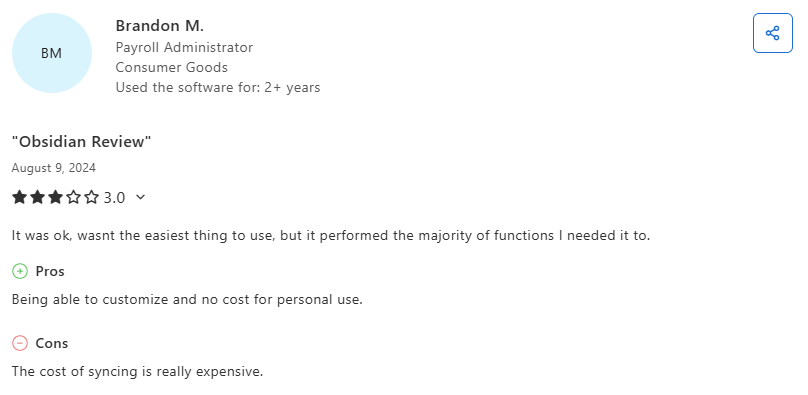
"The cost of syncing is really expensive." (Brandon M., Capterra)
Pricing
- Free without limits.
- Sync costs $4/month billed annually ($5 monthly), Publish costs $8/month billed annually ($10 monthly), and a $50/year commercial license is optional.
Watch out for: setup time. The open-ended structure takes a while to shape, and some people spend more time tweaking plugins than writing.
Bottom line
Obsidian is a strong, free home for research notes you plan to keep for years. If you only need to jot things down, Simplenote is faster to start with.
Simplenote
Best for: quick, free note capture when you don't need formatting.
Simplenote opens instantly, syncs plain-text notes across devices, and never asks you to think about formatting. The Windows app is designed to work offline and syncs your edits when you reconnect.
Key features
- Tags and instant search: find any note quickly.
- Markdown preview: write in Markdown and preview it with Ctrl+Shift+P.
- Publish to the web: share a note as a public page.
- Version history: every change is backed up automatically.
What users say
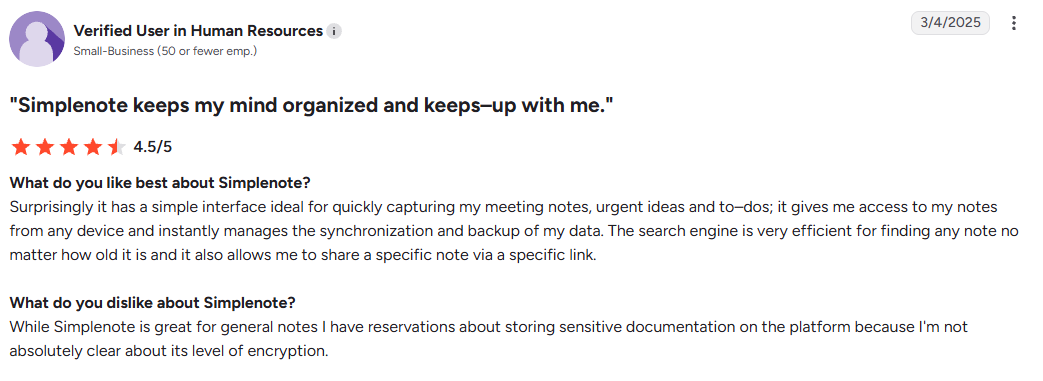
"Surprisingly it has a simple interface ideal for quickly capturing my meeting notes, urgent ideas and to–dos; it gives me access to my notes from any device and instantly manages the synchronization and backup of my data." (Verified User in Human Resources, G2)
"I cannot attach images? Sorry but this is impossible for me to use this :(" (Vitaly Zdanevich, AlternativeTo)

Pricing
- Free, with no premium tier.
Watch out for: no new features. Simplenote's own help page says it's no longer in active development, and it has no rich text, notebooks, or attachments.
Bottom line
Simplenote still handles fast, plain-text capture across devices well. Because only basic maintenance continues, choose Obsidian if you want an app that keeps adding features.
How to Choose the Right Writing App for Your Windows PC
The best writing app is the one that fits the job in front of you. Match your work to a pick:
Two more things decide the fit.
Where the app runs
- Installed apps (Scrivener, Microsoft Word, LibreOffice Writer, FocusWriter): live on your PC and work offline.
- Browser apps (Google Docs, Reedsy Studio, HyperWrite): follow you to any computer. Google Docs needs its offline extension set up before you lose signal, and Reedsy Studio needs a connection.
- Microsoft Store apps (QuillSpace): install in one click and update through the Store.
Free or paid
- Stay free for a word processor (LibreOffice Writer, Google Docs), novel planning (yWriter, Manuskript, Reedsy Studio), a distraction-free screen (FocusWriter), or notes (Obsidian, Simplenote).
- Pay when you need something specific: Scrivener's manuscript tools, Atticus's print and ebook formatting, or HyperWrite's writing help across browser tabs.
Final Verdict
Start with the job you need done. For a novel, Scrivener is the pick if you'll pay $59.99 once, and yWriter if you won't. For everyday documents, LibreOffice Writer covers what most people use Word for at no cost, while Microsoft Word stays the safe choice when editors or coworkers expect .docx files. For focused drafting, FocusWriter is free and gets everything else off the screen. And if your days fill up with work email and docs in the browser, add HyperWrite on top of whichever app you choose.
Use HyperWrite for Everyday Work Writing on Windows
The best writing apps for Windows give you a better place to write, but the words are still on you.
You can have Scrivener open for the novel and Docs open for work and still lose part of every day to the small writing nobody tracks: the emails, the replies, the updates between the real blocks of work.
HyperWrite sits in the browser you already use and helps with exactly that writing.
With HyperWrite, professionals can:
- Finish emails and docs faster with TypeAhead in Gmail, Google Docs, LinkedIn, or any browser tab
- Keep their own voice with Personas that learn how they write
- Draft first versions quickly with AutoWrite in any format
- Turn a short summary into a polished email with the Email Generator
- Revise long drafts in the AI Document Editor, where the AI can apply changes for you
- Get writing-optimized responses faster than ChatGPT-style thinking models
- Start free, with no credit card, and upgrade only if it sticks
Keep Scrivener, LibreOffice Writer, or Google Docs for the big projects, and let TypeAhead take the emails, replies, and status updates in Chrome. Try TypeAhead free with the Chrome extension and use it for your next inbox session on Windows.
Frequently Asked Questions
What software does Stephen King use to write?
Stephen King usually writes on a Mac computer and switches to longhand when he's traveling, as he told readers in a Goodreads Q&A. In a 2006 Paris Review interview, he said he wrote Dreamcatcher and Bag of Bones by hand because he wanted to see what would happen.
Scrivener or Microsoft Word: which is better for writing a book?
Scrivener is better for drafting a book, and Word is better for editing and submitting one. Scrivener's binder and corkboard let you rearrange scenes as you go, while Word keeps the whole book in a single file you scroll through. Word's Track Changes are the industry standard for editors, and .docx is the file publishers expect, which is why authors who draft in Scrivener often move the manuscript into Word for edits.
What is the best handwriting app for Windows?
Microsoft OneNote is the best handwriting app for Windows, especially on a touchscreen or 2-in-1 with a stylus. It converts handwriting to text, organizes notes into notebooks, and is free. It comes preinstalled on PCs that ship with Office, and anyone else can download it.
Can you write a book for free on Windows?
Yes. yWriter and Manuskript give you free chapter-and-scene structure, Reedsy Studio formats the finished book for ebook and print at no cost, and LibreOffice Writer or Google Docs handle the Word-compatible manuscript. You only need to pay for a specific tool like Scrivener or Atticus.
Can I use writing apps for Windows offline?
Yes, many writing apps for Windows work fully offline. Native installs like Scrivener, LibreOffice Writer, yWriter, FocusWriter, and Obsidian run without a connection. For browser-first apps, plan ahead: switch on Google Docs Offline before you travel, or use Dabble's desktop app.
HyperWrite is the AI writing assistant that learns your style. It handles drafting, editing, and researching so you can focus on ideas.
- Autocompletes sentences as you type
- Works inside Google Docs & Gmail
- Adapts to your personal writing style
- 500+ AI tools for any writing task
Powerful writing in seconds
Improve your existing writing or create high-quality content in seconds. From catchy headlines to persuasive emails, our tools are tailored to your unique needs.