
9 Best Email Productivity Tools to Save Hours in 2026
I tested the best email productivity tools for inbox cleanup, speed, team inboxes, and writing replies faster. Here's which one fits your email job in 2026.


The average worker gets 117 emails a day, according to Microsoft's 2025 Work Trend Index, and skims most of them in under a minute.
Getting through that pile takes five different jobs: clearing clutter, spotting what matters, moving fast, sharing a team inbox, and writing replies. Each tool below wins one of them.
I picked these 9 from the tools that keep coming up in 2026 roundups and user forums, then checked each against its own docs, pricing page, and recent reviews. By the end, you'll know which job costs you the most time and which tool takes it off your plate.
The 9 best email productivity tools at a glance
- HyperWrite: best for AI-assisted email drafting and faster replies
- Clean Email: best for bulk inbox cleanup
- SaneBox: best for automatic priority filtering
- Superhuman Mail: best for high-speed inbox processing
- Shortwave: best for AI search across your email history
- Hiver: best for Gmail-based shared and support inboxes
- Front: best for routing customer email across departments
- EmailAnalytics: best for email response-time analytics
- Grammarly: best for polishing grammar and tone
How I chose these email productivity tools
I judged every tool on the things that actually change your day.
- Job fit: does it do one email job (cleanup, priority, speed, teamwork, analytics, or writing) genuinely well?
- Time saved: real minutes off reading, sorting, or writing, beyond a prettier interface.
- Integrations: works with Gmail, Outlook, Apple Mail, or IMAP, plus the calendar and CRM you already use.
- AI depth: does the AI do real work (draft, summarize, filter) or just reformat text?
- Pricing and reviews: honest value against the free tier, checked against user reviews on G2, Capterra, and Reddit.
A few didn't make the cut. Mailbutler works in Apple Mail, Gmail, and Outlook, but its mix of add-ons like email tracking doesn't win any single email job outright. TextExpander saves keystrokes, yet it's a snippet tool more than an email tool.
Boomerang adds no-reply reminders to Gmail, which are handy, but its send-later feature is already built into Gmail and Outlook. The nine below each win a specific job, and the ranking follows from the criteria above.
The 9 email productivity tools: quick comparison
Starting prices are the lowest listed rate as of November 2026, usually with annual billing. Check each vendor's page before you buy.
1. HyperWrite: best for AI email drafting and faster replies
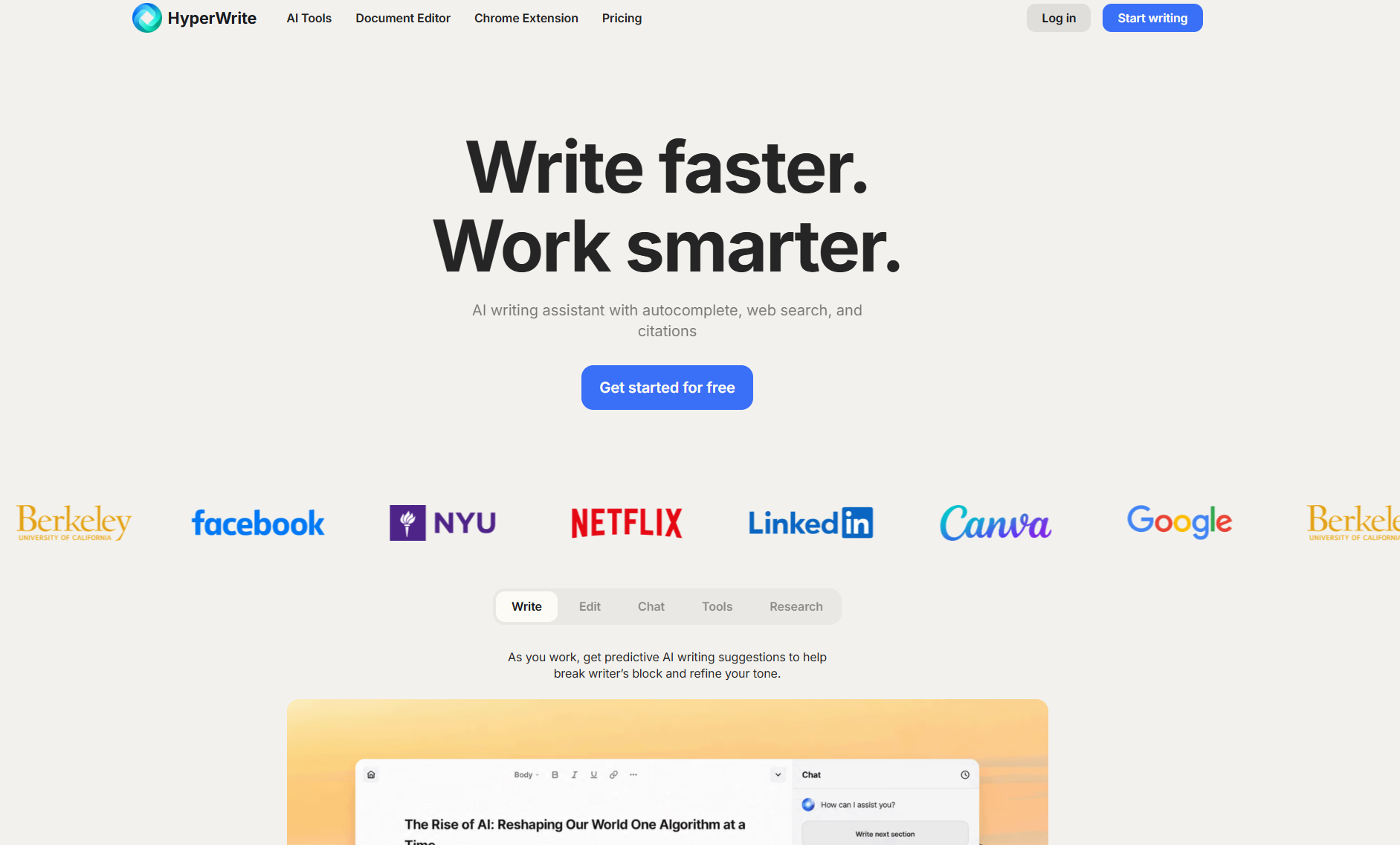
What it does: HyperWrite is an AI writing assistant that drafts and finishes your email replies inside the tabs where you already write.
Best for: founders, recruiters, marketers, and support leads who answer the same kinds of email all day and spend more time writing than sorting.
Its edge is context. TypeAhead, its autocomplete, finishes full sentences in Gmail, Outlook on the web, or your CRM using what's in your other open tabs, so a reply to a client can draw on the proposal open next to it. People at Google, Netflix, LinkedIn, and Spotify use HyperWrite.
Key features
- TypeAhead: context-aware sentence completions inside any browser tab, so you stop re-typing the reply you already have in your head. It completes sentences; it won't write your whole report for you.
- Personas: reusable voice profiles you set up once, so suggestions across the platform match how you actually write. Voice comes from Personas; TypeAhead on its own just completes the sentence.
- AI Writing Assistant and AutoWrite: draft, rewrite, and summarize from a prompt when sentence-level help isn't enough, and you want a full first draft. It's faster than ChatGPT-style thinking models, and its prompts are built from years of A/B testing.
Pros and cons
Pros:
- ✅ Works where you already write, so there's no copy-paste trip to a separate editor to write replies faster.
- ✅ Set up a Persona once, and suggestions stay in your voice instead of a flat "professional" preset.
Cons:
- ❌ It won't manage your inbox: there's no sorting, snoozing, or analytics here.
- ❌ The free plan runs on limited monthly credits: TypeAhead is included but limited, so heavy daily writing needs a paid plan.
What users say
"Very useful little app, helps me get to my daily inbox zero goals much faster. So many emails are repetitive. Also, a huge plus, the developers are very responsive to feedback! It keeps getting better." (Louis D'Angelo, Chrome Web Store, May 2026)

"It works but lacks some basic feature. I want it to keep disable on some website (Whatsapp), only enable it when needed. But there is no keyboard shortcut." (Md sAKIBUL hASAN, Chrome Web Store, August 2026)

Pricing
From HyperWrite's pricing page:
- Free: limited monthly credits, TypeAhead included but limited
- Premium: $19.99/month, or $16/month billed annually (250 AI messages, 3 Personas, unlimited TypeAheads)
- Ultra: $44.99/month, or $29/month billed annually (unlimited messages, 10 Personas)
Bottom line
If the part of email that eats your day is writing the replies, HyperWrite is the pick. If your problem is a cluttered or chaotic inbox, pair it with one of the tools below.
Start free in HyperWrite and draft your next reply in the AI Writing Assistant, then add HyperWrite for Chrome for autocomplete inside Gmail.
2. Clean Email: best for bulk inbox cleanup
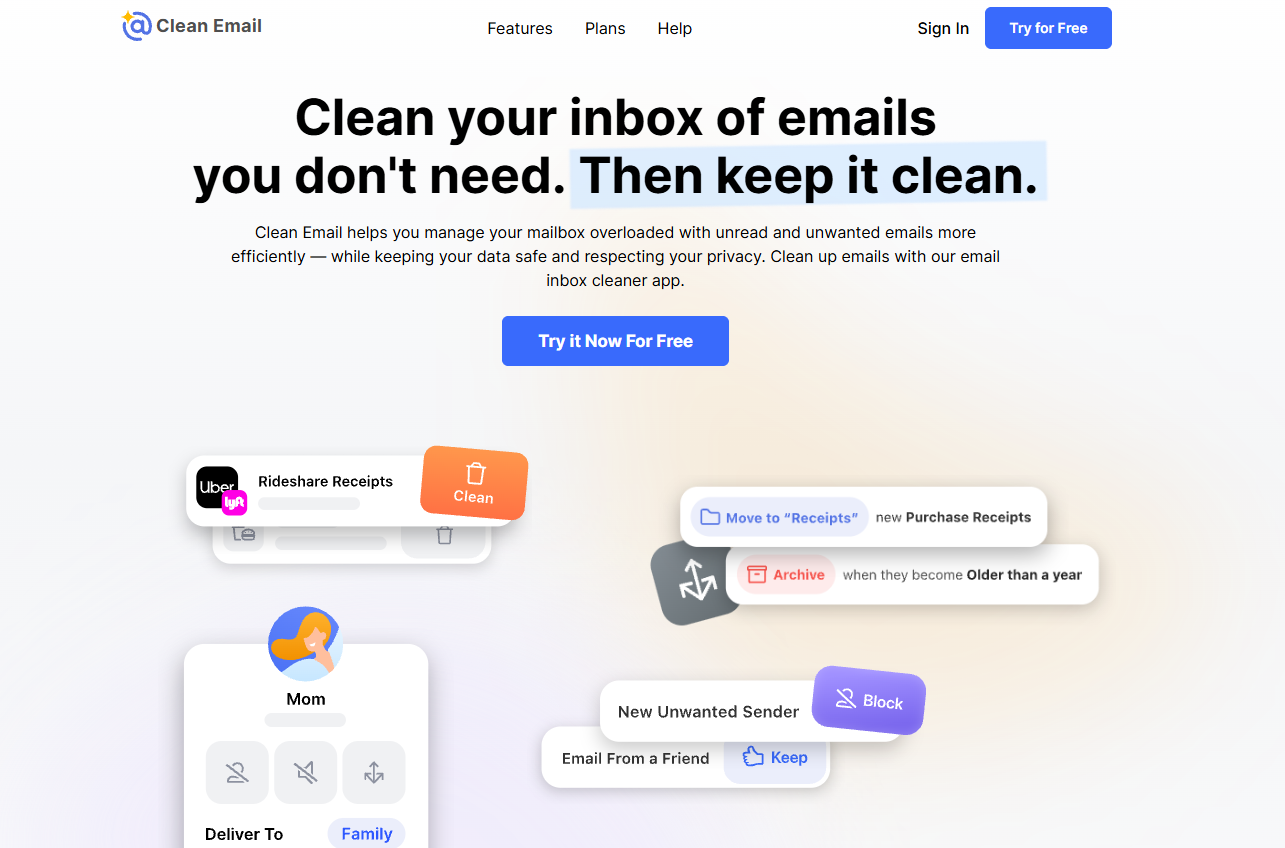
What it does: Clean Email clears a cluttered inbox in bulk, then keeps it clear with rules that run on new mail.
Best for: anyone sitting on years of newsletters, receipts, and notifications who wants a usable inbox again.
It works on a whole backlog at once. You act on hundreds of messages that share a category, like social notifications or online orders, which makes it the right first step when an inbox has been piling up for years. You can now run those cleanups from ChatGPT, Claude, or Gemini by asking in plain language.
Key features
- Auto Clean: write a rule once, and it applies to all future mail (archive, label, or delete on arrival).
- Unsubscriber and Block: unsubscribe from mailing lists in bulk, and block a single sender or a whole domain.
- Smart Folders and Screener: group related mail and hold first-time senders until you approve them.
Pros and cons
Pros:
- ✅ Clears huge backlogs quickly with bulk actions.
- ✅ Works with Gmail, Outlook, Yahoo, and any IMAP account.
Cons:
- ❌ No AI drafting: it can send and reply like a normal email app, but it won't write replies for you.
- ❌ The free account only cleans up to 1,000 emails, so a big backlog means upgrading.
What users say
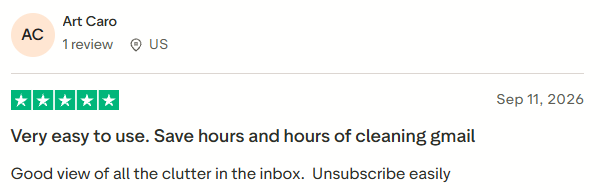
"Good view of all the clutter in the inbox. Unsubscribe easily" (Art Caro, Trustpilot, September 2026)
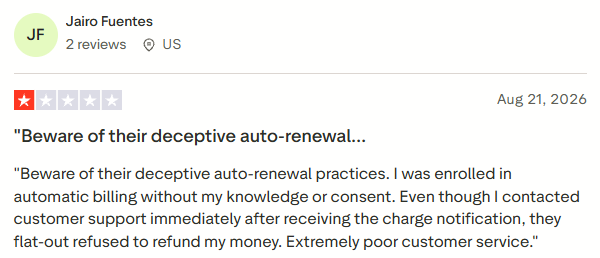
"I was enrolled in automatic billing without my knowledge or consent." (Jairo Fuentes, Trustpilot, August 2026)
Pricing
Free for up to 1,000 emails. Paid plans start at $9.99 a month or $29.99 a year for one account, with higher tiers for 5 or 10 accounts.
Bottom line
Clean Email is one of the quickest ways to go from inbox chaos to something manageable. It's a cleanup tool, so you'll still want a separate pick for priority or writing.
3. SaneBox: best for automatic priority filtering
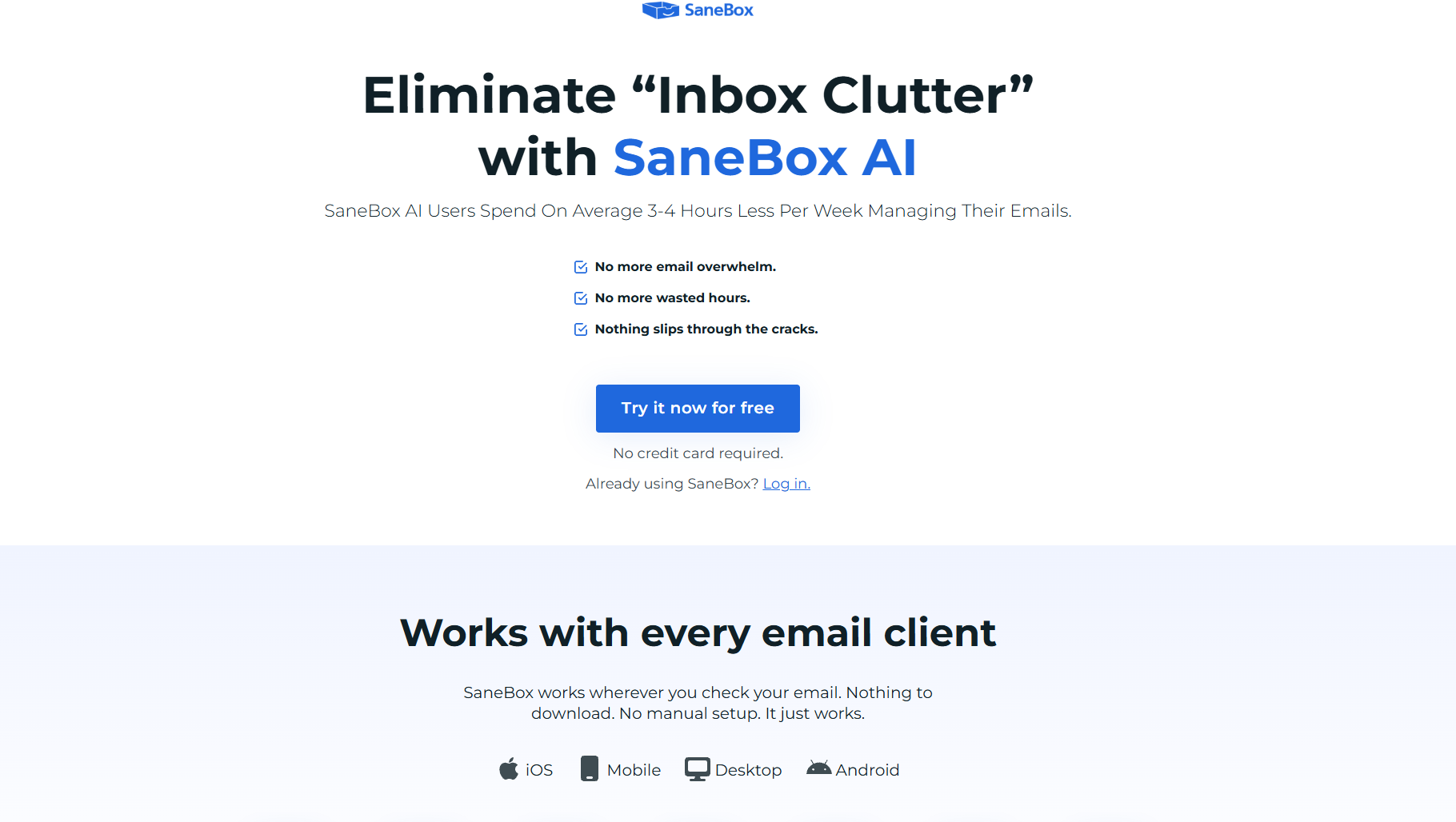
What it does: SaneBox filters incoming mail automatically, so only messages from senders you actually open land in your inbox.
Best for: busy professionals who keep missing important email under newsletters and notifications and want to keep their current email app.
The appeal is how little you have to change. You keep your app and your routine, and your inbox just gets quieter.
Key features
- SaneLater and Digest: SaneLater moves low-priority mail out of the inbox, and the daily Digest summarizes what you haven't opened.
- Reminders and SaneNoReplies: get a nudge to follow up on urgent emails, and keep tabs on messages that never got a reply.
- SaneBlackHole: permanently blocks a sender after one drag.
Pros and cons
Pros:
- ✅ Runs server-side, so it works across Gmail, Outlook, Apple Mail, and IMAP on every device.
- ✅ Sorting gets sharper the more you train it.
Cons:
- ❌ The AI features (SaneDrafts replies, SaneSummary, and Digest Plus) come only with the AI Bundle on the Dinner plan.
- ❌ No free plan, only a 7-day trial.
What users say
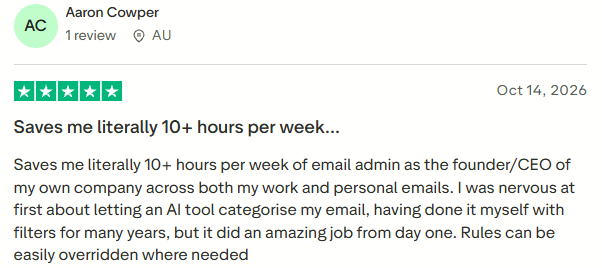
"Saves me literally 10+ hours per week of email admin" (Aaron Cowper, Trustpilot, October 2026)
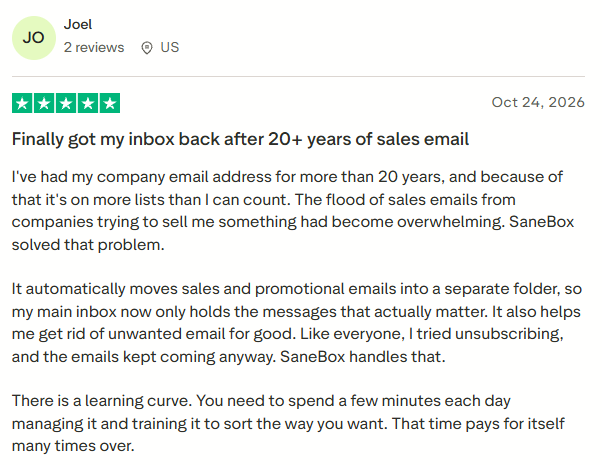
Even a five-star reviewer notes the effort: "There is a learning curve. You need to spend a few minutes each day managing it and training it to sort the way you want." (Joel, Trustpilot, October 2026)
Pricing
From $4.54/month on the Snack plan (1 account, billed every 2 years). Month to month, it's $9.49, with a 7-day free trial.
Bottom line
SaneBox is the quietest tool on this list, in a good way. If your real problem is that important mail gets buried, it's the one to start with.
4. Superhuman Mail: best for high-speed inbox processing
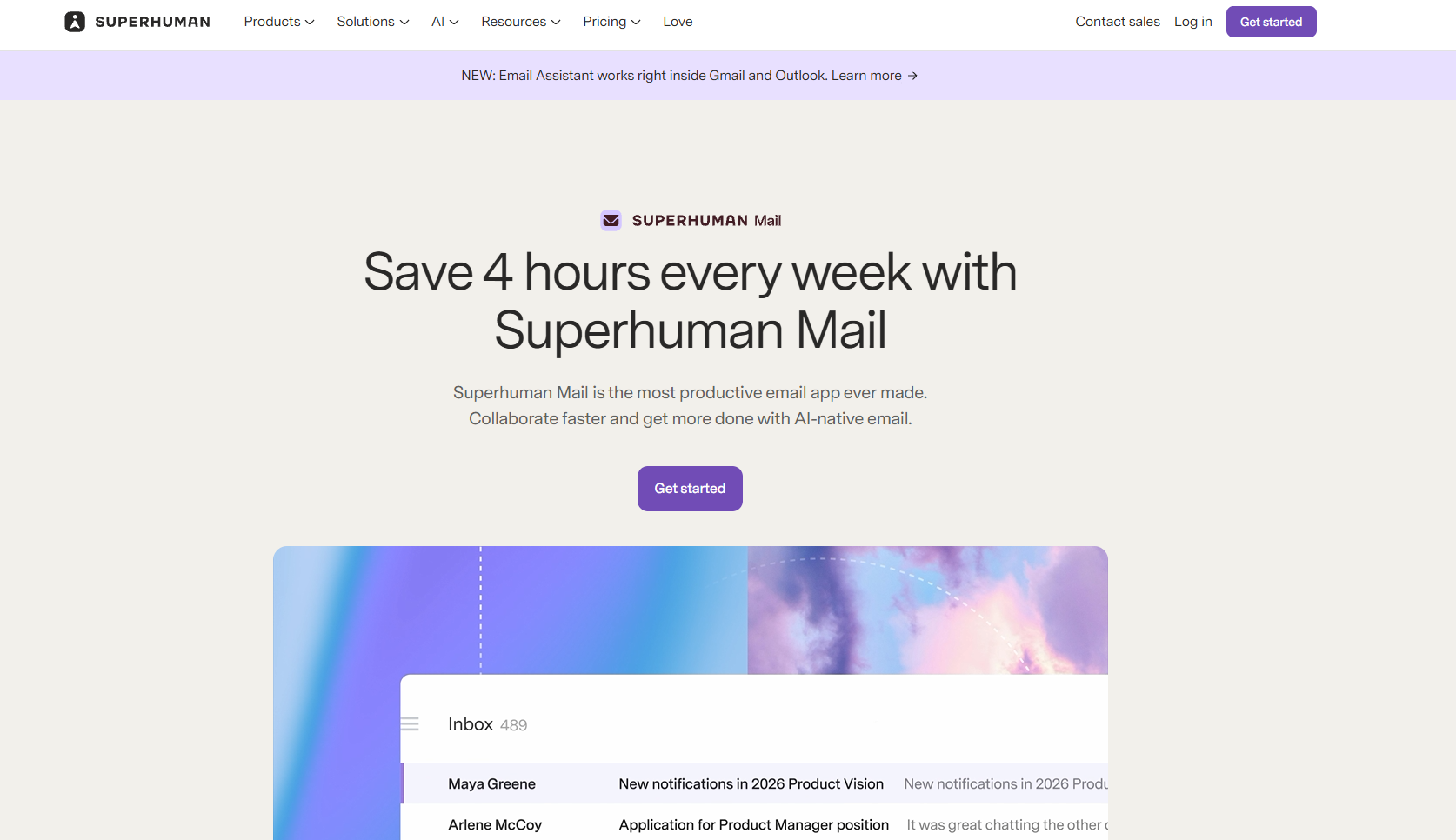
What it does: Superhuman Mail is a faster email app for Gmail and Microsoft 365 accounts, built around keyboard shortcuts and AI.
Best for: executives, founders, and consultants who handle a heavy inbox every day and will pay to get through it faster.
Its speed comes from habit. Most actions have a keyboard shortcut, so once they stick, you archive, snooze, and reply without touching the mouse. Expect a learning curve while the shortcuts sink in. If you'd rather keep Gmail or Outlook, Superhuman's new Email Assistant (November 2026) brings Auto Drafts, Auto Labels, and reminders into your existing inbox.
Key features
- Split Inbox: separates urgent threads from newsletters so you triage in the right order.
- Auto Summarize and Ask AI: condense long threads, and on the Business plan, ask questions about your inbox.
- Auto Drafts (Business plan): pre-writes replies for you to review and send.
Pros and cons
Pros:
- ✅ Reviewers rate it among the fastest ways to work through email.
- ✅ Supports both Gmail and Outlook accounts.
Cons:
- ❌ It costs more than most picks here, and every seat is billed separately.
- ❌ You still read and act on each message yourself.
What users say
"Truly the fastest way to triage email" (Bernie-topgold Goldbach, Google Play, May 2026)

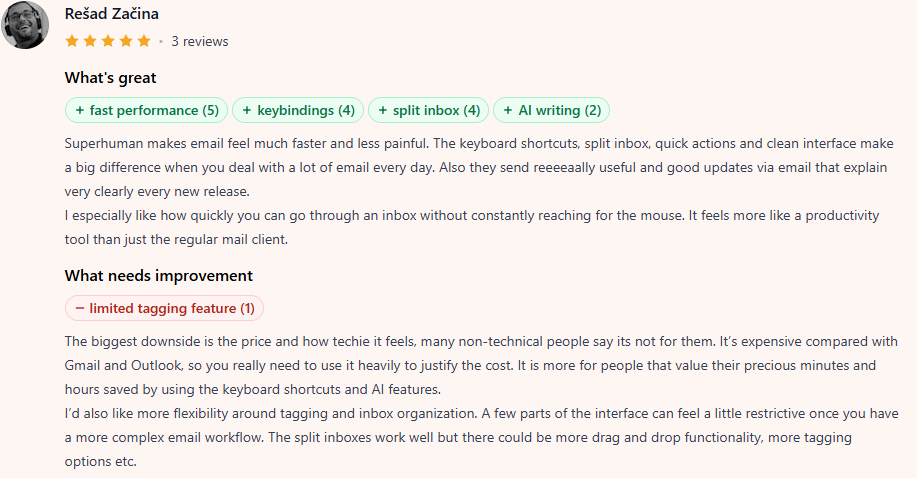
"It's expensive compared with Gmail and Outlook, so you really need to use it heavily to justify the cost." (Rešad Začina, Product Hunt, August 2026)
Pricing
From $25 per member a month (Starter, billed annually), with a Business tier that adds CRM integrations.
Bottom line
If raw speed is the goal and the price doesn't scare you, Superhuman delivers. When the bigger issue is mail volume, SaneBox plus your existing client may be all you need.
5. Shortwave: best for AI search across your email history
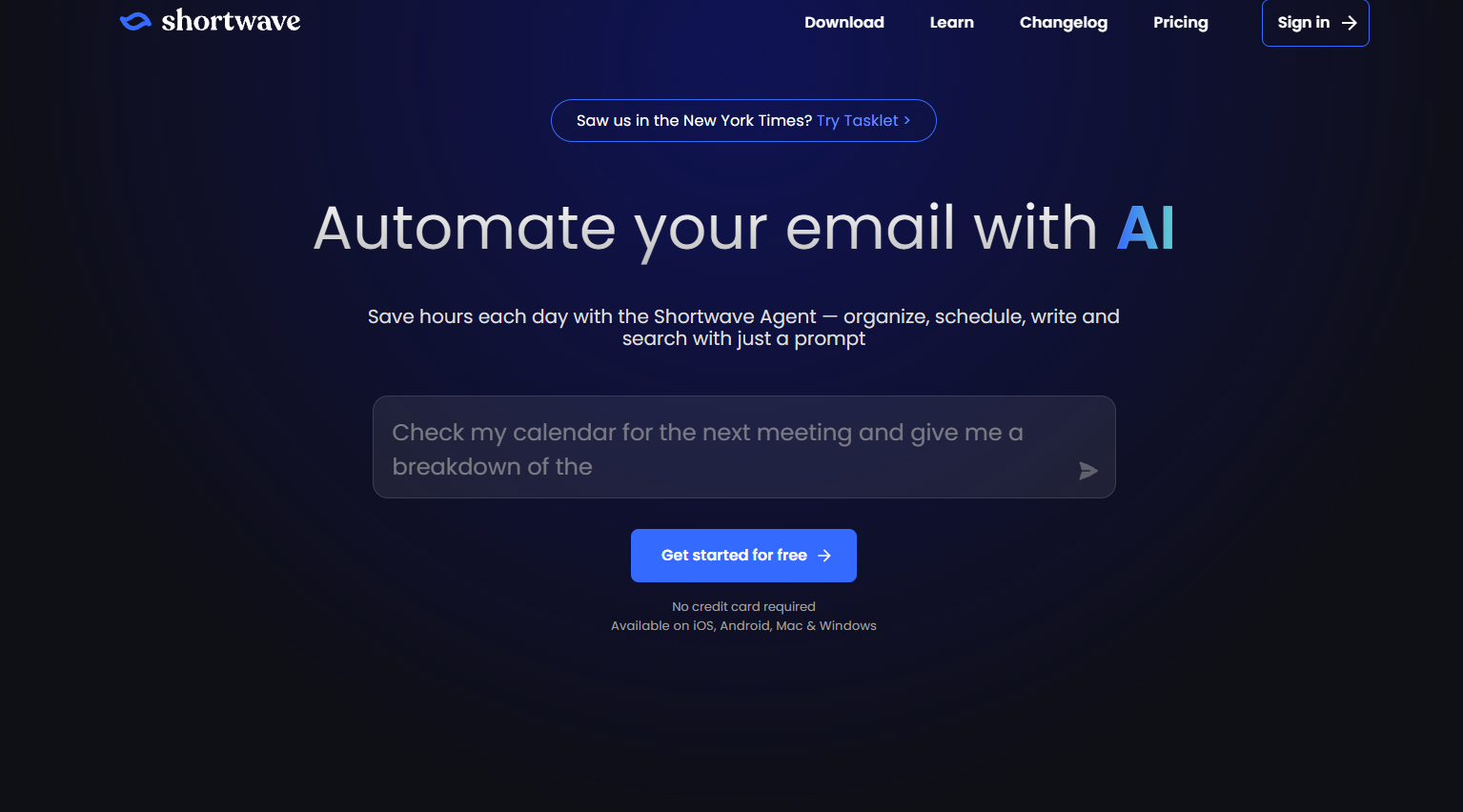
What it does: Shortwave is an AI-powered inbox for Gmail and Google Workspace that answers questions about your email history in plain English.
Best for: Gmail users whose inbox doubles as the record of client decisions, quotes, and approvals they need to find again.
Its standout is search by meaning. Ask what a client said about an invoice months ago, and it pulls the answer from your old threads, even when you can't remember the exact words.
Key features
- Long search history: even the entry Business plan searches five years of email with AI and reads up to 50 threads per question.
- AI summaries and filters: condense long chains and sort incoming mail by rules you write yourself.
- AI autocomplete: finishes sentences in your writing style.
Pros and cons
Pros:
- ✅ Users single out its AI for doing real work in the inbox.
- ✅ Bundles and summaries cut down on inbox noise.
Cons:
- ❌ Gmail and Google Workspace only, so Outlook users are out.
- ❌ Costs add up for a team, since every plan is priced per seat.
What users say
"Quickly became an indispensable part of my on-the-go communications task management. Love it!" (Jim Russell, Google Play, August 2026)

"Great app, insane price!" (Leonardo Gandini, Google Play, August 2026)

Pricing
From $30 per seat a month (Business), with Premier at $45 and Max at $120 per seat for more AI usage. There's no free plan, just a 14-day free trial, and Shortwave bills monthly.
Bottom line
Shortwave is worth it if you waste real time hunting old threads. If you're not on Google, it's off the table.
6. Hiver: best for Gmail-based shared and support inboxes
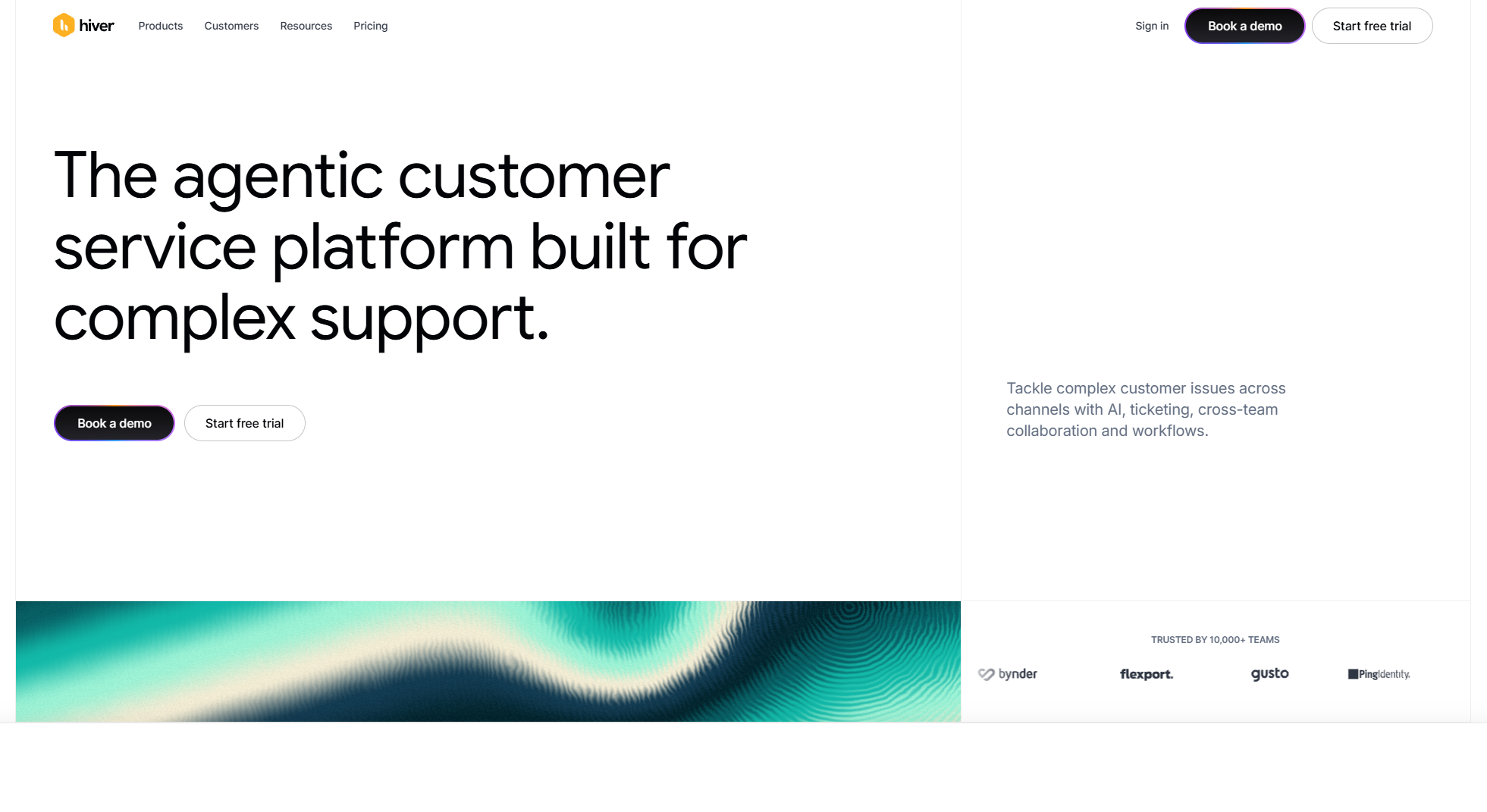
What it does: Hiver turns a shared address like support@ or billing@ into a light help desk that runs inside Gmail.
Best for: small support, finance, and operations teams on Google Workspace who share one inbox and keep asking who's handling what.
What it adds is clear ownership on a shared address. Each email gets one owner and a private note thread, so two people don't answer the same customer, and nothing sits unanswered because everyone assumed someone else had it.
Key features
- Shared-inbox ticketing: assign owners, set statuses, and add private notes inside Gmail.
- SLA management (Pro plan): set response and resolution targets so customer emails don't slip.
- AI drafts and summaries: speed up replies and condense long customer threads.
Pros and cons
Pros:
- ✅ No new interface to learn if your team already uses Gmail.
- ✅ Real ticketing features without a full help-desk migration.
Cons:
- ❌ Hiver in Gmail needs Google Workspace, so Outlook teams need the separate Hiver Omni web app.
- ❌ Seats come in blocks: plans start at 2 seats, then grow in steps of 5.
What users say
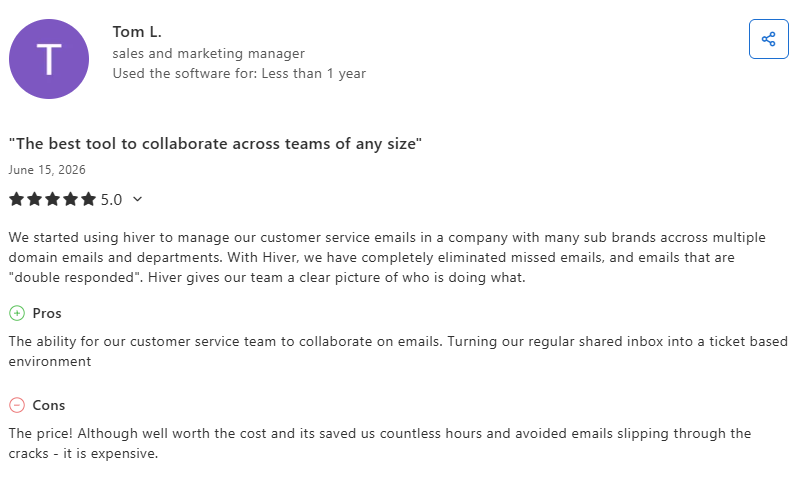
"With Hiver, we have completely eliminated missed emails, and emails that are 'double responded'." (Tom L., Capterra, June 2026)
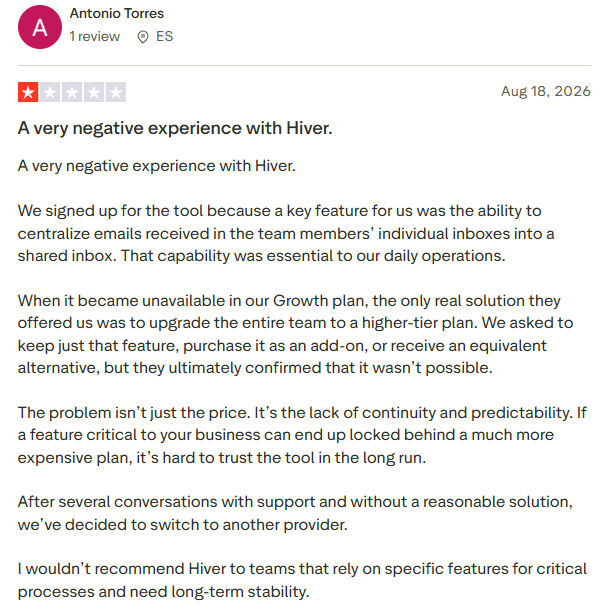
"When it became unavailable in our Growth plan, the only real solution they offered us was to upgrade the entire team to a higher-tier plan." (Antonio Torres, Trustpilot, August 2026)
Pricing
From $25 per user a month (Growth, billed annually), with a 7-day free trial of the Elite plan.
Bottom line
For a Gmail-based team that needs shared ownership of a mailbox, Hiver is the simplest path. Teams that route mail across departments should look at Front instead.
7. Front: best for routing customer email across departments
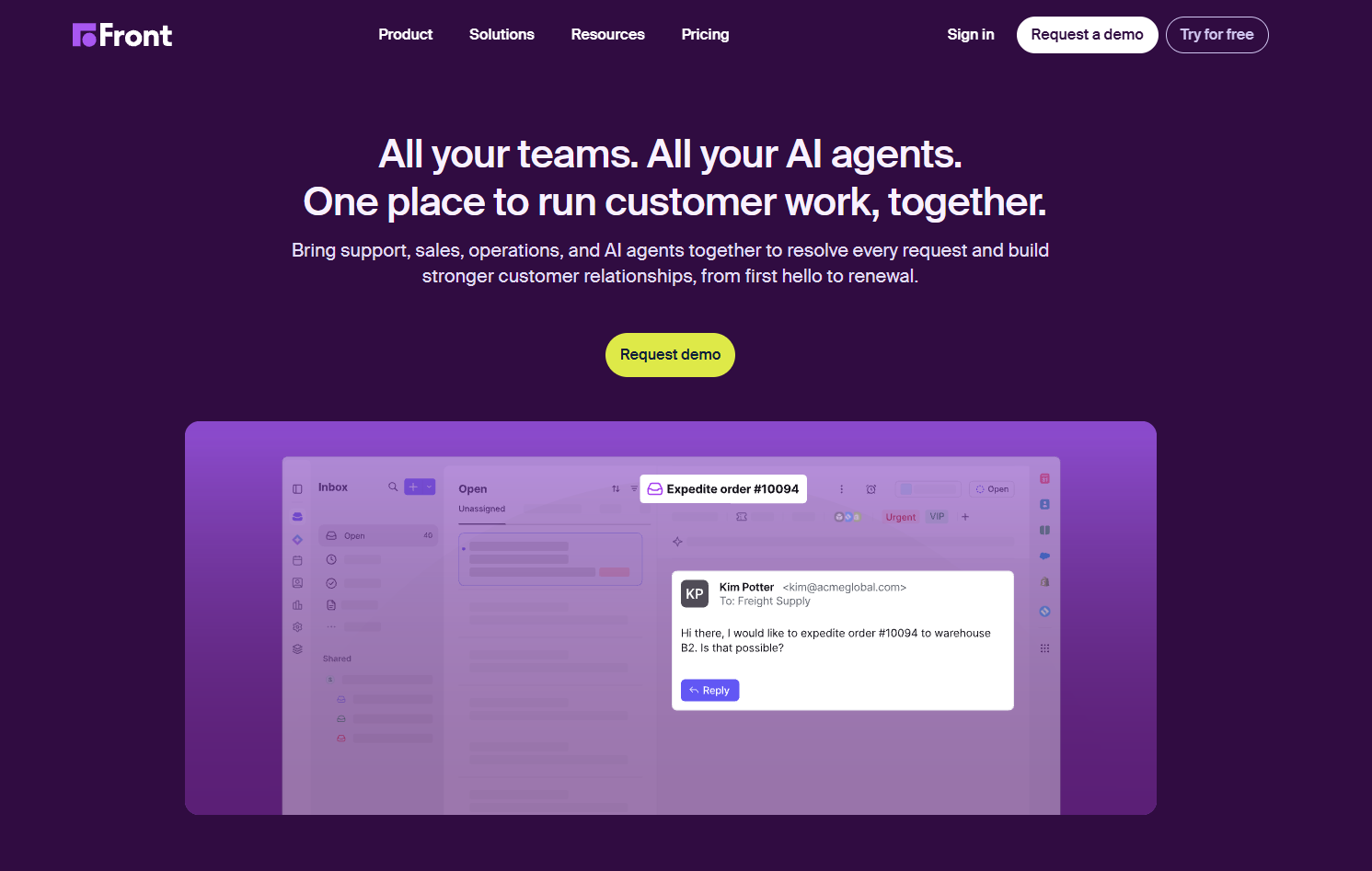
What it does: Front is a shared inbox platform that routes customer email to the right team and keeps every conversation with that customer in one place.
Best for: operations, logistics, and account teams that manage customer relationships over email, where one account touches several people.
Front is built for handoffs. When a request moves from support to billing, the next person sees the whole conversation and the customer's history, so the customer never has to repeat themselves.
Key features
- Shared inboxes with routing: one department address with individual accountability.
- Copilot and Autopilot (paid add-ons): Copilot drafts replies for $20 per seat a month below Enterprise, and Autopilot handles routine conversations from $0.39 each.
- Omnichannel (Professional and up): pulls SMS, social, and chat into the same place as email, with WhatsApp as a paid add-on.
Pros and cons
Pros:
- ✅ Ticket routing, round-robin assignment, and up to 10 automation rules, even on Starter.
- ✅ Handles more than email on Professional and up, which helps teams with mixed channels.
Cons:
- ❌ Copilot costs $20 per seat extra below Enterprise, and Autopilot is billed per conversation on every plan.
- ❌ SLA rules and Salesforce or HubSpot sync start on Professional, at $65 per seat a month billed annually.
What users say
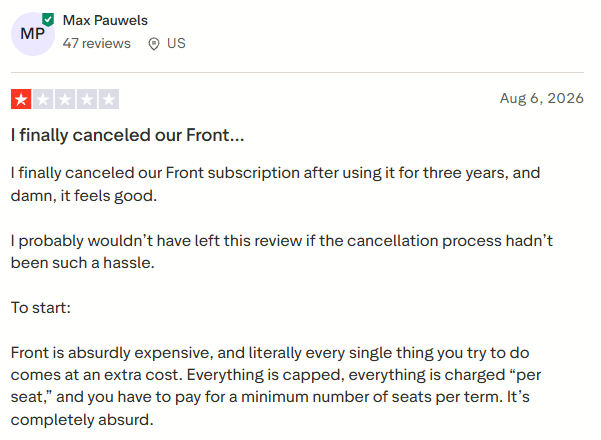
"I like how it integrates many different platforms into one place, which makes my workflow quick and efficient." (Antonio G., G2, October 2026)
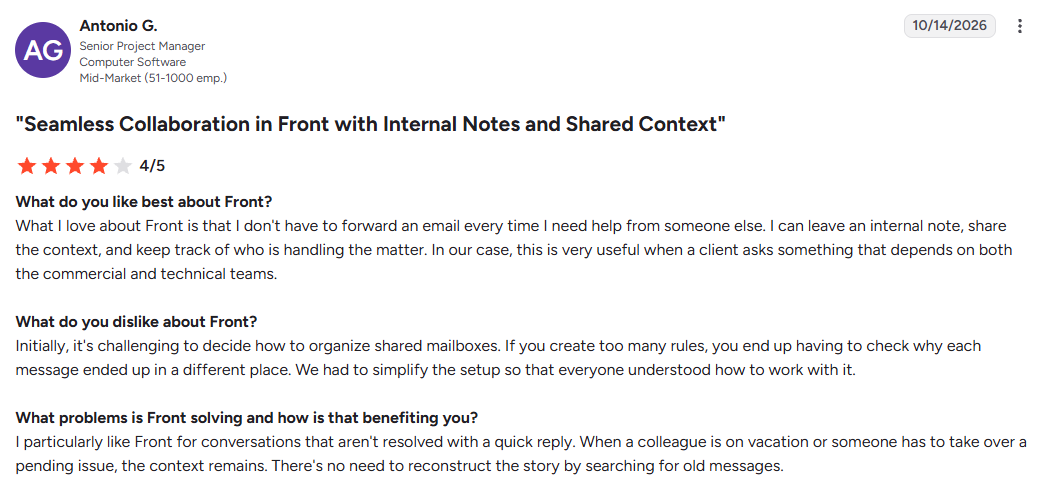
"Front is absurdly expensive, and literally every single thing you try to do comes at an extra cost." (Max Pauwels, Trustpilot, August 2026)
Pricing
From $25/seat/month (Starter, billed annually), with Professional and Enterprise tiers above it.
Bottom line
Front is the pick when a customer email might belong to any of three teams. For a single Gmail-based support queue, Hiver is lighter and cheaper.
8. EmailAnalytics: best for email response-time analytics
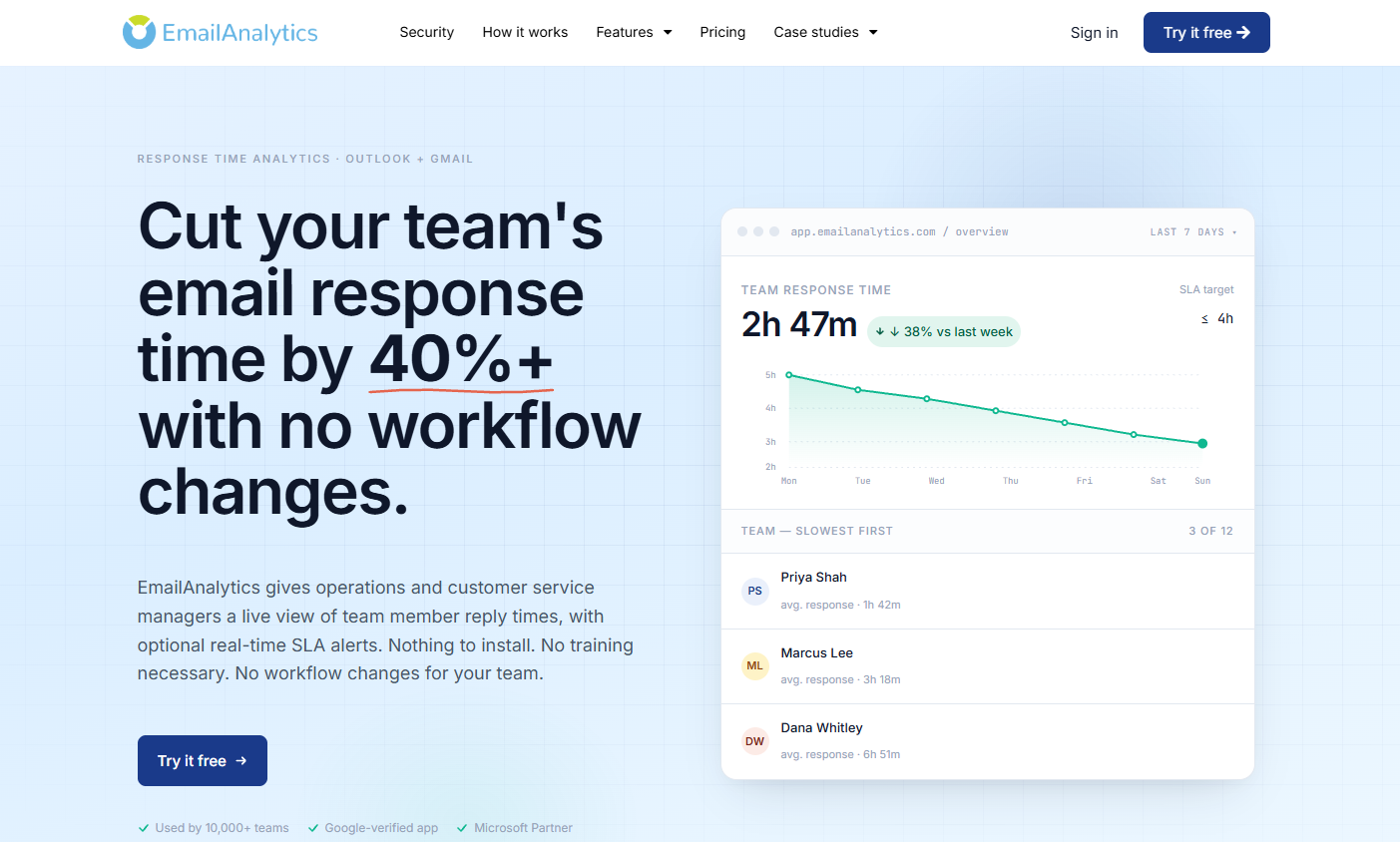
What it does: EmailAnalytics measures how quickly you and your team reply to email, using data from Gmail or Microsoft 365.
Best for: sales and support managers who report on response times or set reply targets for a team.
It's the only tool here that measures your email and leaves it untouched. That makes it the tool for spotting an overloaded teammate before customers notice.
Key features
- Response-time tracking: average reply times, volume by sender, and traffic by time of day.
- Team rollups: connect a workspace to see the same metrics across everyone.
- Visual reports: charts, tables, and graphs you can actually read.
Pros and cons
Pros:
- ✅ Simple pricing: one main plan, billed per inbox.
- ✅ Useful for coaching a team on response times.
Cons:
- ❌ It measures; it won't sort or write anything.
- ❌ It connects to Google and Microsoft accounts only.
What users say
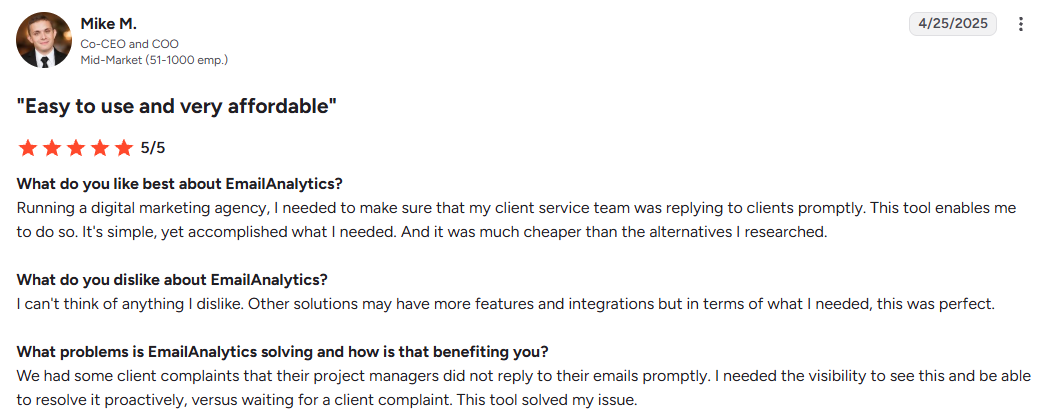
"it was much cheaper than the alternatives I researched" (Mike M., G2, April 2025)
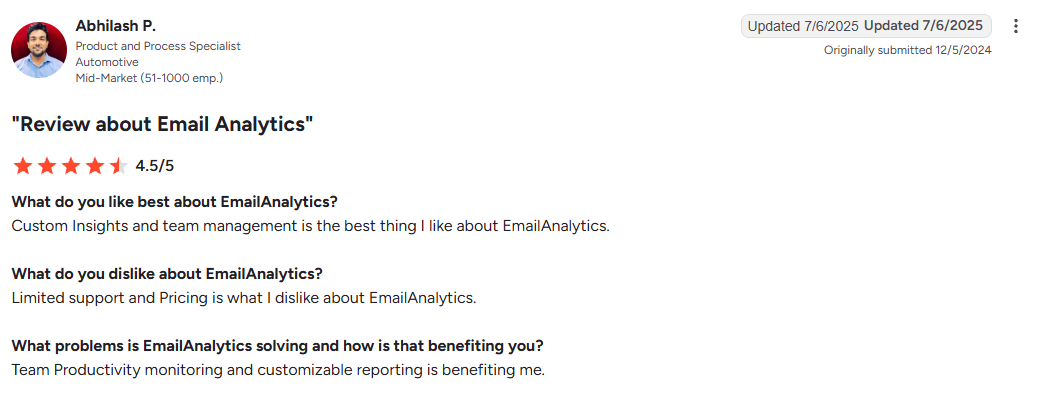
"Limited support and Pricing is what I dislike about EmailAnalytics." (Abhilash P., G2, July 2025)
Pricing
$19 per inbox a month, with a 14-day free trial.
Bottom line
If you manage a team and customers judge you on reply speed, EmailAnalytics pays for itself. Solo users chasing a calmer inbox won't need it.
9. Grammarly: best for polishing grammar and tone
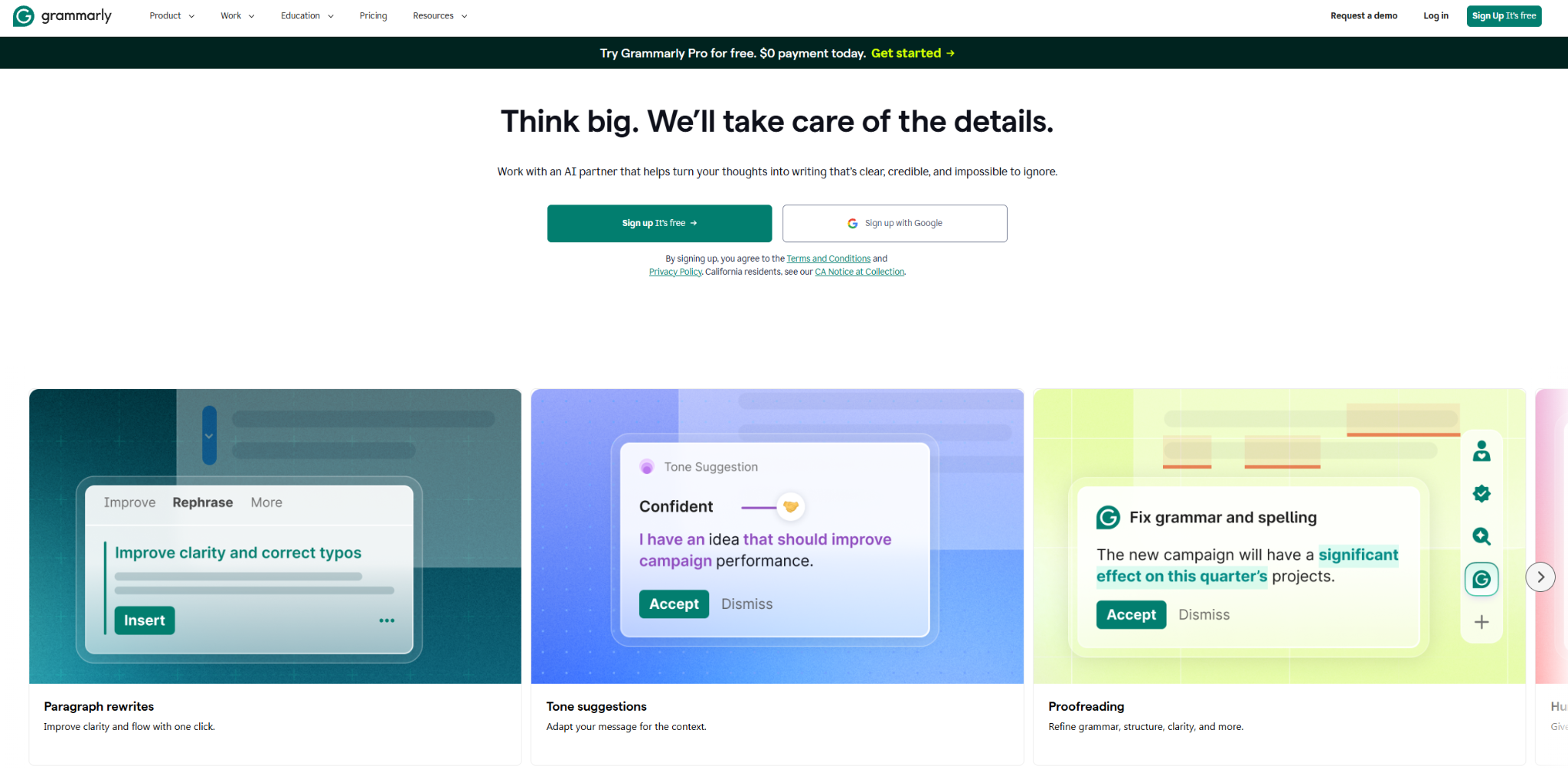
What it does: Grammarly reviews the email you've already written and suggests fixes for grammar, clarity, and tone before you send.
Best for: anyone who sends client-facing or high-stakes email and wants a second set of eyes before hitting send.
Grammarly and HyperWrite solve different halves of the same workflow, so plenty of people run both. HyperWrite gets you from a blank screen to a first draft; Grammarly cleans up the draft you already have.
Grammarly's parent company renamed itself Superhuman in October 2025, so Grammarly and Superhuman Mail now come from the same company. If you want more on the craft itself, our tips for writing better emails go deeper.
Key features
- Real-time grammar and spell check: catches typos and clunky sentences as you write.
- Tone suggestions: see whether a message reads confident, apologetic, or blunt, and adjust the tone on Pro.
- Snippets and style guide: reuse approved wording and keep a team consistent.
Pros and cons
Pros:
- ✅ Catches small mistakes before they go out to a client.
- ✅ Works across Gmail, Outlook, and most browser-based apps.
Cons:
- ❌ It edits the message in front of it; it won't manage your inbox.
- ❌ The free tier is limited.
What users say
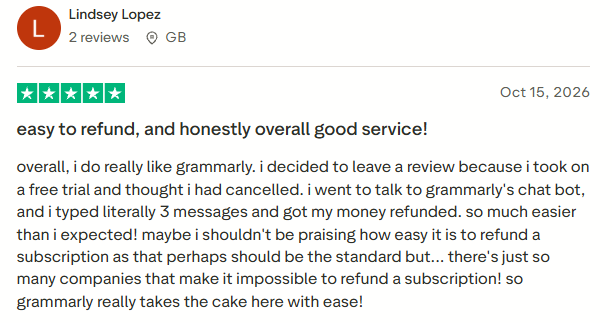
"overall, i do really like grammarly." (Lindsey Lopez, Trustpilot, October 2026)
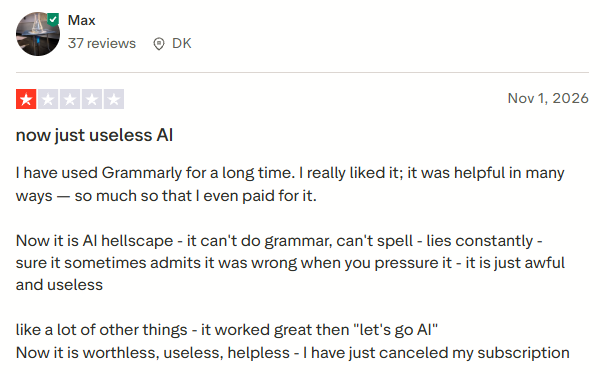
"Now it is AI hellscape - it can't do grammar, can't spell" (Max, Trustpilot, November 2026)
Pricing
Grammarly Pro from $12/member/month (billed annually), with a usable free plan and custom Enterprise pricing.
Bottom line
Grammarly is the polish step, and it's good at it. Just know it waits for a draft to exist, so it works best alongside a drafting tool.
Don't overlook the built-in tools in Gmail and Outlook
Before you pay for anything, check what you already have. The best email productivity tool is sometimes the one that came with your account.
Gmail and Google Workspace cover a lot on their own:
- Labels and filters sort incoming mail automatically (that "invoice" email can route straight to a folder).
- Templates (canned responses) and Smart Compose speed up repetitive replies.
- Snooze and priority inbox push non-urgent mail out of sight until you want it, and scheduled send lets you write now and deliver later.
- Gemini in Gmail summarizes long threads and helps draft replies with Help Me Write at no cost. Asking Gemini questions about your inbox needs a Google AI Pro or Ultra plan.
Outlook and Microsoft 365 have their own set:
- Focused Inbox splits important mail from the rest automatically.
- Rules and Quick Steps automate filing and multi-step actions in one click.
- Snooze hides a message until you need it, and scheduled send holds a reply in Drafts until the time you pick.
- Copilot Chat can work from the email you have open, even without a paid Microsoft 365 Copilot license.
If the built-ins already handle your volume, a dedicated tool is overkill. Add one when you hit a specific wall the built-ins can't clear: huge backlogs, a shared team inbox, or the blank-page problem of writing replies.
The email habits that make any of these tools work
A tool only helps if your habits don't fight it. These habits matter most, each paired with the kind of tool that supports it.
- Batch your email into set windows. Check it three or four times a day, then leave it closed in between. Author Kevin Kruse's 3/21/0 rule puts numbers on it: three sessions a day, 21 minutes each, aiming for zero. A priority filter like SaneBox makes this safe, since the urgent stuff still surfaces.
- Turn off notifications outside those windows. Microsoft's June 2025 data found that people using Microsoft 365 get interrupted every two minutes by a meeting, email, or notification, and every ping pulls you off the task you were on.
- Use the two-minute rule. If a reply takes under two minutes, handle it on the spot. A drafting tool like HyperWrite helps more replies fit inside that two-minute window.
- Triage before you reply. Sort each message into action, waiting, reference, or quick reply. Filters and labels do most of this for you.
- Treat inbox zero as a processing habit. The goal is to decide on every message once, and an empty inbox follows from that.
None of this is new, but it's the difference between a tool that saves you hours and one that just adds another tab. If organizing the work around email is the real issue, our guides on how to stay organized at work and improve workflow efficiency go further.
Which email productivity tool should you choose?
The right pick depends on which email job is actually costing you time.
Choose HyperWrite if you:
- Spend more time writing replies than sorting them
- Write across Gmail, Docs, LinkedIn, and a CRM all day
- Want drafts that sound like you
Choose Clean Email or SaneBox if you:
- Are buried under backlog (Clean Email) or missing important mail (SaneBox)
- Want sorting that runs without you babysitting it
Choose Superhuman or Shortwave if you:
- Want raw inbox speed (Superhuman) or to find any old thread fast (Shortwave)
- Are comfortable living in a dedicated client, Gmail especially
Choose Hiver or Front if you:
- Share one inbox with a team (Hiver for Gmail, Front for cross-department routing)
- Need owners, statuses, and SLAs on customer mail
Choose EmailAnalytics if you:
- Manage a team and need real numbers on reply times
Choose Grammarly if you:
- Already have a draft and want it polished before it goes to a client
Common pairings by role (starting prices, mostly on annual or longer billing):
- Founder or executive: SaneBox to keep the inbox quiet, plus HyperWrite for replies, from about $20.54 a month.
- Recruiter or HR lead: Clean Email to clear job-board alerts, plus HyperWrite for candidate replies, from about $18.50 a month.
- Support lead on Gmail: Hiver for the shared inbox, plus Grammarly to check tone, from $37 per person a month.
- Sales manager: Superhuman Mail for speed, plus EmailAnalytics to track reply times, from $44 per person a month.
For sales outreach specifically, keep it to one dedicated tool and start with a roundup of AI tools for writing sales emails before stretching a general inbox app to do the job. And if writing is clearly your bottleneck, compare the dedicated AI email writing tools before you commit.
Skip a new tool entirely if your Gmail or Outlook built-ins already keep up.
Final verdict: pair an inbox tool with HyperWrite
Most of these email productivity tools solve one job well, so the honest answer is that a lot of professionals end up pairing two: a cleanup or priority tool for the inbox, and a drafting tool for the replies.
The AI half pays off when it does real work: in a Microsoft-led field experiment across 66 firms and 7,137 workers, people using a built-in generative AI assistant spent two fewer hours on email each week.
Voice matters, too. In an Omni Calculator survey of 921 US workers, 51% said they'd rather get an imperfect email a coworker wrote than an AI-generated one. That's why HyperWrite's Personas keep drafts sounding like you.
If email eats your week because of the writing, HyperWrite is my pick. It saves the minutes that pile up across every reply, and it does it where you already work.
Three ways to start in HyperWrite:
- Turn a summary into an email: the Email Generator writes a full message from a short brief, like a client follow-up or an offer letter.
- Draft the longer replies: the AI Writing Assistant gives you a first draft of an investor update or a proposal reply.
- Finish replies in your browser: HyperWrite for Chrome adds autocomplete in Gmail and your other tabs.
Run it on a real morning of email, and you'll know within a day whether it earns a spot in your workflow.
Frequently asked questions
What apps can I use for my work email?
Start with your base client, Gmail or Outlook. Then add one tool for your biggest problem: Clean Email or SaneBox for clutter, Superhuman or Shortwave for speed and search, Hiver or Front for a team inbox, or HyperWrite for writing replies faster.
What are Google's productivity tools?
Google's productivity tools include Gmail, Calendar, Drive, Docs, Sheets, Slides, Tasks, and Keep. Inside Gmail, filters, labels, Smart Compose, and snooze handle most day-to-day email work without a third-party app, and Gemini can summarize long threads at no cost.
What are Microsoft's productivity tools?
Microsoft's productivity tools include Outlook, the Microsoft 365 apps (Word, Excel, PowerPoint), To Do, and Copilot. Outlook's Focused Inbox, Rules, and Quick Steps automate sorting, and Copilot Chat can help with an open email even if you don't pay for a Copilot license.
How do I use email more efficiently?
Batch email into a few set windows a day, turn off notifications in between, and apply the two-minute rule to short replies. Then let a tool automate one job for you, whether that's sorting, searching, or drafting.
Can ChatGPT organize my email?
Partly. ChatGPT's Gmail connector can recap recent threads, highlight action items, and prepare replies. To clean or sort the inbox itself, connect a tool like Clean Email, which takes cleanup instructions from ChatGPT, Claude, or Gemini.
Do AI email tools actually save time?
Yes, when they do real work: drafting replies, summarizing long threads, or filtering mail by intent.
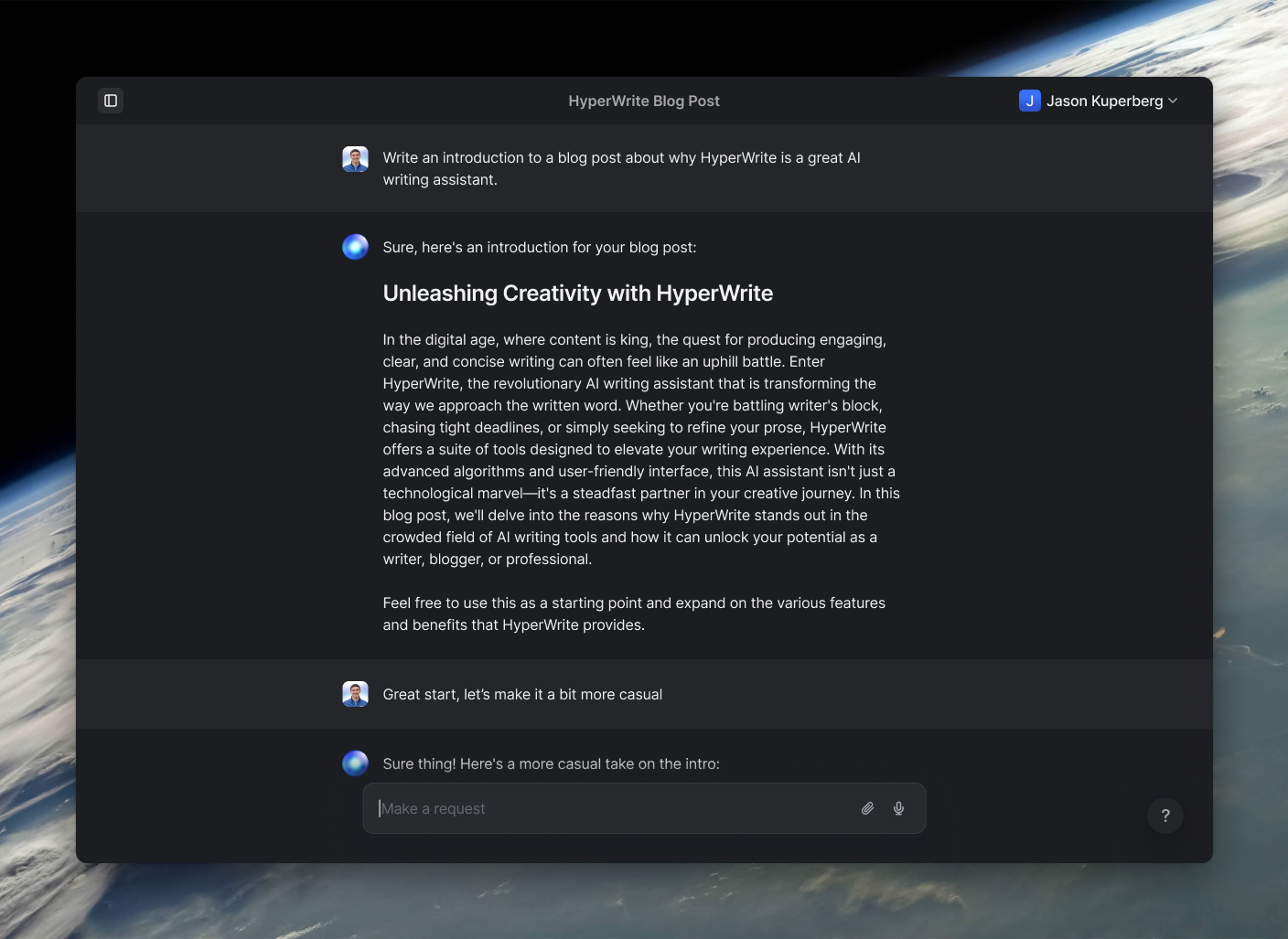
Powerful writing in seconds
Improve your existing writing or create high-quality content in seconds. From catchy headlines to persuasive emails, our tools are tailored to your unique needs.