
AI Typer for Google Docs: What It Does + How to Choose


An AI typer for Google Docs can mean a tool that suggests your next sentence as you write, or one that replays pre-written text into the document with fake typos to disguise where it came from. Telling them apart before you install matters more than the near-identical search results suggest.
The two kinds of AI typer for Google Docs
The phrase covers two product categories that have almost nothing in common.
The first is an AI writing assistant. This is an autocomplete that runs inside Docs and predicts your next few words or sentences as you type. You stay in control, accept the suggestions you like, and ignore the rest. The goal is to help you get your own ideas down faster.
The second is an auto typer, often bundled with a "humanizer." You paste in finished text, usually generated by ChatGPT or another model, and the tool replays it into the document, keystroke by keystroke, with fake typos and pauses.
Predictive AI typer vs auto typer at a glance
| | Predictive AI typer | Auto typer |
|---|---|---|
| What it does | Predicts your next words as you type | Replays pre-written text into the doc |
| Source of the writing | You write it; AI suggests phrasing | AI or chatbot writes it; tool inputs it |
| Version history | Reflects real authorship | Simulates fake typing with pauses and typos |
| Risk profile | Low: you own the writing | High: integrity flags and ToS violations |
| Use case | Faster first drafts in your voice | Disguising AI-generated content |
| Who it's for | Professionals and students writing their own work | Users trying to bypass AI detectors |
What to look for in a real AI typer for Docs
If you want to write faster without any of that risk, a reliable writing assistant does these five things:
- Works within Google Docs instead of in a separate tab. The point of typing in Docs is staying in Docs. A good tool predicts text right where your cursor is, so you're not shuttling drafts back and forth from a separate dashboard.
- Suggests that you decide. Real autocomplete shows a suggestion in light gray text that you accept with a keystroke or skip. You're still the writer, and nothing lands in the document without your say-so.
- Learns your voice. Generic predictions read like a form letter. The better tools adapt to how you write over time, so suggestions sound like you rather than like a model.
- Travels to your other apps. Most writing doesn't only happen in Docs. An assistant that also runs in Gmail, Notion, and your CMS is worth more than one locked to a single site. For a deeper look at how AI writing tools fit into broader workflows, see our guide to writing faster as a professional.
A writing assistant helps you write. When a tool's main pitch is evading detection, that's a different product carrying different risks.
Where an AI typer actually earns its place inside Google Docs
The technology helps most in specific writing scenarios:
- Drafting blog posts and articles. First drafts usually stall on the opening paragraph more than any other section. An AI typer suggests opening lines you can adjust, which gets you past the blank page faster than staring at it.
- Writing research papers and reports. Long-form work involves structural language ("Building on the previous section..." "These results suggest..."). The model handles those transitions in your voice, so you spend your writing time on the arguments rather than the connective tissue.
- Professional emails between Docs sessions. Most knowledge work happens across browser tabs. An AI typer that reads context from your open tabs means a draft email about a Doc you're working on doesn't require constant switching.
- Class essays and assignments you're writing yourself. This is the legitimate version of what auto typers fake. You write your own work; the AI suggests phrasing as you go. The output is yours, the version history reflects real authorship, and you're not relying on a tool to disguise machine output.
HyperWrite: AI autocomplete that lives inside Google Docs
HyperWrite's TypeAhead is the version of an AI typer for Google Docs that belongs in the first camp. It's a Chrome extension that predicts your next words and sentences as you write, showing them in gray text you accept with the Tab key. It runs directly inside Google Docs, with no pasting or separate editor to manage.
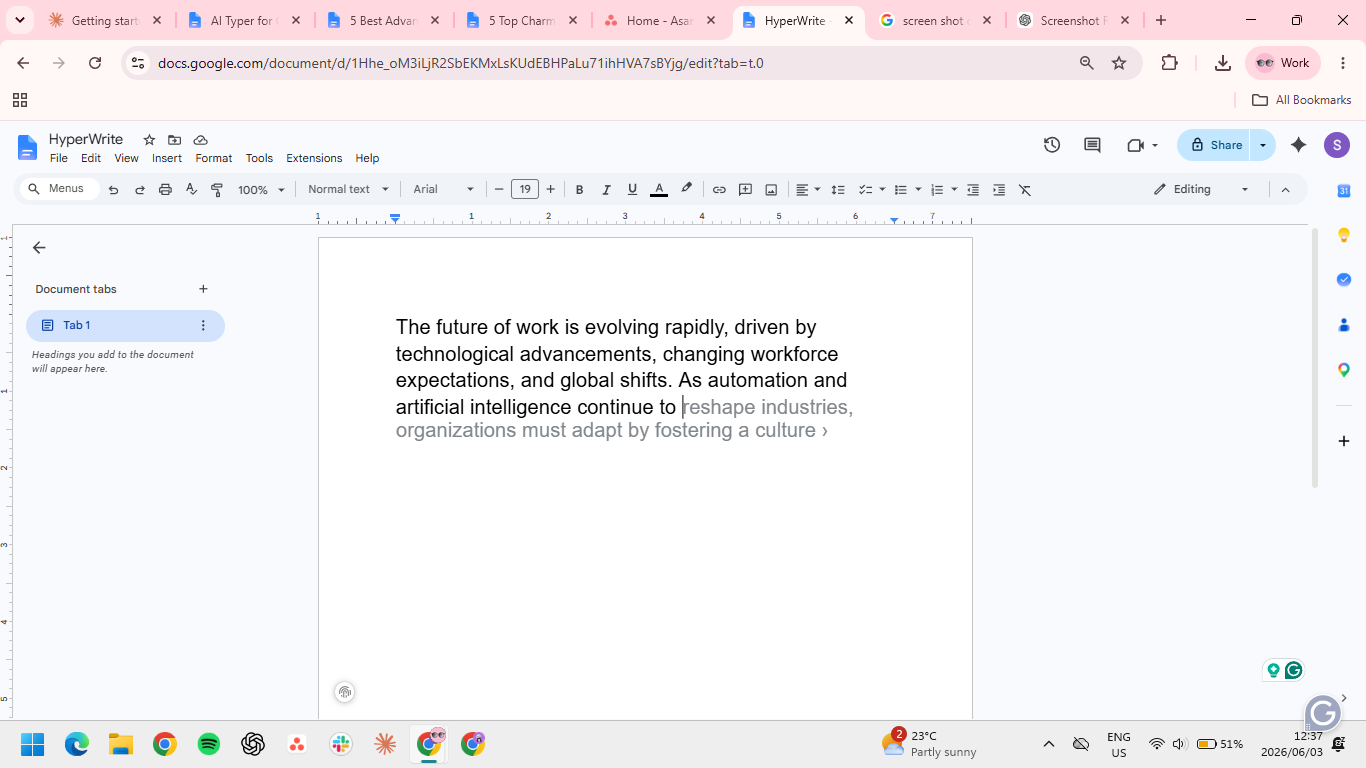
It also follows you around the web. The same predictive writing works in Gmail, Notion, ChatGPT, and most places you type. A reply you draft in Gmail and a section you write in Docs end up sounding like the same person, with Personas trained on samples of your past writing.
Setting it up takes about a minute
TypeAhead gets more useful within the first few hours, as the model learns your voice and suggestions become more relevant. If you want an AI typer for Google Docs that helps you write your own work faster, install HyperWrite:
- Download the HyperWrite extension from the Chrome Web Store or the HyperWrite official page.
- Sign in or create a free account.
- Open any Google Doc and start typing.
Getting it up and running takes about a minute, and from there, suggestions appear as you type. You can either accept them or keep typing until the suggestion matches what you're looking for.
Frequently asked questions
Is an AI typer for Google Docs safe to use?
Yes, an AI typer for Google Docs is safe to use when it's a predictive writing assistant like HyperWrite, because you're writing your own work and choosing each suggestion. The risky kind is the auto typer that fakes a typing history to beat detectors, which can land students and professionals in integrity cases or credibility loss.
Can Google Docs detect AI typing?
Not directly, but Google Docs keeps a detailed version history, and a document that appears fully formed with no natural editing is a pattern reviewers look for.
Does HyperWrite work in Google Docs for free?
Yes, HyperWrite works in Google Docs on the free plan, with limited credits that are enough to test the tool on real work. Paid plans (starting at $16/month billed annually) raise the credit limits and unlock full Persona training, the AI Tools Library, and unlimited TypeAhead suggestions.
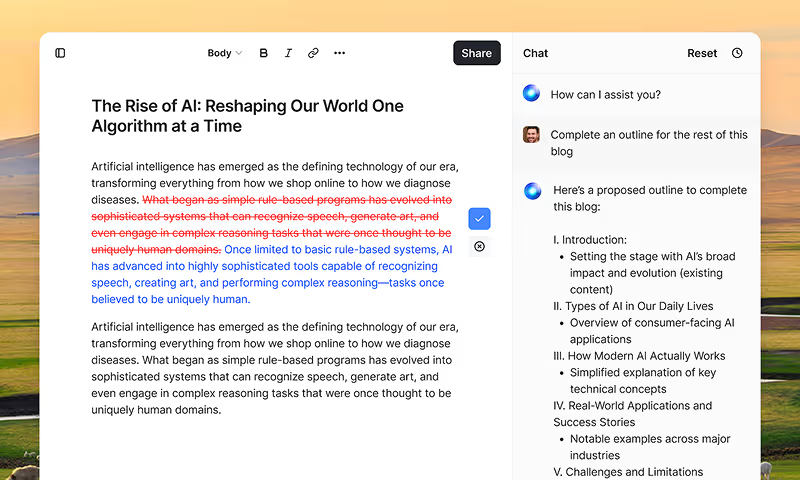
HyperWrite is the AI writing assistant that learns your style. It handles drafting, editing, and researching so you can focus on ideas.
- Autocompletes sentences as you type
- Works inside Google Docs & Gmail
- Adapts to your personal writing style
- 500+ AI tools for any writing task
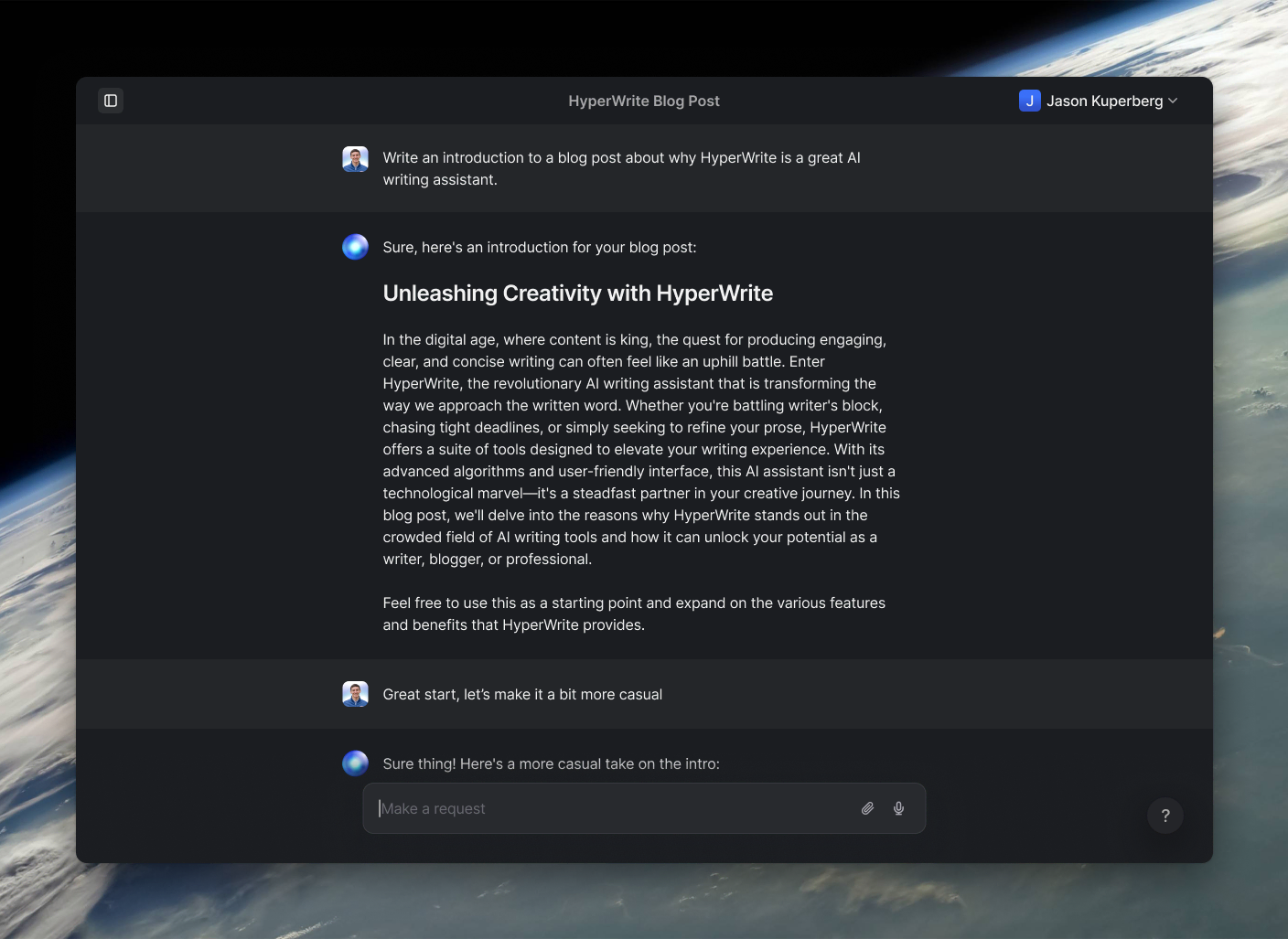
Powerful writing in seconds
Improve your existing writing or create high-quality content in seconds. From catchy headlines to persuasive emails, our tools are tailored to your unique needs.