
11 Best AI Document Assistants I Tested in 2026


The auto-renewal clause is on page 31. The call where you'd push back on it starts in 40 minutes, and you haven't opened the contract yet.
That's the job an AI document assistant does. You upload the file, ask "when does this renew, and how do I get out?", and get an answer with a link to the exact page it came from. The better ones also read scanned pages, pull figures out of tables, and answer one question across a whole folder of files.
I tested 11 of these tools, three of them lesser-known picks, on what matters when the clock is running: how quickly you can verify what it says, how much it can read in one go, and how far you get before it asks for a card.
Pick badly, and the tool stops reading a scan after page 5 or cuts you off after your tenth free file. Here's how to tell them apart before you upload anything.
11 Best AI Document Assistants: TL;DR
- Adobe Acrobat AI Assistant: Best for people whose contracts, reports, and board packs already arrive as PDFs
- ChatDOC: Best for checking every number in a table-heavy or scanned document
- ChatPDF: Best for a quick answer from one PDF without creating an account
- Humata: Best for research where every answer needs a page reference
- Microsoft 365 Copilot: Best for teams whose files already live in SharePoint and OneDrive
- The Drive AI: Best for small firms that want a messy file library sorted and searchable
- Google Document AI: Best for engineering teams extracting data from thousands of documents
- elDoc: Best for regulated organizations that must keep documents on their own servers
- Anara: Best for analysts who need the same facts pulled from dozens of reports into one cited table
- AnythingLLM: Best for HR, legal, and finance documents that have to stay on your own computer
- PDFgear: Best for anyone who wants a no-cost Acrobat alternative with AI questions built in
How I Researched & Tested These AI Document Assistants
I judged all 11 tools on the four jobs every document assistant should handle, plus two practical checks: each tool's limits, and its price and privacy terms.
For each one, I went through the official pricing page, the help docs that list file and page limits, and the past year of user reviews on G2, Capterra, Trustpilot, Gartner Peer Insights, and the app stores.
Here's what I asked of every tool, starting with those four jobs:
- Summarization: Does it condense a long file into what you need, and can you aim it at one section? (Here's how to summarize an article with AI in a few clicks if you only need the basics.)
- Q&A with citations: Does every answer link back to the page or passage it came from, so you can check it in one click? It's the same habit you'd want when you use AI as a research assistant, pointed at your own files.
- Data extraction: Can it pull dates, amounts, and table rows out of a messy or scanned file?
- Workflow integration: Does it reach your files where they already live (Google Drive, SharePoint, email), or only work on uploads?
- Limits: Pages per file, file size, files per question, and what happens when you hit the cap.
- Price and privacy: What the free tier really covers, what the paid jump buys, and whether your files train anyone's AI models.
Holding all 11 to the same six questions made the differences easy to see: most of them come down to page limits, scans, and price.
11 Best AI Document Assistants: Quick Comparison
Here's the side-by-side view, from the files each tool reads to the limit you'll run into first. Google Document AI and elDoc are platforms your IT or engineering team deploys, and the other nine are apps you can start using today.
1. Adobe Acrobat AI Assistant: Best for PDFs You Already Work In
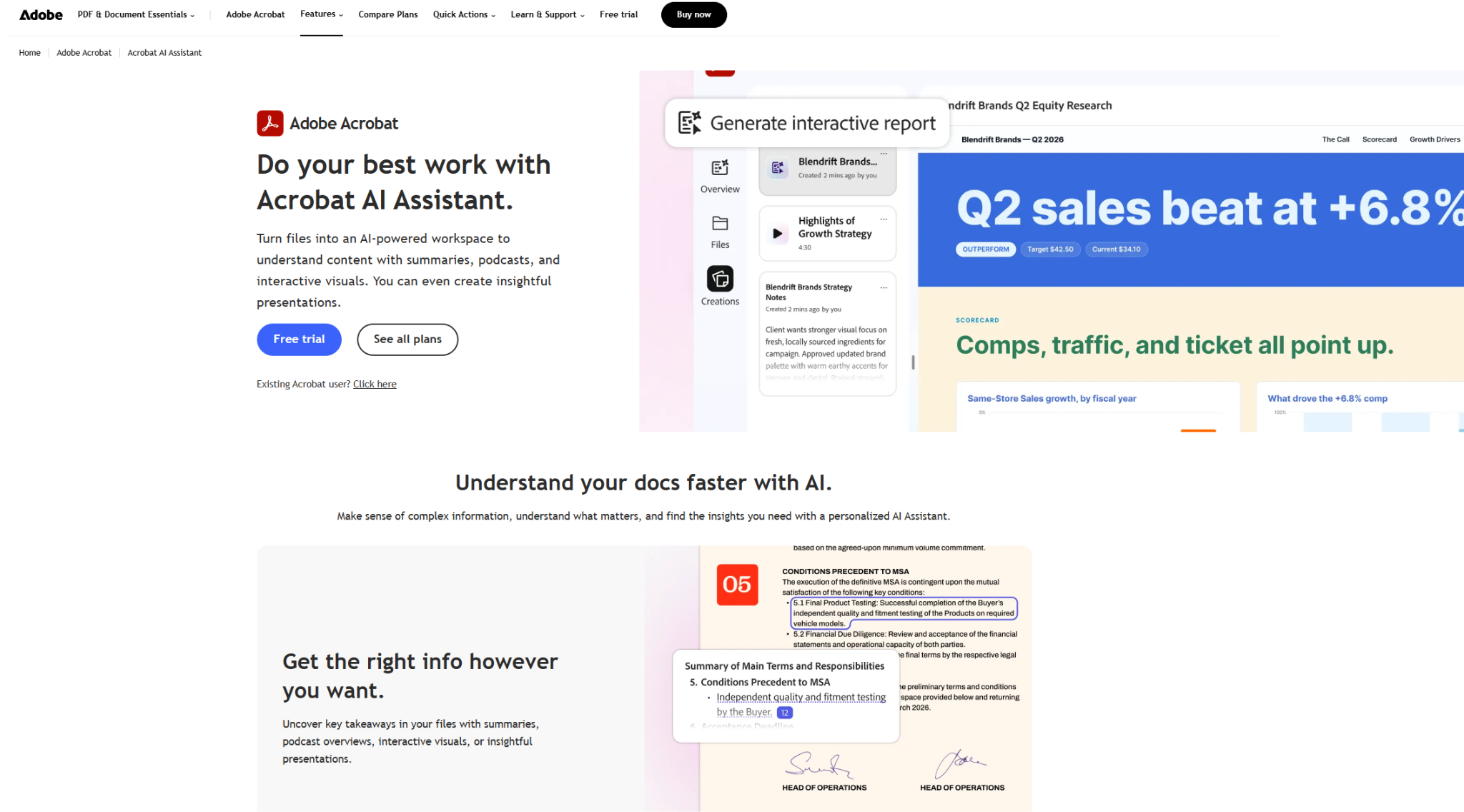
What it does: Adobe Acrobat AI Assistant summarizes and answers questions about PDFs and Office files inside Acrobat, with citations that link back to the source passage.
Best for: Lawyers, operations and HR leads, analysts, and founders whose contracts, RFPs, and reports already arrive as PDFs.
If your documents already open in Acrobat, AI Assistant saves you a trip to a separate chatbot.
It handles files up to 600 pages and 100 MB, reads scanned pages once Acrobat has converted them to searchable text, and its PDF Spaces feature lets you question up to 100 files together, including Word, PowerPoint, Excel, and meeting transcripts.
The catch is the plan lineup: Acrobat Pro, Adobe's main editing plan, doesn't include it.
Key Features
- Cited answers: Every summary and answer links to the page it came from, so you can check a clause in one click.
- PDF Spaces: Group up to 100 files (PDF, DOCX, PPTX, XLSX, TXT, RTF, VTT transcripts, or public web links) and ask one question across all of them.
- Audio overviews: Turn a set of documents into a podcast-style summary you can listen to between meetings.
- Scanned documents: Works on scans after Acrobat runs text recognition on them.
- Everywhere you open PDFs: Desktop, web, the Chrome and Edge extension, and the Acrobat mobile app.
Pros and Cons
Pros:
- ✅ Lives inside the PDF tool many professionals already pay for, so there's nothing new to upload to
- ✅ Clear published limits: 600 pages and 100 MB per file, 100 files per Space
- ✅ Adobe says your documents are never used to train its AI models
Cons:
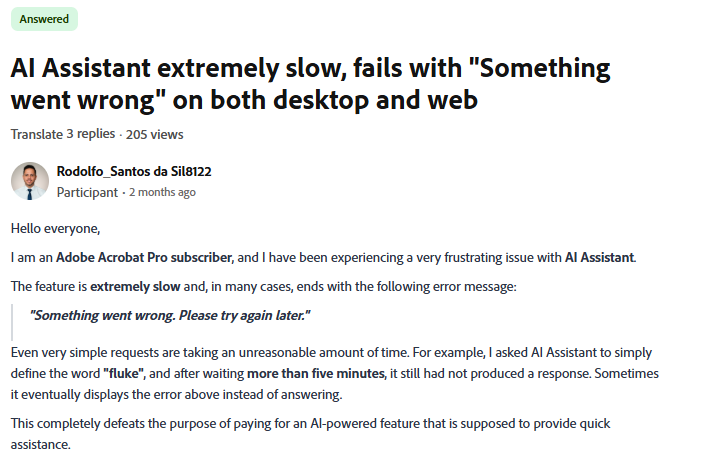
- ❌ Recent users report slow responses and "Something went wrong" errors, and citations sometimes land on the wrong sentence
- ❌ Prompts are capped at 500 characters, and Acrobat Pro ($19.99/mo on an annual plan) doesn't include AI Assistant
What Users Say
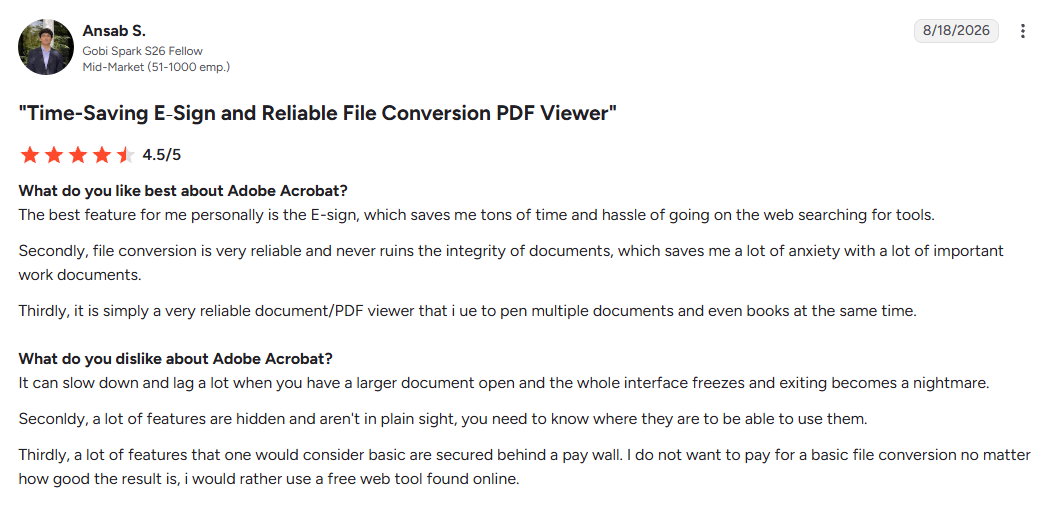
"A lot of times i also find myself researching with large documents and books and the Ai feature genuinely helps me loads with quick summaries when i dont want to use a seperate LLM where i would have to upload the PDF separately." (Ansab S., G2, August 2026)
"Even very simple requests are taking an unreasonable amount of time." (Rodolfo_Santos da Sil8122, Acrobat subscriber, Adobe Community, July 2026)
Pricing
Current plans, from Adobe's Acrobat pricing page:
- Free: Free Acrobat users get a limited number of AI Assistant requests.
- Acrobat Express: $9.99/mo on an annual plan, billed monthly. Includes AI Assistant and PDF Spaces, without Pro's editing tools.
- Acrobat Studio: $24.99/mo on an annual plan, billed monthly ($299.88/yr prepaid, or $34.99 month-to-month). Everything in Acrobat Pro plus AI Assistant.
- Acrobat Pro: $19.99/mo on an annual plan. AI Assistant isn't included.
- AI Assistant add-on: Available for Reader, Standard, and Pro plans. Students and teachers pay $1.99/mo.
Paid plans include 1,000 AI requests per user per month, after which responses may slow down.
Bottom Line
Pick Acrobat AI Assistant if you already live in Acrobat and want cited answers without moving your files anywhere. Get it through Express or Studio, or add AI Assistant to a Reader, Standard, or Pro plan.
2. ChatDOC: Best for Checking Every Number in a Document
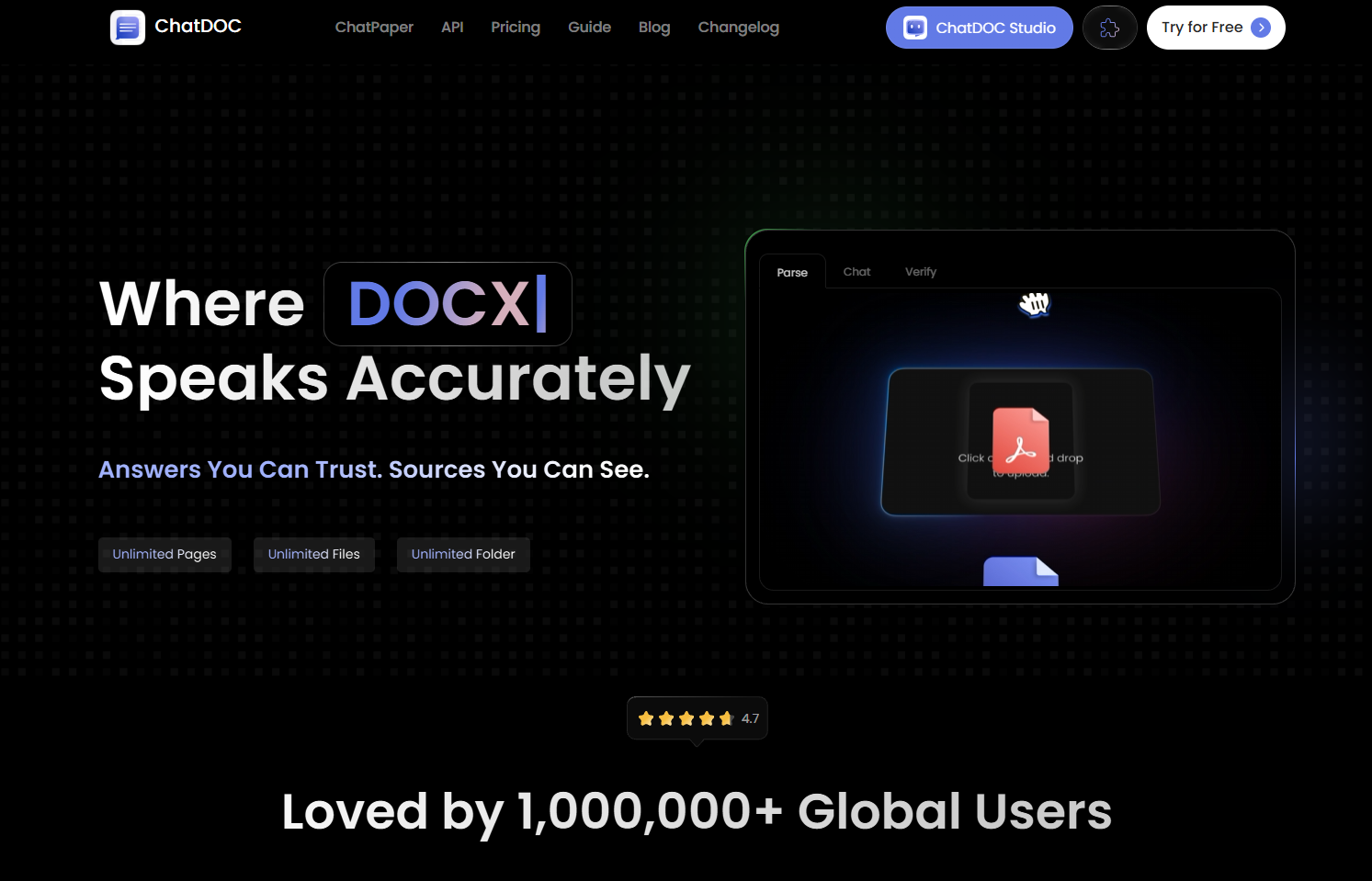
What it does: ChatDOC reads PDFs, scanned files, and Word documents, then answers questions with citations down to the individual figure.
Best for: Analysts, finance teams, and HR managers pulling numbers out of long, table-heavy, or scanned documents.
ChatDOC's citations go further than most. Click a number in its answer and the document jumps to the exact place that figure appears, so you can defend it in a meeting.
It reads cross-page tables and formulas, made OCR free for every user in December 2025, and lets you ask one question across a whole collection of files.
Key Features
- Four ways to check: Page citations, snippet references, jumps from highlighted text, and clickable numbers in each answer.
- Tables and scans: Reads cross-page tables and runs OCR on scanned pages at no extra cost.
- Collections: Group related files and query the whole group in one go, with no cap on group size on Pro.
- Full-document translation: Translates a whole PDF or Word file while keeping its layout (3 pages per file on Free).
- Model choice: Use GPT-5 mini, or connect your own API key for other models and keep the citations.
Pros and Cons
Pros:
- ✅ Answers you can verify figure by figure, which matters for financial reports and long handbooks
- ✅ Pro handles files up to 200 MB with no page limit
- ✅ The free daily allowance is enough to try it on a real report
Cons:
- ❌ Free reads PDFs only and stops for good at 10 uploads and 100 questions
- ❌ Support runs through a Gmail address and Discord, and refunds only apply within 7 days if you haven't used Pro features
What Users Say
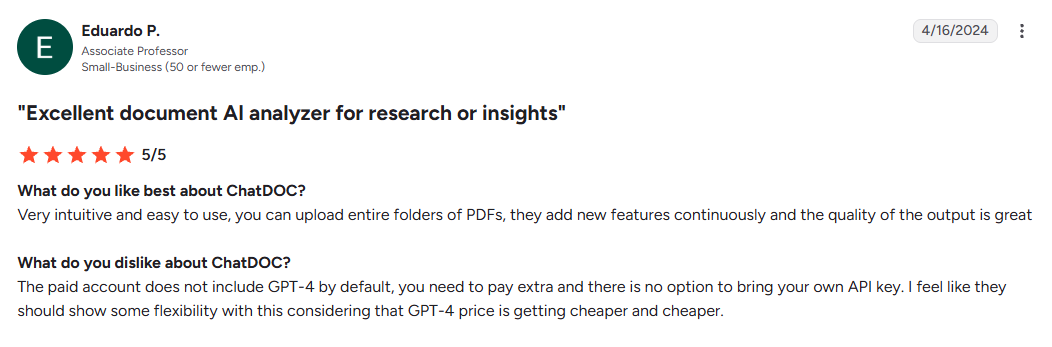
"Very intuitive and easy to use, you can upload entire folders of PDFs, they add new features continuously and the quality of the output is great" (Eduardo P., Associate Professor, G2, 2024)
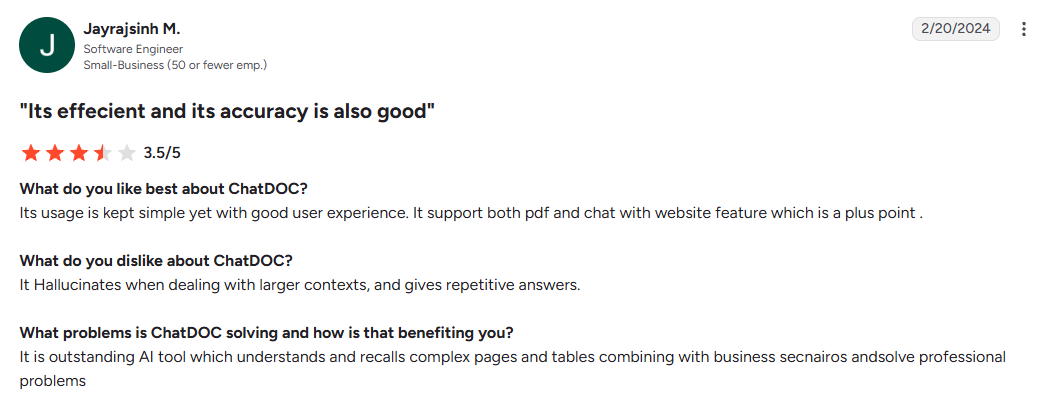
"It Hallucinates when dealing with larger contexts, and gives repetitive answers." (Jayrajsinh M., Software Engineer, G2, 2024)
Pricing
ChatDOC lists its plans in the pricing section of its homepage:
- Free: $0. PDF only, 5 uploads a day (10 in total), 20 questions a day (100 in total), 300 pages and 60 MB per file.
- Pro: $8.99 per 30 days, or $89.90 per 360 days. 300 uploads per 30 days, 300 questions a day, unlimited pages, 200 MB files, plus Word, EPUB, Markdown, TXT, and web pages.
- Add-ons: GPT-4o question packs, file packs, and image analysis are sold separately.
Bottom Line
I'd send anyone who has to defend a number in a meeting to ChatDOC first. If you'll upload more than a handful of files, budget for Pro from day one.
3. ChatPDF: Best for a Quick Answer From One PDF

What it does: ChatPDF lets you upload a PDF, Word, PowerPoint, or text file and chat with it, with clickable citations shown beside the document.
Best for: Anyone who needs a fast answer from one long PDF and doesn't want to create an account first.
ChatPDF has the lowest barrier on this list: open the site, drop in a file, and start asking. Answers sit next to the document. It reads scanned PDFs and works across languages, so you can ask in English about a contract written in German.
Key Features
- Side-by-side citations: Click a reference and the PDF scrolls to the source passage.
- Folders: With a free account, ask questions across several files in one chat. Plus allows 50 PDFs per folder.
- Whole-PDF translation: Turn the full document into another language.
- Share links: Send a PDF to someone without an account. They see the document, never your chat.
- Desktop app and API: Apps for Windows and Mac, plus a developer API.
Pros and Cons
Pros:
- ✅ No account needed to try it
- ✅ Plus raises the cap to 2,000 pages per PDF with unlimited questions
- ✅ Paying yearly cuts the Plus price by more than half
Cons:
- ❌ Free allows only 2 documents a day, so regular use means paying for Plus
- ❌ There's no pricing page, and the privacy policy (last updated in 2023) doesn't say how uploaded documents are handled
What Users Say
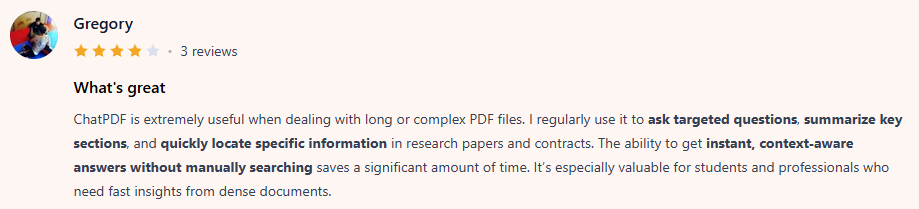
"ChatPDF is extremely useful when dealing with long or complex PDF files. I regularly use it to ask targeted questions, summarize key sections, and quickly locate specific information in research papers and contracts." (Gregory, Product Hunt, 2026)
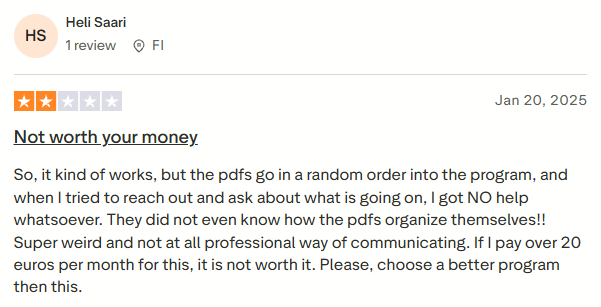
"So, it kind of works, but the pdfs go in a random order into the program, and when I tried to reach out and ask about what is going on, I got NO help whatsoever." (Heli Saari, Trustpilot, January 2025)
Pricing
ChatPDF has no pricing page. These prices come from the Upgrade to Plus window on chatpdf.com (US, October 2026):
- Free: 2 documents a day.
- Plus: $15.99/mo, or $6.42/mo billed yearly. Unlimited PDFs and questions, 2,000 pages per PDF, 50 PDFs per folder, and a higher-quality model.
Bottom Line
ChatPDF is my pick for a one-off question about one file. Start from chatpdf.com, since the App Store is full of unrelated apps using the same name.
4. Humata: Best for Research That Needs Page References
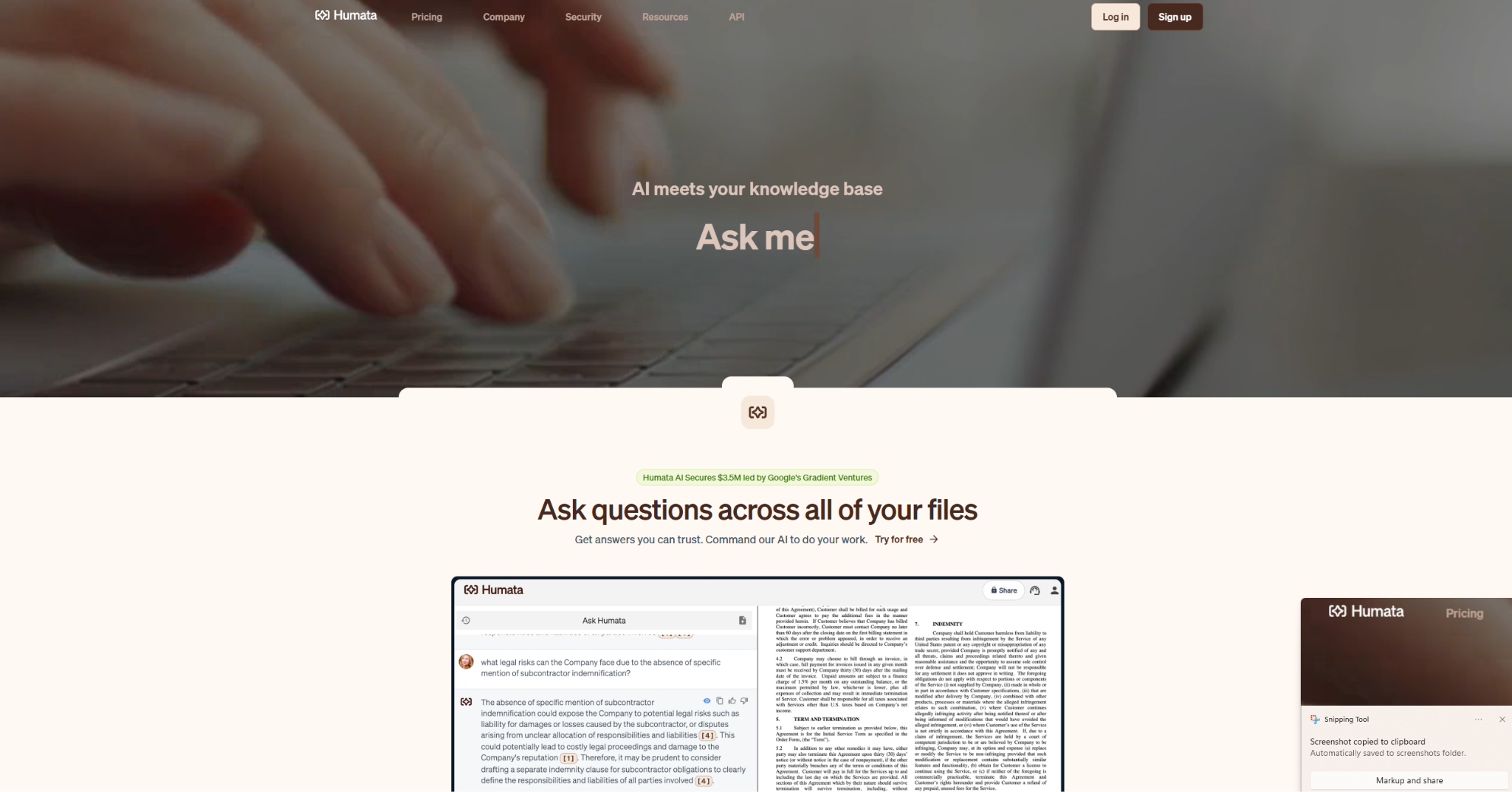
What it does: Humata answers questions across one PDF or many, citing the file and page behind every answer.
Best for: Researchers, analysts, and consultants who have to back every claim with a page reference.
Humata's Grounded mode refuses to answer when the information isn't in your documents, which keeps outside knowledge out of a report that has to cite its sources. Ask All lets you question a whole folder at once, and you can embed a document library on a website as a Q&A widget.
Humata bills by the pages you upload, so uploading the same file again uses pages again.
Key Features
- Page-cited answers: Each answer names the file and page it came from.
- Ask All: Tick several files or a whole folder and ask one question across all of them.
- Three answer modes: Grounded (your documents only), Balanced, and Creative.
- Custom prompts: Set a standing instruction, like "always answer in Spanish", on Team and Enterprise.
- Embeddable Q&A: Share a file or folder as a chatbot on any webpage. Your own branding needs Enterprise.
Pros and Cons
Pros:
- ✅ Team adds folder permissions for groups of up to 10 people
- ✅ The Expert plan covers up to 3 users for $9.99/mo
- ✅ Humata says it's SOC 2 Type II compliant and never uses your data to train its models
Cons:
- ❌ Scanned PDFs need the Team plan at $49 per user a month
- ❌ Page-based billing catches people out, so set the spending cap before a bulk upload
What Users Say
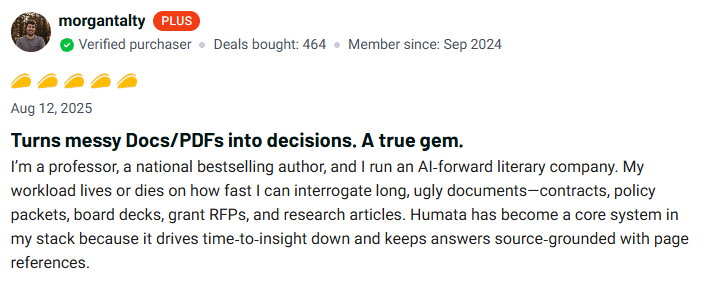
"Humata has become a core system in my stack because it drives time‑to‑insight down and keeps answers source‑grounded with page references." (morgantalty, AppSumo, August 2025)
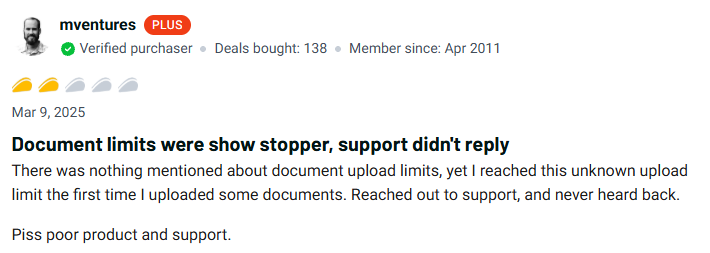
"There was nothing mentioned about document upload limits, yet I reached this unknown upload limit the first time I uploaded some documents. Reached out to support, and never heard back." (mventures, AppSumo, March 2025)
Pricing
Plans on Humata's pricing page:
- Free: 60 pages a month, 1 user.
- Expert: $9.99/mo for up to 3 users, 500 pages a month, $0.02 per extra page.
- Team: $49 per user a month for up to 10 people, 5,000 pages a month, $0.01 per extra page, plus OCR and folder permissions.
- Enterprise: Custom pricing. Adds the SOC 2 report, an uptime SLA, and white-label embeds.
Bottom Line
Humata suits anyone writing a report that has to cite its sources page by page. If most of your files are scans, price in the Team plan or look at ChatDOC.
5. Microsoft 365 Copilot: Best for Teams Already on Microsoft 365
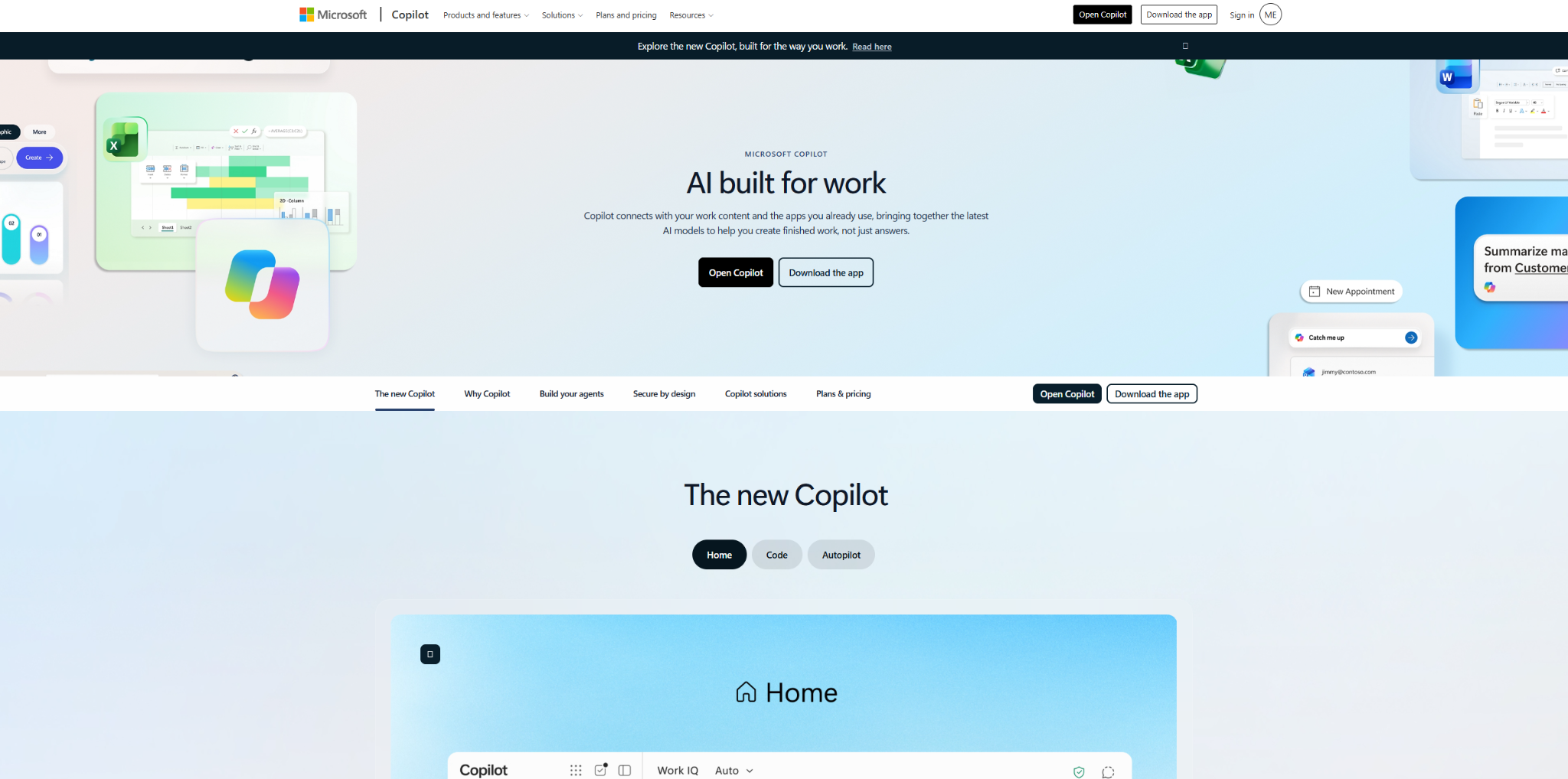
What it does: Microsoft 365 Copilot summarizes and answers questions about Word documents, PDFs, and other files, and with a paid license it grounds answers in your OneDrive, SharePoint, email, and Teams chats.
Best for: Organizations whose documents already live in SharePoint and OneDrive.
Copilot's strength is reach. A paid seat lets it answer from your files, emails, and meetings at once, under the permissions your IT team already set.
Word adds an automatic summary to the top of documents saved in OneDrive or SharePoint, and Copilot Chat takes up to 20 uploaded files of 50 MB each per conversation. Microsoft is upfront about the weak spot: on long documents, Copilot may focus on the beginning and give less attention to the middle.
Key Features
- Automatic summaries in Word: Documents saved to OneDrive or SharePoint open with a summary at the top (work license, 200 words or more).
- Cited answers: Answers about a Word document show citations to where Copilot found the information.
- Answers across your work data: A paid seat grounds answers in documents, email, meetings, and chats through Microsoft Graph.
- Notebooks: Collect files, pages, and links in one place, and Copilot grounds its answers on up to 300 references.
- Researcher agent: Builds multi-source reports from your files and the web, with 25 queries per user per month.
Pros and Cons
Pros:
- ✅ Works inside Word, Outlook, and Teams, so there's no new app to learn
- ✅ Follows your existing Microsoft 365 permissions, and prompts and data aren't used to train foundation models
- ✅ Copilot Chat, with file uploads, comes at no extra cost on eligible Microsoft 365 plans
Cons:
- ❌ Summaries of long documents can miss details from the middle, and there's no way to point Copilot at a page range yet
- ❌ You need a qualifying Microsoft 365 plan first, and the per-seat price is hard to justify for light users
What Users Say
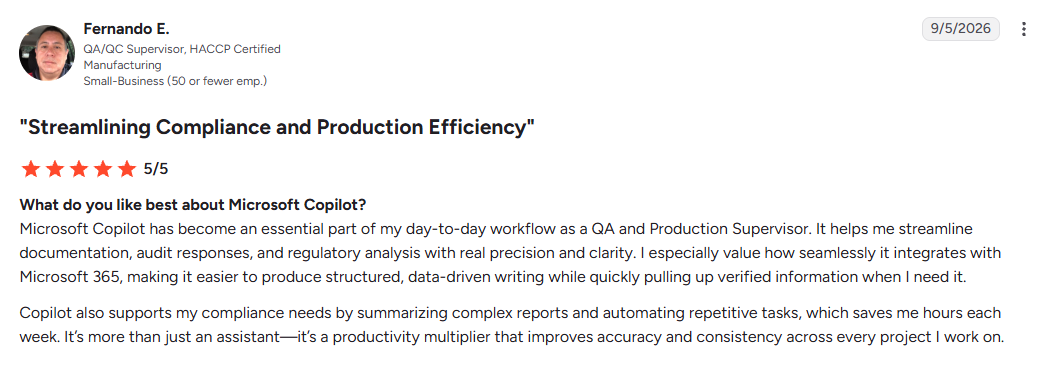
"Copilot also supports my compliance needs by summarizing complex reports and automating repetitive tasks, which saves me hours each week." (Fernando E., QA/QC Supervisor, G2, September 2026)
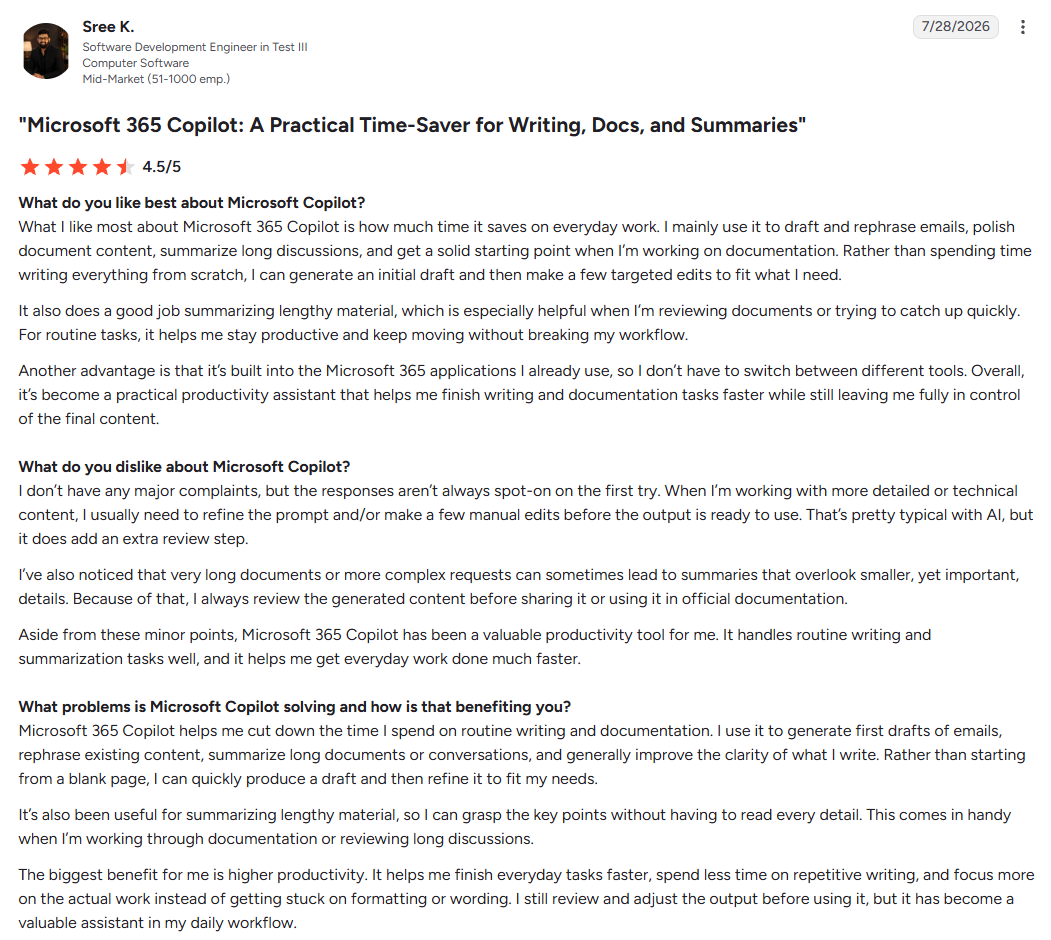
"I’ve also noticed that very long documents or more complex requests can sometimes lead to summaries that overlook smaller, yet important, details." (Sree K., Software Development Engineer in Test III, G2, July 2026)
Pricing
Prices come from Microsoft's business and enterprise Copilot pages:
- Copilot Chat: Included at no extra cost for users with an eligible Microsoft 365 business subscription, with file uploads.
- Microsoft 365 Copilot Business: $21 per user a month paid yearly ($18 for the first year on purchases through December 31, 2026), or $25.20 per user a month paid monthly. It's an add-on for existing Microsoft 365 Business customers.
- Microsoft 365 Copilot (enterprise): $30 per user a month paid yearly, or $31.50 paid monthly on an annual commitment.
Bottom Line
Copilot makes sense when your organization already pays for Microsoft 365 and keeps its documents in SharePoint. For deep questions about one long contract, a dedicated reader like Acrobat or ChatDOC gives more predictable results.
6. The Drive AI: Best for Sorting and Searching a Whole File Library
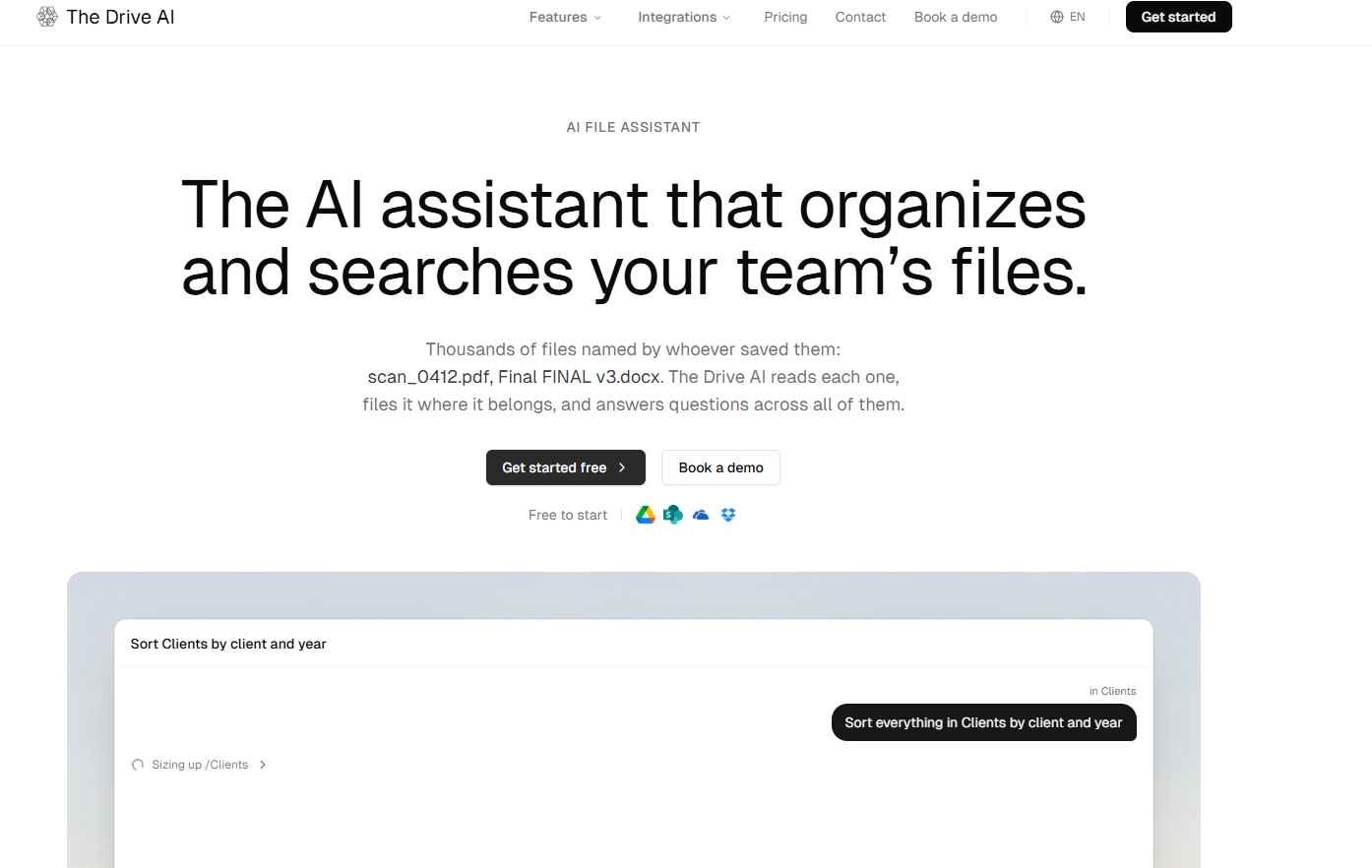
What it does: The Drive AI is a file workspace with a built-in assistant that reads what's inside your files, answers questions across them, and renames, sorts, and routes them for you.
Best for: Operations, admin, and finance leads at document-heavy small firms in accounting, real estate, legal, or HR.
The Drive AI acts on files as well as reading them. Ask "which vendors raised prices this year?" and it reads every invoice and answers with a table. Ask it to sort a folder by client and year, and it shows every proposed change on one card you can approve or undo.
Workflows then run on each new file, so an emailed invoice can be saved, checked, and sent to your bookkeeper automatically. Working inside your existing Google Drive, OneDrive, SharePoint, or Dropbox starts at the Max plan.
Key Features
- Answers across thousands of files: Ask "what does clause 7.2 say about termination?" and it quotes the clause and names the contract and page.
- Approval before big changes: Small changes apply at once, while big moves, deletions, and anything sent to another person wait for your approval.
- Workflows: Trigger on uploads, schedules, email attachments, or files shared in Slack and Teams, then classify, rename, split, move, or ask a person to approve.
- Data into new documents: Total invoices by month, or summarize contracts into a one-page PDF, spreadsheet, or chart.
- Apps everywhere: Web, iOS, and Android (with a document scanner), macOS, a Chrome side panel, and a connector for Claude, ChatGPT, and Cursor.
Pros and Cons
Pros:
- ✅ Premium also reads images, audio, and video files
- ✅ Every answer cites its source, and files are never used to train AI models
- ✅ The free forever plan includes 20 assistant tasks a month
Cons:
- ❌ Connecting your existing drives and inboxes needs Max ($99.99/mo) or a Team plan
- ❌ Scanned-page limits vary by plan (5 per file on Free, 200 on Premium, 100 on Team), and pages past the cap are stored but not read
What Users Say
"Organizes file really well, email integration feature is the best" (Rishap lamichhane, Google Play, May 2026)

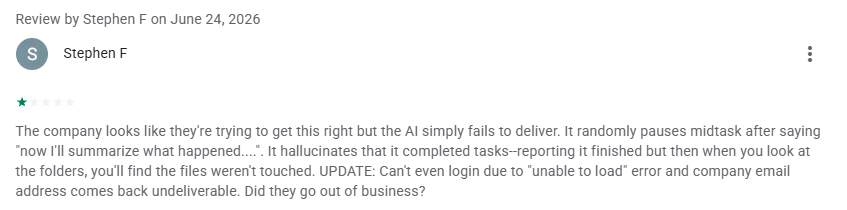
"It randomly pauses midtask after saying "now I'll summarize what happened....". It hallucinates that it completed tasks--reporting it finished but then when you look at the folders, you'll find the files weren't touched." (Stephen F, Google Play, June 2026)
Pricing
The Drive AI publishes its plans on its pricing page:
- Free: $0. 20 tasks a month, 10 workflow files, 1 GB, and up to 50 files. Reads PDFs, Word, spreadsheets, and text.
- Premium: $19.99/mo or $199.99/yr. 500 tasks, 100 workflow files, 20 GB, and every file type including images, audio, and video.
- Max: $99.99/mo or $999.99/yr. 2,000 tasks, works directly in Google Drive, OneDrive, SharePoint, and Dropbox, and adds e-signatures.
- Team: $95 per seat a month, or $79 per seat a month billed annually, with a 3-seat minimum.
- Business: $149 per seat a month billed annually for 10 or more seats. Adds SSO.
Bottom Line
Try The Drive AI if your problem is a few thousand badly named files more than one hard document. Check the scanned-page limit on your plan before you rely on it for long scanned contracts.
7. Google Document AI: Best for Extracting Data From Documents at Scale
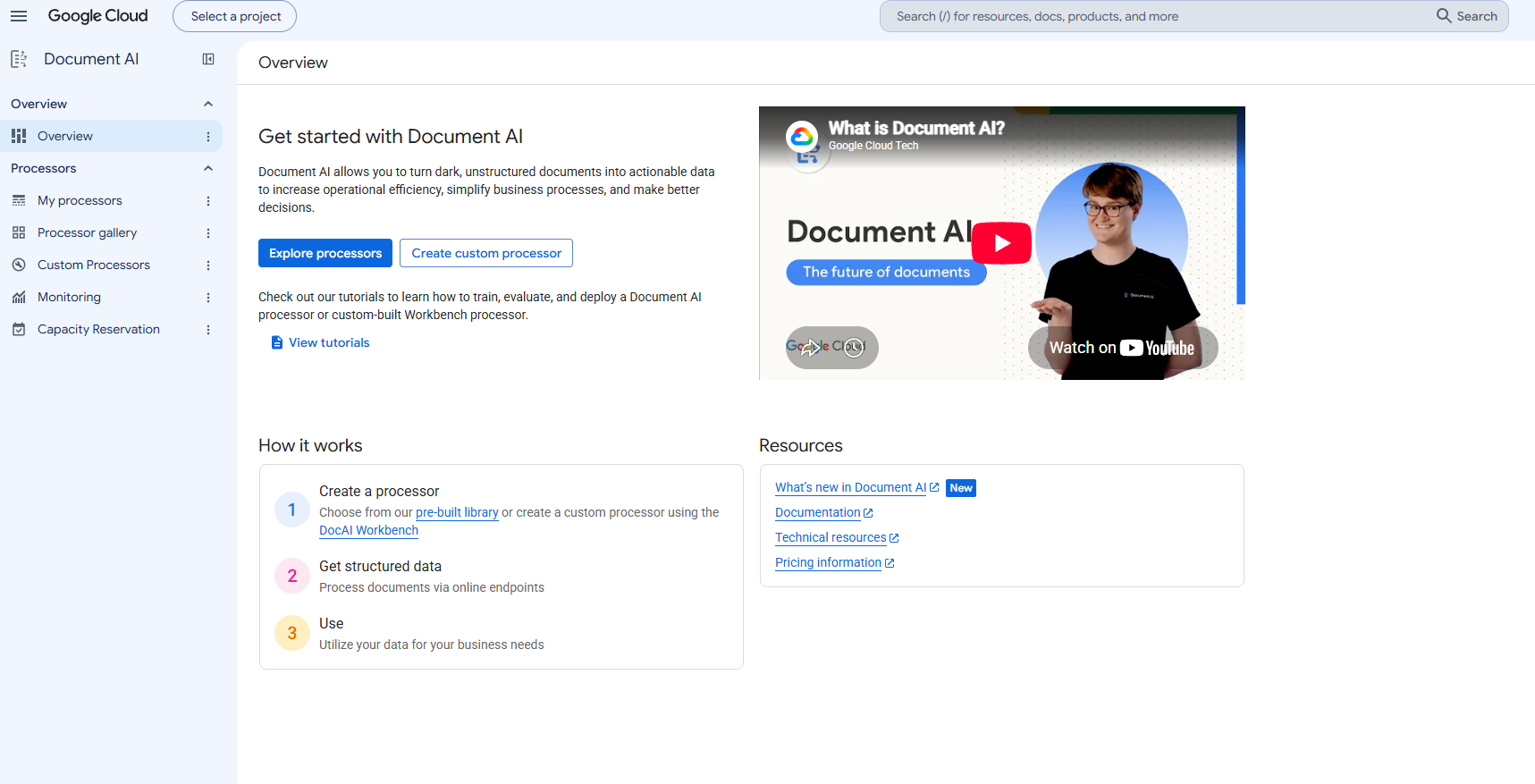
What it does: Google Document AI is a Google Cloud service that turns PDFs, scans, and Office files into structured data through OCR, form, layout, and Gemini-powered extraction processors.
Best for: Engineering and data teams on Google Cloud building invoice, lending, ID-check, or AI retrieval pipelines.
Document AI is infrastructure your developers call from an API or console, so a manager can't simply log in and chat with a file.
In return, you get extraction that scales to millions of pages, OCR in more than 200 languages, and output that drops straight into BigQuery. Plan around batch jobs, which can take 12 to 24 hours.
Key Features
- Enterprise OCR: Reads printed and handwritten text in more than 200 languages, with an image-quality score for each page.
- Custom Extractor: Pulls out the fields you define using Gemini models, and Google says you can fine-tune it with as few as 10 documents. Generative extraction officially supports English only.
- Form and Layout Parsers: Capture key-value pairs, checkboxes, and tables, or split files into context-aware chunks for AI search.
- Classify and split: Sort and split mixed bundles of documents without training a model.
- Pipeline integration: Sends extracted data to Cloud Storage and BigQuery.
Pros and Cons
Pros:
- ✅ Scales to millions of pages, with lower per-page prices at higher volumes
- ✅ FedRAMP High and HIPAA compliant, and Google says it never uses customer data to train Document AI models
- ✅ The first 1,000 OCR pages each month are free, and new Google Cloud customers get $300 in credit
Cons:
- ❌ Needs developers to set up and run, with no chat interface for everyday users
- ❌ Live processing stops at 15 pages per request for most processors (30 in imageless mode), and each deployed custom model adds about $438 a year in hosting
What Users Say
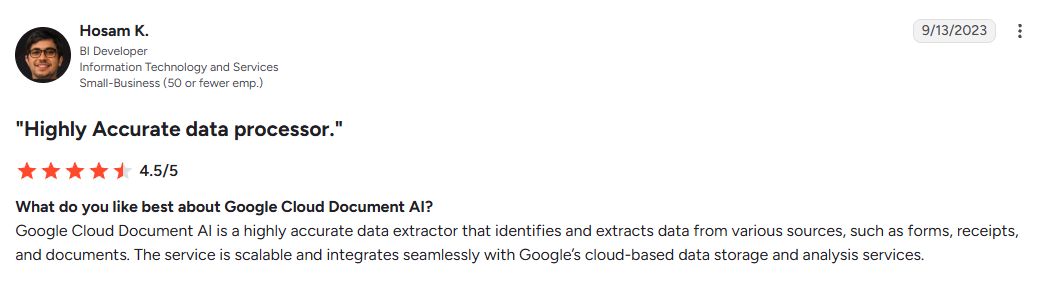
"Google Cloud Document AI is a highly accurate data extractor that identifies and extracts data from various sources, such as forms, receipts, and documents. The service is scalable and integrates seamlessly with Google’s cloud-based data storage and analysis services." (Hosam K., BI Developer, G2, September 2023)
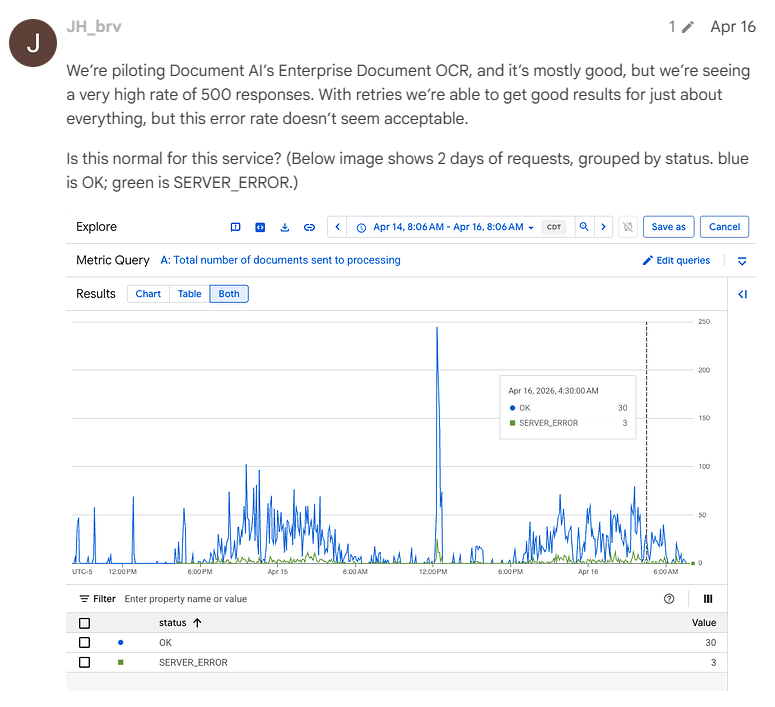
"We’re piloting Document AI’s Enterprise Document OCR, and it’s mostly good, but we’re seeing a very high rate of 500 responses." (JH_brv, Google Developer forums, April 2026)
Pricing
Prices on Google's Document AI pricing page are per 1,000 pages:
- Enterprise Document OCR: The first 1,000 pages each month are free, then $1.50 up to 5 million pages and $0.60 above that.
- Form Parser and Custom Extractor: $30 up to 1 million pages, $20 above that.
- Layout Parser: $10.
- Custom classifier and splitter: $5 up to 1 million pages, $3 above that.
- Hosting: $0.05 an hour for each deployed custom processor version.
New Google Cloud customers get $300 in credit to try it.
Bottom Line
Choose Document AI when you have an engineering team and thousands of documents a month to turn into data. For reading a single document, any app higher on this list gets you there faster.
8. elDoc: Best for Keeping Documents on Your Own Servers
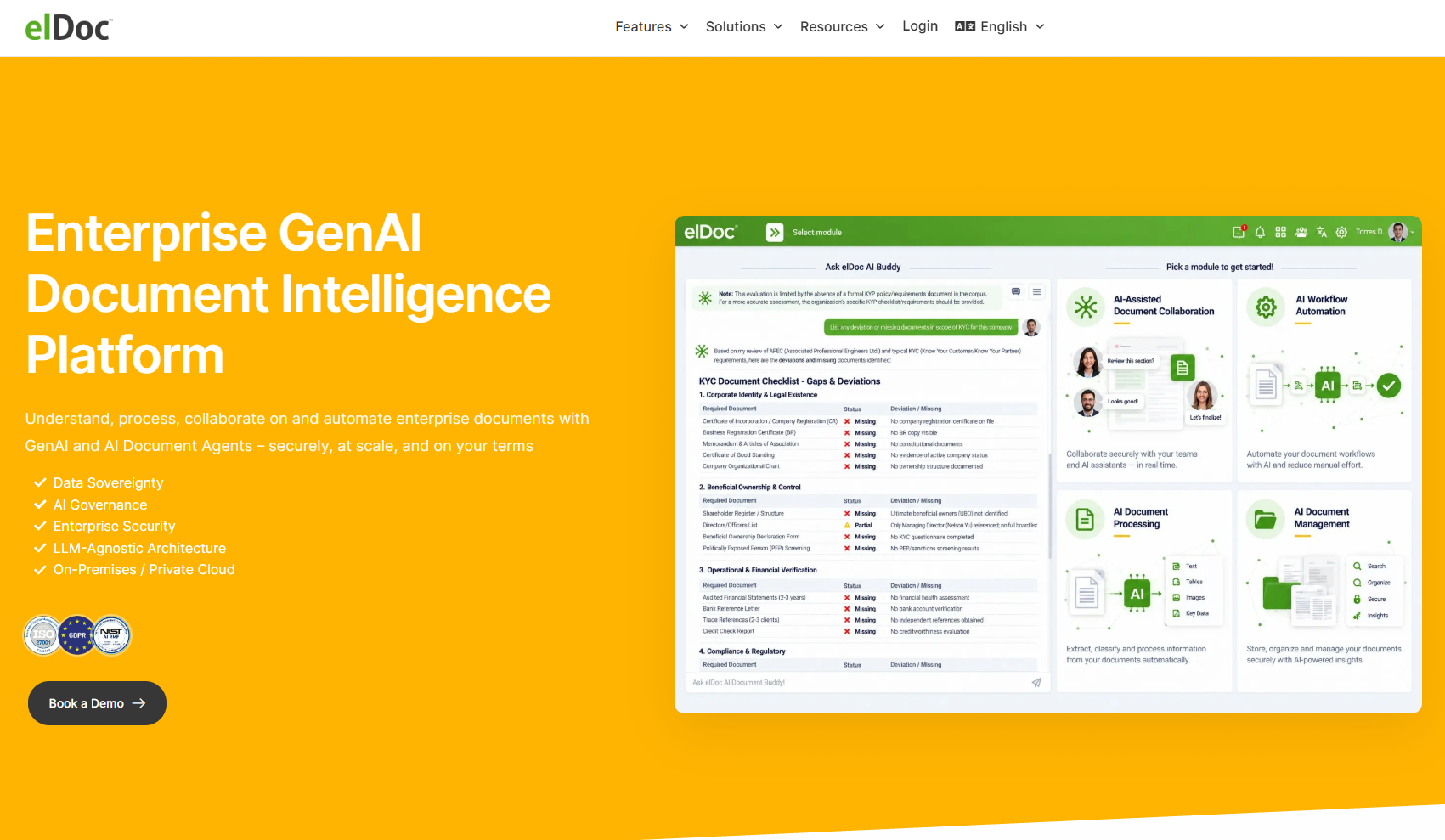
What it does: elDoc is a self-hostable document platform that combines AI OCR, chat with your documents, AI agents, workflows, and e-signatures.
Best for: Government, defense, healthcare, and finance teams that must keep documents and AI processing inside their own infrastructure.
elDoc's selling point is control. You can run it on-premises, in a private cloud, or fully air-gapped, choose your own language models, and its chat answers respect each user's access rights. That control comes with a serious hardware bill if you run the AI on your own servers.
Key Features
- Chat with your documents: Grounded answers with source references, limited to what each user is allowed to see.
- AI OCR with human review: OCR in more than 180 languages depending on the engine, with low-confidence fields sent to a person to check.
- AI document agents: These AI agents search, classify, extract, rename, and compare documents, with a person approving the changes.
- Choice of models: Connect OpenAI-compatible providers (including local Ollama or vLLM) or AWS Bedrock.
- Workflows and e-signatures: Approval routing, online editing of Office files, and self-hosted e-signatures with digital certificates.
Pros and Cons
Pros:
- ✅ Documents and AI processing can stay entirely inside your network
- ✅ ISO/IEC 27001:2022 certified, announced in June 2026
- ✅ A free Community Version lets you evaluate it before talking to sales
Cons:
- ❌ Fully local AI needs serious hardware: 128 GB of RAM and 96 GB of GPU memory at minimum
- ❌ The free Community Version allows production use only for businesses under $100,000 in annual revenue
What Users Say
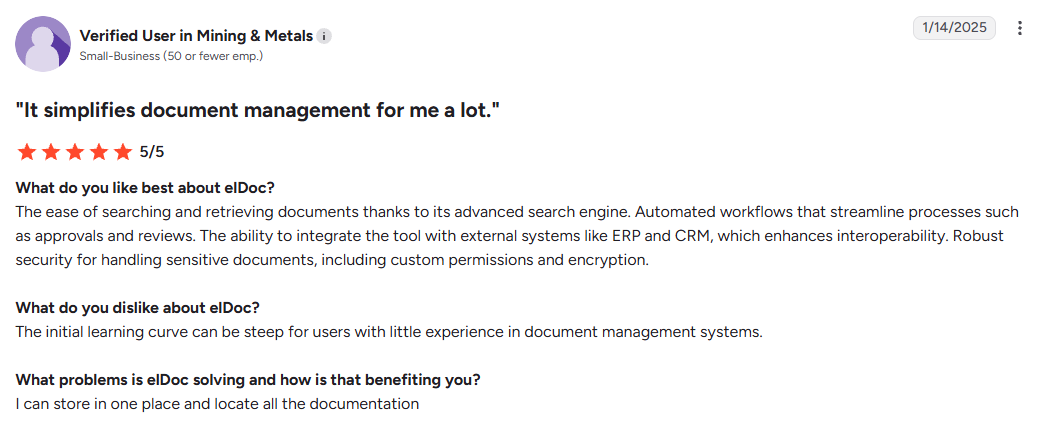
"The ease of searching and retrieving documents thanks to its advanced search engine." (Verified User in Mining & Metals, G2, January 2025)
The same reviewer said: "The initial learning curve can be steep for users with little experience in document management systems." (Verified User in Mining & Metals, G2, January 2025)
Pricing
elDoc doesn't publish a price list. The free edition's terms are in its Community Version docs:
- Community Version: Free license after a request form. Production use is limited to businesses under $100,000 in annual revenue, and everyone else can use it for evaluation only.
- Enterprise: Quote only, through a demo with the sales team.
Bottom Line
elDoc is for teams whose compliance rules decide the shortlist before features do. For everyone else, it's more infrastructure than the job needs.
9. Anara: Best for Pulling the Same Answers Out of a Whole Folder
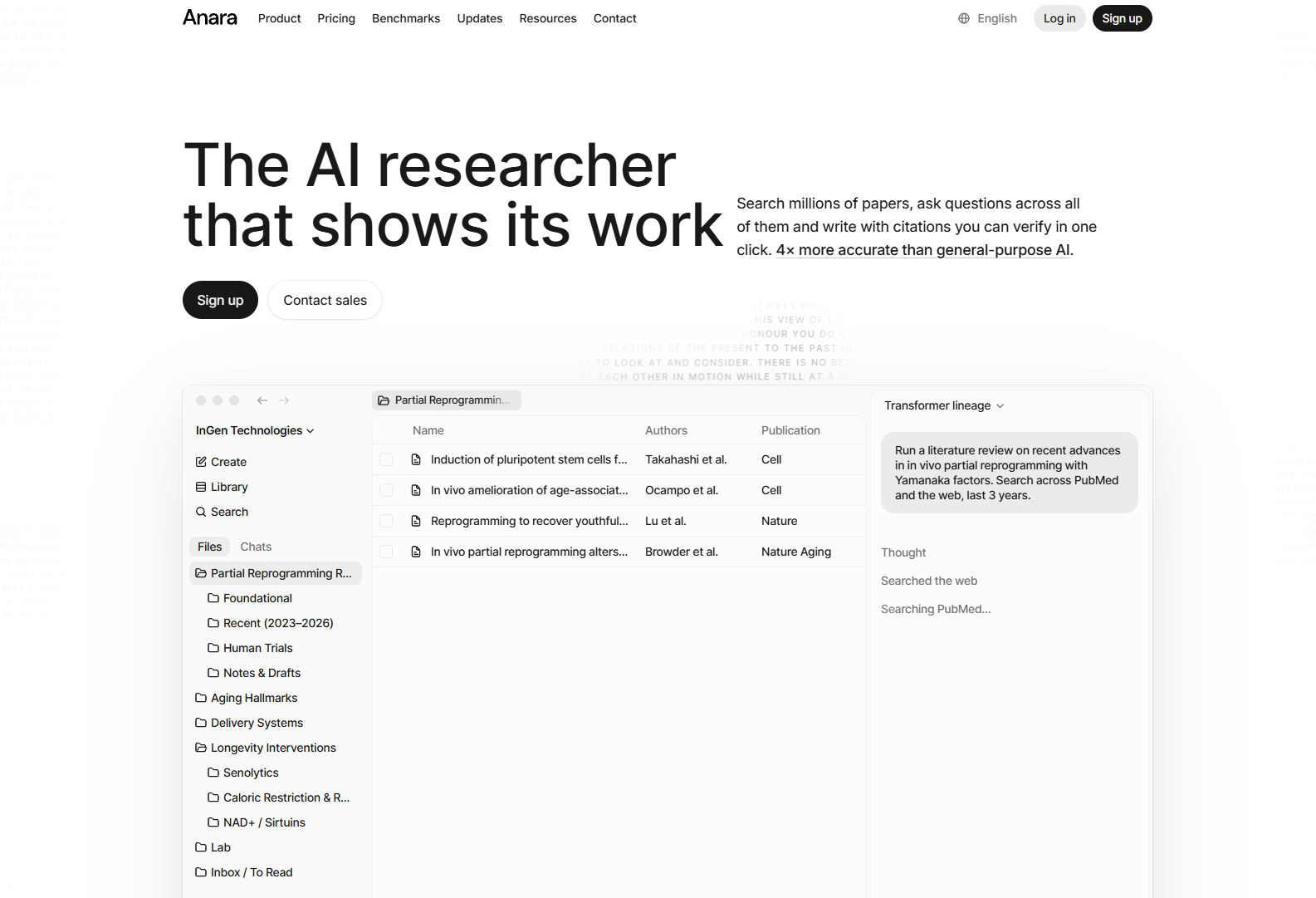
What it does: Anara is a research workspace where you keep a library of PDFs, reports, slides, spreadsheets, and recordings, then ask questions across one file, a folder, or the whole library, with each answer tied to the passage it came from.
Best for: Consultants, analysts, and policy or regulatory teams who build up a body of reading and have to defend what they write.
Anara is the lesser-known pick I'd try first. It started out as Unriddle, a tool popular with PhD students, and took its new name in March 2025.
Its standout feature is Views: point it at a folder, and it builds a table with one row per file and one column per question, then fills every cell with an answer and a link to the text it came from. One run fills up to 2,000 cells and exports to CSV or Excel.
Key Features
- Views: Set typed columns (text, number, date, or yes/no), and the table keeps filling in as you add files to the folder.
- Library-wide questions: Scope a question to a single paper or your entire collection, and keep answers to your own files so they don't draw on the web.
- Clickable citations: A citation opens the file at the highlighted passage it came from.
- Wide file support: PDFs, Word, PowerPoint, Excel and CSV files, images, plus audio and video that it transcribes.
- Connected sources: Zotero and Mendeley sync on every plan, and Google Drive, Notion, and OneDrive connect on Pro.
Pros and Cons
Pros:
- ✅ Plus adds PubMed and ClinicalTrials.gov for research-heavy teams
- ✅ Works on the web, Mac, and iPhone, with a Microsoft Word add-in
- ✅ Anara says only the passages it retrieves go to its AI providers, under zero-data-retention terms
Cons:
- ❌ OCR for scanned files starts on the Pro plan, and the free plan caps uploads at 120 pages
- ❌ Its privacy policy allows using data for model training, and refunds only cover your first payment within 7 days
What Users Say
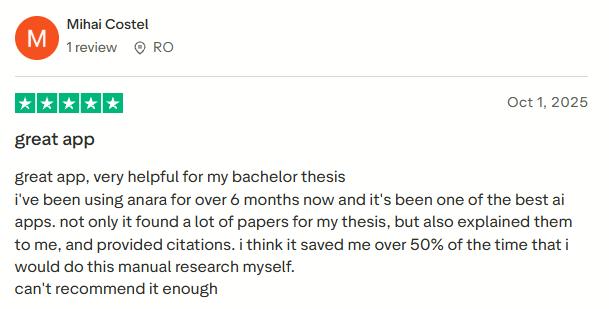
"i've been using anara for over 6 months now and it's been one of the best ai apps. not only it found a lot of papers for my thesis, but also explained them to me, and provided citations." (Mihai Costel, Trustpilot, October 2025)
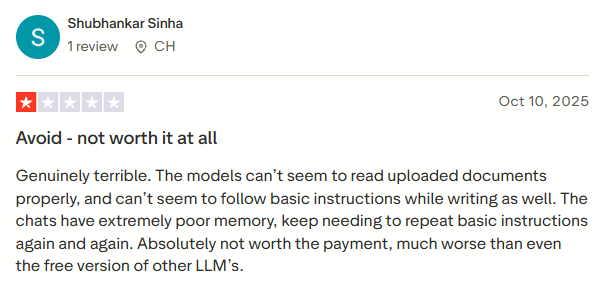
"The models can’t seem to read uploaded documents properly, and can’t seem to follow basic instructions while writing as well." (Shubhankar Sinha, Trustpilot, October 2025)
Pricing
Plans from Anara's pricing page:
- Free: $0. Limited daily AI use, 20 MB and 120 pages per upload, no card required.
- Plus: $10/mo, or $8/mo billed yearly. 100 MB and 600 pages per file, plus PubMed and ClinicalTrials.gov.
- Pro: $20/mo, or $16/mo billed yearly. 300 MB and 10,000 pages per file, OCR, and cloud-drive connectors.
- Max: From $100/mo, or $80/mo billed yearly, with no upload size or page limits.
Buying through the iPhone app costs more than the web prices above.
Bottom Line
Pick Anara if your work means asking the same questions of many documents and showing your sources. Read the refund terms before you commit to a yearly plan.
10. AnythingLLM: Best for Confidential Files That Can't Leave Your Laptop
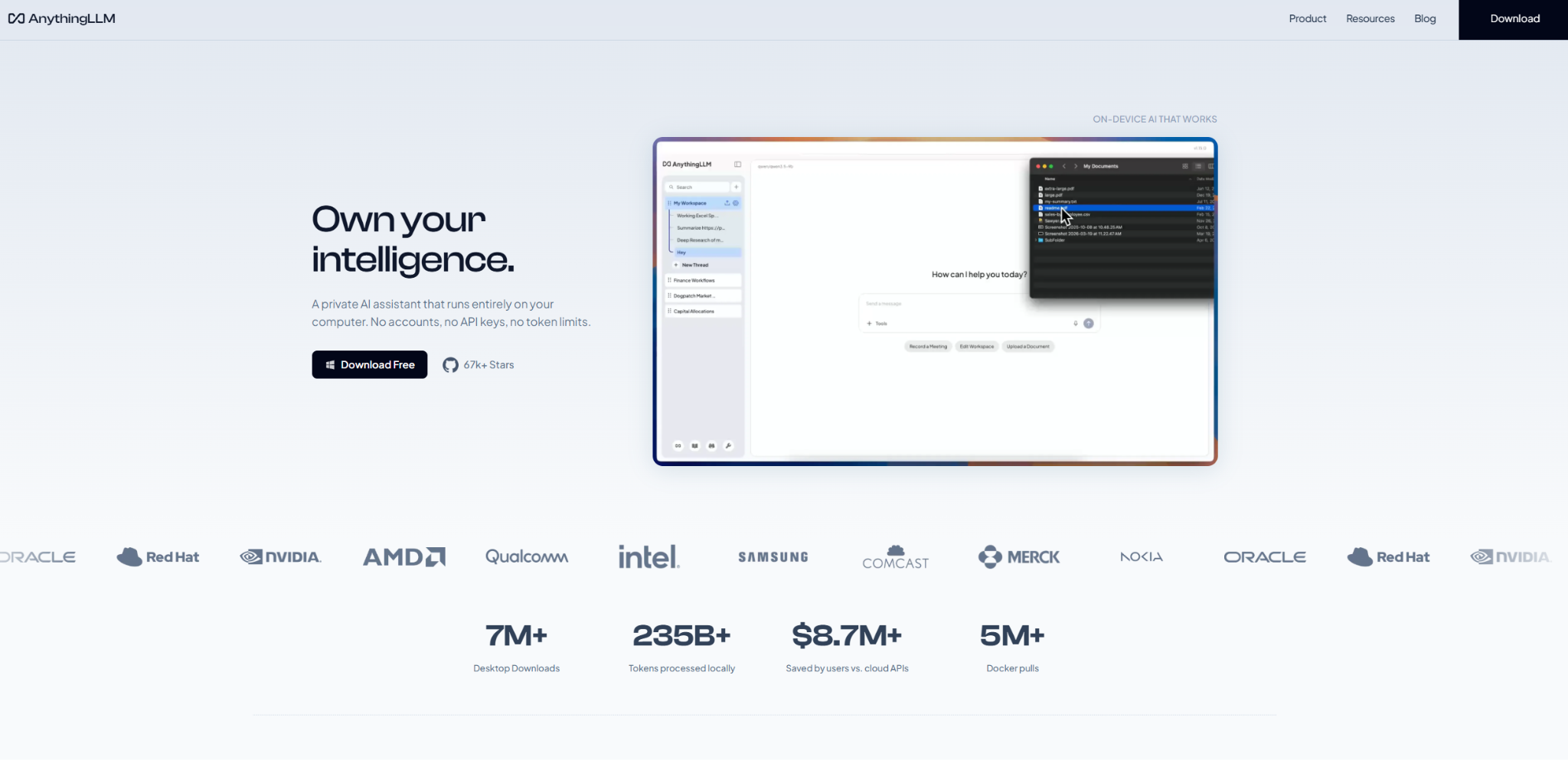
What it does: AnythingLLM is a free, open-source desktop app that lets you chat with your own files using an AI model that runs on your computer.
Best for: Founders, HR leads, and finance teams handling documents they can't upload to anyone's cloud.
AnythingLLM keeps the whole job on your laptop: it reads the file, indexes it, and runs the AI model locally, with no account and no API key. A laptop with 16 GB of RAM and an 8-core CPU, or any Apple M-series Mac, is enough. It's popular with developers, with about 67,000 stars on GitHub.
Key Features
- Private, offline chat: With the built-in local model, its privacy policy says "None of your messages, chat histories, and documents are ever transmitted from your system."
- Workspaces: Keep each project's documents separate, and pin a key document so the AI reads all of it.
- Cited answers: Each answer shows the source passages it drew on.
- Model choice: Run a local model, or connect a cloud model such as OpenAI, Anthropic, or Gemini with your own key when you need more power.
- On-device meeting notes: Transcribe and summarize meetings on your computer, then ask questions about them alongside your documents.
Pros and Cons
Pros:
- ✅ Free and open source (MIT license), with no account required
- ✅ A free Docker version lets a whole team share one setup
- ✅ Actively maintained, with a new release in October 2026
Cons:
- ❌ Answers are only as good as the model your hardware can run, and the retrieval settings take some tuning
- ❌ Anonymous usage data and web search are on by default, so switch both off for a fully offline setup
What Users Say
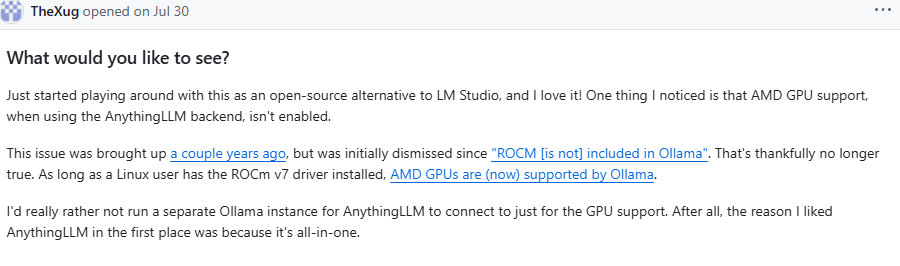
"Just started playing around with this as an open-source alternative to LM Studio, and I love it!" (TheXug, GitHub, July 2026)
"It takes long time to study files or draft a reply... [ChatGPT] resolves the entire work in 10 minutes, here it takes more than one hour." (narenwalia1, GitHub, October 2026)

Pricing
Installers are on AnythingLLM's download page, and hosted plans are on its Cloud page:
- Desktop app: $0, under the MIT license.
- Self-hosted with Docker: Free, and adds multi-user access.
- AnythingLLM Cloud Basic: $50/mo for a private hosted instance. You bring your own AI model key.
- AnythingLLM Cloud Pro: $99/mo, with priority resources and a support SLA.
Bottom Line
AnythingLLM is the one to try when a document is too sensitive to upload anywhere. Keep it updated, and expect to spend some time choosing a model that suits your machine.
11. PDFgear: Best for Free PDF Editing With AI Built In
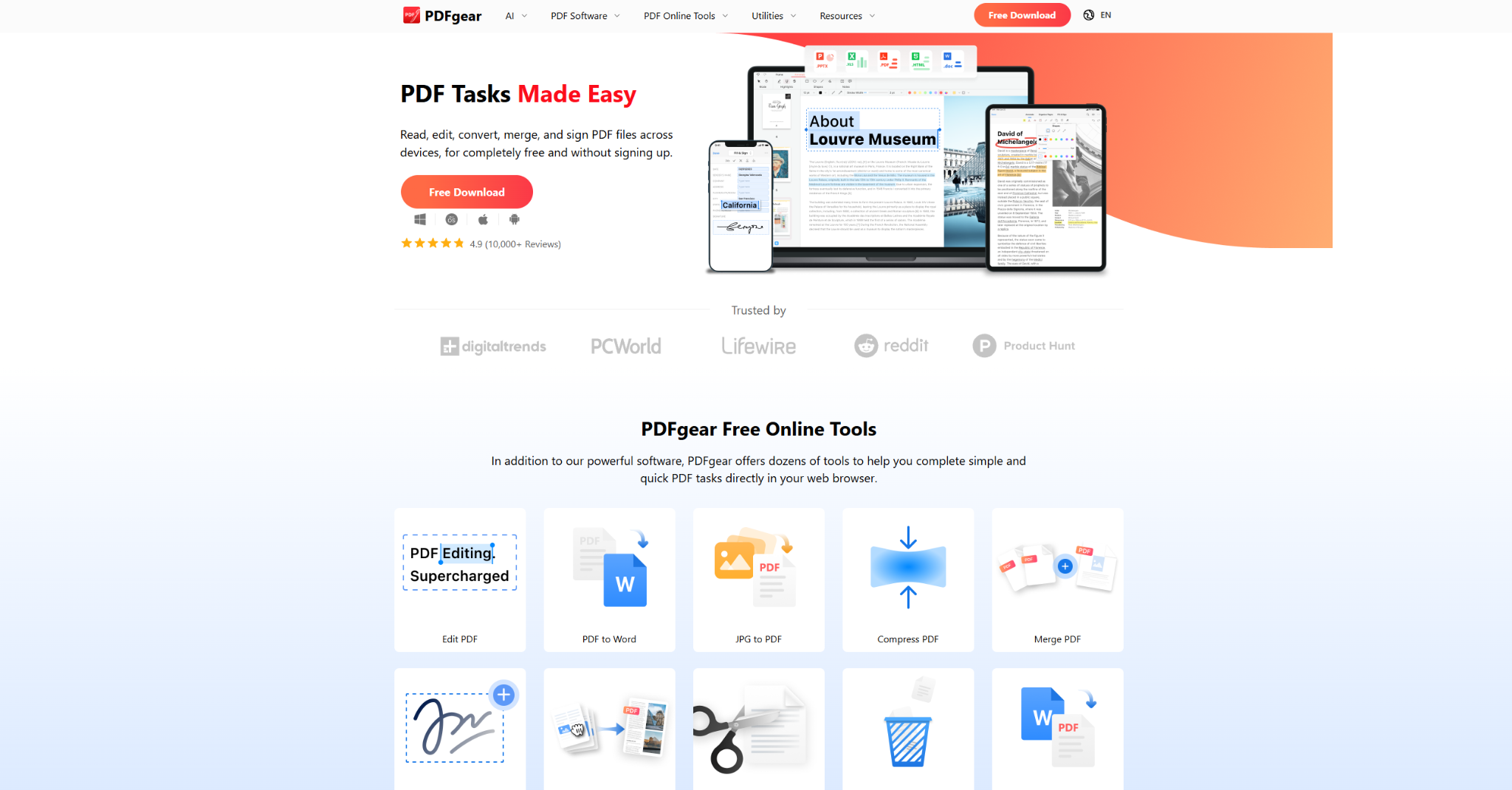
What it does: PDFgear is a free PDF editor for Windows, Mac, iOS, and Android with a built-in AI Copilot that summarizes, answers questions about, and edits the PDF you have open.
Best for: Small-business owners, admin and HR staff, and freelancers who want one free app to read, question, edit, and sign PDFs.
PDFgear is best known as a free alternative to Acrobat, and it comes with an AI Copilot built in. Ask a question, and it points you to the pages behind its answer, or give it an editing instruction, and it carries it out.
The editor, OCR, signing, and conversions cost nothing and need no account. The Copilot needs an internet connection, and some tools may process files on PDFgear's cloud servers.
Key Features
- Answers with page references: The Copilot explains terms and answers questions, with page numbers as footnotes that show where each answer came from.
- Edit by typing a command: Ask it to "compress this PDF" or "delete page 10" and it does it.
- Scanned PDFs: OCR reads the text in scanned pages, so the Copilot can use it too.
- A full editor around the AI: Edit text, fill and sign forms, merge, split, compress, and convert to Word, Excel, or PowerPoint.
- Language support: Chat about a PDF in more than 100 languages.
Pros and Cons
Pros:
- ✅ Free with no account, watermark, or ads
- ✅ Reading, AI questions, editing, and signing all happen in one app
- ✅ Most tools work offline once installed
Cons:
- ❌ The AI handles one PDF at a time, so you merge files before asking across them
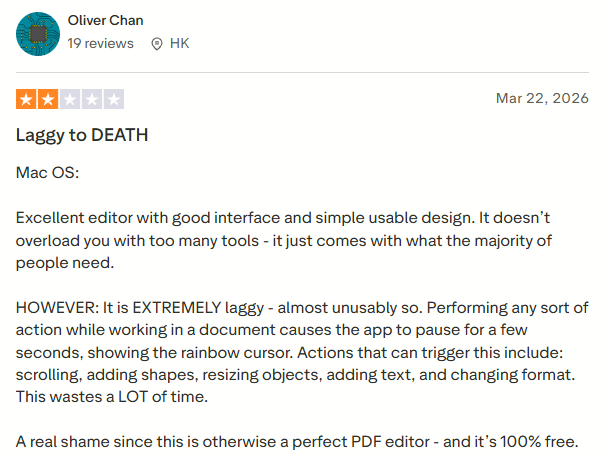
- ❌ Users report lag on Mac, and the AI may not stay free forever
What Users Say
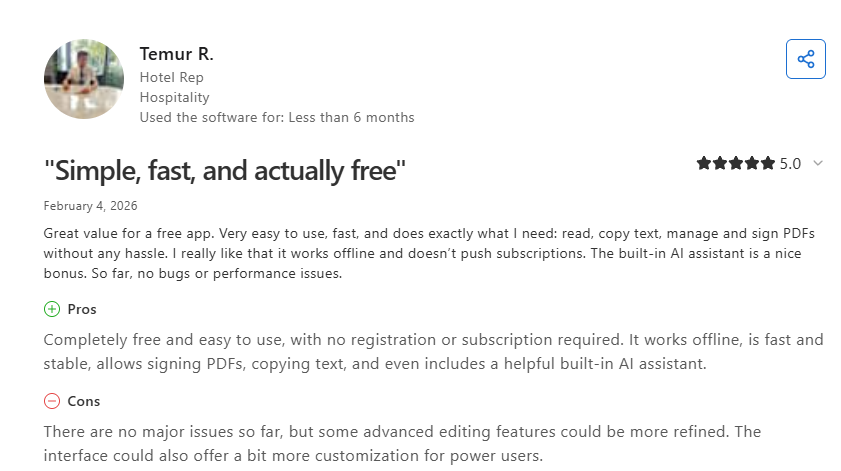
"It works offline, is fast and stable, allows signing PDFs, copying text, and even includes a helpful built-in AI assistant." (Temur R., Hotel Rep, Capterra, February 2026)
"It is EXTREMELY laggy - almost unusably so." (Oliver Chan, Trustpilot, March 2026)
Pricing
PDFgear has no pricing page because it has no paid plans. Details are on its Chat PDF page:
- Free: Everything, including the AI Copilot, with no account or sign-up.
- Paid plans: None today. PDFgear's FAQ says some AI tools that need cloud computing may carry a fee later.
Bottom Line
PDFgear is the pick when you want AI help and a complete set of editing tools without paying anything. Keep regulated files out of the Copilot, since PDFgear's terms say the service isn't built for HIPAA-regulated data.
Which AI Document Assistant Should You Choose?
Most readers will be happy with one of the first four. The right one depends on what your documents look like and where they already live.
Choose Adobe Acrobat AI Assistant if you:
- Already open your contracts and reports in Acrobat
- Want to question up to 100 mixed files in one place
Choose ChatDOC if you:
- Need to show where every figure came from
- Work with scanned or table-heavy documents on a tight budget
Choose ChatPDF if you:
- Have one PDF and one question today
- Don't want to create an account
Choose Humata if you:
- Write reports that cite page numbers
- Want answers kept strictly inside your documents
Choose Microsoft 365 Copilot if you:
- Store your work in SharePoint and OneDrive
- Want answers that pull from files, email, and meetings together
Choose The Drive AI if you:
- Need a disorganized file library sorted and searchable
- Want new files filed and routed automatically
Choose Google Document AI if you:
- Process thousands of documents a month and have developers to run the pipeline
- Already keep your data in BigQuery
Choose elDoc if you:
- Can't let documents leave your own servers
- Need a vendor with ISO 27001 certification
Choose Anara if you:
- Compare dozens of reports on the same points
- Need a cited table you can export to Excel
Choose AnythingLLM if you:
- Work with files that must stay on your own machine
- Have a recent laptop and don't mind choosing a model
Choose PDFgear if you:
- Need a free tool you can roll out to the whole team
- Also need to edit, sign, or convert the same file
Skip this category entirely if:
- Your documents are short, and you already pay for ChatGPT, which can read uploaded PDFs, Word files, and spreadsheets
- You expect the tool to give the legal or financial sign-off itself, since a professional still has to check what it finds
Final Verdict
If you're choosing one AI document assistant today, make it Adobe Acrobat AI Assistant: it reads the files you already have, cites its sources, and publishes clear limits. ChatDOC wins when every number has to be checked, and it costs less.
If your organization runs on Microsoft 365, try Copilot Chat before you buy anything new. And for files that should never touch the cloud, AnythingLLM is the one to install.
Where HyperWrite Fits: Turn the Facts Into a Finished Reply
Once you've found the renewal date, you still have to write about it: the email to the vendor, the memo to your boss, the summary for your team. That usually takes longer than the reading did.
HyperWrite is built for that step. It works inside the tools you write in every day, so the reply starts taking shape before you'd normally be staring at a blank page.
With HyperWrite, you can:
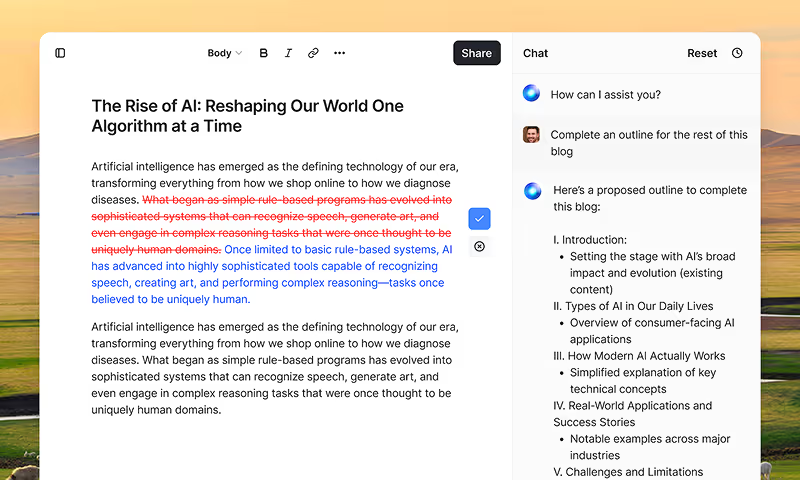
- Draft in the AI Document Editor, where the chat "always has access to the current state of your writing, and can even apply changes for you"
- Finish emails and docs with TypeAhead, which suggests your next words in Gmail, Google Docs, and any browser tab, using your open tabs and past writing so suggestions sound like you
- Keep your own voice with personas, so a memo built from contract notes still reads as you wrote it
TypeAhead reads the context you're working in and writes in your voice, which makes it a very different tool from the autocomplete on your phone keyboard. Professionals at Google, Netflix, LinkedIn, and Spotify use HyperWrite for high-stakes writing. If your documents already live in Google Docs, here are more AI tools built for Google Docs.
Next time a contract lands 40 minutes before the call, let one of the tools above find the clause, then let HyperWrite help you answer it. Try TypeAhead free with the Chrome extension and see how much of your next email it finishes for you.
Frequently Asked Questions
What Is the Best AI Document Assistant?
The best AI document assistant for most professionals is Adobe Acrobat AI Assistant, because it reads PDFs and Office files up to 600 pages, cites every answer, and works inside Acrobat. ChatDOC is the better pick for checking figures in tables or scans, and Microsoft 365 Copilot fits teams whose files live in SharePoint.
Is Google Document AI Free?
Google Document AI is free only for light OCR use: the first 1,000 pages of Enterprise Document OCR each month cost nothing, and new Google Cloud customers get $300 in credit. After that, OCR costs $1.50 per 1,000 pages, and form or custom extraction costs $30 per 1,000 pages.
What Is Document AI From Google?
Document AI is a Google Cloud service that converts documents into structured data. Developers send PDFs, scans, or Office files to processors that run OCR, read forms and tables, or extract custom fields with Gemini models, then load the results into tools like BigQuery.
Can ChatGPT Review a Document?
Yes, ChatGPT can review a document. You can upload PDFs, Word files, and spreadsheets, and it will summarize, compare, and pull information from them. If you need every answer traced to a specific page, a dedicated document assistant with built-in citations is the safer choice.
What Is the Best Free AI Document Assistant?
The best free AI document assistant for most people is PDFgear, which pairs a full PDF editor with an AI Copilot at no cost and with no account. ChatPDF is quicker for a one-off question about a single PDF (2 documents a day), and AnythingLLM is free, open source, and can run entirely on your own laptop.
Is There a Free AI Document Generator Available?
Yes. HyperWrite has a free account with limited monthly credits on its basic AI, so you can try drafting a letter, brief, or email before you pay. Premium costs $19.99/mo and adds 250 AI messages a month, citations, and three custom personas. To read your source files for free first, start with PDFgear or ChatPDF from the list above.
How Do You Use AI to Produce a Document?
You use AI to produce a document by giving it your source material first, asking for a first draft, then editing that draft in your own words. A document assistant like ChatDOC or Humata handles the research step, and an AI content writing tool such as HyperWrite's AI Document Editor turns those notes into the finished memo, report, or email.
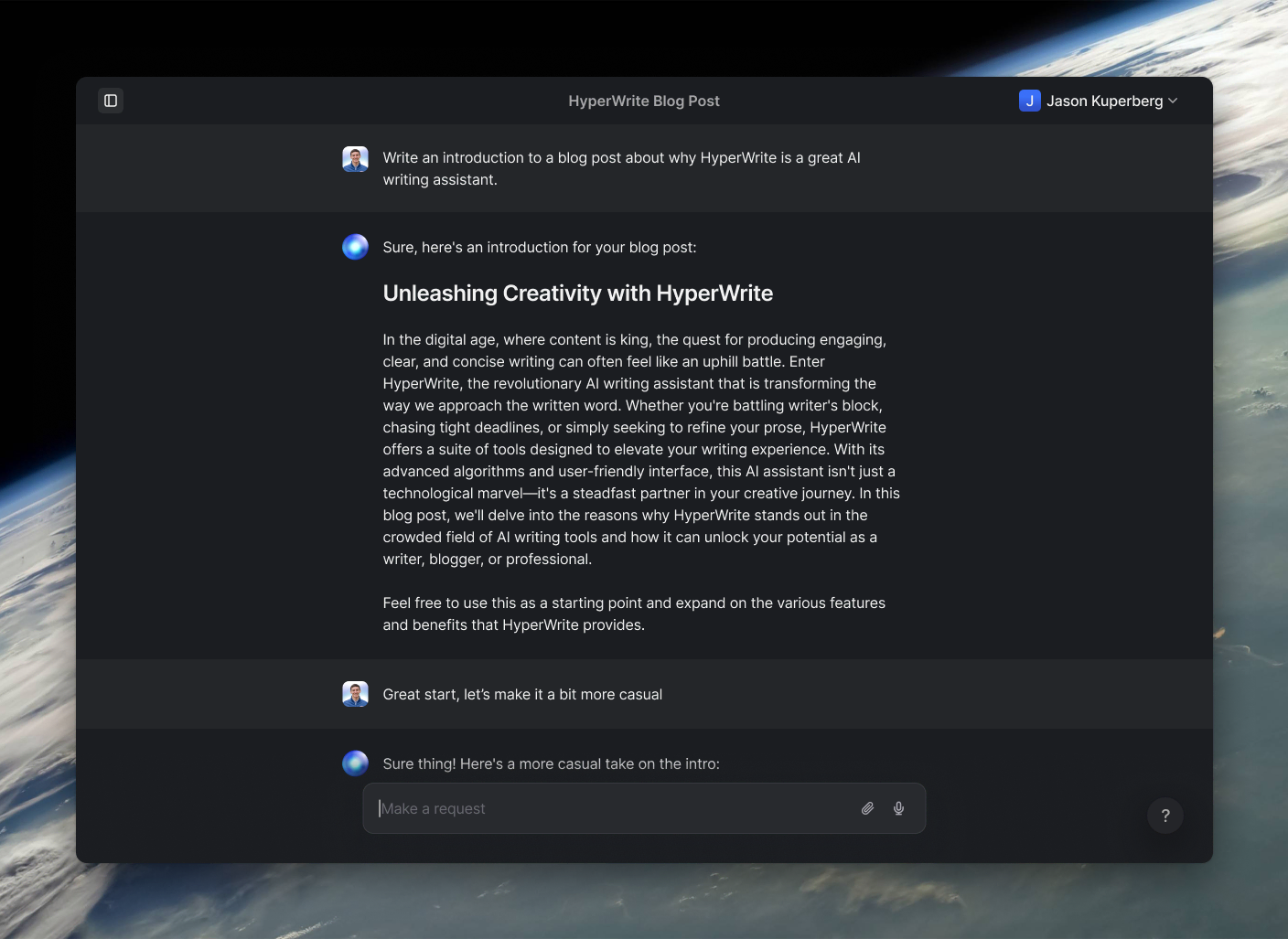
HyperWrite is the AI writing assistant that learns your style. It handles drafting, editing, and researching so you can focus on ideas.
- Autocompletes sentences as you type
- Works inside Google Docs & Gmail
- Adapts to your personal writing style
- 500+ AI tools for any writing task
Powerful writing in seconds
Improve your existing writing or create high-quality content in seconds. From catchy headlines to persuasive emails, our tools are tailored to your unique needs.