
6 Best AI for Google Docs in 2026 Reviewed + Ranked


Most AI writing tools make you draft somewhere else, then paste the result into Google Docs and fix the formatting. The best ones do the work where your document already lives. Here are the six best AI tools for Google Docs in 2026, compared on features, platforms, and price.
What to look for in an AI for Google Docs
The biggest difference between these tools is how they connect to your document, and that matters more than raw writing quality. Three things separate a good fit from a bad one:
- Integration depth. Native AI (Gemini) sees your whole document and Workspace. Add-ons work inside Docs with the permissions you grant. Standalone tools make you export and paste.
- What it does. Some tools draft from scratch, some only polish what you've written, and some just rephrase sentences. The right one matches your actual task.
- Data access. Add-ons request permission to read your documents. For sensitive files, native Gemini avoids handing a third party access.
- Cost structure. Pricing ranges from free tiers to per-seat subscriptions to one-time credit packs, so the cheapest tool depends on how much you write.
For a real Google Docs workflow, native and add-on tools win, because they cut the copy-paste step that makes "AI-assisted" writing feel like manual labor.
TL;DR: Which AI tool for Google Docs should you choose?
Choose Gemini if you want native AI that drafts, rewrites, and summarizes with full Workspace context and no installation.
Choose Grammarly if you want a polish layer that catches grammar, clarity, and tone across every app you write in.
Choose HyperWrite if you want AI that predicts your next sentence in your own voice as you type in Docs and any browser tab.
Choose GPT Workspace if you want GPT and Claude models inside Docs without a separate subscription.
Choose Plus AI if you want an add-on that drafts and edits whole documents directly in Docs.
Choose Wordtune if your main need is rephrasing and tightening sentences you've already written.
6 best AI tools for Google Docs: At a glance
Pricing based on annual billing, accurate as of June 2026. Verify current rates with each vendor.
The 6 best AI tools for Google Docs
1. Gemini

Gemini is Google's own AI, built directly into Docs. For most people, that makes it the default starting point. Because it's native, it reads your whole document and pulls context from Google Apps. It also produces full first drafts, style-matches across authors, and format-matches from another document.
Best for: Anyone who wants AI drafting and rewriting with full Workspace context and no add-on to install.
Key features
- Native drafting and rewriting. Generates, summarizes, and edits text directly inside Google Docs, with no install and no copy-paste.
- Workspace context. Pulls from Gmail, Google Drive, and Google Chat to ground drafts in your existing personal or company data.
- Style and tone matching. Turns a short prompt into a formatted first draft, and matches tone and style across documents written by different authors.
Pros
✅ Reads context from your whole document, with no third-party install or permissions to grant.
✅ Generates structured drafts and copies the layout of an existing file.
✅ Included in many premium Workspace tiers and Google One AI Premium plans that users already pay for.
Cons
❌ The best capabilities (like Workspace-wide context) require a paid Gemini add-on or specific subscription tier.
❌ Outputs still need a human review pass for factual accuracy and brand alignment.
❌ Tone and format matching are convenient but offer less control than a specialized writing tool.
Pricing
- Free tier available in the Gemini app; in-Docs features need a paid Google AI or Workspace plan
- Google AI Plus $4.99/mo
- Google AI Pro $19.99/mo
- Google AI Ultra $99.99/mo
2. Grammarly
Grammarly delivers real-time suggestions as you type, catching grammar, clarity, and tone issues right in the document. It runs across Mac, Windows, mobile, and almost every browser-based app.
Best for: Professionals who want one editing layer that works inside every app they write in.
Key features
- Cross-app editing. Inline suggestions in Docs, Gmail, Slack, LinkedIn, and Word, with zero copy-paste.
- Generative AI suggestions. The Pro tier drafts emails, rewrites paragraphs, and adds a plagiarism checker.
- Authorship view. Shows what's human-written versus AI-generated, useful where AI usage needs to be transparent.
Pros
- ✅ The free plan covers enough daily volume that most professionals never need to pay.
- ✅ It can mark what was written by AI, a real advantage where AI disclosure is required.
- ✅ Suggestions are accurate enough to accept on autopilot for routine business writing.
- ✅ It pairs naturally with drafting tools like HyperWrite.
Cons
- ❌ The generative features are a useful add-on to the editing, but they won't replace a dedicated drafting tool.
- ❌ Default rewrites lean, polished, and corporate, so creative or casual writing needs a manual pass.
- ❌ Accept too many suggestions, and your own voice flattens into Grammarly's house style.
Pricing
- Free plan available
- Pro $12/mo (annually) or $30/mo (monthly)
- Enterprise: custom pricing
3. HyperWrite

HyperWrite applies the autocomplete-as-you-type idea to browser-based work, including Google Docs. Its TypeAhead extension reads context from your open tabs and completes sentences in real time, so a line in Docs can draw on the brief or thread open beside it. Personas trained on your past writing keep the output in your voice.
Best for: Founders, marketers, and professionals who write across Docs and other browser tools and want suggestions that match their voice.
Key features
- TypeAhead. Real-time sentence completions inside Docs and any browser tab, pulling context from everything you have open.
- Personas. Voice-matched AI trained on your past writing, so output sounds like you across every draft.
- AI Tools Library. Pre-built tools for rewrites, summaries, and outlines, plus custom tools for repeat workflows.
Pros
✅ Drafts content in your own voice instead of a generic AI tone.
✅ The same assistant follows you from Docs into Gmail, LinkedIn, and every other tab, so you learn one tool instead of five.
✅ Unlimited suggestions cost $16/month, cheaper than most paid options that cap usage or charge per seat.
Cons
❌ It has no native Google Docs add-on; everything runs through the Chrome extension, so it won't work in the Docs mobile app or desktop client.
❌ Sounds generic during the first couple of uses; getting the voice right takes uploading real samples and some tuning.
❌ It predicts sentences but won't build or restructure a long document, so it's no help on a 20-page report.
Pricing
- Free plan available
- Premium $16/mo (annually) or $19.99/mo (monthly)
- Ultra $29/month (annually) or $44.99/mo (monthly)
4. GPT Workspace

GPT Workspace (GPT for Work) is a Marketplace add-on that brings GPT and Claude models directly into Google Docs. You generate, edit, summarize, and translate directly in the document, picking a model for each task, and it installs in about a minute without a separate ChatGPT subscription.
Best for: Writers who want frontier-model output inside Docs without leaving the document.
Key features
- Multi-model access. Run GPT and Claude inside Docs and switch models depending on the task.
- Generate and edit in place. Draft, rewrite, summarize, and translate directly in the document.
- Pooled team credits. One shared credit balance across a whole team, with no per-seat fee.
Pros
✅ It installs from the Marketplace in about a minute and works in any Google account, personal or Workspace.
✅ Light users can run on $29 worth of credits for months, with no subscription to remember to cancel.
✅ Output comes from the same frontier models as ChatGPT and Claude, so quality matches the standalone apps.
Cons
❌ Heavy daily writers burn through credits fast, where a flat subscription would have cost less.
❌ You're granting an add-on access to your documents, which rules it out for some regulated work.
❌ There's a learning step in knowing which model suits which task before you get the best results.
Pricing
- Starter $9/mo (annually) or $14/mo (monthly)
- Standard $29 per user/mo (annually) or $42 per user/mo (monthly)
- Pro $79 per user/mo (annually) or $112 per user/mo (monthly)
5. Plus AI

Plus AI is a Docs and Slides add-on focused on creating and editing whole documents. It writes first drafts from a prompt, edits existing text, adds executive summaries, and turns transcripts into structured takeaways, all directly in Docs with full undo and version history.
Best for: Anyone who wants AI to help build the document itself, going past polishing into drafting.
Key features
- Full-document drafting. Generates a first draft from a short prompt, inside Docs.
- In-place editing. Rewrites and reformats existing text with changes tracked in your version history.
- Transcript and summary tools. Turns transcripts into takeaways and adds executive summaries to the top of a document.
Pros
✅ It drafts a complete document from a prompt, so you start with a full draft to edit instead of a blank page.
✅ Every change is tracked in your version history, so you can let it rewrite freely and undo anything you don't like.
✅ One plan covers Docs and Slides, so you don't need a separate tool to build presentations.
Cons
❌ It asks for broad permission to your documents, which poses a risk when working on confidential files.
❌ First drafts are often generic, so some of the time you save goes back into editing for voice and accuracy.
❌ The free trial is short, and the features most worth having sit behind the paid tiers.
Pricing
- Basic $10 per user/mo (annually) or $15 per user/mo (monthly)
- Pro $20 per user/mo (annually) or $25 per user/mo (monthly)
- Team $30 per user/mo (annually) or $40 per user/mo (monthly)
- Max $200 per user/mo (annually) or $240 per user/mo (monthly)
6. Wordtune

Wordtune is the rewriting specialist. Its Docs add-on suggests alternative phrasings for a sentence you've written, so you can shorten or clarify it without changing the meaning. Highlight a sentence, and it offers variations you can drop in across Mac, Windows, and Chrome.
Best for: Writers who want sharp rephrasing of text they've already drafted.
Key features
- Rewrite suggestions. Offers multiple rephrasings for any highlighted sentence, inline in Docs.
- Tone and length controls. Shifts a sentence more formal, more casual, shorter, or clearer on demand.
- Cross-platform reach. Works on Mac, Windows, and Chrome from one account.
Pros
✅ For the narrow job of rephrasing, it's quicker and more varied than asking a general AI to redo a line.
✅ The tone controls make it easy to land an exact register without rewriting by hand.
✅ Casual rewriting fits inside the free plan, so light users rarely need to pay.
Cons
❌ It can’t help draft anything from scratch; it only reshapes text you've already written.
❌ It stays at the sentence level, so reports and data-driven docs are outside its range.
❌ Daily writers hit the free plan's rewrite cap quickly and get pushed to a paid tier.
Pricing
- Free plan available
- Advanced: $6.99/mo (annually) or $13.99/mo (monthly)
- Unlimited: $9.99/mo (annually) or $19.99/mo (monthly)
How to evaluate an AI for Google Docs
Before choosing, clarify what you need the tool to do:
- Native or add-on: Gemini is the only AI built into Docs with full document context. The rest are add-ons or extensions that work inside Docs with the permissions you grant.
- Drafting or polishing: Gemini, HyperWrite, GPT Workspace, and Plus AI help create content, while Grammarly and Wordtune refine text you've already written.
- Data sensitivity: Add-on requests access to your documents and often process text in the cloud, so check each tool's data handling practices before using it for confidential work.
- Budget: Costs range from free tiers, monthly subscriptions, to one-time credit packs, so the cheapest pick depends on how much you write each month.
Which AI tool for Google Docs is right for you?
The right pick comes down to the job you need done (drafting, polishing, or rephrasing), and plenty of writers run two together.
Choose Gemini if you:
- Work mostly inside Google Workspace and want AI that reads your whole document with no install
- Need first drafts that pull context from Gmail and Drive
Choose Grammarly if you:
- Want one polish layer that follows you across Docs, Gmail, and every other app you write in
- Care most about a clean final read before your writing goes out
Choose HyperWrite if you:
- Write across Docs and other browser tabs and want completions in your own voice as you type
- Want one assistant everywhere instead of learning five separate tools
Choose GPT Workspace if you:
- Want GPT and Claude models working inside the document without a separate subscription
- Like switching models depending on the task
Choose Plus AI if you:
- Want the tool to draft and edit a full document, not just polish sentences
- Also build in Slides and want one plan to cover both
Choose Wordtune if you:
- Mainly need to rephrase and tighten sentences you've already written
- Want quick tone and length control on a highlighted sentence
Skip this category entirely if you:
- Write offline or in a desktop app outside the browser; every option here lives in Google Docs or a browser extension
- Need large-scale structural editing of long, multi-section documents, which these tools don't handle at the sentence or single-draft level
- Want a genuinely free, uncapped tool. Every pick here limits its free tier and pushes heavy users to paid
Write in your voice across every tab with HyperWrite
Most tools here stop at the edge of Google Docs. Your writing doesn't: a single day runs through email, a LinkedIn post, a CRM note, a brief. HyperWrite follows you across all of them, completing sentences in your own voice through Personas, so you work with one assistant everywhere.
Try TypeAhead free. Install the Chrome extension and start writing in your voice today.
Frequently asked questions
Does Google Docs have built-in AI?
Yes, Google Docs has built-in AI through Gemini. It generates first drafts, rewrites and summarizes text, matches writing style across authors, and translates, all without installing anything. The full feature set requires a Google AI plan or a Workspace tier that includes Gemini, though a free tier is available in the Gemini app.
Can I use ChatGPT inside Google Docs?
Yes, you can use ChatGPT-style models inside Google Docs through add-ons like GPT Workspace, which brings GPT and Claude into the document directly. Google Docs includes Gemini as its native AI, so a Marketplace add-on is the way to access OpenAI models without copy-pasting between tools.
Is there a free AI tool for Google Docs?
Yes, several AI tools for Google Docs have free options. Grammarly, HyperWrite, and Wordtune all offer free plans, and Gemini has a free tier in the Gemini app. GPT Workspace and Plus AI offer free credits or trials. Free tiers usually cap usage, so heavy users tend to upgrade.
Are Google Docs AI add-ons safe to use?
Yes, Google Docs AI add-ons are generally safe when installed from the Workspace Marketplace, but they request permission to access your documents. Before installing, review what data each add-on can read, especially for files with sensitive business information. Native Gemini avoids this, since it doesn't require granting a third party access.
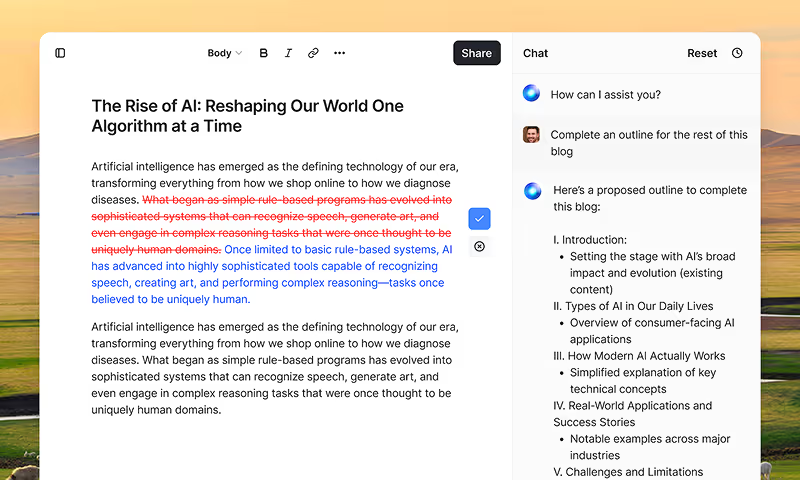
HyperWrite is the AI writing assistant that learns your style. It handles drafting, editing, and researching so you can focus on ideas.
- Autocompletes sentences as you type
- Works inside Google Docs & Gmail
- Adapts to your personal writing style
- 500+ AI tools for any writing task
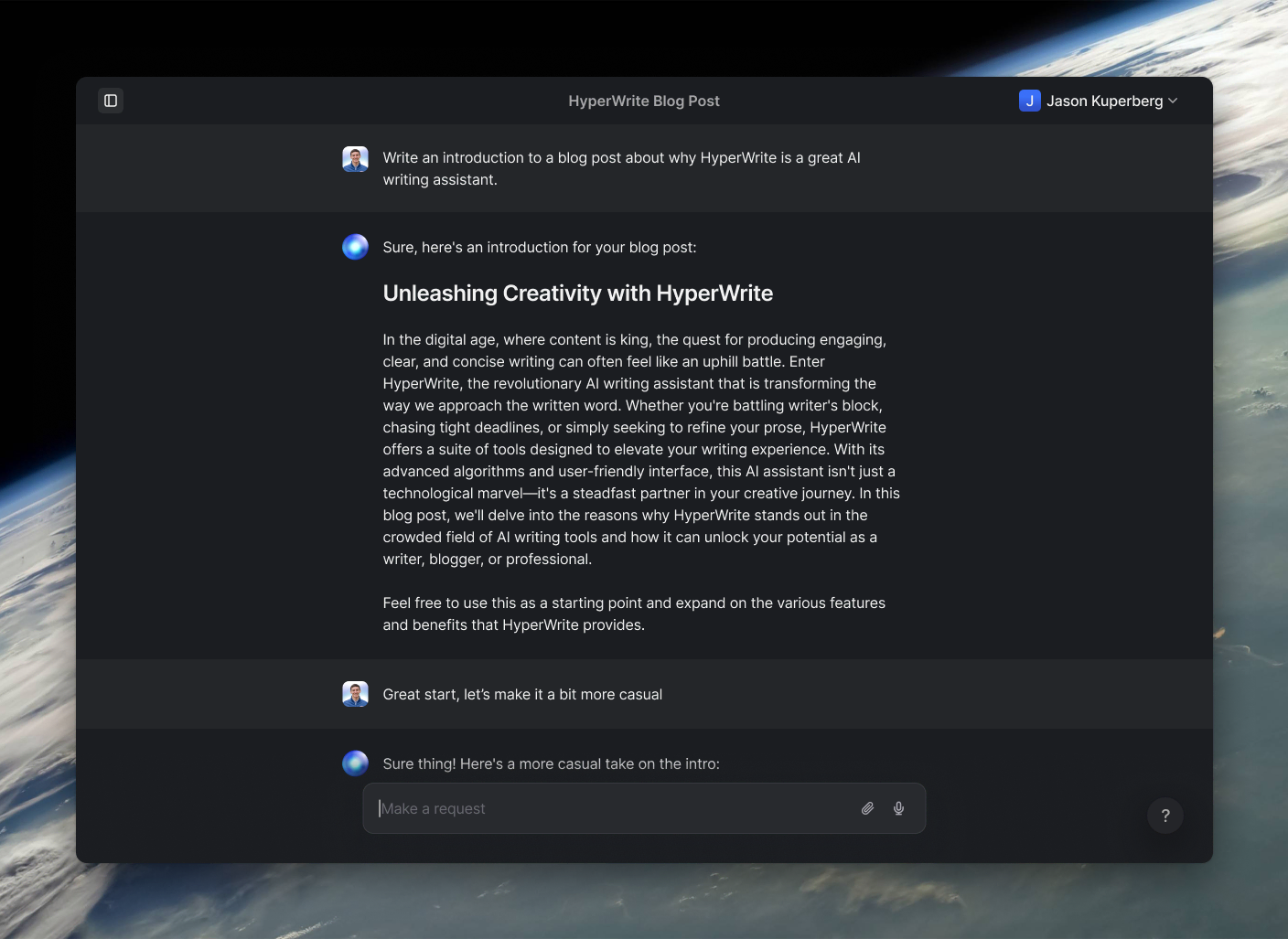
Powerful writing in seconds
Improve your existing writing or create high-quality content in seconds. From catchy headlines to persuasive emails, our tools are tailored to your unique needs.