
12 Best Knowledge Management Writing Tools for 2026

The answer is always somewhere. It's in a Google Doc nobody can find, a Slack thread that scrolled into the void six weeks ago, or the head of the one person who just went on leave. So you ask again. Someone re-explains it. And the knowledge quietly rots in a place nobody will look next time.
That's the problem knowledge management tools are supposed to solve. Most of them handle the storing-and-finding half well, but the harder half, actually writing and keeping the content current, is where teams quietly give up (and where most "best KM software" lists go quiet too).
I compared 12 knowledge management writing tools across team wikis, customer help centers, personal second-brain apps, and the AI layers now bolted onto most of them. Here's which one fits your team size and budget, which is built for personal use, what AI the team platforms ship in 2026, and how to actually keep the content from going stale.
TL;DR: Quick Picks
Short on time? Here's the one-line version of each pick.
- Notion: best for all-in-one team and personal knowledge. Flexible, friendly, with Notion AI on the Business plan.
- Confluence: best for engineering and large-team wikis. Strict permissions and page structure, from the makers of Jira.
- Guru: best for surfacing verified answers inside your workflow. Lives in Slack, Teams, and your browser.
- Document360: best for public and internal help centers. Proper documentation platform with versioning.
- Tettra: best for lean, Slack-first internal wikis. Answers your team's questions with AI.
- Slab: best for a clean, modern team wiki. Great editor, calm interface.
- Zendesk Knowledge: best for customer-facing support knowledge bases. Tied into Zendesk tickets.
- ClickUp: best for teams that want docs and projects in one place. Wiki plus tasks, with ClickUp Brain.
- Stonly: best for interactive, step-by-step guides. Decision trees instead of static articles.
- Obsidian: best for personal, local-first knowledge management. Your notes, your machine, your graph.
- Logseq: best for outliner-style notes and daily journals. Free, with block references built in.
- HyperWrite: best for writing the content your knowledge base holds. Speeds up every rewrite with TypeAhead, right in your browser.
What Are Knowledge Management Writing Tools?
Knowledge management writing tools are the software a team or an individual uses to capture, organize, write, and retrieve information so it can be found and reused later. Think SOPs, onboarding docs, FAQs, help-center articles, meeting notes, and the thousand small decisions that otherwise live in someone's memory.
In practice, they come in four shapes:
- Team wikis and internal knowledge bases: Notion, Confluence, Slab, Tettra. Built for a company's internal knowledge.
- Customer-facing help centers: Document360, Zendesk Knowledge, Stonly. Built for the docs your customers read.
- Personal knowledge management (PKM): Obsidian and Logseq, plus apps like Evernote. Built for one person's second brain.
- The AI layer: the assistants now sitting on top of most of the above, answering questions from your own docs.
Atlassian's 2025 State of Teams survey of 12,000 knowledge workers found that teams waste 25% of their time just searching for answers.
Empty or stale docs make that hunt longer, because a knowledge base only holds what someone took the time to write in it. Your knowledge base is also one piece of a wider digital workflow that most teams never fully map.
In the table below, I've labeled each pick Team, Personal, or Both, so you can skip straight to the ones built for your situation.
How I Compared These Tools
I weighed each tool on the things that actually decide whether a knowledge base survives contact with a real team: who it's built for (team versus personal), how good the writing and editing experience is, how fast you can find an answer later, what AI it ships, how well it plugs into Slack, Teams, and Google, and whether the pricing is honest about what you'll really pay.
I also read through recent user reviews to find the complaints that show up again and again, alongside the praise.
One housekeeping note: all pricing below was checked against each vendor's official pricing page in October 2026. Prices move, so confirm before you buy.
Knowledge Management Tools at a Glance
Best Knowledge Management Tools for Teams
These are the platforms built to hold a company's shared knowledge. Each one gets the same treatment: what it's good at, an honest limitation, what reviewers actually say, and what you'll pay.
1. Notion: Best for All-in-One Team and Personal Knowledge
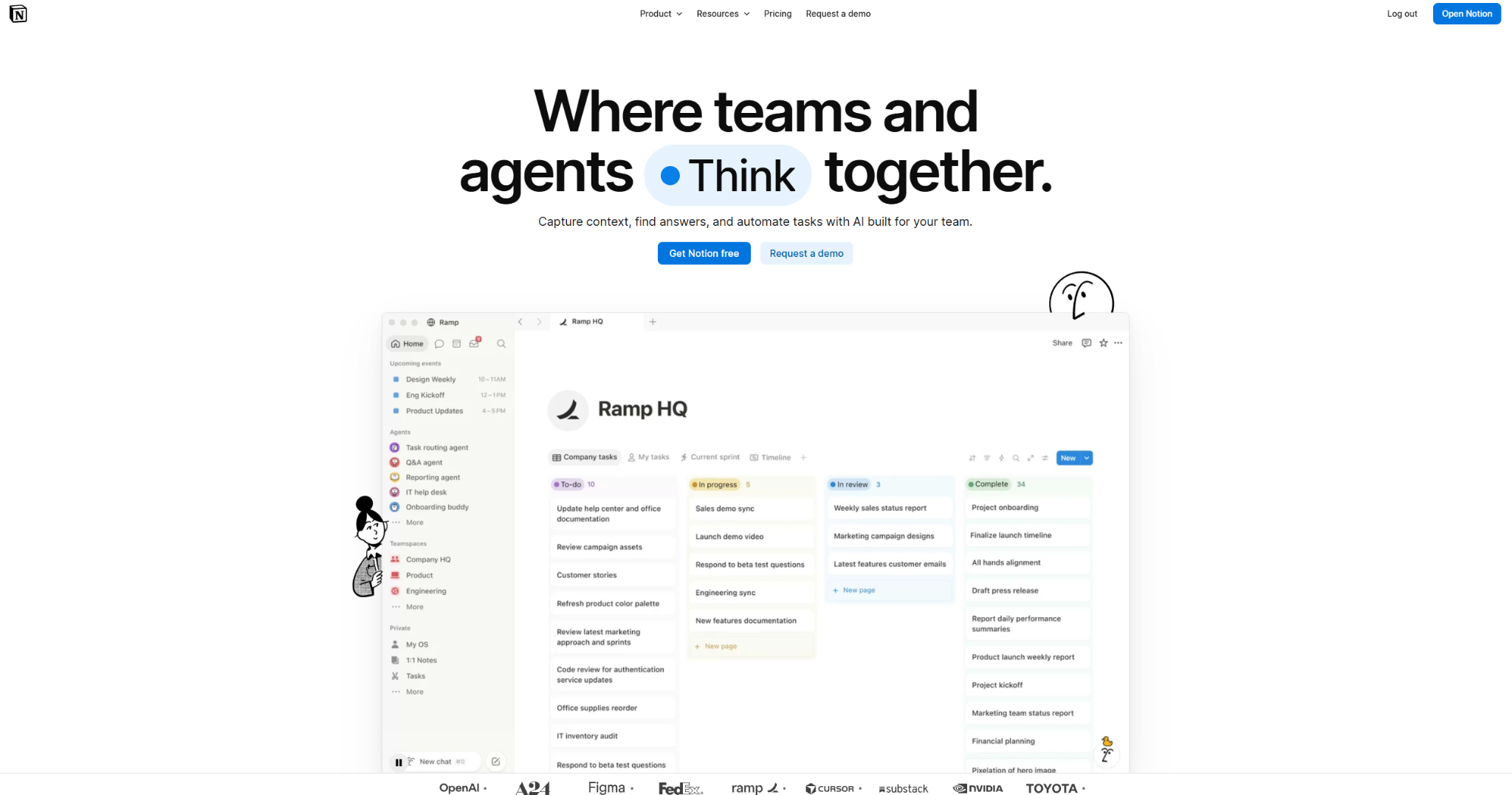
Notion is the Swiss Army knife of this list. Docs, wikis, databases, and project boards all live in one flexible workspace, and the same account works for a 200-person company or a single freelancer organizing their life.
Notion AI comes with the Business plan, so you can ask questions across your workspace, draft new pages, and summarize long docs without leaving the tool. Free and Plus only include a limited trial. For writing-heavy teams, that's the draw: the drafting and the storage sit in the same window.
Pros:
- ✅ One tool covers team wikis, personal notes, and lightweight project management.
- ✅ The editor is genuinely pleasant to write in, which means people actually use it.
- ✅ Huge template library and a big community, so you're rarely starting from scratch.
Cons:
- ❌ Freedom cuts both ways. Without setup discipline, a Notion workspace sprawls into a mess nobody can navigate.
- ❌ Search has historically been weak at scale, though Notion AI softens that.
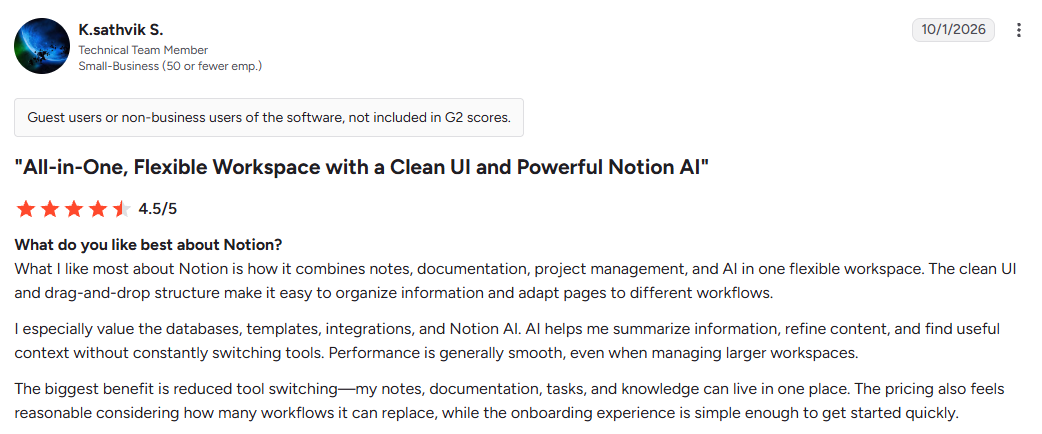
What users say: Reviewers love how much fits in one place. "What I like most about Notion is how it combines notes, documentation, project management, and AI in one flexible workspace," a technical team member wrote in an October 2026 G2 review.
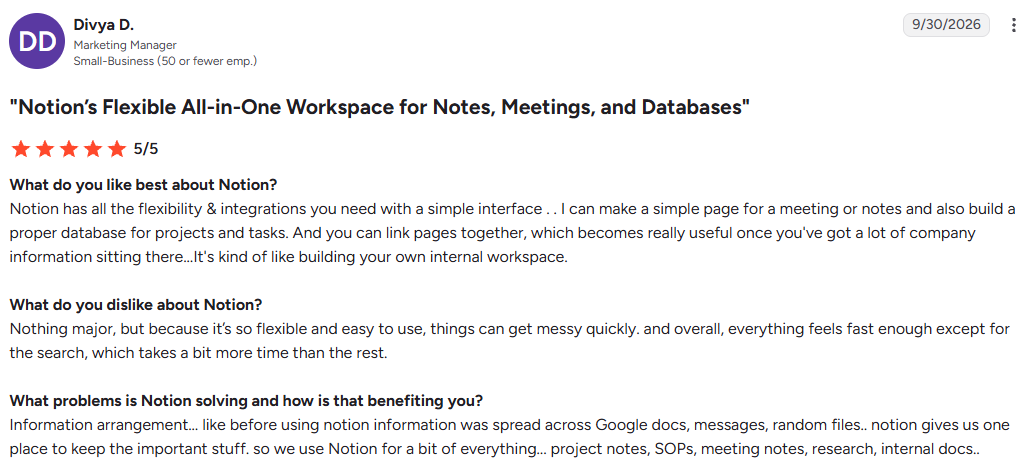
The flip side is mess: "Nothing major, but because it's so flexible and easy to use, things can get messy quickly," a marketing manager noted on G2.
If Notion's open-endedness isn't for you, there are plenty of leaner Notion alternatives worth a look.
Pricing: Free for personal use; Plus from $10 per member per month (billed annually), and Business, which includes Notion AI, from $20 per member per month (billed annually).
Best for: teams and individuals who want one flexible home for everything and don't mind investing in structure.
2. Confluence: Best for Engineering and Large-Team Wikis
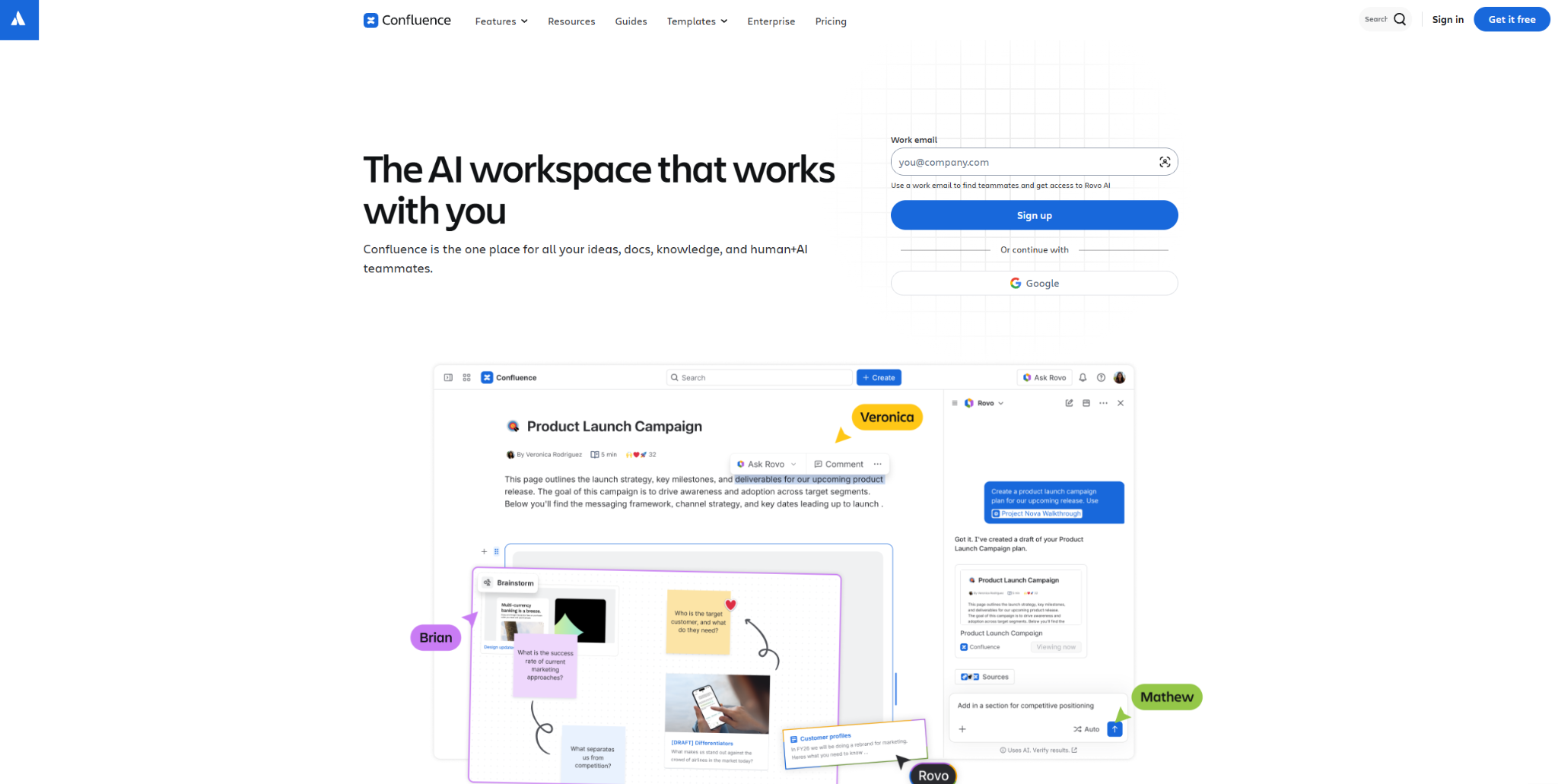
Confluence is Atlassian's team wiki, and it shows. It's structured, permissioned, and built for big organizations that need spaces, page hierarchies, and tight control over who can edit what. If your team already lives in Jira, Confluence is the natural knowledge home.
Atlassian Rovo, the AI included on Confluence's paid plans, adds AI search, summaries, and drafting across your spaces, so you can ask a question and get an answer pulled from your own documentation.
Pros:
- ✅ Serious structure and permissions for large teams and regulated environments.
- ✅ Deep integration with Jira and the rest of the Atlassian stack.
- ✅ Mature, battle-tested, and unlikely to disappear.
Cons:
- ❌ It's heavier than it needs to be for small or non-technical teams. The learning curve is real.
- ❌ The editing experience feels dated next to Notion or Slab.
What users say: Engineers praise the Jira link. "When I'm looking at a user story or a bug, I can usually jump straight to the related documentation without wasting time," a test engineer wrote in an August 2026 G2 review.
Newer users say it takes time to click: "It only really starts to make sense once you have worked in it for awhile," an IT services reviewer noted on G2.
Pricing: Free for up to 10 users; Standard is $7.15 per user per month on monthly billing for teams up to 100, or $720 a year for up to 10 users on annual billing, with a lower per-user price for bigger teams.
Best for: engineering orgs and large teams already on Atlassian tools.
3. Guru: Best for Surfacing Verified Answers Inside Your Workflow
Guru's whole pitch is that you shouldn't have to go looking for knowledge. It surfaces answers where you already work, through a browser extension and inside Slack and Teams, and it bakes in verification so every card has a designated verifier and can be set to come up for review on a schedule.
Knowledge Agents, Guru's AI, answer questions from your Guru Cards and connected sources like Google Drive, Slack, and Confluence, and unverify content that's outdated or flagged. That verification loop is Guru's best-known feature.
Pros:
- ✅ Answers appear inside Slack, Teams, and the browser, so adoption is easy.
- ✅ Built-in verification keeps content from quietly going out of date.
- ✅ Strong for support and sales teams who need fast, trusted answers.
Cons:
- ❌ It's less suited to being a public-facing help center or a long-form documentation hub.
- ❌ Card-based knowledge can feel fragmented if you're used to full documents.
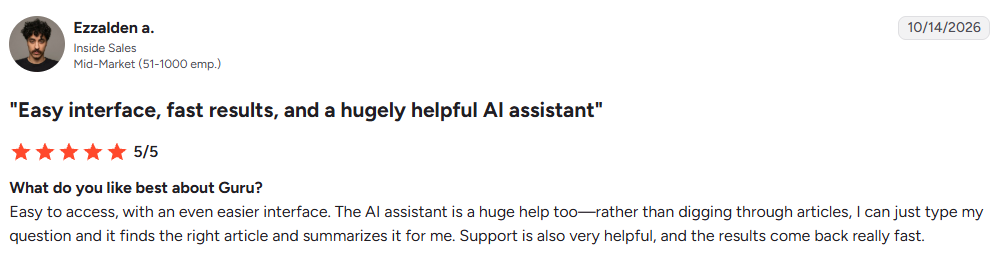
What users say: Support and sales reps like how fast answers surface mid-task. "I can just type my question and it finds the right article and summarizes it for me," an inside sales rep wrote in an October 2026 G2 review.
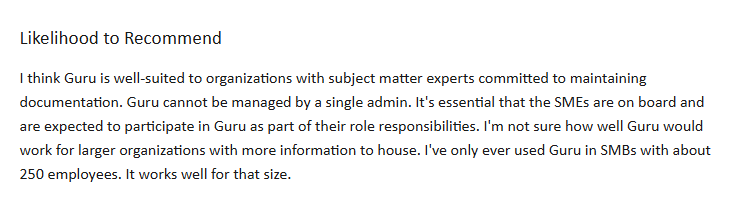
The recurring caveat is that someone has to own the content: "Guru cannot be managed by a single admin," a program manager noted in a July 2026 TrustRadius review.
Pricing: Custom, scoped to your team's scale, knowledge complexity, and AI needs (Guru quotes pricing during an initial call rather than publishing per-seat tiers).
Best for: support, sales, and ops teams who need verified answers without leaving their tools.
4. Document360: Best for Public and Internal Help Centers
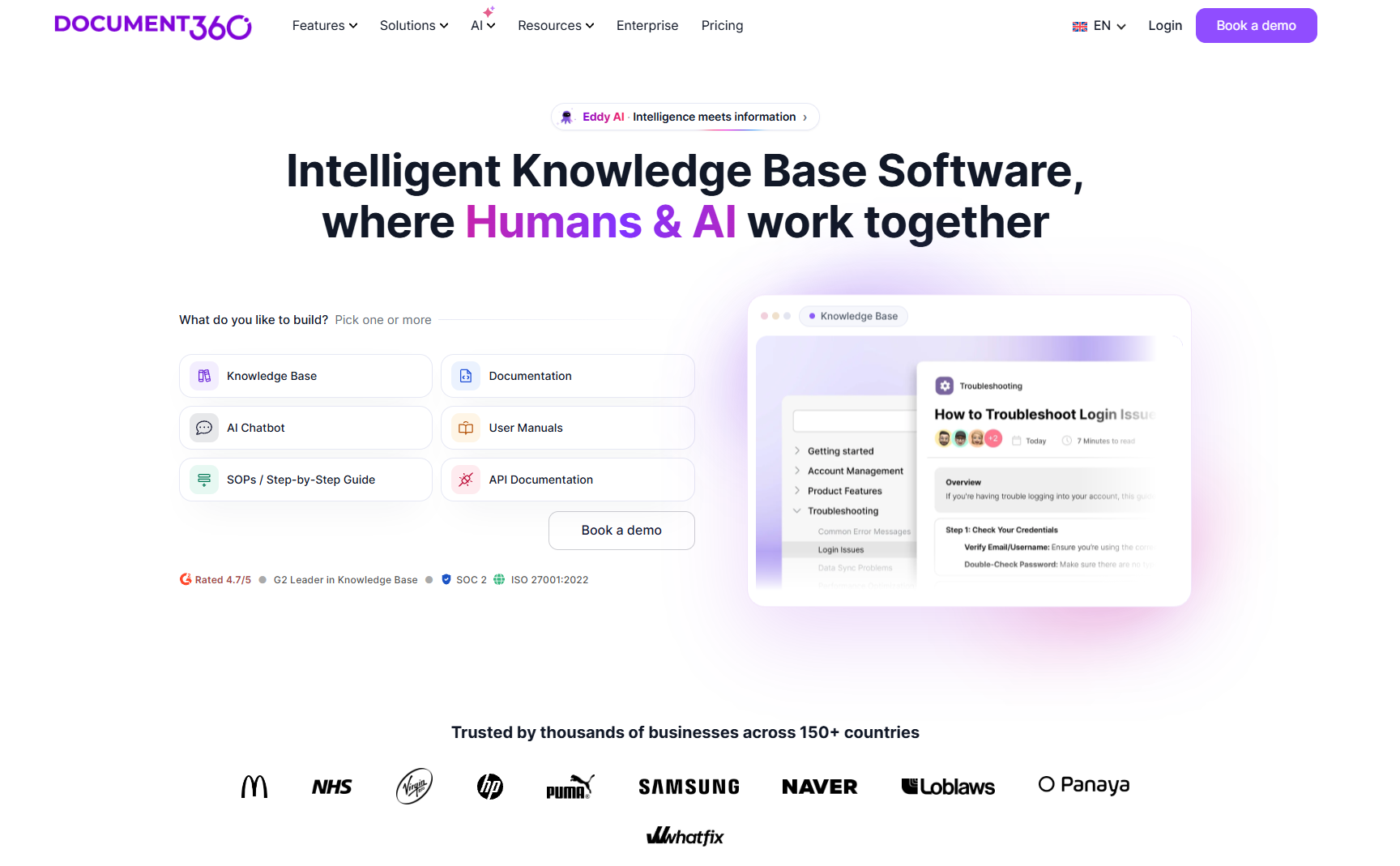
Document360 is a proper documentation platform. Categories, versioning, review workflows, and a clean reader experience make it a strong pick for teams publishing a real help center, product docs, or an internal knowledge base that needs to look polished.
Its Eddy AI assistant answers reader questions from your docs and helps writers draft and improve articles.
Pros:
- ✅ Purpose-built for documentation, with versioning and review workflows done right.
- ✅ Works for both public help centers and private internal knowledge bases.
- ✅ Clean, searchable reader experience out of the box.
Cons:
- ❌ Pricing steps up quickly as you add projects and accounts.
- ❌ It's more tool than you need if you only want a small internal wiki.
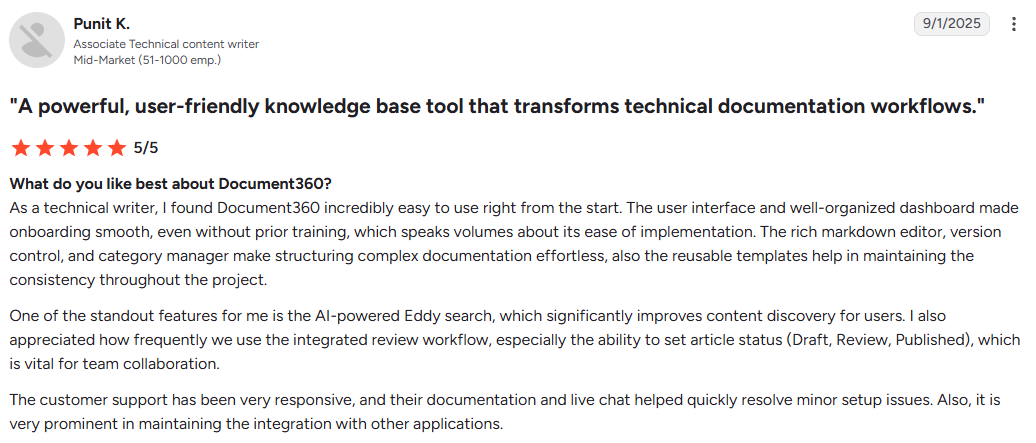
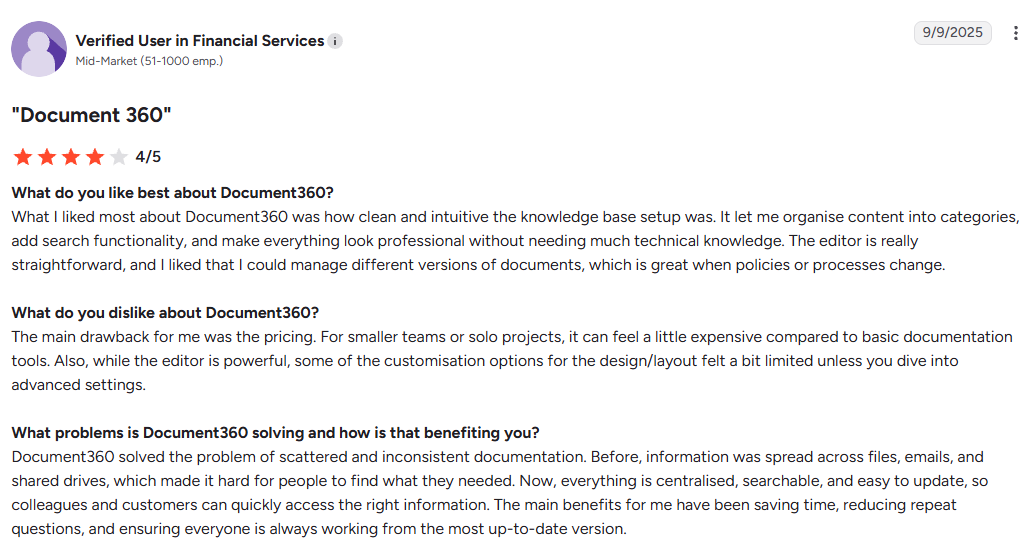
What users say: Documentation teams rate the structure and versioning highly. "The rich markdown editor, version control, and category manager make structuring complex documentation effortless," a technical content writer wrote in a September 2025 G2 review.
The most common pushback is price: "For smaller teams or solo projects, it can feel a little expensive compared to basic documentation tools," a financial services reviewer noted on G2.
Pricing: Custom pricing, scoped to your workspaces, team accounts, languages, and AI usage.
Best for: teams publishing serious documentation or a customer-facing help center.
5. Tettra: Best for Lean, Slack-First Internal Wikis
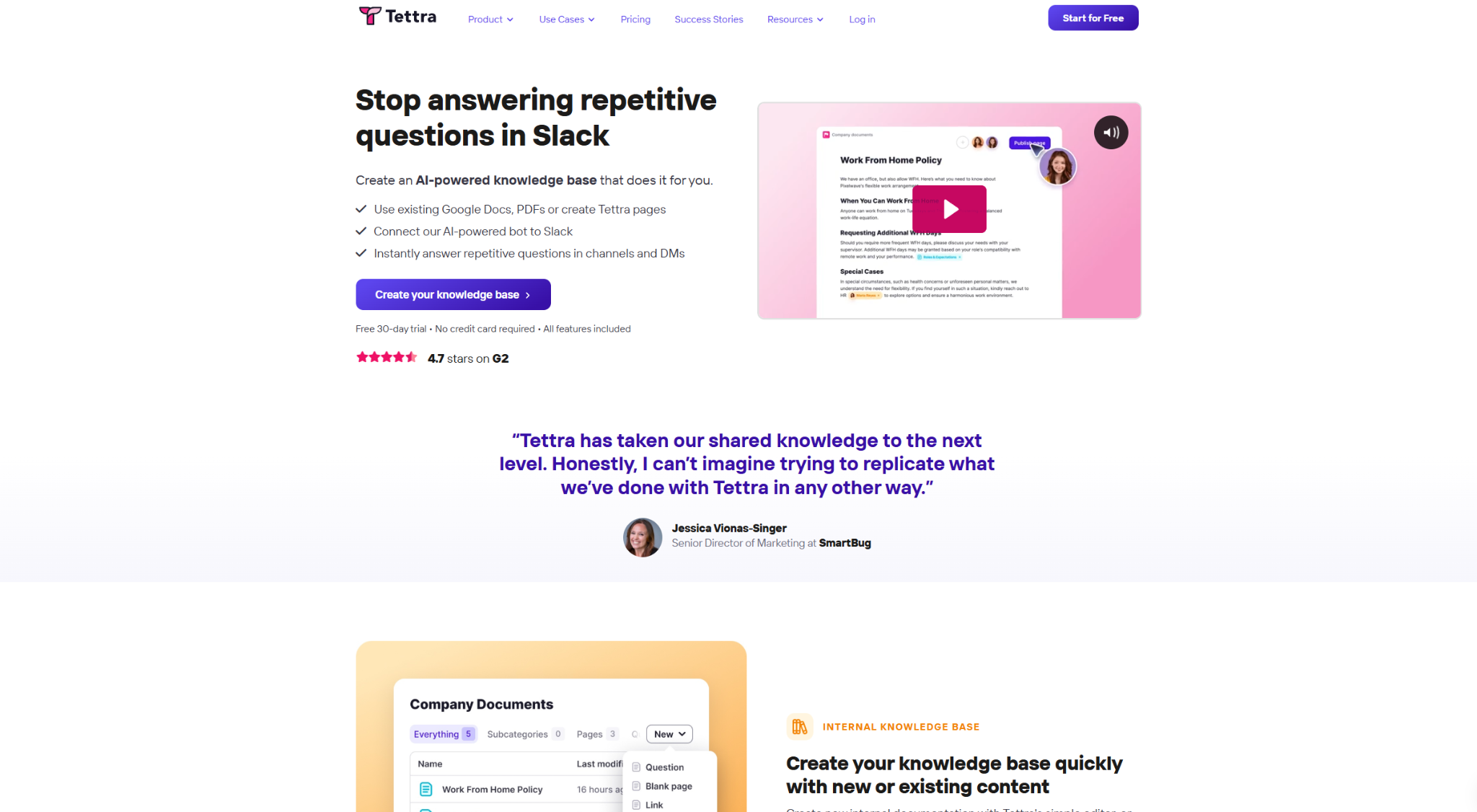
Tettra keeps things deliberately simple. It's a lightweight internal wiki built around Slack, where people ask questions, get routed to the right doc or expert, and content gets verified over time. For a small team that finds Confluence overwhelming, Tettra is a relief.
Its AI answers questions from your existing content, so common questions stop clogging your Slack channels.
Pros:
- ✅ Genuinely easy to set up and keep tidy.
- ✅ Slack-native Q&A fits how small teams already communicate.
- ✅ Verification workflow keeps a small knowledge base trustworthy.
Cons:
- ❌ Fewer formatting and structure features than Confluence or Document360.
- ❌ Teams can outgrow it once the knowledge base gets large.
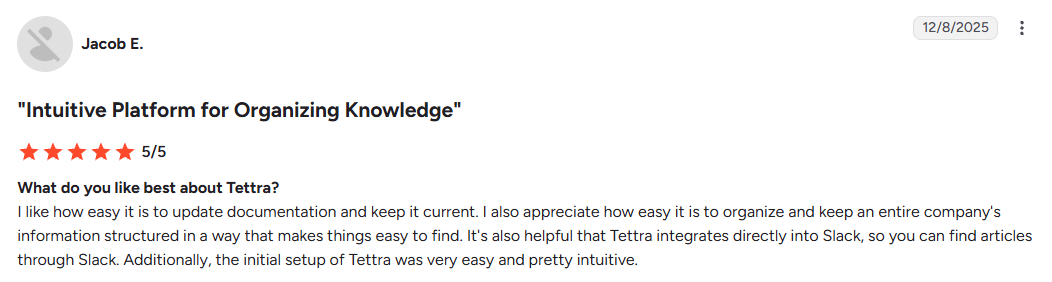
What users say: Small teams love the simplicity and the Slack integration. "It's also helpful that Tettra integrates directly into Slack, so you can find articles through Slack," one reviewer wrote in a December 2025 G2 review.
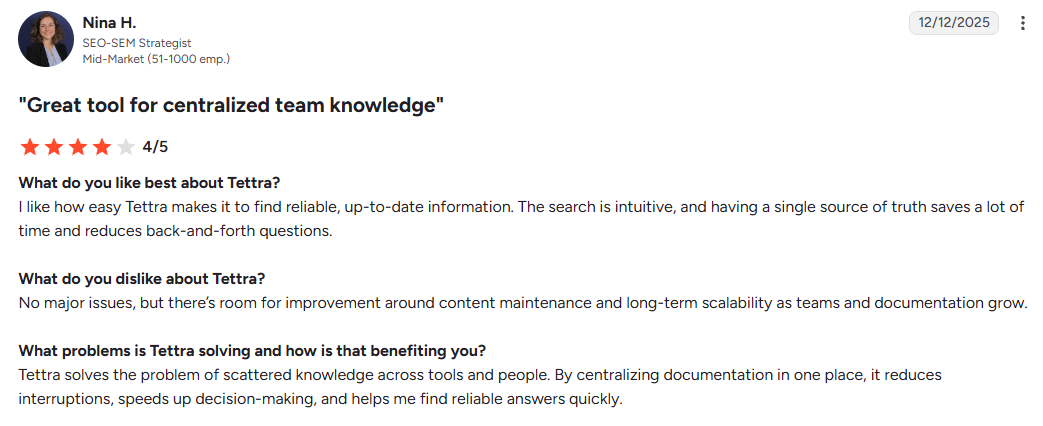
Growing teams sometimes bump into its ceiling: "There's room for improvement around content maintenance and long-term scalability as teams and documentation grow," an SEO strategist noted on G2.
Pricing: From $10 per user per month billed monthly, or $8 billed annually, with a 10-user minimum and a 30-day free trial.
Best for: lean, Slack-centric teams that want a wiki without the overhead.
6. Slab: Best for a Clean, Modern Team Wiki
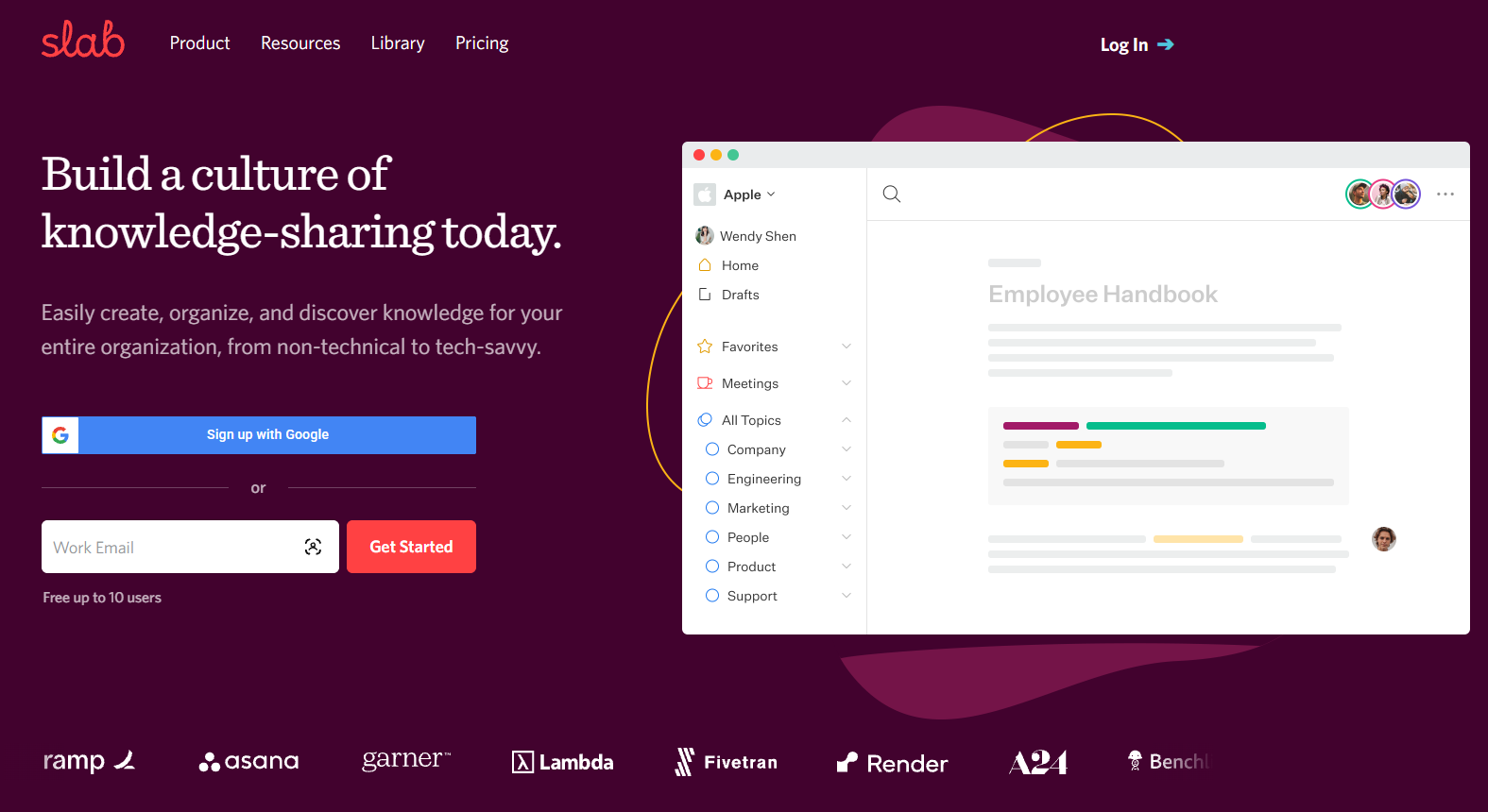
Slab is what you'd design if you cared most about the writing experience. The editor is excellent, the organization system ("Topics") is intuitive, and the whole thing feels calm instead of cluttered. It integrates with Slack, Google, and the usual suspects.
Slab's AI scales with the plan. Startup adds AI Autofix, which catches and fixes typos as you edit. Business adds AI Predict, which suggests your next words, and AI Ask, which answers questions from your team's content.
Pros:
- ✅ One of the best editors in the category. Writing in it is a pleasure.
- ✅ Clean, uncluttered interface that newcomers understand instantly.
- ✅ Solid search and a sensible organization model.
Cons:
- ❌ Lighter on AI features than peers like Notion or Guru.
- ❌ Formatting options are limited, and permissions can be hard to manage across many teams.
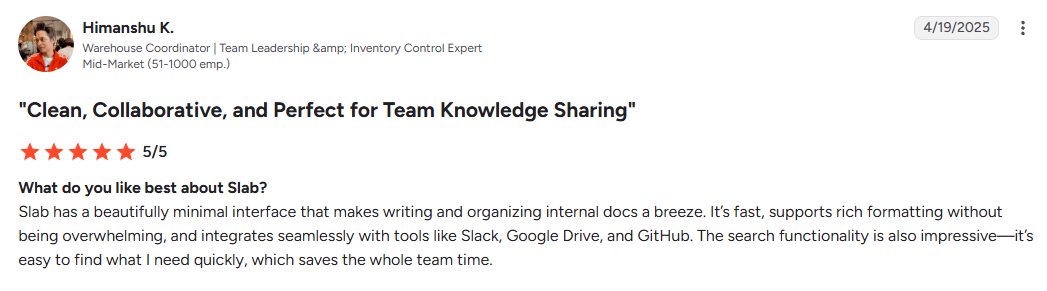
What users say: Writers and smaller teams praise how clean and fast it feels. "Slab has a beautifully minimal interface that makes writing and organizing internal docs a breeze," a warehouse coordinator wrote in an April 2025 G2 review.
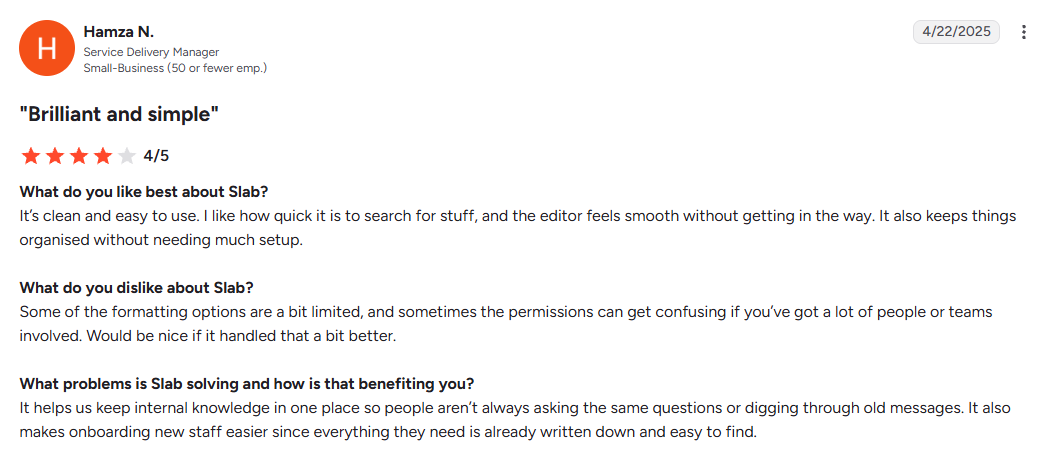
The common complaints are formatting and permissions: "Some of the formatting options are a bit limited, and sometimes the permissions can get confusing if you've got a lot of people or teams involved," a service delivery manager noted on G2.
Pricing: Free for up to 10 users; paid plans from $8 per user per month billed monthly, or $6.67 billed annually.
Best for: teams that want a beautiful, writing-first wiki without the bloat.
7. Zendesk Knowledge (formerly Zendesk Guide): Best for Customer-Facing Support Knowledge Bases

If your knowledge base exists mainly so customers can help themselves, Zendesk Knowledge is built for exactly that. It's the knowledge layer inside the Zendesk support suite, so your help articles, tickets, and AI agents all share the same system.
Zendesk's AI agents answer customer questions from your help center, and article recommendations surface relevant articles to human agents inside the ticket.
Pros:
- ✅ Tightly connected to Zendesk tickets and support workflows.
- ✅ Strong self-service deflection, so fewer tickets reach your team.
- ✅ Mature AI agents trained on your help content.
Cons:
- ❌ It's overkill (and over-budget) if you're not already running Zendesk support.
- ❌ Priced per agent, which adds up fast for larger support teams.
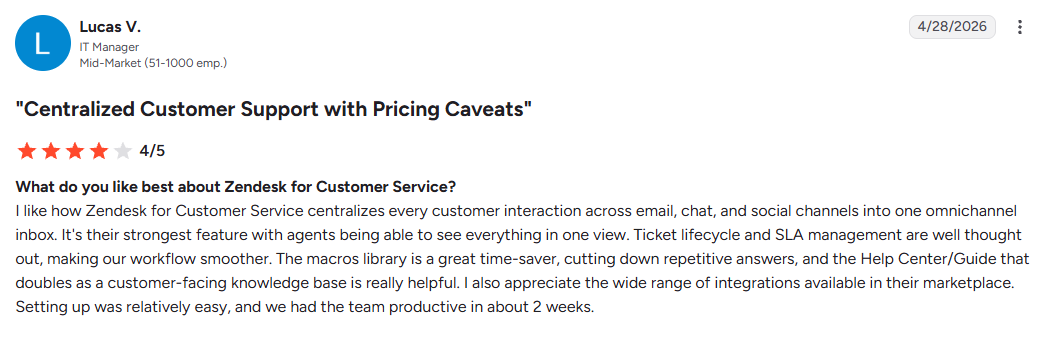
What users say: Support teams on Zendesk like having the help center in the same system as their tickets. An IT manager called "the Help Center/Guide that doubles as a customer-facing knowledge base" really helpful in an April 2026 G2 review.
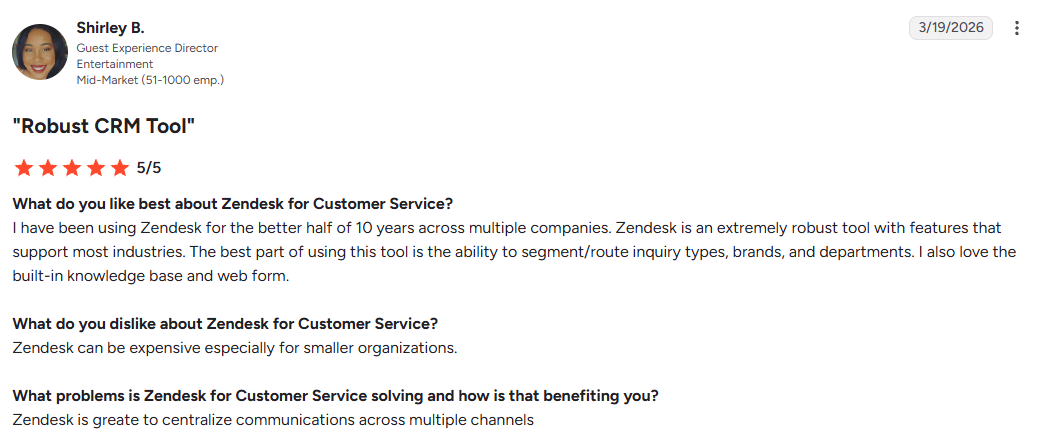
Cost is the common complaint: "Zendesk can be expensive especially for smaller organizations," a guest experience director noted in a March 2026 G2 review.
Pricing: Bundled into Zendesk Suite, from $55 per agent per month billed annually ($69 billed monthly) on Suite Team.
Best for: customer support teams already living inside Zendesk.
8. ClickUp: Best for Teams That Want Docs and Projects in One Place
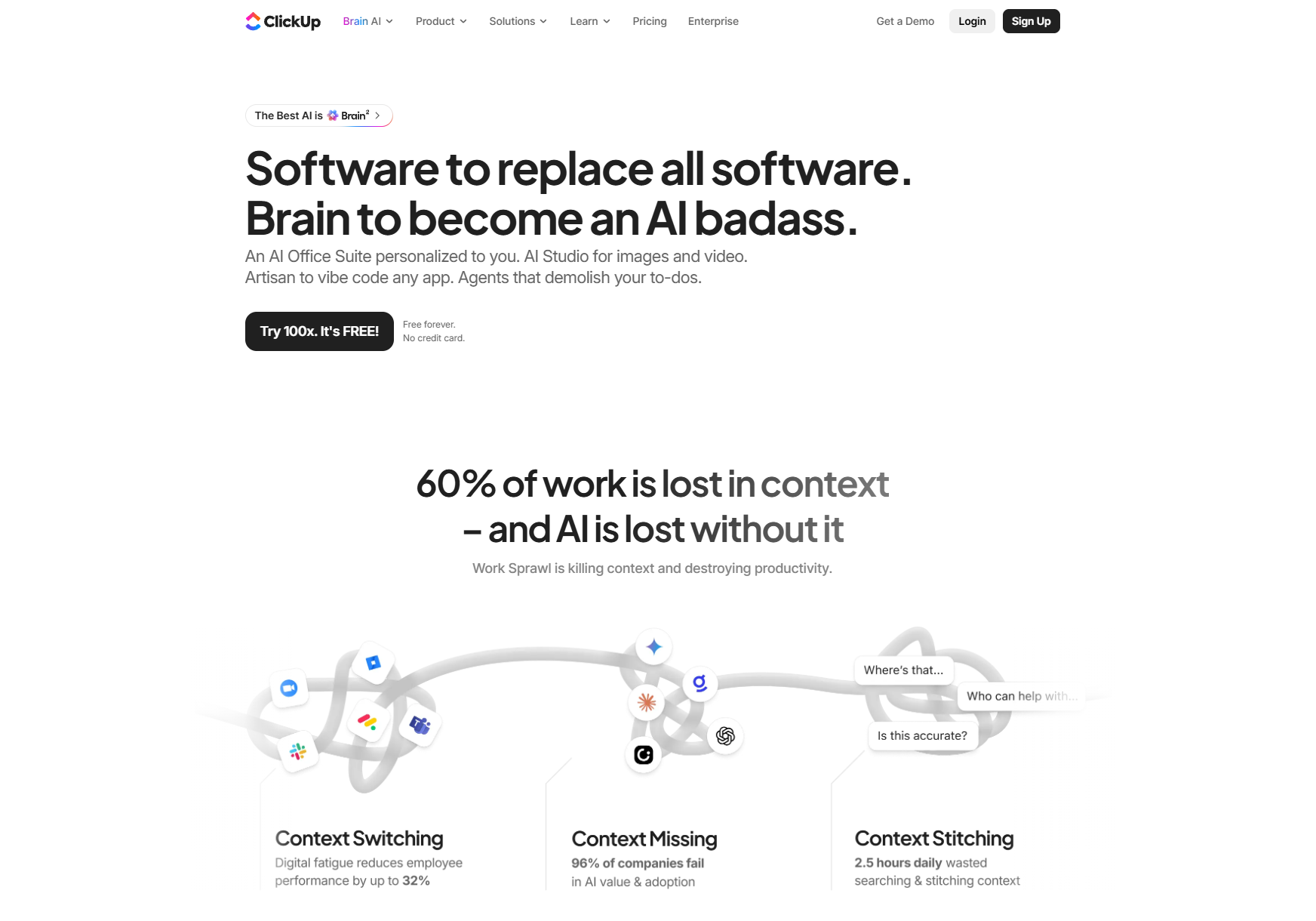
ClickUp started as a project management tool and grew a genuine documents-and-wiki layer on top. For teams tired of context-switching between a task tracker and a separate wiki, having both in one place is the draw, and it works for personal productivity too.
ClickUp Brain, its AI layer, answers questions across your docs and tasks, drafts content, and summarizes projects. If your team juggles documentation and delivery together, it's worth weighing against the other AI tools built for product managers.
Pros:
- ✅ Docs, wikis, and tasks live in one connected workspace.
- ✅ ClickUp Brain ties knowledge directly to the work it describes.
- ✅ Flexible enough for both team knowledge and personal planning.
Cons:
- ❌ The sheer density of features makes for a steep learning curve.
- ❌ As a pure wiki, it's less focused than Slab or Confluence.
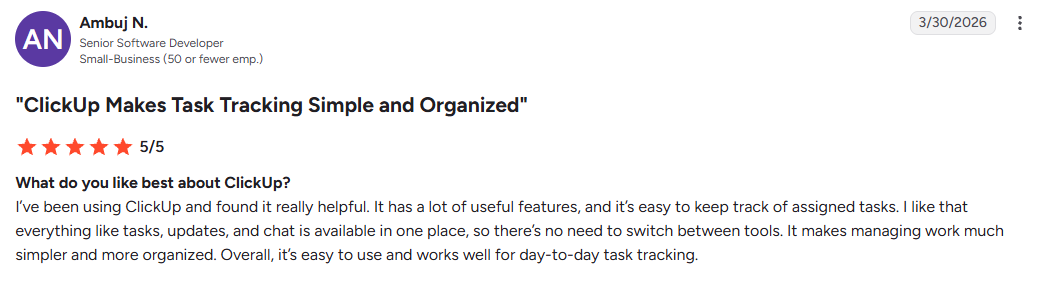
What users say: Teams like consolidating their stack into one tool. "I like that everything like tasks, updates, and chat is available in one place, so there's no need to switch between tools," a senior software developer wrote in a March 2026 G2 review.
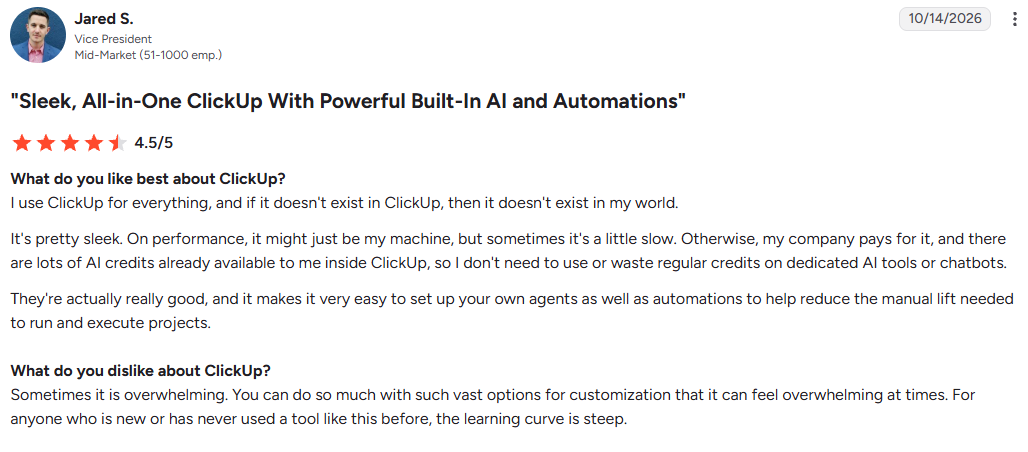
The repeated complaint is that it can be too much: "You can do so much with such vast options for customization that it can feel overwhelming at times," a vice president noted in an October 2026 G2 review.
Pricing: Free plan available; paid plans from $7 per user per month billed annually ($10 billed monthly). Every plan includes a limited ClickUp Brain trial, and unlimited Brain comes with the Brain AI add-on on paid plans, from $9 per user per month billed annually.
Best for: teams that want their documentation and their projects under one roof.
9. Stonly: Best for Interactive, Step-by-Step Guides
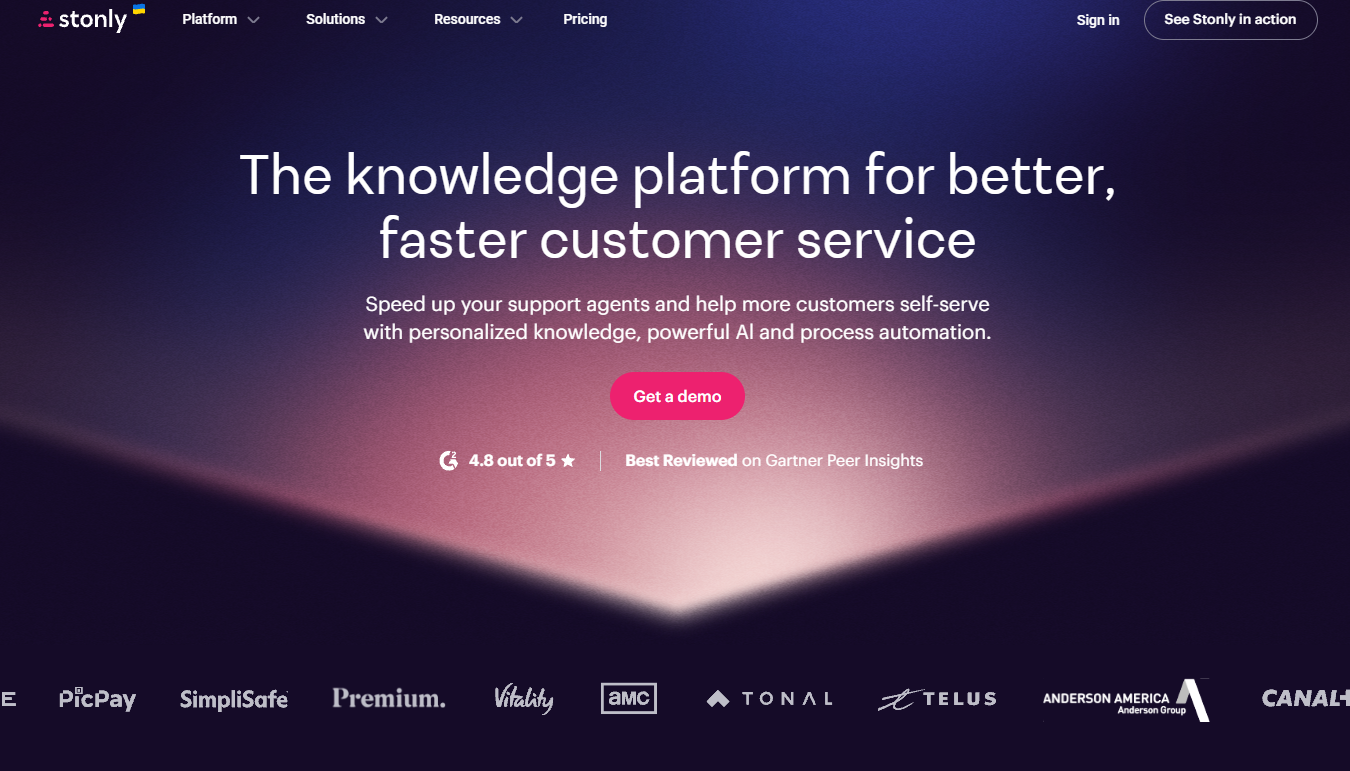
Stonly builds interactive guides and decision trees that walk a user through a process one step at a time. For onboarding, troubleshooting, and support flows, that format often beats a wall of text.
On Enterprise, its Knowledge Agents add-on can draft new guides from documents you supply and flag outdated content.
Pros:
- ✅ Interactive, step-by-step format is excellent for onboarding and troubleshooting.
- ✅ Decision trees reduce support load for complex, branching processes.
- ✅ Embeddable guides work inside your product or help center.
Cons:
- ❌ Narrower than a general-purpose wiki. It's a specialist tool that won't be the home for everything you know.
- ❌ Building good interactive guides takes more upfront effort than writing an article.
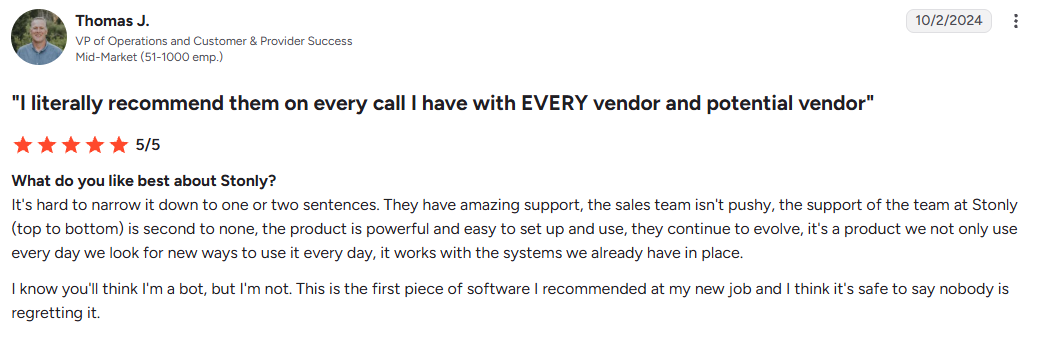
What users say: Support and onboarding teams praise the guided format and the deflection it drives. "This ticket deflection allows us to spend more time on issues that actually need human intervention," a VP of operations wrote in an October 2024 G2 review.
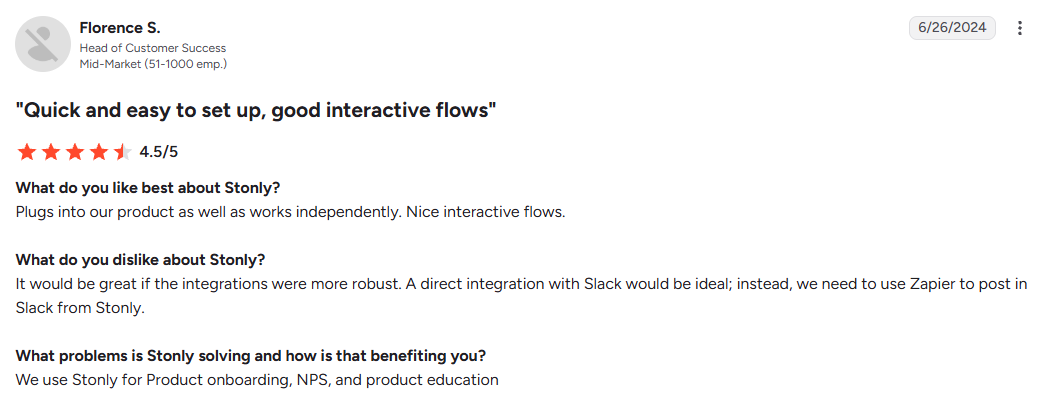
The main gripe is integrations: "A direct integration with Slack would be ideal; instead, we need to use Zapier to post in Slack from Stonly," a head of customer success noted in a June 2024 G2 review.
Pricing: A 14-day Small Business trial, then a free Basic plan (400 guide views a month, 5 published guides, 1 team member); Small Business and Enterprise don't list prices, and AI Agents are available on Enterprise.
Best for: support and onboarding teams who need interactive, guided walkthroughs for complex processes.
Best Tools for Personal Knowledge Management
Team wikis are overkill when the "team" is just you. For personal knowledge, you want speed, privacy, and a system that bends to how your brain works.
10. Obsidian: Best for Personal, Local-First Knowledge
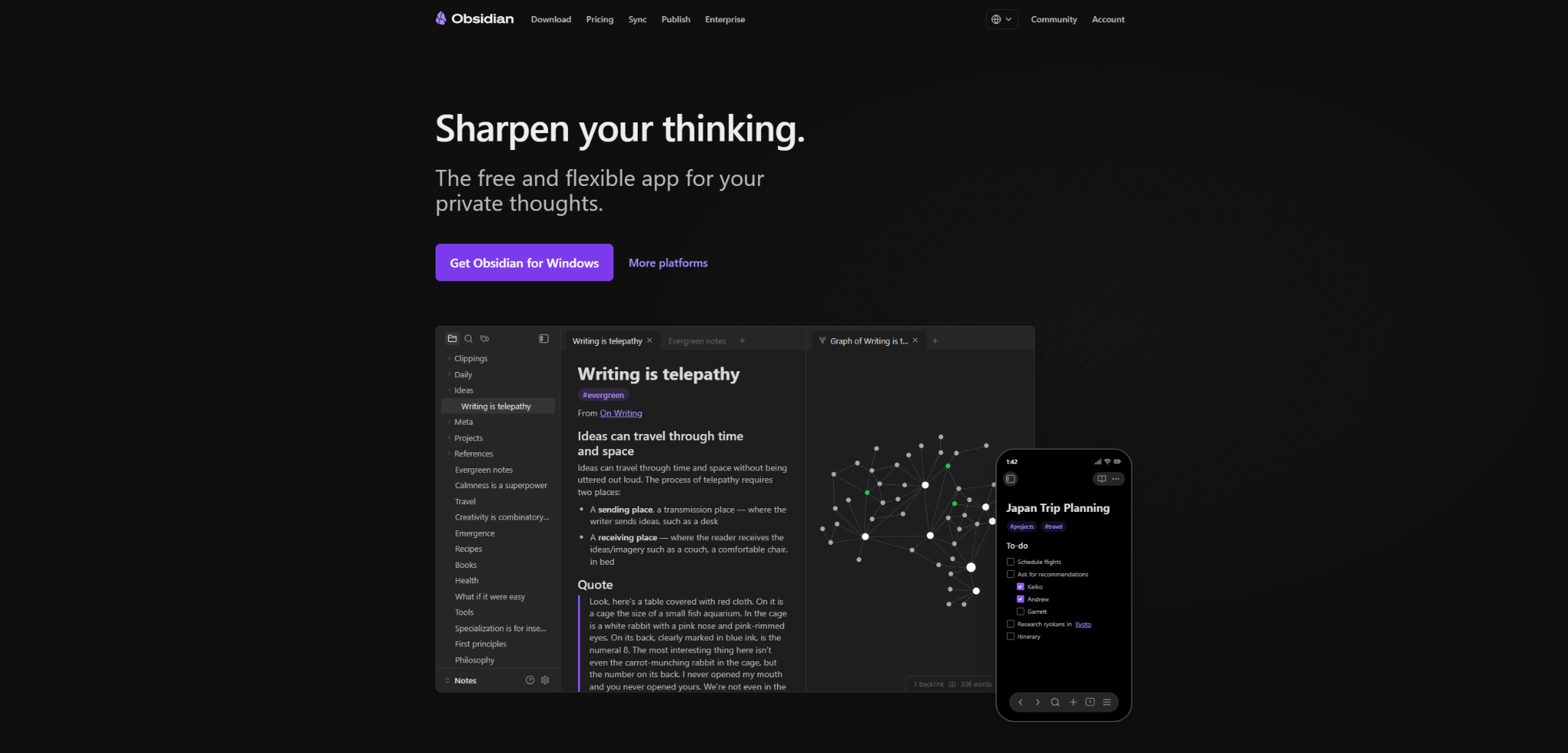
Obsidian is the flagship of the second-brain movement, and for good reason. Your notes are plain Markdown files stored on your own machine, linked together into a graph you can actually see. Nothing is locked in a vendor's cloud, and a huge plugin community extends it in every direction you can imagine.
Pros:
- ✅ Local-first and private. Your notes are yours, as files, forever.
- ✅ Backlinks and the graph view make connecting ideas genuinely fun.
- ✅ Thousands of community plugins, including AI add-ons for drafting and search.
Cons:
- ❌ The setup-and-plugin rabbit hole can become procrastination in disguise.
- ❌ Collaboration is an add-on here, so treat it as a personal tool first.
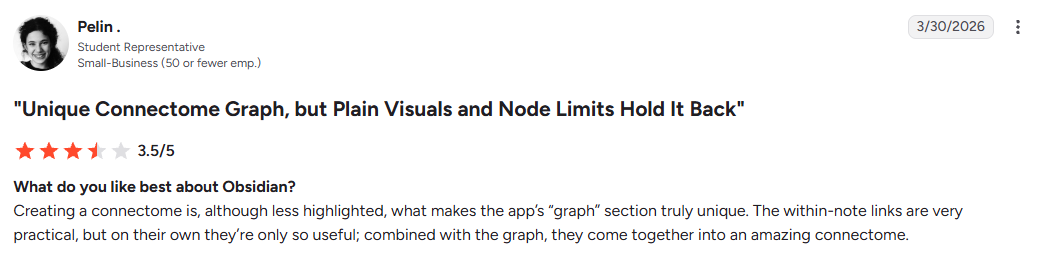
What users say: Power users and researchers love the control and the linking. "The within-note links are very practical, but on their own they're only so useful; combined with the graph, they come together into an amazing connectome," a medical student wrote in a March 2026 G2 review.
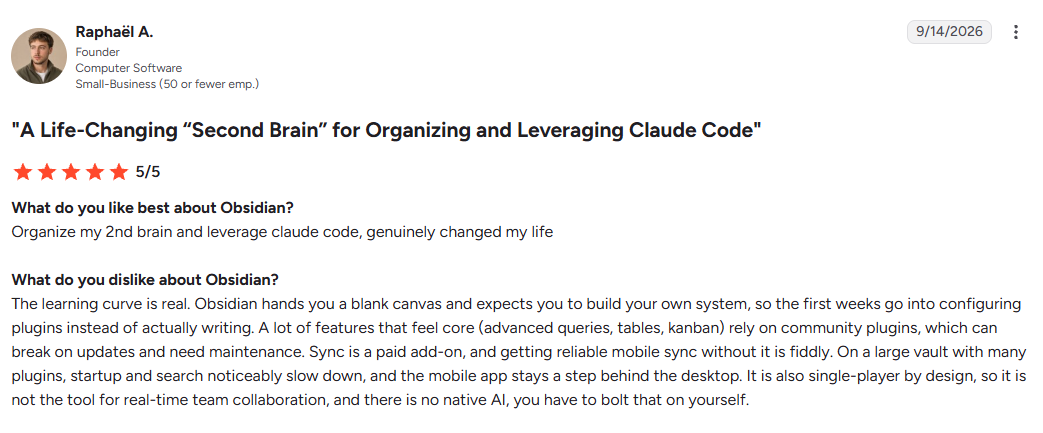
The common critique is setup time: "Obsidian hands you a blank canvas and expects you to build your own system, so the first weeks go into configuring plugins instead of actually writing," a software founder noted in a September 2026 G2 review.
Pricing: Free, including for work; Sync from $4 per month billed annually ($5 monthly), plus an optional commercial license at $50 per user per year.
Best for: individuals who want a private, flexible, local-first knowledge system. If you're mostly trying to stay organized at work, it's a strong anchor, with OneNote and Evernote as lighter alternatives worth a look.
11. Logseq: Best for Outliner-Style Notes and Daily Journals
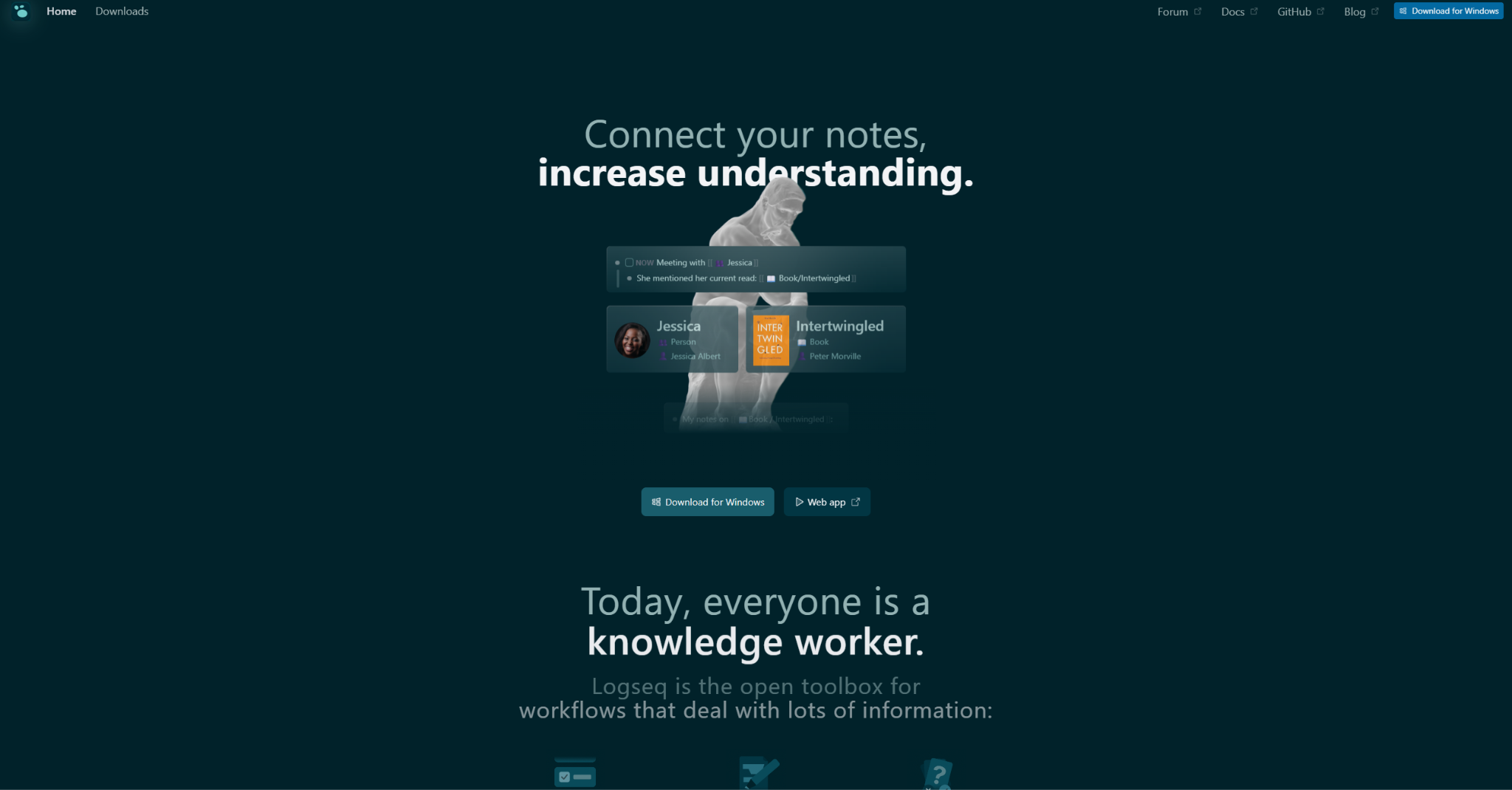
Logseq is an outliner. Every note is a bullet, and every bullet can be linked or pulled into any other page. It opens on a daily journal page, so you capture a thought first and decide where it belongs later.
Mobile apps are available for iOS and Android, and more than 150 community plugins and 30+ themes let you shape it to how you work.
Pros:
- ✅ Block references let you reuse one line across many pages, which is hard to do in page-based apps.
- ✅ Queries, flashcards, PDF annotation, and task management come built in, so research and study notes don't need extra plugins.
- ✅ It costs nothing, even for work, and keeps your notes on your own device.
Cons:
- ❌ The bullet-first layout suits notes better than long-form writing.
- ❌ Its new database version is still in beta, and sync and mobile trail behind Obsidian.
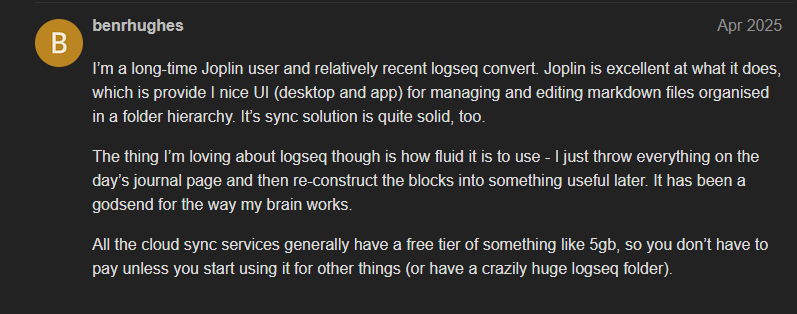
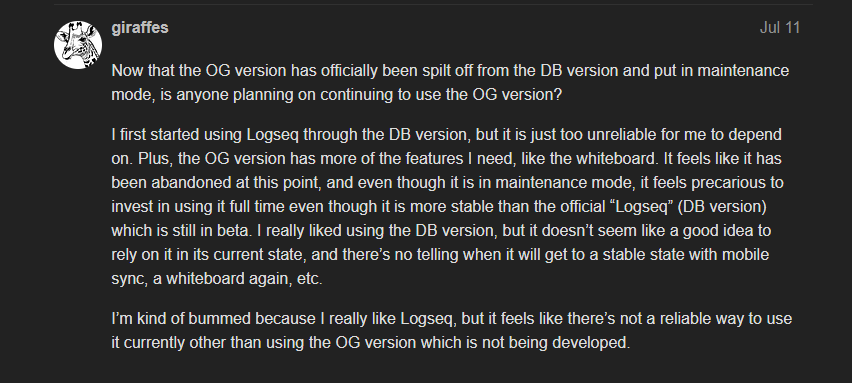
What users say: Researchers and students love block references and the journal-first flow. "I just throw everything on the day's journal page and then re-construct the blocks into something useful later," one user wrote on the Logseq forum in April 2025.
The recurring complaints are sync and the app's split into a maintenance-only Markdown version and a still-maturing database version, which one user said leaves "no telling when it will get to a stable state with mobile sync," in a July 2026 forum post.
Pricing: Free and open source. Logseq Sync, still in beta, is a paid extra for Open Collective backers at $5 or $15 a month.
Best for: people who think in outlines and want a free, private home for daily notes and research.
The Writing Layer: Where the Content Actually Comes From
Every tool above is built to store knowledge, and most of the team platforms can draft a page with AI, but the upkeep still falls to your team.
Someone has to draft the SOP, write the FAQ, document the process, and then go back and update all of it when things change. Stale docs are one of the fastest ways to lose people's trust in a knowledge base, and keeping content current is a writing job.
12. HyperWrite: Best for Writing the Content Your Knowledge Base Holds
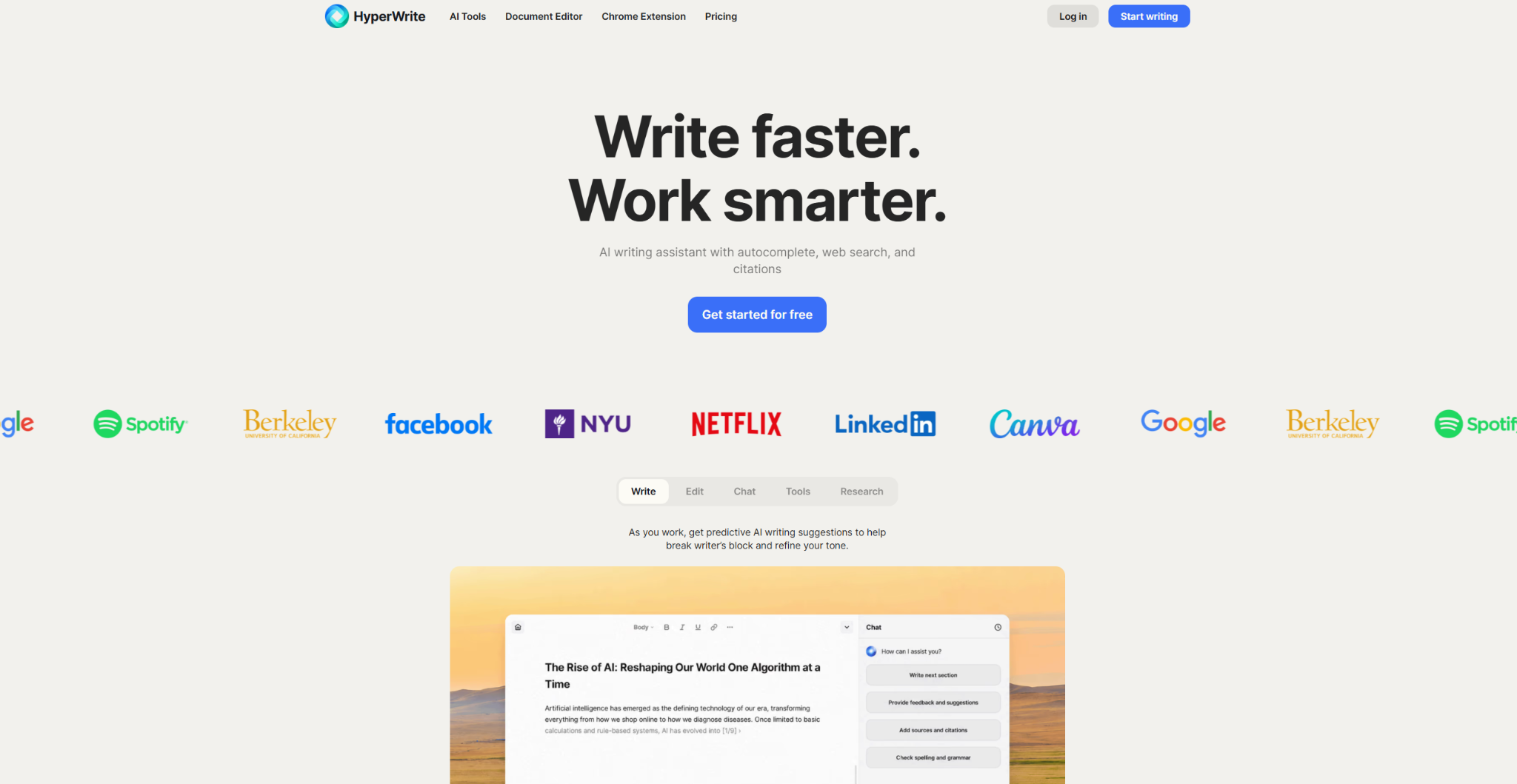
HyperWrite sits on top of whatever knowledge base you already use and helps you do that writing job faster. It's a writing co-pilot that lets you draft, rewrite, and keep content fresh in Notion, Confluence, or wherever your docs live, with AI that works in your voice.
With HyperWrite, professionals can:
- Draft SOPs, FAQs, and help-center articles from a short prompt with AutoWrite.
- Get context-aware sentence completions inside Notion, Confluence, Google Docs, or Zendesk with TypeAhead, which reads your open browser tabs and predicts your next full sentence in your voice (real sentences the way a co-writer drafts them, well past the single-word guesses of phone autocomplete).
- Keep your docs in a consistent voice with Personas.
- Rewrite and tighten a stale entry without leaving the page it lives on.
- Turn a messy, buried Slack answer into a clean, reusable knowledge base article.
- Lean on the AI Writing Assistant for writing-tuned prompts, faster than ChatGPT-style thinking models.
Pros:
- ✅ Helps you write and update content in your voice, in any browser tab where your knowledge base lives.
- ✅ Personas tune the AI to your writing style, with 3 on Premium and 10 on Ultra.
- ✅ Fast enough to use in the flow of work, so updating docs stops being a separate chore.
Cons:
- ❌ HyperWrite is not a knowledge base, so you'll pair it with one of the platforms above to publish, organize, and search your articles.
- ❌ The free plan includes only limited monthly credits, so regular knowledge base work will likely need Premium.
Professionals at Google, Netflix, LinkedIn, and Spotify already use it for daily writing, and the same thing that helps them write a sharp email helps a team write a clear, well-structured doc their knowledge base can actually hold.
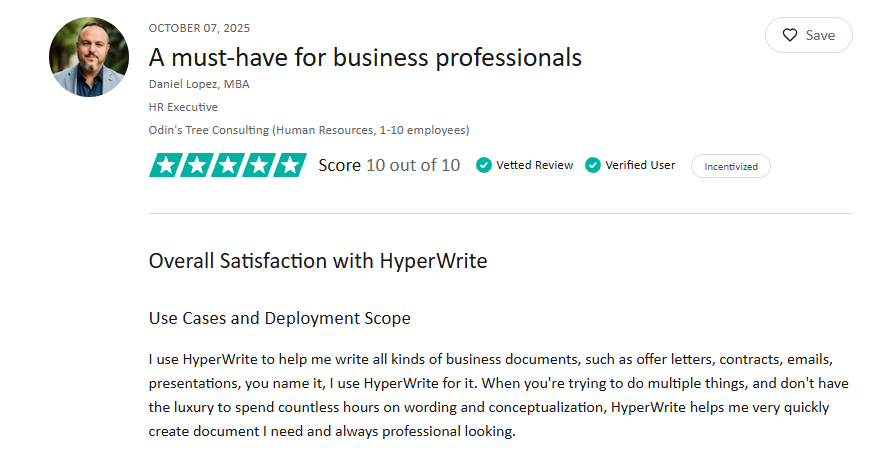
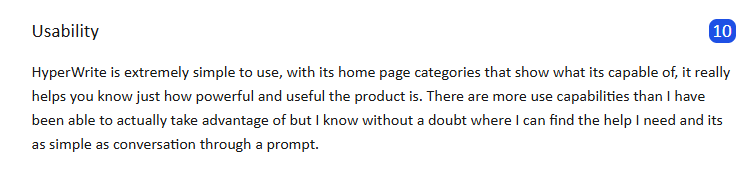
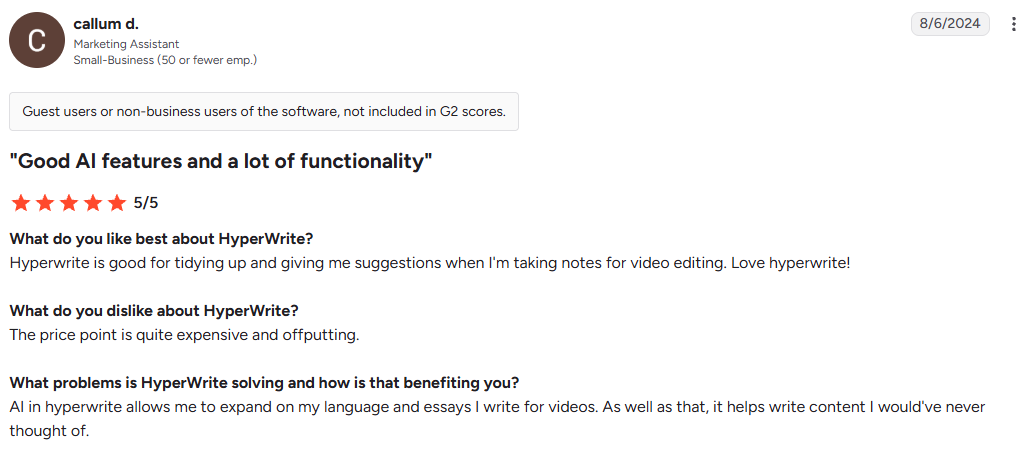
What users say: Reviewers say it's quick to pick up. "HyperWrite is extremely simple to use," an HR executive wrote in a September 2025 TrustRadius review, adding that it’s “a must-have for business professionals.”
Price is the usual complaint, as a marketing assistant noted in an August 2024 G2 review.
Pricing: Free plan with limited monthly credits; Premium from $16 per month billed annually ($19.99 billed monthly).
Best for: teams and professionals who need to write and maintain knowledge base content quickly, in a consistent voice.
The fastest way to feel the difference is to try it on a real workday. Start writing with HyperWrite for free and draft your next SOP or help article in the AI Document Editor, where you can ask the AI for feedback on your draft or have it rework a section in place.
To bring TypeAhead into the tools you already use, add the Chrome extension too.
The AI Layer: How the Built-In Assistants Compare
Most platforms on this list now ship a built-in AI assistant (Obsidian and Logseq, the two personal picks, don't), and knowing what each one actually does helps you compare them past the marketing.
Here's the quick field guide:
- Notion AI answers questions across your workspace, drafts new pages, and summarizes long docs, all inside the editor you already write in.
- Atlassian Rovo (Confluence) handles AI search, page summaries, and drafting across spaces, with the Jira context to back it up.
- Guru Knowledge Agents search your connected tools as well as your cards, and run nightly checks that unverify stale content, so trust stays intact.
- Document360 Eddy AI answers reader questions from your docs and helps writers draft and polish articles.
- ClickUp Brain connects answers across both your docs and your tasks, which is a genuinely different trick.
What It Actually Costs to Get the AI
The AI features above don't always come with the cheapest plan. Here's which plan unlocks each assistant, and what it costs.
What a 10-Person Team Actually Pays
Here's what 10 people pay for the plan that includes the AI, cheapest first:
- Confluence Standard: $71.50 a month billed monthly, or $720 a year billed annually
- Tettra: $100 a month billed monthly, or $960 a year billed annually
- Slab Business: $150 a month billed monthly, or $1,500 a year billed annually
- ClickUp Unlimited plus Brain AI: $160 a month, billed annually
- Notion Business: $200 a month, billed annually
If you can work without AI, a team of 10 or fewer can start for $0, since Confluence and Slab both cover up to 10 users on their free plans.
Every one of these assistants is only as good as the content it's reading. Point any of them at a thin, outdated knowledge base, and you get confident, well-written wrong answers.
How to Keep Your Knowledge Base From Going Stale
Some tools now help you spot outdated pages before your readers do. Here's what each one offers, followed by a routine that works in any of them.
Freshness Features Compared
A Simple Upkeep Routine
- Give every page an owner. A page that belongs to everyone gets updated by no one.
- Set a review date by content type. Pricing, policy, and product pages change fastest, so check them most often. Evergreen how-tos can wait longer.
- Update when something changes. A product change, a question that keeps coming up in Slack, or a spike in support tickets on one topic all mean a page needs work.
- Fix, merge, or retire. Rewrite what's wrong, merge near-duplicate pages, and archive anything nobody needs.
- Use a template for each page type. SOPs, FAQs, and how-tos are easier to keep current when every page of a type follows the same structure.
Final Verdict: The Best Knowledge Management Writing Tools for 2026
Notion is the best all-round starting point for most teams: flexible enough for wikis, docs, and projects in one place, with AI on its Business plan. If your engineers live in Jira, Confluence is the stronger fit, and support teams already running Zendesk should start with Zendesk Knowledge. For a private second brain, Obsidian is the most mature pick.
Whichever tool holds your knowledge, the pages still have to be written and kept current. Try HyperWrite free and refresh your next stale SOP in the AI Document Editor.
Frequently Asked Questions
What are the 5 C's of knowledge management?
The 5 C's of knowledge management are capture, curate, connect, collaborate, and create. Capture documents knowledge, curate organizes and reviews it so it's easy to find, connect links people with content and related material, collaborate shares knowledge across teams, and create generates new knowledge when a need comes up.
What are examples of knowledge management tools?
Examples of knowledge management tools include Notion, Confluence, Guru, Document360, Tettra, Slab, and Zendesk Knowledge for teams, plus Obsidian and Logseq for personal use. Each captures, organizes, and retrieves knowledge, and most now ship an AI assistant that answers from your own content.
What is a knowledge management system (KMS)?
A knowledge management system is the combination of software and process a team uses to capture, store, organize, and retrieve its collective knowledge. The software is the platform, like Confluence or Guru, and the process is how people write, verify, and update what's inside it.
What are the top knowledge management software tools in 2026?
The top knowledge management software tools in 2026 include Notion for all-in-one use, Confluence for large teams, Guru for verified in-workflow answers, Document360 for help centers, and Obsidian for personal knowledge. The right pick depends on team size, audience, and budget.
Do knowledge management tools write content for you?
Most knowledge management tools store and surface content, and many now add AI that drafts and summarizes, though the writing still falls to you. For the actual writing and upkeep, a writing co-pilot like HyperWrite helps you draft, rewrite, and update the articles your knowledge base holds, in your own voice.
How much does knowledge management software cost for a small team?
For a 10-person team, expect roughly $60 to $200 a month on annual billing for a team wiki with AI included, based on the five plans priced above. Teams that can skip AI can start free on Confluence or Slab.
Are there free knowledge management tools?
Yes. Notion, Confluence, Slab, and ClickUp all have free plans, and Obsidian and Logseq are free personal knowledge tools. The catch is AI: most free plans leave it out or offer only a trial, though HyperWrite's free account includes limited monthly AI credits.
Do I need separate tools for internal and customer-facing knowledge?
Not always. Document360 runs private, public, or mixed projects from one account. Many teams still split them, though: an internal wiki like Notion or Confluence for staff, and a help center like Zendesk for customers. If you already run support in Zendesk, its knowledge base is the natural home for customer docs.
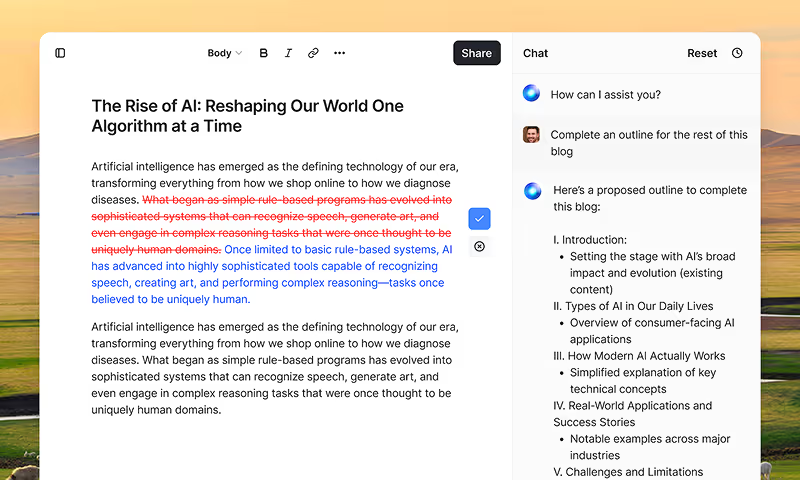
HyperWrite is the AI writing assistant that learns your style. It handles drafting, editing, and researching so you can focus on ideas.
- Autocompletes sentences as you type
- Works inside Google Docs & Gmail
- Adapts to your personal writing style
- 500+ AI tools for any writing task
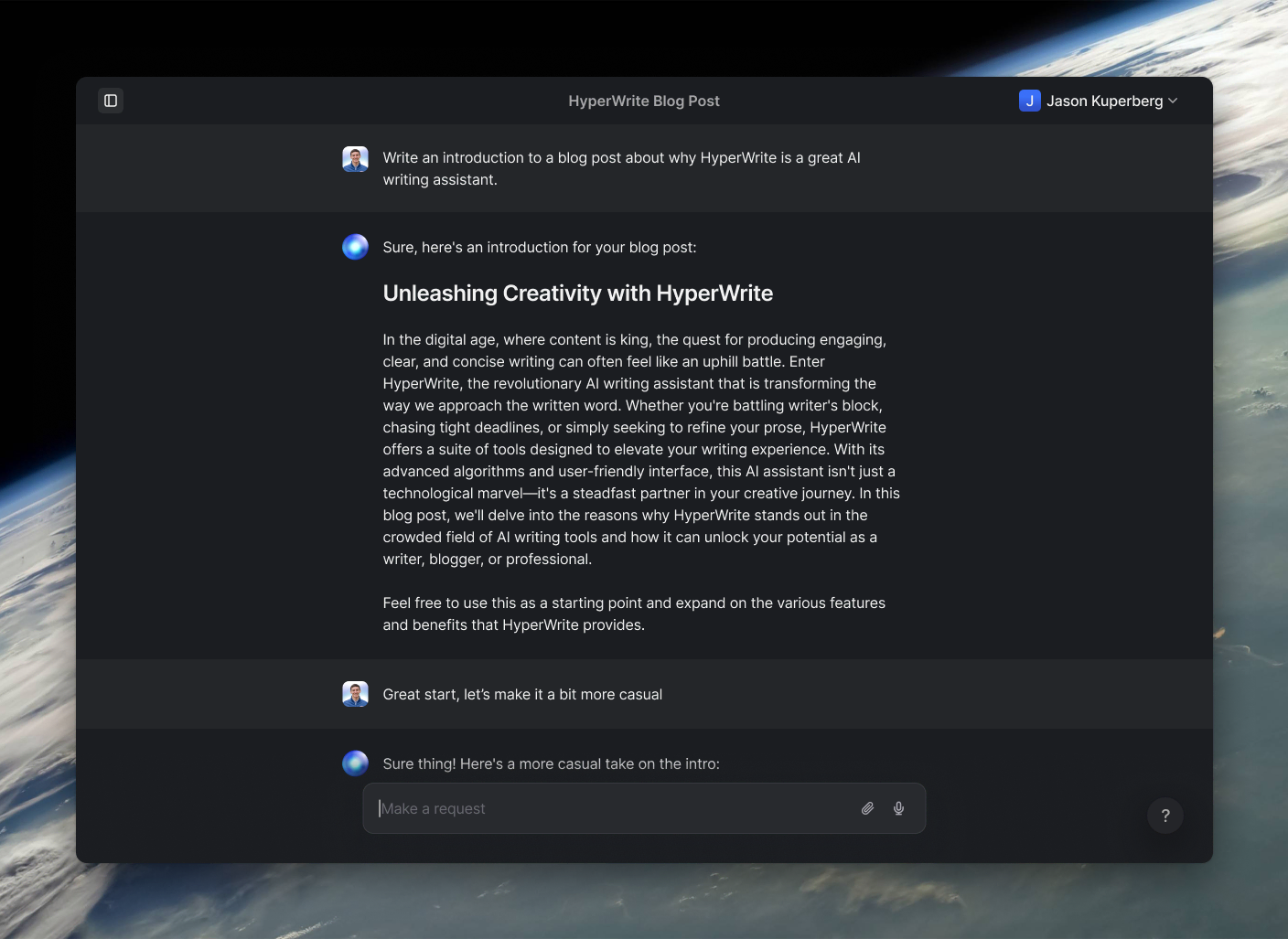
Powerful writing in seconds
Improve your existing writing or create high-quality content in seconds. From catchy headlines to persuasive emails, our tools are tailored to your unique needs.